
GCP-211 · Lesson 11 of 12 · 19 min
Service status and change management
▶ Video coming soon A video version of this lesson is on the way.
Halfway through the course, Owen has a list of more than sixty settings he plans to change before head office moves in February. Sofia makes him stop and look at it as a risk rather than a to-do list. "Every one of these changes affects people who are trying to do their jobs," she says. "And Google changes things too, every week, without asking us. This lesson is about knowing what is happening to the service, deciding when our users see new features, and changing settings in a way we can explain and undo."
Is it Google or is it us?
When users report that mail is slow or Meet calls fail, the first question is whether Google's service has a problem. The Google Workspace Status Dashboard shows the current status of each Workspace service and the history of incidents, with updates as Google investigates. It is public, so it works even when the Admin console does not. Administrators can also subscribe to status updates, and the Admin console shows service status for the account.
If the dashboard shows no incident, the problem is more likely local: a setting, a network, a device or a single user's account. Owen's help desk script for the pilot starts with the dashboard, then checks the user's account and OU in the console, then the relevant log events, then the user's network. Sofia adds one habit: when the help desk sees several similar tickets within an hour, someone checks the dashboard again, because incidents are often posted after users notice them.
The alert center
The alert center, under Security in the Admin console, collects alerts about the account: suspicious sign-in attempts, devices compromised, phishing reported by users, Gmail messages reclassified as malicious after delivery, government-backed attack warnings, problems with a domain's DNS, and Google's own notices about service issues that affect the account. Each alert has a severity, a status and details, and administrators can assign alerts, add notes and change their status as they work on them.
Activity rules and reporting rules add alerts of Birchline's own: for example, an alert when someone is given super admin privileges, when a user downloads more than a set number of Drive files in an hour, or when external sharing settings change. Teresa's team will own security alerts; Owen's team will own service and configuration alerts. Both teams receive email notifications for high-severity alerts.
| Alert or rule | Raised when | Owner at Birchline |
|---|---|---|
| Suspicious login | Google detects an unusual sign-in to an account | Security |
| User-reported phishing | Several users report the same message | Security |
| Super admin granted | A user is given super admin privileges (activity rule) | Security and IT |
| Sharing settings changed | An administrator changes Drive sharing settings (activity rule) | IT |
| Domain or MX problem | Google detects a DNS problem with a domain | IT |
| Service issue notice | Google reports an issue affecting the account | IT |
When users get new features: release tracks
Google releases changes to Workspace continually. Administrators choose a release track that decides when users see them. Rapid Release gives users new features as soon as Google releases them. Scheduled Release delivers them later, at least one week after Rapid Release, on a predictable schedule, which gives administrators time to read about changes and prepare help desk guides and announcements. Google's documentation says Rapid Release cannot be set for a child OU, a group, a secondary domain or a domain alias; the track is a setting for the account, so organizations that want to test new features early often do so in a separate test account.
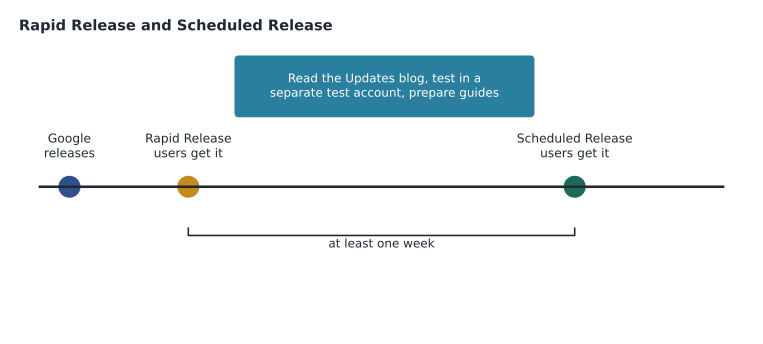
Birchline chooses Scheduled Release. With 1,100 people, many of them store staff with little time for surprises, a predictable delay is worth more than early access. To test new features early, Sofia asks for a small separate test account on a test domain, which the reseller can provide, where IT can try Rapid Release changes before they reach Birchline.
Owen wants to know how much warning each change will give. He takes the dates of three announced Rapid Release launches from the Workspace Updates blog (invented here) and works out when Scheduled Release users would get them at the earliest, using the rule of at least one week later.
from datetime import date, timedelta
rapid = {
    "New Gmail side panel": date(2026, 11, 16),
    "Calendar room check-in": date(2026, 11, 25),
    "Drive sharing dialog update": date(2026, 12, 2),
}
MIN_DELAY = timedelta(weeks=1)
pilot_start = date(2026, 11, 30)
for feature, launched in rapid.items():
    earliest = launched + MIN_DELAY
    before_pilot = "before" if earliest < pilot_start else "after"
print(f"{feature:28} Rapid {launched} Scheduled no earlier than {earliest} ({before_pilot} the pilot starts)")New Gmail side panel Rapid 2026-11-16 Scheduled no earlier than 2026-11-23 (before the pilot starts) Calendar room check-in Rapid 2026-11-25 Scheduled no earlier than 2026-12-02 (after the pilot starts) Drive sharing dialog update Rapid 2026-12-02 Scheduled no earlier than 2026-12-09 (after the pilot starts)
What this code does
The calculation takes the launch dates of three invented feature releases on the Rapid Release track and adds the minimum one-week delay to find the earliest date Scheduled Release users could see each feature. It then compares that date with the pilot's start on November 30, 2026. The output tells Owen which changes the pilot users will meet on their first day and which will arrive during the pilot, so the help desk guide covers the right ones.
The new side panel can reach Birchline's Scheduled Release users from November 23, a week before the pilot starts, so the pilot guide must show the new layout. The other two arrive during the pilot. Owen adds the side panel to the guide and sets a reminder to update it for the room check-in feature, which will change how the room release rule from lesson 4 behaves.
Keeping up with changes
The Workspace Updates blog announces changes with their release dates and the tracks they affect, and Google sends administrators email about significant changes, especially those that need action. The Admin console also shows notices about upcoming changes. Sofia assigns one person each week to read the blog and the admin notices, flag anything that affects Birchline's users or settings, and add it to the weekly IT meeting. It takes about half an hour and prevents most of the "why did this change without warning" tickets.
Changing settings safely
Birchline's change process is light, but it has fixed steps. Each change is recorded in the change log, a Sheet in the IT shared drive, with the setting, the OUs or groups affected, the reason, the planned date, the test result and the person who approved it. Owen classifies changes by impact.
| Change type | Examples | Process |
|---|---|---|
| Standard | Adding a resource, adding a user to a configuration group | Do it; note it in the change log |
| Normal | A new Gmail rule, a new service for an OU, a Marketplace allowlist entry | Test in /Pilot or a test configuration group, approve, announce if users notice, apply |
| Major | MX records, sharing settings for many OUs, release track, Gemini stages | Written plan with rollback, approval by Sofia and Teresa, communication to staff, change window |
| Emergency | Blocking a malicious app, quarantining an active phishing wave | Act, then record and review afterwards |
The test step uses the tools from earlier lessons: a pilot OU or configuration group to apply the change to a few people first, test accounts in each affected OU, the email log search for mail changes and the audit logs to confirm what happened. Every major change has a rollback: the exact previous setting, recorded before the change, and the steps to restore it. For MX records, the rollback is the old records and the TTL plan from lesson 1; for a sharing change, it is a screenshot and a note of each OU's previous value.
Audit logs: what changed and who changed it
The Admin log events in the console's reporting and investigation pages record each change an administrator makes: the setting, the old and new values where available, the OU, the administrator and the time. When a setting seems to have changed by itself, the admin log usually shows who changed it and when. Other log events cover Gmail, Drive, Calendar, Meet, Chat, devices, OAuth tokens and sign-ins, and they are the evidence base for the alert rules above. Log retention periods differ by log type and edition, and some customers export logs to BigQuery for longer analysis, which Ravi's team will set up later using the BigQuery work from the Google Cloud courses.
Owen tries the admin log on his own changes from the pilot preparation. Filtering by his name shows 74 events in two weeks, including two he had forgotten: turning on early access apps for IT, and changing the default for Meet host management in /Pilot. Both were intended, but neither was in the change log, which is exactly the gap the log exists to catch. He adds them.
Getting help from Google
Some problems need Google. Administrators can contact Workspace support from the Admin console's help menu, and Birchline's reseller provides first-line support under its contract, with an escalation path to Google. A good support case saves days. Owen's template for the help desk asks for the affected service and users, when the problem started, what changed recently (from the change log and admin log), the exact error messages and screenshots, the results of the Status Dashboard check, and for mail problems the message headers from Show original and the email log search results. Google support may also ask for a support PIN or verification that the person opening the case is an administrator, which is one reason only the IT team's admin accounts open cases.
Watching how services are used
Change management also means noticing when a setting is not doing what was intended. The Admin console's reports show usage of each service over time: active users of Gmail, Drive files created and shared externally, Meet calls and their quality, Chat messages, Gemini use and more, by OU where available. Owen sets a monthly review of a few numbers for the pilot and, later, each wave: active users per service, external sharing events, Meet calls with poor quality, and help desk tickets per hundred users. A sudden change in any of them is a prompt to look at recent changes in the change log. For example, if external sharing events from Marketing drop to zero the week after a settings change, something may have been switched off by accident even before users complain.
Communicating changes
Users accept changes they were told about. For each normal or major change that users will notice, the change log names the communication: a line in the weekly IT update for small changes, a message to affected staff for larger ones, an intranet article and a help desk guide for major ones. For the pilot, Sofia keeps a single page, "What's different in Workspace this week", that pilot users can check before calling the help desk.
Common mistakes
MistakeAssuming an outage is local without checking the status dashboard.
InsteadCheck the Workspace Status Dashboard first, then the account, logs and network.
MistakeExpecting to put one OU on Rapid Release for testing.
InsteadThe release track applies to the account; test early features in a separate test account.
MistakeChanging settings directly in production because the change is small.
InsteadTest on a pilot OU or configuration group, record it and know the rollback.
MistakeRelying on memory for who changed what.
InsteadUse the admin log events and keep the change log current.
Worked problem
A setting that changed by itself
On a Thursday, three Marketing users report that they can no longer share files with the photography agency. Nobody remembers changing anything. How does Owen find out what happened and fix it?
Show solution
- Check the Workspace Status Dashboard: no Drive incident is reported, so the cause is probably local.
- Test with a Marketing test account: sharing with the agency's domain is blocked, confirming the users' report.
- Open the admin log events, filter by Drive and Docs settings for the last week: on Wednesday, an administrator changed /Head office/Marketing's external sharing from on to inherit, so Marketing now follows /Head office, which allows only allowlisted domains.
- Check the allowlist: the agency's domain was removed in the same change session by mistake.
- Restore the previous values using the change log's recorded settings, retest, record the incident and the fix, and add an activity rule that alerts when sharing settings change.
Answer: The admin log showed a sharing change and an allowlist edit; restoring the recorded values fixed it, and an activity rule will flag the next change.
Summary and key terms
- Check the Google Workspace Status Dashboard first when users report problems; it is public and shows incidents and history.
- The alert center collects security and service alerts, and activity rules add the organization's own.
- Rapid Release gives users features immediately; Scheduled Release delivers them at least a week later, predictably.
- The release track is set for the account, not per OU or group, so test early features in a separate test account.
- Follow the Workspace Updates blog and admin notices.
- Classify changes, test them on a pilot OU or configuration group, record them in a change log with a rollback, and communicate them.
- Admin log events show who changed what and when.
- Workspace Status Dashboard
- Google's public page showing the status and incident history of Workspace services.
- Alert center
- The Admin console page that collects alerts about security and service issues.
- Activity rule
- A rule that raises an alert when specified activity appears in the logs.
- Rapid Release
- A release track that gives users new features as soon as Google releases them.
- Scheduled Release
- A release track that delivers features at least a week after Rapid Release, on a predictable schedule.
- Workspace Updates blog
- Google's blog announcing Workspace changes and their release dates.
- Admin log events
- Audit records of changes made by administrators.
- Rollback
- The recorded steps to return a setting to its previous value.
Practice problems
Work each problem on paper first, then reveal the answer to check.
Why does Birchline choose Scheduled Release?
Show answer
A predictable delay gives time to prepare guides and announcements for 1,100 people, many with little time for surprises.
How can Birchline test new features early if Rapid Release cannot be set for one OU?
Show answer
In a separate test account on a test domain set to Rapid Release.
What did Owen find when he filtered the admin log by his own name?
Show answer
Two intended changes that were missing from the change log, which he then recorded.
Lesson quiz · 5 questions
Score 60% or more to complete this lesson.
Create a free account to save your progress, take quizzes and earn a certificate.