
AWS-104 · Lesson 10 of 12 · 19 min
AWS Trusted Advisor and AWS Health
▶ Video coming soon A video version of this lesson is on the way.
Support plans answer the question "who do we call?" Two other AWS tools answer the questions that come before the call: "what could go wrong?" and "is AWS itself having a problem?" On November 12, Gwen shows Mateo AWS Trusted Advisor, which inspects an account and recommends improvements, and AWS Health, which reports events in AWS that affect your resources. Both appear in the exam guide as tools that help manage environments and optimize cost.
What Trusted Advisor does
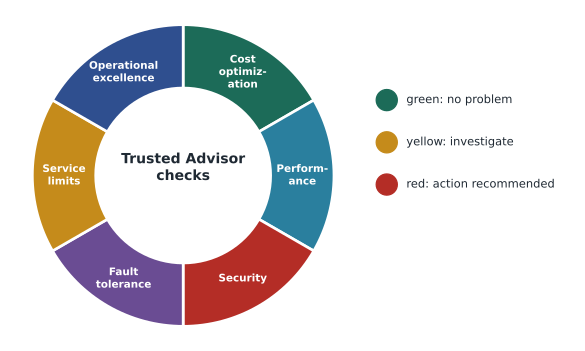
AWS Trusted Advisor continuously checks your AWS environment against best practices that AWS has learned from many customers, and produces a list of checks, each marked as fine (green), worth investigating (yellow) or action recommended (red). Each check explains what it found, why it matters and what to do. Trusted Advisor does not change anything by itself.
Checks are grouped into categories that echo the pillars of the AWS Well-Architected Framework.
| Category | What its checks look for | Example |
|---|---|---|
| Cost optimization | Resources that cost money without delivering value, and missed savings | Idle or underused EC2 instances, unattached EBS volumes, idle load balancers, commitment opportunities |
| Performance | Configurations that may limit speed | Overused instances, volumes near their throughput limits |
| Security | Settings that weaken security | Security groups open to the whole internet on sensitive ports, root user without MFA, public S3 buckets |
| Fault tolerance | Single points of failure and missing backups | Databases in only one Availability Zone, EBS volumes without recent snapshots |
| Service limits | Usage approaching service quotas | An account close to its limit for a resource type |
| Operational excellence | Practices that make operations safer | Logging and monitoring settings |
What each plan gets
The set of checks depends on the support plan.
- Basic Support: all service limit checks and a selected set of security and fault tolerance checks, often called the core checks, such as open security group ports, root account MFA and public S3 bucket permissions.
- Business Support+, Enterprise Support and Unified Operations: the full set of checks in every category, automatic refreshing of results, programmatic access through the Trusted Advisor API, and events in Amazon EventBridge so results can trigger automation.
- Enterprise Support and Unified Operations: also Trusted Advisor Priority, a prioritized list of recommendations curated by the account team.
Mateo opens Trusted Advisor in the sandbox, which is on Basic Support. The core security checks show two red items: the root user has no multi-factor authentication yet, and a security group from a tutorial allows remote desktop from anywhere. Neither is a cost item, but both matter. He fixes them on the spot. The cost optimization checks that would have flagged the idle server and the unattached volume are not in the core set, which is one more reason production will run on Business Support+.
Using Trusted Advisor for cost
For cost, Trusted Advisor's checks overlap with the recommendations in Cost Explorer, Compute Optimizer and Cost Optimization Hub (lessons 5 and 6). In practice Gwen uses them together. Trusted Advisor gives a quick, broad view across categories; Cost Optimization Hub collects savings recommendations with estimated amounts; Compute Optimizer gives detailed sizing suggestions; and Cost Explorer shows whether the changes actually lowered the bill. In an organization, Trusted Advisor results can be viewed across accounts from the management account with organizational view.
# Illustrative: turning Trusted Advisor-style findings into a savings list.
findings = [("Idle test instance", "cost", 280.00), ("Unattached 1 TB volume", "cost", 80.00),
            ("Idle NAT gateway", "cost", 33.00), ("Root user without MFA", "security", 0.0),
            ("Open remote desktop port", "security", 0.0)]
cost_items = [f for f in findings if f[1] == "cost"]
for name, cat, usd in sorted(cost_items, key=lambda f: -f[2]):
    print(f"{name:26} {usd:7.2f} USD a month")
print(f"{'Total possible saving':26} {sum(f[2] for f in cost_items):7.2f} USD a month")
print("Security items to fix first:", [f[0] for f in findings if f[1] == "security"])Idle test instance 280.00 USD a month Unattached 1 TB volume 80.00 USD a month Idle NAT gateway 33.00 USD a month Total possible saving 393.00 USD a month Security items to fix first: ['Root user without MFA', 'Open remote desktop port']
What this code does
It sorts Trusted Advisor-style findings into cost items and security items. The cost items are listed from the largest monthly saving down and totaled, and the security items are listed separately to be fixed first. The output is a short action list: about 393 dollars a month of waste and two security problems.
AWS Health
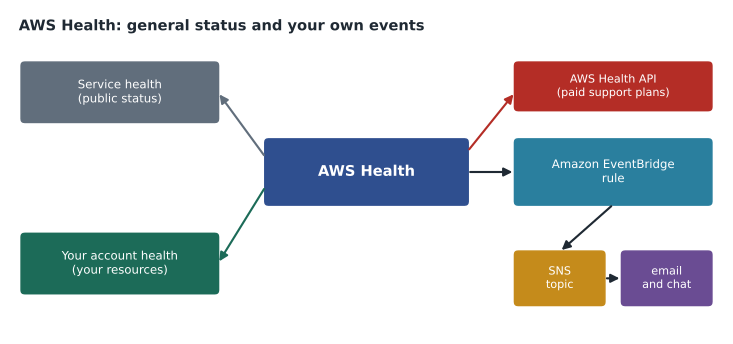
AWS Health tells you about events in AWS that may affect your resources: an operational problem with a service in a Region, scheduled maintenance on the hardware under one of your instances, a required change such as an engine version reaching end of support, or an issue with your account. It is the authoritative source for how AWS events affect you.
| Part of AWS Health | What it shows | Available to |
|---|---|---|
| AWS Health Dashboard, service health | The general status of AWS services in each Region, for everyone | Anyone, no sign-in needed |
| AWS Health Dashboard, your account health | Events that affect your own resources and accounts, with affected resource IDs and guidance | Every AWS customer, in the console |
| AWS Health API | Programmatic access to the same events for automation and integration | Business Support+, Enterprise Support and Unified Operations |
| Amazon EventBridge integration | Health events delivered as events that can trigger notifications or automation | All customers |
The difference between the two dashboard views matters. The public service health page might show that a service in a Region is fine overall, while your account health shows that one of your specific instances is scheduled for retirement next week because its underlying hardware is degraded. The second view is personalized, so it is the one the team watches.
Gwen sets up an EventBridge rule in the sandbox that sends AWS Health events to an SNS topic, which emails the IT list. In production, the same rule will post to the on-call chat channel, so Mateo learns about a scheduled maintenance event before it surprises a clinic.
Reporting abuse: the AWS Trust and Safety team
Sometimes the problem is someone else's AWS resource: a website hosted on AWS that is sending spam, hosting malware, attempting to break into your systems or infringing copyright. The AWS Trust and Safety team handles reports of abuse involving AWS resources. Anyone can report suspected abuse through the AWS abuse reporting form or the abuse contact address, with details such as the IP address, time and logs. Trust and Safety also contacts AWS customers whose resources appear to be involved in abuse, for example when an instance has been compromised and is attacking others, and may ask them to fix it.
Hannah Weiss adds this to Cascade Ridge's security runbook: if logs show attacks against BookVet coming from an AWS IP address, report it to Trust and Safety; if AWS ever reports that one of Cascade Ridge's own resources is involved in abuse, treat it as a security incident at once.
Bringing it together
By the end of the session, Mateo has a short list for each account. For the sandbox: core Trusted Advisor checks reviewed and fixed, Health events routed to email, a budget and anomaly monitor in place. For production, as plans: Business Support+ for the full Trusted Advisor checks and the Health API, Health events to the on-call channel, Trusted Advisor and Cost Optimization Hub reviewed in the monthly cost meeting, and Trust and Safety in the security runbook.
Service limits and quotas
Every AWS account has service quotas, also called limits: the maximum number of a resource, or the maximum rate of requests, allowed by default in each Region. Quotas protect both AWS and customers, for example from a runaway script launching thousands of instances. Trusted Advisor's service limit checks warn when usage approaches a quota, and Service Quotas in the console shows current values and lets you request increases. For Cascade Ridge, the relevant quotas are modest, but Gwen checks the ones that would matter during cutover, such as the number of running instances of a type and Elastic IP addresses, and requests increases weeks in advance.
# Illustrative: flag quotas above a warning level.
quotas = {"Running on-demand standard instances (vCPUs)": (28, 32),
          "Elastic IP addresses": (3, 5),
          "VPCs per Region": (2, 5)}
for name, (used, limit) in quotas.items():
    level = used / limit
    flag = "request increase" if level >= 0.8 else "ok"
print(f"{name:46} {used:3d} of {limit:3d} {flag}")Running on-demand standard instances (vCPUs) 28 of 32 request increase Elastic IP addresses 3 of 5 ok VPCs per Region 2 of 5 ok
What this code does
It compares how much of three service quotas are in use and flags any at 80 in 100 of the limit or higher. Each line shows the amount used, the limit and whether to request an increase. The instance vCPU quota is nearly full and needs an increase before more servers can launch.
Trusted Advisor across accounts
In an organization, the management account can turn on organizational view for Trusted Advisor and see check results for all member accounts in one report. Gwen plans to use it in the monthly cost review: one report shows idle resources, open ports and missing backups across production, development and the sandbox. Results can also be delivered through EventBridge to automation, for example to open a ticket whenever a red security check appears.
Reading a Health event
An AWS Health event has a few standard parts: the service and Region, the event type (an issue, a scheduled change or an account notification), its status, the affected resources in your account, a description and, for scheduled changes, the date by which you must act. A typical scheduled change might say that an instance's underlying hardware will be retired on a given date and that stopping and starting the instance before then moves it to healthy hardware. Acting early, in a planned window, is far better than letting the change happen on AWS's date at a busy hour.
Status pages and your own monitoring
AWS Health is not a replacement for monitoring your own systems. It reports AWS events; it does not know whether Cascade Ridge's own code has a bug. Amazon CloudWatch alarms on the application, the database and the load balancer will usually notice a problem first. When they do, the AWS Health account view is the quickest way to answer the next question: is this us, or is it AWS?
Mateo writes the order down for the on-call guide: first check Cascade Ridge's own alarms and recent changes; then check the AWS Health account view; then, if AWS is involved and the system is down, open a support case at the right severity. The order saves time, because most problems turn out to be closer to home than to AWS.
Worked problem
Which tool answers the question?
Mateo faces four questions: (1) Is there a problem with Amazon S3 in a Region right now? (2) Is one of our own instances scheduled for maintenance? (3) Do we have security groups open to the whole internet? (4) Someone on another AWS account is attacking our website. Which tool or team does he use for each?
Show solution
- General service status: the AWS Health Dashboard service health page.
- Events for our own resources: AWS Health, your account health.
- Configuration best-practice gaps: AWS Trusted Advisor.
- Abuse by another AWS resource: report it to the AWS Trust and Safety team.
Answer: Service health, account health, Trusted Advisor and Trust and Safety respectively.
Common mistakes
MistakeTrusted Advisor fixes the problems it finds.
InsteadTrusted Advisor recommends; people or automation make the changes.
MistakeEvery plan gets every Trusted Advisor check.
InsteadBasic Support gets service limit checks and a core set of security and fault tolerance checks; the full set needs Business Support+ or higher.
MistakeThe public service health page shows events for my own resources.
InsteadEvents for your own resources appear in your account health view, not on the public page.
MistakeAbuse from an AWS IP address should be reported to AWS Support.
InsteadAbuse involving AWS resources is reported to the AWS Trust and Safety team.
Summary and key terms
- AWS Trusted Advisor checks an environment against best practices in six categories: cost optimization, performance, security, fault tolerance, service limits and operational excellence, marking results green, yellow or red.
- Basic Support includes all service limit checks and core security and fault tolerance checks; Business Support+ and above get every check, the Trusted Advisor API and EventBridge events, and Enterprise Support and above add Trusted Advisor Priority.
- AWS Health reports AWS events: the public service health view shows general status, your account health shows events affecting your resources, the AWS Health API is available on paid plans, and EventBridge can route events to people and automation.
- The AWS Trust and Safety team handles reports of abuse involving AWS resources.
- AWS Trusted Advisor
- A service that checks an AWS environment against best practices and recommends improvements
- Core checks
- The Trusted Advisor checks available with Basic Support
- Trusted Advisor Priority
- A prioritized list of recommendations curated by the account team for Enterprise-level customers
- AWS Health
- A service that reports AWS events affecting your resources and accounts
- AWS Health Dashboard
- The console view of service health and your account health
- AWS Health API
- Programmatic access to AWS Health events, available on paid support plans
- AWS Trust and Safety
- The AWS team that handles reports of abuse involving AWS resources
Practice problems
Work each problem on paper first, then reveal the answer to check.
Name the six Trusted Advisor categories.
Show answer
Cost optimization, performance, security, fault tolerance, service limits and operational excellence.
What does the AWS Health Dashboard's account view show that the public service health page does not?
Show answer
Events that affect your own resources, with resource IDs and guidance.
Which support plans include programmatic access to the AWS Health API?
Show answer
Business Support+, Enterprise Support and Unified Operations.
Who should you contact about spam coming from an AWS-hosted server?
Show answer
The AWS Trust and Safety team.
Lesson quiz · 5 questions
Score 60% or more to complete this lesson.
Create a free account to save your progress, take quizzes and earn a certificate.