
PYTH-120 · Lesson 5 of 12 · 27 min
Working with files and directories
▶ Video coming soon A video version of this lesson is on the way.
Most IT chores come down to files: finding them, renaming them, sorting them into folders, copying them somewhere safe and removing them when they are no longer needed. Kai's roast logs need sensible names, the till's daily exports need sorting into monthly folders, and old exports need archiving before the laptop's disk fills up. This lesson covers the Python tools for all of it: pathlib for paths and folders, shutil for copying, moving and archiving, and the habits that keep file scripts from destroying the data they are meant to protect.
The listings and exercises on this page work on a small, temporary file system that lives inside your browser, so feel free to experiment: create folders, move files and delete things. Each exercise builds its own sample files before your code runs, and reloading the page clears everything.
Paths as objects with pathlib
The pathlib module represents a file or folder path as a Path object instead of a plain string. Paths are joined with the / operator, which uses the right separator on every operating system, and they have properties for the parts you usually need: name is the last part, such as till-2026-11-03.csv; stem is the name without its extension; suffix is the extension, such as .csv; and parent is the folder that contains it. Methods answer questions about the real file system: exists, is_file and is_dir check what is there, and stat returns details such as size and modification time.
from pathlib import Path

base = Path("ridgeline")
f = base / "till" / "till-2026-11-03.csv"
print(f)
print("name:", f.name, "| stem:", f.stem, "| suffix:", f.suffix)
print("parent:", f.parent)
print("as a zip:", f.with_suffix(".zip").name)

f.parent.mkdir(parents=True, exist_ok=True)      # create ridgeline/till
f.write_text("time,item,qty,price\n08:02,latte,2,5.25\n", encoding="utf-8")
print("exists now?", f.exists(), "| size:", f.stat().st_size, "bytes")ridgeline/till/till-2026-11-03.csv name: till-2026-11-03.csv | stem: till-2026-11-03 | suffix: .csv parent: ridgeline/till as a zip: till-2026-11-03.zip exists now? True | size: 39 bytes
Two arguments to mkdir deserve to be memorized. parents=True creates any missing folders along the way, like mkdir -p in Bash, and exist_ok=True makes it harmless to call mkdir on a folder that already exists, which keeps scripts idempotent. Path objects also have read_text and write_text for quick whole-file reading and writing; for line-by-line work, open the path with a with block exactly as in PYTH-101.
| Want to know or do | pathlib | Bash equivalent |
|---|---|---|
| Join folders and a file name | Path("a") / "b" / "c.txt" | a/b/c.txt |
| File name, stem, extension | .name, .stem, .suffix | basename, parameter tricks |
| Containing folder | .parent | dirname |
| Does it exist? Is it a file? | .exists(), .is_file(), .is_dir() | test -e, -f, -d |
| Create a folder and its parents | .mkdir(parents=True, exist_ok=True) | mkdir -p |
| List a folder | .iterdir() | ls |
| Find by pattern | .glob("*.csv"), .rglob("*.log") | ls *.csv, find -name |
| Size and modified time | .stat().st_size, .stat().st_mtime | stat, ls -l |
| Rename or move | .rename(new), .replace(new) | mv |
Listing and finding files
A folder's contents come from iterdir, which yields a Path for every entry, files and folders alike. To find files by pattern, glob takes a wildcard pattern such as *.csv and matches names in one folder; rglob does the same through every subfolder, like find in Bash. The order of results depends on the operating system, so always sort them when the order matters, for example when a report should list files by date.
from pathlib import Path

inbox = Path("exports")
inbox.mkdir(exist_ok=True)
for name in ["till-2026-11-02.csv", "till-2026-11-01.csv", "notes.txt", "till-2026-11-03.csv"]:
    (inbox / name).write_text("data\n", encoding="utf-8")
(inbox / "old").mkdir(exist_ok=True)
(inbox / "old" / "till-2026-10-31.csv").write_text("data\n", encoding="utf-8")

print("everything:", sorted(p.name for p in inbox.iterdir()))
print("CSV here:  ", sorted(p.name for p in inbox.glob("*.csv")))
print("CSV anywhere:", sorted(str(p.relative_to(inbox)) for p in inbox.rglob("*.csv")))
print("files only:", sorted(p.name for p in inbox.iterdir() if p.is_file()))everything: ['notes.txt', 'old', 'till-2026-11-01.csv', 'till-2026-11-02.csv', 'till-2026-11-03.csv'] CSV here: ['till-2026-11-01.csv', 'till-2026-11-02.csv', 'till-2026-11-03.csv'] CSV anywhere: ['old/till-2026-10-31.csv', 'till-2026-11-01.csv', 'till-2026-11-02.csv', 'till-2026-11-03.csv'] files only: ['notes.txt', 'till-2026-11-01.csv', 'till-2026-11-02.csv', 'till-2026-11-03.csv']
relative_to turns a full path into one relative to a starting folder, which keeps reports short and readable. The last line shows the usual way to skip folders: test each entry with is_file. Patterns follow shell rules: * matches any run of characters within a name, ? matches one character, and square brackets match a set, so till-2026-1[01]-*.csv matches the October and November exports.
Try it yourself
List the CSV files
A folder called exports has been created with a mix of files and a subfolder. Write a function csv_files(folder) that returns a sorted list of the names (just the names, as strings) of the .csv files directly inside folder, not in subfolders.
For the sample folder the result is ["till-2026-11-01.csv", "till-2026-11-02.csv"].
from pathlib import Path

def csv_files(folder):
    return []

print(csv_files("exports"))
Renaming and organizing
Renaming is the chore Kai cares about most. Each export from the roaster's software is called something like export (3).csv, and its first data row holds the roast date and batch number. A Python script can read that row and rename the file to roast_2026-11-03_B-0412.csv, which sorts by date in any folder listing. Path.rename moves or renames a file. If a file with the new name already exists, rename quietly replaces it on Linux and macOS but raises an error on Windows, while Path.replace always overwrites. Either way, when a file must not be overwritten, check whether the target exists before renaming.
import csv
from pathlib import Path

incoming = Path("incoming")
incoming.mkdir(exist_ok=True)
samples = {"export (3).csv": "2026-11-03,B-0412,RC-101", "export (4).csv": "2026-11-03,B-0413,RC-106"}
for name, row in samples.items():
    (incoming / name).write_text("day,batch,sku\n" + row + "\n", encoding="utf-8")

for f in sorted(incoming.glob("export*.csv")):
    with f.open(encoding="utf-8", newline="") as fh:
        first = next(csv.DictReader(fh))
    target = f.with_name(f"roast_{first['day']}_{first['batch']}.csv")
    if target.exists():
        print("skip", f.name, "(target exists)")
        continue
    f.rename(target)
    print(f.name, "->", target.name)
print(sorted(p.name for p in incoming.iterdir()))export (3).csv -> roast_2026-11-03_B-0412.csv export (4).csv -> roast_2026-11-03_B-0413.csv ['roast_2026-11-03_B-0412.csv', 'roast_2026-11-03_B-0413.csv']
Run the listing a second time: it recreates the two sample exports, but this time the renamed logs already exist, so the script skips both instead of overwriting them. That check is what makes the script safe to run again. The check for an existing target protects against two exports describing the same batch, which would otherwise silently overwrite one log with another. Note also that with_name builds the new path in the same folder as the old one, so the rename never moves a file somewhere unexpected.
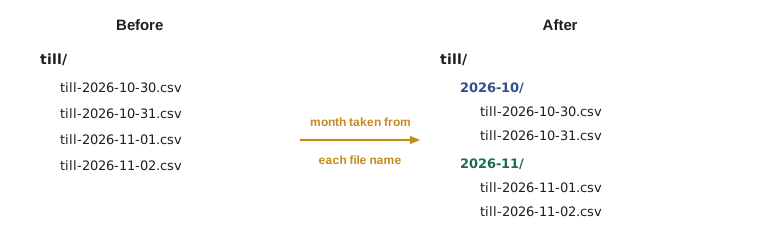
Sorting files into folders by date is the next common job. Anita's till exports pile up in one folder; a script can move each into a folder for its month, such as 2026-11, creating the folder when needed. The month comes from the file name, which is more reliable than the file's modification time, since copying a file can change that time.
Try it yourself
Sort exports into monthly folders
A folder till holds files named like till-2026-10-31.csv. Write a function organize(folder) that moves each file matching till-YYYY-MM-DD.csv into a subfolder of folder named YYYY-MM, creating it when needed, and returns the number of files moved. Leave any other files where they are.
For the sample folder, three files are moved and notes.txt stays put.
from pathlib import Path

def organize(folder):
    moved = 0
    return moved

print(organize("till"))
Copying, moving, archiving and deleting with shutil
pathlib handles single paths; the shutil module, short for shell utilities, handles the heavier operations. shutil.copy2 copies a file along with its modification time, which matters for backups. shutil.copytree copies a whole folder tree, and with dirs_exist_ok=True it can update an existing copy. shutil.move moves files or folders, even between disks. shutil.make_archive builds a zip or compressed tar file from a folder in one call. And shutil.rmtree deletes a folder and everything inside it, permanently and without asking, which is why scripts should use it with great care.
import shutil
from pathlib import Path

src = Path("till_today")
src.mkdir(exist_ok=True)
for day in ("01", "02", "03"):
    (src / f"till-2026-11-{day}.csv").write_text("time,item\n", encoding="utf-8")

backup = Path("backup") / "2026-11-03"
backup.mkdir(parents=True, exist_ok=True)
for f in sorted(src.glob("*.csv")):
    shutil.copy2(f, backup / f.name)            # copy with timestamps
print("backed up:", sorted(p.name for p in backup.iterdir()))

archive = shutil.make_archive("till-2026-11", "zip", root_dir=src)
print("archive:", Path(archive).name, Path(archive).stat().st_size > 0)

used = sum(p.stat().st_size for p in src.rglob("*") if p.is_file())
print("bytes in till_today:", used)backed up: ['till-2026-11-01.csv', 'till-2026-11-02.csv', 'till-2026-11-03.csv'] archive: till-2026-11.zip True bytes in till_today: 30
Deleting deserves its own rules, because it is the one file operation that cannot be undone. A script that removes files should build the list of what it will delete first, print or log it, and only then delete, ideally with a dry-run option that stops after the list. It should delete by explicit pattern inside a known folder, never by a path built from a variable that might be empty, and it should refuse to run if the folder does not look as expected. Lesson 11 turns these rules into a reusable safe-delete function.
Disk space is the usual reason for deleting, and a script can measure it first. Path.stat().st_size gives each file's size, and summing over rglob gives a folder's total. shutil.disk_usage reports the total, used and free space of the whole disk that holds a path, which is the basis of the low-space alerts in lesson 8.
Try it yourself
Total size by extension
A folder shared has been filled with files of several types, including some in subfolders. Write a function sizes_by_suffix(folder) that walks the whole tree and returns a dictionary mapping each file extension in lower case (such as .csv) to the total number of bytes in files with that extension. Ignore folders, and files with no extension.
For the sample, .csv files total 30 bytes and .pdf files 25 bytes.
from pathlib import Path

def sizes_by_suffix(folder):
    totals = {}
    return totals

print(sizes_by_suffix("shared"))
Finding files by age
Many file chores depend on age: archive exports older than three months, delete temporary files older than a week, warn when the newest backup is more than a day old. A file's modification time is available as stat().st_mtime, a number of seconds since 1 January 1970, the same kind of value time.time() returns. Subtracting the two gives a file's age in seconds, and dividing by 86,400, the number of seconds in a day, gives days. For readable reports, datetime.fromtimestamp turns the number into a date.
import os
from datetime import datetime
from pathlib import Path

now = datetime(2026, 11, 3, 12, 0).timestamp()      # a fixed "now" keeps the output the same
folder = Path("tmp_exports")
folder.mkdir(exist_ok=True)
for name, age in [("old-report.csv", 120), ("last-month.csv", 35), ("today.csv", 0)]:
    p = folder / name
    p.write_text("x\n", encoding="utf-8")
    os.utime(p, (now - age * 86400, now - age * 86400))     # pretend the file is this old

for p in sorted(folder.iterdir(), key=lambda p: p.stat().st_mtime):
    days = (now - p.stat().st_mtime) / 86400
    when = datetime.fromtimestamp(p.stat().st_mtime).strftime("%Y-%m-%d")
    label = "archive" if days > 90 else "keep"
print(f"{p.name:<16}{days:6.0f} days ({when}) {label}")old-report.csv 120 days (2026-07-06) archive last-month.csv 35 days (2026-09-29) keep today.csv 0 days (2026-11-03) keep
The listing uses os.utime to give each sample file an artificial age, which is also a handy trick for testing age-based scripts without waiting months. On a real system, remember the caution from earlier in the lesson: copying, restoring from backup or editing a file can reset its modification time, so when a date is part of the file name, as with Ridgeline's exports, the name is the more trustworthy guide.
Worked problem
Planning the till archive script
The till laptop's export folder holds two years of daily CSV files. Theo wants files older than three months zipped into one archive per month, then removed from the laptop. Plan the script.
Show solution
- List till-*.csv files with glob and parse the year and month from each name; skip names that do not match.
- Group the files by month in a dictionary, and keep only months that ended more than three months ago.
- For each old month, copy its files into a temporary folder and call shutil.make_archive to create till-YYYY-MM.zip in the archive folder.
- Open the zip with zipfile and check that it lists every file before deleting anything.
- Delete the originals only after the check, log each month archived, and offer a --dry-run option that stops after printing the plan.
Answer: Group, archive, verify, then delete: the deletion is the last step and only happens after the archive is proven complete.
Common mistakes
MistakeBuilding paths by joining strings with slashes.
InsteadUse Path objects and the / operator so paths work on every operating system.
MistakeAssuming glob returns files in alphabetical order.
InsteadSort the results whenever the order matters.
MistakeAssuming rename never overwrites an existing file.
InsteadOn Linux it does; check target.exists() before renaming.
MistakeRelying on modification times to date files.
InsteadTake dates from the file name or contents where possible; copies change times.
MistakeCalling shutil.rmtree on a path built from a variable that might be wrong.
InsteadCheck the folder exists and looks as expected, and list what will go before deleting.
MistakeDeleting originals before checking the archive.
InsteadVerify the archive first, then delete.
Summary and key terms
- pathlib represents paths as objects; / joins them, and name, stem, suffix and parent give their parts.
- mkdir(parents=True, exist_ok=True) creates folders safely and idempotently.
- iterdir lists a folder, glob matches a pattern in one folder and rglob searches a whole tree; sort the results.
- rename and replace move files; check for an existing target before renaming.
- shutil copies, moves, archives and deletes; copy2 keeps timestamps and make_archive builds zip files.
- Deletion is permanent: list first, offer a dry run, verify archives, then delete.
- path
- The location of a file or folder in the file system.
- pathlib
- The standard module that represents paths as objects.
- absolute path
- A path that starts from the root of the file system.
- relative path
- A path measured from the current working directory.
- glob
- A wildcard pattern such as *.csv for matching file names.
- stem
- A file name without its extension.
- suffix
- A file's extension, including the dot.
- shutil
- The standard module for copying, moving, archiving and deleting files and folders.
- archive
- A single file, such as a zip, that holds many files.
- recursive
- Applying to a folder and all the folders inside it.
Practice problems
Work each problem on paper first, then reveal the answer to check.
What is Path("logs/shop-2026-11-03.log").stem?
Show answer
shop-2026-11-03
Write the pathlib call that creates the folder backup/2026/11 and any missing parents.
Show answer
Path("backup/2026/11").mkdir(parents=True, exist_ok=True)
How do you find every .log file under /var/log/ridgeline, including subfolders?
Show answer
Path("/var/log/ridgeline").rglob("*.log")
What is the difference between rename and replace?
Show answer
replace always overwrites an existing target; rename overwrites on Linux and macOS but raises an error on Windows, so check first when overwriting would be wrong.
Why does shutil.copy2 suit backups better than copy?
Show answer
It also copies the modification time and other metadata.
Give the safe order of steps for archiving and removing old files.
Show answer
List, archive, verify the archive, then delete, with a dry run available.
Lesson quiz · 5 questions
Score 60% or more to complete this lesson.
Create a free account to save your progress, take quizzes and earn a certificate.