
PYTH-110 · Lesson 3 of 12 · 32 min
The terminal for developers
▶ Video coming soon A video version of this lesson is on the way.
Jordan has always run ridgeline.py by pressing the Run button in IDLE. Sam opens a terminal instead, types a few short commands and has the tool running, its tests passing and the latest changes downloaded before Jordan has found the right window. The terminal looks old-fashioned, a window of plain text with a blinking cursor, but it is the fastest and most precise way to drive a computer, and many developer tools, including Git, pip and the Python test runners, are designed to be used from it first.
This lesson explains what terminals and shells are, how to move around the file system and work with files, how commands, options and arguments are put together, how pipes and redirection connect commands, how to run Python programs from the command line and pass them arguments, and a few habits that make terminal work quick and safe.
Terminals, shells and prompts
Two programs work together when you use the command line. The terminal is the window: it shows text, takes your keystrokes and handles fonts, colours and tabs. Windows Terminal, the macOS Terminal app and the terminals built into code editors are examples. The shell is the program running inside the window that reads the commands you type, runs them and prints their results. On macOS the default shell is zsh, most Linux systems use bash, and Windows offers PowerShell and the older Command Prompt, cmd.exe.
The shell shows a prompt when it is ready for a command, usually ending with a symbol such as %, > or #, and often showing the current folder. Prompts vary from shell to shell and can be customized, so in this program every terminal listing shows the prompt as a single greater-than sign. You type what comes after the sign and press Enter; lines without the sign are the output the command prints.
Bash and zsh are close relatives, so commands written for one usually work in the other; together they are often called Unix shells. PowerShell is different in design, passing structured objects between commands rather than plain text, but it accepts the most common Unix command names, such as ls, cd, cp and mv, as aliases. The examples here use the Unix forms and note the Windows equivalents where they differ.
Moving around the file system
The shell always has a current working directory, the folder that commands act on unless told otherwise. pwd, short for print working directory, shows it. ls lists the files in it, with dir as the classic Windows form. cd, change directory, moves to another folder. A path that starts at the top of the file system, such as /home/sam/projects or C:\Users\jordan, is an absolute path. A path that starts from the current folder, such as projects/ridgeline-tools, is a relative path.
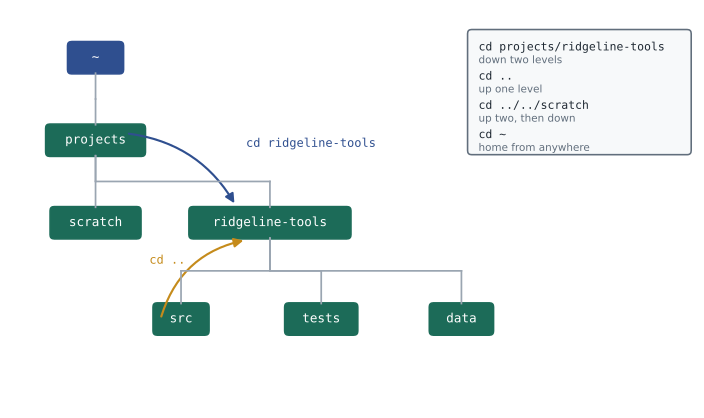
Three special names make relative paths powerful. A single dot means the current folder. Two dots mean the parent folder, one level up. A tilde means your home folder on macOS, Linux and PowerShell. So cd .. moves up one level, cd ../tests moves up and then into a sibling folder called tests, and cd ~ returns home from anywhere. The shell combines these pieces exactly the way pathlib does, by working through the path one part at a time.
> pwd
/home/sam
> cd projects/ridgeline-tools
> ls
README.md  data  pyproject.toml  src  tests
> cd src/ridgeline
> cd ../../tests
> pwd
/home/sam/projects/ridgeline-tools/tests
> cd ~def change_dir(current, target):
parts = [] if target.startswith('/') else current.strip('/').split('/')
for piece in target.split('/'):
if piece in ('', '.'):
continue
if piece == '..':
if parts:
parts.pop()
else:
parts.append(piece)
return '/' + '/'.join(parts)
here = '/home/sam'
for move in ('projects/ridgeline-tools', 'src/ridgeline', '../../tests', '/tmp', '../home/./sam'):
here = change_dir(here, move)
print(('cd ' + move).ljust(30), here)cd projects/ridgeline-tools /home/sam/projects/ridgeline-tools cd src/ridgeline /home/sam/projects/ridgeline-tools/src/ridgeline cd ../../tests /home/sam/projects/ridgeline-tools/tests cd /tmp /tmp cd ../home/./sam /home/sam
Try it yourself
Follow a series of cd commands
Write resolve(start, commands). start is an absolute POSIX path and commands is a list of targets given to cd. Apply them in order and return the final folder as an absolute path. Support absolute targets (starting with /), . for the current folder, .. for the parent and ~ as a whole target meaning /home/sam.
Moving up from / stays at /.
def resolve(start, commands):
    here = start
    return here

print(resolve('/home/sam', ['projects', 'ridgeline-tools/src', '..', 'tests']))
Working with files and folders
A handful of commands cover most file work. mkdir makes a folder. cp copies a file and mv moves or renames one; on Windows Command Prompt the equivalents are copy and move. rm removes a file and rmdir removes an empty folder. cat prints a file's contents, type in Command Prompt, and head and tail print just the first or last lines, which is handy for a large log or data file.
| Task | bash or zsh | PowerShell | Command Prompt |
|---|---|---|---|
| Show current folder | pwd | pwd or Get-Location | cd |
| List files | ls -l | ls or Get-ChildItem | dir |
| Make a folder | mkdir data | mkdir data | mkdir data |
| Copy a file | cp a.csv b.csv | cp a.csv b.csv | copy a.csv b.csv |
| Move or rename | mv old.py new.py | mv old.py new.py | move old.py new.py |
| Delete a file | rm notes.txt | rm notes.txt | del notes.txt |
| Show a file | cat README.md | cat README.md | type README.md |
| First 5 lines | head -n 5 sales.csv | Get-Content sales.csv -Head 5 | no built-in command |
One rule deserves emphasis: the shell does not ask for confirmation and has no recycle bin. rm deletes immediately and permanently, and a command such as rm -r, which deletes a folder and everything in it, can destroy a great deal of work with one mistyped path. Check the current folder with pwd before deleting anything, prefer deleting named files to using wildcards, and rely on version control, from lesson 4 onward, as your safety net for code.
Commands, options and arguments
Most commands follow the same pattern: the command name, then options that change how it behaves, then arguments that say what it should act on. In ls -l data, ls is the command, -l is an option asking for the long format, and data is the argument naming the folder to list. Options usually come in a short form with one dash and a letter, such as -n, and a long form with two dashes and a word, such as --lines. Many tools describe their options with --help.
> git log --oneline -n 3
a41c9e2 Add low-stock report command
7d02b15 Fix rounding in daily totals
19fe3a0 Read inventory from CSV
> python3 --help
usage: python3 [option] ... [-c cmd | -m mod | file | -] [arg] ...
The shell splits what you type into words at spaces before the command sees it. That raises a problem for arguments that contain spaces, such as a file named roast log.csv: typed plainly, it becomes two separate arguments, roast and log.csv. Quoting solves it: 'roast log.csv' with quotation marks is passed as a single argument. This is another reason to avoid spaces in file names. Python's shlex module splits a command line using the same rules as Unix shells, which is useful when a program has to understand commands written as text.
import shlex

line = "python3 ridgeline.py report --month 2026-10 --out 'october report.txt'"
words = shlex.split(line)
print(words)
print('program:', words[1], '| command:', words[2])
print('naive split gives', len(line.split()), 'words; shlex gives', len(words))['python3', 'ridgeline.py', 'report', '--month', '2026-10', '--out', 'october report.txt'] program: ridgeline.py | command: report naive split gives 8 words; shlex gives 7
Try it yourself
Separate options from arguments
Write parse(line) that splits a command line with shlex.split and returns a tuple (command, options, arguments): the first word, a list of the words that start with a dash, and a list of the other words, each list in its original order.
For ls -l -a "my folder" the result is ('ls', ['-l', '-a'], ['my folder']).
import shlex

def parse(line):
    words = line.split()
    return words[0], [], words[1:]

print(parse('ls -l -a "my folder"'))
Pipes, redirection and filters
Unix shells let you connect small commands into larger ones. The pipe symbol, a vertical bar, sends the output of one command into the input of the next, so cat sales.csv | grep latte | wc -l prints the sales file, keeps only the lines that mention latte and counts them. Redirection sends output to a file instead of the screen: > writes a new file, replacing any old one, and >> adds to the end of an existing file. grep searches text for a pattern, with Select-String as the PowerShell equivalent, and wc counts lines, words and characters.
> grep -c latte data/sales.csv
14
> grep latte data/sales.csv | head -n 2
2026-10-03 08:12,latte,1,5.25
2026-10-03 08:40,latte,2,5.25
> python3 ridgeline.py low > low_stock.txt
> python3 ridgeline.py low >> history.txt
The idea behind pipes, that small tools each doing one job can be combined, shapes how many developer tools are built and how Python scripts are written. A script that reads lines, filters them and prints results fits into a pipeline as easily as grep does. The listing below performs the same steps as the pipeline above inside Python, with each stage written as a small generator that passes lines along.
sales = """time,item,qty,price
2026-10-03 08:12,latte,1,5.25
2026-10-03 08:15,drip coffee,2,3.25
2026-10-03 08:40,latte,2,5.25
2026-10-03 09:02,mocha,1,5.75
2026-10-03 09:10,iced latte,1,5.50"""

def cat(text):
    yield from text.splitlines()

def grep(pattern, lines):
    return (line for line in lines if pattern in line)

def wc_l(lines):
    return sum(1 for _ in lines)

print(wc_l(grep('latte', cat(sales))))
print(list(grep('latte', cat(sales)))[:2])3 ['2026-10-03 08:12,latte,1,5.25', '2026-10-03 08:40,latte,2,5.25']
The count is 3, not 2: grep matches the text latte anywhere in the line, so iced latte counts too. The shell version has the same behaviour. Precise filters need precise patterns, such as matching the whole item field, which is what the next exercise asks for.
Try it yourself
Count sales of one item
SALES holds CSV text with a header line time,item,qty,price. Write bags_sold(text, item) that returns the total quantity (the qty column, as an integer) for rows whose item field is exactly item. Use the csv module or split each line on commas.
For latte the answer is 3, because iced latte is a different item.
def bags_sold(text, item):
    return sum(1 for line in text.splitlines() if item in line)

print(bags_sold(SALES, 'latte'))
Running Python from the terminal
From the terminal, python3 script.py runs a script, or py script.py with the Windows launcher. Anything typed after the script name is passed to the program as command-line arguments, available in the list sys.argv, where sys.argv[0] is the script's own name. The standard library's argparse module turns those raw strings into named options with help messages and error checking, and it is how real command-line tools such as ridgeline.py should read their options.
The -m option runs a module from the standard library or an installed package as a program. python3 -m venv .venv creates a virtual environment, python3 -m pip install installs packages with the pip that belongs to that exact Python, and python3 -m pytest runs tests. Using -m avoids the PATH confusion from lesson 1, because the module always runs with the Python you named.
import argparse

parser = argparse.ArgumentParser(prog='ridgeline', description='Ridgeline stock and sales tool')
parser.add_argument('command', choices=['list', 'low', 'report'])
parser.add_argument('--threshold', type=int, default=10, help='reorder point in bags')
parser.add_argument('--out', help='file to write the report to')

# A real script calls parser.parse_args() with no list, reading sys.argv.
args = parser.parse_args(['low', '--threshold', '12'])
print(args.command, args.threshold, args.out)
args = parser.parse_args(['report', '--out', 'october.txt'])
print(args.command, args.threshold, args.out)low 12 None report 10 october.txt
Passing a list to parse_args, as here, is a convenient way to try a parser without a terminal, and it is how tests check a command-line interface. In the real tool, parse_args reads sys.argv, prints a usage message when the arguments are wrong and prints a full help screen for --help, all without extra code.
Habits that make the terminal fast and safe
A few keys do much of the work. Tab completes file and folder names: type the first letters and press Tab, and the shell fills in the rest, avoiding typing errors. The up and down arrows step through previous commands, so repeating or correcting a long command takes a second. Ctrl+C stops a running program, which is the first thing to try when a script seems stuck in a loop. In most shells, Ctrl+R searches your command history, and the clear command, or Ctrl+L, clears the screen.
Read before pressing Enter, especially for commands that delete, move or overwrite files, or that come from a web page. Never paste a command you do not understand, particularly one that starts with sudo, which runs it with administrator rights. Keep one terminal tab open in the project folder for the whole working session, and get in the habit of running pwd whenever you are unsure where you are.
Worked problem
Answering a question from the terminal
Theo asks how many orders in this month's sales file were mochas, and wants the result kept in a file for Anita. Plan the commands.
Show solution
- Move to the project: cd ~/projects/ridgeline-tools, then pwd to confirm.
- Look at the data before filtering it: head -n 3 data/sales.csv shows the header and the field order.
- Count the matching lines: grep -c ",mocha," data/sales.csv, including the commas so that iced mocha rows are not counted.
- Save the answer: echo "Mocha orders: 41" > reports/mocha.txt, or redirect the grep output directly.
- Check: cat reports/mocha.txt shows the saved line.
Answer: Five short commands answer the question and leave a record, and the exact commands can be repeated next month.
Common mistakes
MistakeRunning rm or rm -r without checking the current folder.
InsteadRun pwd first and delete named files rather than using wildcards.
MistakeUsing file names with spaces and forgetting the quotation marks.
InsteadAvoid spaces in names, or quote the whole name.
MistakeTyping long paths by hand.
InsteadUse Tab completion and the arrow keys for history.
MistakeRunning pip and getting packages installed for a different Python.
InsteadUse python3 -m pip so pip belongs to the Python you named.
MistakeUsing > when you meant to add to a file.
InsteadRemember > replaces the file and >> appends to it.
MistakePasting commands from the web without reading them.
InsteadRead and understand every command, especially any with sudo.
Summary and key terms
- The terminal is the window; the shell, such as bash, zsh or PowerShell, reads and runs the commands.
- pwd, ls and cd show and change the current working directory; paths are absolute or relative, with ., .. and ~ as shortcuts.
- mkdir, cp, mv, rm, cat, head and tail cover most file work; rm deletes immediately and permanently.
- Commands take options, which change their behaviour, and arguments, which say what to act on; quote arguments that contain spaces.
- Pipes send one command's output to another, and > and >> redirect output into files.
- python3 script.py runs a script with arguments in sys.argv; argparse turns them into named options; -m runs a module.
- Tab completion, history, Ctrl+C and reading before pressing Enter make terminal work fast and safe.
- Terminal
- The window program that displays a command-line session.
- Shell
- The program that reads typed commands and runs them, such as bash, zsh or PowerShell.
- Current working directory
- The folder that commands act on by default.
- Absolute path
- A path that starts from the top of the file system.
- Relative path
- A path that starts from the current working directory.
- Option
- A word starting with a dash that changes how a command behaves.
- Argument
- A word after a command naming what it acts on.
- Pipe
- The | symbol, which sends one command's output to the next command's input.
- Redirection
- Sending a command's output to a file with > or >>.
- sys.argv
- The list of command-line words passed to a Python script.
Practice problems
Work each problem on paper first, then reveal the answer to check.
You are in /home/sam/projects/ridgeline-tools/src. Where does cd ../tests take you?
Show answer
/home/sam/projects/ridgeline-tools/tests
What is the difference between the terminal and the shell?
Show answer
The terminal is the window; the shell interprets and runs the commands typed in it.
Write the bash command to list the files in data in long format.
Show answer
ls -l data
How does the shell treat cp roast log.csv backup.csv?
Show answer
As three arguments, roast, log.csv and backup.csv, because the unquoted space splits the name.
What does grep -c error app.log print?
Show answer
The number of lines in app.log that contain error.
What is the difference between > and >>?
Show answer
> replaces the file's contents; >> adds to the end.
A script is run as python3 tool.py low 12. What is sys.argv?
Show answer
['tool.py', 'low', '12']
Why is python3 -m pip install safer than pip install?
Show answer
It guarantees pip installs into the same Python that python3 runs.
A script seems to run forever. Which key combination stops it?
Show answer
Ctrl+C
Which shlex function splits a command line into words?
Show answer
shlex.split
Lesson quiz · 5 questions
Score 60% or more to complete this lesson.
Create a free account to save your progress, take quizzes and earn a certificate.