
PYTH-110 · Lesson 2 of 12 · 32 min
Editors and IDEs
▶ Video coming soon A video version of this lesson is on the way.
Jordan wrote ridgeline.py in IDLE, the simple editor that comes with Python. It did the job for one person and one file. Sam arrives used to a full-featured editor that underlines mistakes as you type, jumps from a function call to its definition and tidies the layout of the code on every save. When the two of them start editing the same files, those differences matter: one editor inserts tab characters, the other inserts spaces; one strips spaces from the ends of lines, the other leaves them. Every save by one person changes dozens of lines the other never touched.
This lesson explains the kinds of editor programmers use, the features that make the biggest difference, how editors handle indentation, whitespace and line endings, what linters and formatters do, how a debugger works and how a team shares editor settings so that everyone's files come out the same.
Text editors, code editors and IDEs
Any program that edits plain text can edit Python, but the tools fall into three broad groups. A plain text editor, such as Notepad on Windows or TextEdit in plain-text mode on a Mac, edits characters and little more. A code editor, such as Visual Studio Code, Sublime Text, Vim or Emacs, adds features for programming: colour for different parts of the code, automatic indentation, search across many files and extensions for each language. An integrated development environment, or IDE, such as PyCharm, goes further and builds in deep knowledge of one language, a debugger, test runners, refactoring tools and project management.
| Tool | Type | Strengths | Typical user |
|---|---|---|---|
| IDLE | Simple editor with a Python shell | Installed with Python, nothing to set up | Beginners, quick experiments |
| Thonny | Beginner IDE | Clear debugger that shows variables step by step | Students learning to program |
| Visual Studio Code | Code editor with extensions | Free, fast, works for every language, large extension library | Most professional Python developers |
| PyCharm | Python IDE | Deep code analysis, refactoring, built-in testing tools | Developers on large Python projects |
| Vim or Neovim | Terminal-based editor | Runs anywhere, including over SSH; very fast once learned | Developers who live in the terminal |
The line between code editors and IDEs has blurred. With its Python extension installed, Visual Studio Code offers most of what an IDE does, and an IDE can be configured to feel light. What matters is not the category but whether the tool helps you read, write, run and fix code quickly. Ridgeline settles on Visual Studio Code because it is free, runs on all three operating systems and Sam already knows it, while Jordan is free to keep IDLE for quick experiments.
Whichever you choose, learn one editor well rather than many editors a little. The time you invest in its keyboard shortcuts, search features and settings pays back every working day. Word processors such as Word or Google Docs are not suitable for code at all: they insert formatting, curly quotation marks and hidden characters that Python cannot read.
The anatomy of a code editor
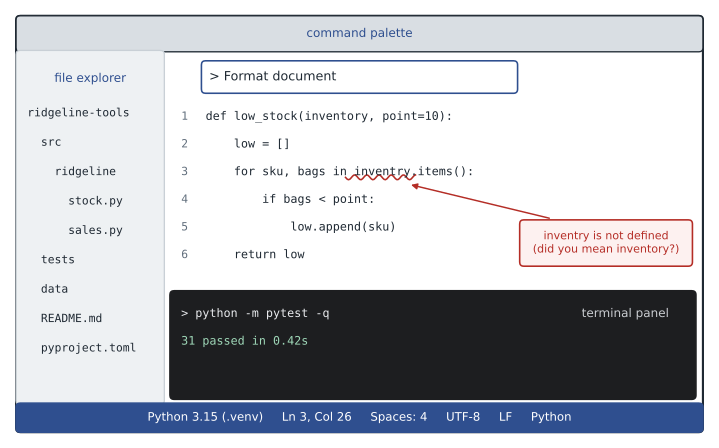
Most modern code editors share a layout. A file explorer on one side shows the project's folders, so you open files by clicking rather than browsing the disk. The main area holds the file you are editing, often with several files open in tabs or side by side. An integrated terminal panel runs commands without leaving the editor. A status bar along the bottom shows facts about the current file, and those facts are worth learning to read: the language mode, the Python interpreter in use, the character encoding, the line ending and the indentation setting.
The command palette, opened with Ctrl+Shift+P on Windows and Linux or Cmd+Shift+P on a Mac in Visual Studio Code, lets you search for any command by name. You do not need to memorize where every option lives in the menus; type a few letters of what you want, such as format or select interpreter, and pick it from the list. Quick open, usually Ctrl+P or Cmd+P, does the same for files: type part of a file name and press Enter.
Features that matter most
Syntax highlighting gives keywords, strings, numbers and comments different colours. It sounds cosmetic but catches real errors: when you forget a closing quotation mark, the rest of the line, and sometimes the rest of the file, turns string-coloured, showing the mistake before you run anything.
Code completion suggests names as you type. Type inv and the editor offers inventory; type a variable name followed by a dot and it lists that object's methods. Completion saves typing, but its bigger value is accuracy: names chosen from a list are never misspelled. A language server, a background program that analyses your code, powers completion along with go to definition, which jumps from a function call to the place the function is defined, and find all references, which lists every place a name is used.
Problem markers underline code that a checker believes is wrong, such as an undefined name, an unused import or a call with the wrong number of arguments. Hover over the underline to read the explanation. A problems panel collects them for the whole project. These markers come from linters and type checkers, which the next sections explain, and they turn many runtime errors into mistakes you fix before running the program.
Run and debug commands run the current file or the project's tests with one keystroke, and the debugger, described below, lets you pause a running program and look inside it. Refactoring commands, such as rename symbol, change a name everywhere it is used, safely and at once, rather than by risky search and replace.
Indentation, whitespace and encodings
Python uses indentation to group statements, so the characters at the start of each line are part of the program's meaning. PEP 8, the style guide for Python code, recommends four spaces per level and no tab characters. Mixing tabs and spaces is dangerous: two lines can look identically indented in one editor and differently indented in another, and Python 3 refuses to run code whose indentation mixes them inconsistently, raising a TabError.
Good editors insert four spaces when you press the Tab key in a Python file and show indentation guides, faint vertical lines that make nesting visible. Many can also show whitespace characters, with spaces as small dots and tabs as arrows, which is the quickest way to find a stray tab in a file that refuses to run.
source = "def total(prices):\n    result = 0\n\tfor p in prices:\n        result += p\n   return result\n"

for number, line in enumerate(source.splitlines(), start=1):
    stripped = line.lstrip(' \t')
    lead = line[:len(line) - len(stripped)]
    problems = []
    if '\t' in lead:
        problems.append('tab in indentation')
    elif len(lead) % 4:
        problems.append(str(len(lead)) + ' spaces, not a multiple of 4')
print(number, repr(lead).ljust(10), ', '.join(problems) or 'ok')1 '' ok 2 ' ' ok 3 '\t' tab in indentation 4 ' ' ok 5 ' ' 3 spaces, not a multiple of 4
The listing uses repr to make invisible characters visible: a tab shows as \t. Line 3 is indented with a tab and line 5 with three spaces, two problems that are easy to miss by eye and that make Python refuse the code. Editors show the same thing graphically, and linters report it automatically.
Try it yourself
An indentation checker
Write indent_problems(source) that returns a list of the line numbers (starting at 1) whose leading whitespace contains a tab or whose number of leading spaces is not a multiple of 4. Blank lines (empty or only whitespace) are never problems.
For the sample text the answer is [3, 5].
def indent_problems(source):
    problems = []
    for number, line in enumerate(source.splitlines(), start=1):
        pass  # check the leading whitespace here
    return problems

print(indent_problems(SAMPLE))
Two invisible settings matter as much as indentation. The encoding decides how characters are stored as bytes. Python source files are read as UTF-8 by default, and UTF-8 is the right choice for every file: it stores any character, from the é in café to the € sign, and it is the standard on the web. Your editor's status bar shows the encoding; if it ever says something else, change it to UTF-8. The line ending, discussed in lesson 1, is the other setting; teams usually agree on LF for every file and let Git convert where needed.
Linters and formatters
A linter reads your code without running it and reports likely mistakes and style problems: names that are used but never defined, imports that are never used, variables assigned and then ignored, comparisons that are always true, lines longer than the agreed limit. Popular Python linters include Ruff, Pylint and Flake8. A type checker, such as mypy or Pyright, is a related tool that checks the types of values against type hints, a subject for later courses.
A formatter goes one step further and rewrites the layout of your code into a single consistent style: spacing around operators, quotation marks, line breaks in long calls, blank lines between functions. Black and the Ruff formatter are the common choices. A formatter never changes what the code does, only how it looks. Its great benefit to a team is that arguments about style disappear. Nobody's personal taste wins; the formatter decides, everyone runs it, and the only differences between two versions of a file are real changes.
> ruff check src
src/ridgeline/stock.py:3:8: F401 [*] `json` imported but unused
src/ridgeline/stock.py:41:5: F841 Local variable `total` is assigned to but never used
src/ridgeline/sales.py:12:89: E501 Line too long (97 > 88)
Found 3 errors.
[*] 1 fixable with the `--fix` option.
> ruff format src
2 files reformatted, 1 file left unchanged
Each linter message gives the file, line and column, a rule code and a description. Rule codes such as F401 and E501 can be looked up in the tool's documentation, and a project can switch individual rules on or off in its pyproject.toml file. Most teams run the formatter automatically when a file is saved and the linter as code is typed, so problems appear as underlines rather than as a list at the end.
code = """import json
def report(sales):
    total = 0
    for item, qty, price in sales:
        print(item, qty * price)
    return round(sum(qty * price for item, qty, price in sales), 2)
"""

LIMIT = 40
for n, line in enumerate(code.splitlines(), start=1):
    notes = []
    if line != line.rstrip():
        notes.append('trailing whitespace')
    if len(line) > LIMIT:
        notes.append('line too long (' + str(len(line)) + ' > ' + str(LIMIT) + ')')
    if notes:
print('line', n, '-', '; '.join(notes))line 6 - line too long (67 > 40)
Real linters build a full model of the program, called a syntax tree, so they can understand names and scopes rather than just characters. But the simplest rules really are this direct, and writing them by hand shows what a linter message means. Trailing whitespace, the invisible spaces at the end of a line, is harmless to Python but makes Git report lines as changed when only the spaces differ, which is why formatters remove it.
Try it yourself
A tiny formatter
Write tidy(text) that returns the text with three fixes, the way a formatter cleans a file on save: remove trailing spaces and tabs from every line, collapse any run of more than two blank lines into exactly two, and make sure the result ends with exactly one newline.
Lines that are not blank keep their content and indentation exactly.
def tidy(text):
    lines = text.split('\n')
    return text

print(repr(tidy('a = 1   \n\n\n\n\nb = 2\t\n\n')))
The debugger
A debugger lets you pause a running program and look inside it. You set a breakpoint by clicking in the margin beside a line number; when the program reaches that line it stops, and the editor shows the value of every variable at that moment. From there you can step over the next line, step into a function call to follow it inside, or step out to finish the current function. A watch list keeps chosen expressions on screen as you step, and the call stack shows which function called which to reach the current line.
Printing values with print is a perfectly good way to debug small programs, and every programmer does it. The debugger becomes worth learning when the problem is inside a loop that runs a thousand times, when the program is large, or when you do not yet know which value is wrong. Python's built-in breakpoint function starts the text-based pdb debugger at that line, which works even on a server with no graphical editor.
def restock_needed(stock, reorder_point=10):
    low = []
    for sku, bags in stock.items():
        breakpoint()          # pauses here; pdb shows (Pdb) and waits for commands
        if bags < reorder_point:
            low.append(sku)
    return low

# At the (Pdb) prompt:
#   p sku, bags      print values        n   next line
#   s   step into    c   continue        q   quit the debugger
Sharing editor settings in a team
Agreeing on style in a meeting is not enough; the settings must live in files inside the project, so that every editor picks them up automatically. Three files do most of the work. An .editorconfig file, understood by most editors, sets indentation, line endings, the final newline and trailing whitespace for each type of file. The pyproject.toml file holds the configuration of tools such as Ruff and Black, so the linter applies the same rules on every computer. And editor-specific folders, such as .vscode for Visual Studio Code, can recommend extensions and set options such as formatting on save.
# .editorconfig at the top of ridgeline-tools
root = true

[*]
charset = utf-8
end_of_line = lf
insert_final_newline = true
trim_trailing_whitespace = true

[*.py]
indent_style = space
indent_size = 4
max_line_length = 88

[*.md]
trim_trailing_whitespace = false
Look at the last section. Markdown, the format used for README files, treats two spaces at the end of a line as a line break, so trimming trailing whitespace there could change the meaning of a document. Settings can differ by file type for good reasons, and the file records those reasons in one place. Personal preferences, such as the colour theme, font size or keyboard layout, stay in each person's own settings and never go into the project.
Worked problem
Setting up the editor for ridgeline-tools
Jordan and Sam want saves from either of them to produce identical files. List the settings to put in the project and how to confirm they work.
Show solution
- Add .editorconfig with UTF-8, LF line endings, a final newline, trimmed trailing whitespace and four-space indentation for Python.
- Add a [tool.ruff] section to pyproject.toml with the agreed line length of 88 and the chosen rule sets.
- In .vscode, recommend the Python and Ruff extensions and turn on format on save.
- Select the project's interpreter in the editor so completion and problem markers use the right Python.
- Confirm: both open stock.py, add a line with trailing spaces and a tab, save, and check the file comes out identical, with the spaces gone and the tab replaced.
Answer: The settings live in the project, so the result no longer depends on who saved the file or which editor they used.
Common mistakes
MistakeWriting code in a word processor.
InsteadUse a code editor, which saves plain text with straight quotation marks.
MistakeMixing tabs and spaces for indentation.
InsteadUse four spaces, let the editor insert them and turn on visible whitespace to find strays.
MistakeIgnoring the wavy underlines from the linter.
InsteadHover to read each message and fix the problem before running the code.
MistakeArguing about formatting in code review.
InsteadAdopt a formatter, run it on save and let it decide.
MistakeKeeping team settings only in your personal editor preferences.
InsteadPut shared settings in .editorconfig and pyproject.toml inside the project.
MistakeDebugging a long loop by adding dozens of print calls.
InsteadSet a breakpoint and inspect the variables at the moment things go wrong.
Summary and key terms
- Plain text editors, code editors and IDEs differ in how much they know about programming; learn one well.
- The status bar shows the language, interpreter, encoding, line ending and indentation of the current file.
- Completion, go to definition, problem markers and refactoring commands come from a language server analysing your code.
- PEP 8 recommends four spaces per indentation level; mixing tabs and spaces can stop Python from running the code.
- Linters report likely mistakes and style problems; formatters rewrite layout into one consistent style without changing behaviour.
- A debugger pauses a program at a breakpoint so you can inspect variables and step through the code.
- Shared settings belong in project files such as .editorconfig and pyproject.toml.
- Code editor
- An editor with programming features such as highlighting, completion and extensions.
- IDE
- Integrated development environment: an editor with built-in language analysis, debugging and testing.
- Language server
- A background program that analyses code to power completion and navigation.
- Syntax highlighting
- Showing keywords, strings, comments and other parts of code in different colours.
- PEP 8
- The official style guide for Python code.
- Linter
- A tool that reads code without running it and reports likely mistakes and style problems.
- Formatter
- A tool that rewrites code layout into a consistent style without changing what it does.
- Breakpoint
- A marked line where the debugger pauses the running program.
- UTF-8
- The standard text encoding, able to store any character.
- .editorconfig
- A project file that sets indentation, line endings and similar options for every supporting editor.
Practice problems
Work each problem on paper first, then reveal the answer to check.
Why is a word processor unsuitable for writing Python?
Show answer
It inserts formatting, curly quotation marks and hidden characters that Python cannot read.
What does go to definition do?
Show answer
It jumps from a use of a name to the place where that name is defined.
A line looks correctly indented but Python raises TabError. What is the likely cause and how do you find it?
Show answer
Tabs and spaces are mixed; turn on visible whitespace or use repr on the line to see the tab.
What does repr('\tx') show?
Show answer
'\tx', making the tab visible.
What is the difference between a linter and a formatter?
Show answer
A linter reports problems; a formatter rewrites the layout of the code.
Ruff reports F401 for an import. What should you check?
Show answer
Whether the imported module is actually used; if not, remove the import.
Why should trailing whitespace be removed from Python files?
Show answer
It is invisible, serves no purpose and makes version control show lines as changed.
Which file keeps indentation and line-ending settings consistent across different editors?
Show answer
.editorconfig
Name two debugger actions besides setting a breakpoint.
Show answer
Step over the next line, step into a function call, step out or continue.
Which preferences should stay out of the project's settings?
Show answer
Personal ones such as colour theme, font size and key bindings.
Lesson quiz · 5 questions
Score 60% or more to complete this lesson.
Create a free account to save your progress, take quizzes and earn a certificate.