
MSBA-300 · Lesson 8 of 12 · 22 min
Environments and deployments
▶ Video coming soon A video version of this lesson is on the way.
Until the eighth clinic, publishing TrailCheck was a single job at the end of the publish workflow: every push to main built the site and pushed it live. That worked until a Friday afternoon, when a merge that passed every check published a closures page that marked the whole Fundy coast as closed, because of a data file with a typo. Nobody had looked at the built page before it went public. Grace asked for two things: a place to preview changes before they went live, and a person who had to say yes before the public site changed. In GitHub Actions both are environments.
What an environment is
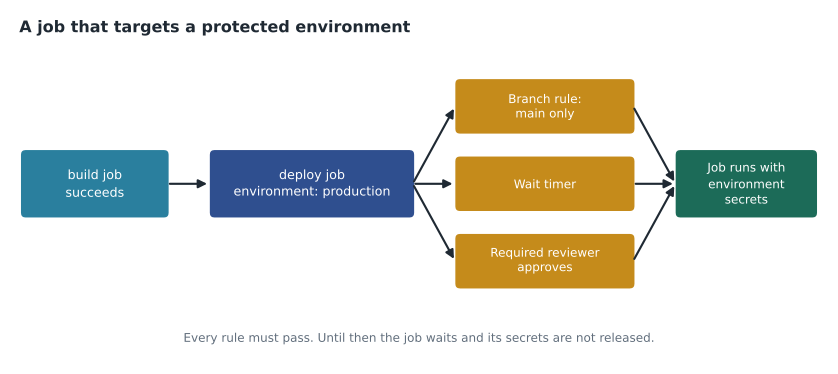
An environment is a named deployment target defined in the repository settings, such as staging or production. A job declares that it deploys to an environment with the environment key. Before the job runs, GitHub checks the environment's protection rules; once they pass, the job runs and gets access to the environment's own secrets and variables. GitHub also records each deployment, so the repository shows which commit is live in which environment and keeps a history.
jobs:
  deploy-production:
    needs: build
    runs-on: ubuntu-latest
    environment:
      name: production
      url: https://trailcheck.example
    steps:
      - uses: actions/download-artifact@v7
        with:
          name: site
      - run: ./scripts/deploy.sh
        env:
          DEPLOY_TOKEN: ${{ secrets.DEPLOY_TOKEN }}
          SITE_URL: ${{ vars.SITE_URL }}
The environment can be written as just a name, or as a mapping with a name and a url. The url appears on the run graph and in the deployments list, so a reviewer can click straight through to the result. If a workflow refers to an environment that does not exist yet, GitHub creates it with no protection rules, which is convenient in a test repository and a reason to create production environments deliberately, with rules, before any workflow uses them.
Protection rules
Environments offer several kinds of protection. Every configured rule must pass before the job starts, and until then the job shows as waiting.
| Rule | What it does | Availability notes |
|---|---|---|
| Required reviewers | Up to six people or teams; one approval releases the job; optionally prevent self-review | Public repositories on all current plans; private and internal repositories need GitHub Enterprise |
| Wait timer | Delays the job by a set number of minutes after it is triggered | Same availability as required reviewers |
| Deployment branches and tags | Allows only protected branches, or branches and tags matching patterns, to deploy | Available more widely; set per environment |
| Custom protection rules | Lets a GitHub App approve or reject, for example after checking monitoring or a ticket | Public repositories, and private or internal repositories on GitHub Enterprise |
| Admin bypass | Choose whether administrators can skip the rules | Turn off for production to keep everyone honest |
Availability matters here, and it surprised Rosa. Environments themselves can be used in private repositories on the paid plans, but required reviewers, wait timers and custom protection rules work in private and internal repositories only on GitHub Enterprise; on GitHub Free, Pro and Team they are available for public repositories. TrailCheck's repository is public, because volunteers such as Malik contribute to it, so Tidewater's Team plan was enough. The guidebook repository is private, and its proof workflow would have to rely on deployment branch rules and review of the pull request instead of an approval step.
A job waiting for approval can wait up to 30 days; if nobody approves in that time, the job fails. Reviewers see a review deployments button on the run page and in their notifications, can read the commit and the run so far, and can approve or reject with a comment. Rejection fails the job. GitHub records who approved what, which gives Grace a clear answer to the question auditors and editors both ask: who decided this was ready?
Deployment branches
Deployment branch rules are the quiet hero of environments. Without them, anyone with write access could push a branch, change the workflow on that branch to deploy to production, and the deploy job would run with production secrets. Restricting the production environment to the main branch, which is itself protected by rules that require reviews and passing checks, closes that gap: a deployment to production can only come from code that went through review. Staging can be looser, allowing any branch, so developers can preview their work.
Environment secrets and variables
Secrets and variables defined on an environment are released only to jobs that reference the environment, and only after its protection rules pass. That makes environments the right home for production credentials. A staging and a production environment can each define a secret with the same name, DEPLOY_TOKEN, with different values; the job's environment decides which one it receives, so the deployment script never needs to know which target it is running against.
When names overlap, the most specific level wins: an environment secret overrides a repository secret of the same name, which overrides an organization secret. Lena wrote a short table in her notes: organization level for values shared by many repositories, repository level for values used by several workflows in one repository, and environment level for anything that should only be used after approval.
Worked problem
Placing secrets for staging and production
TrailCheck deploys previews to a staging host and the live site to production. Both use an API token for the hosting service, with different tokens. The trail-data API key is the same everywhere. Where should each secret live?
Show solution
- The hosting tokens differ per target and production's must only be used after approval, so each goes in its own environment, both named HOST_TOKEN.
- The trail-data key is the same for all jobs in the repository, so a repository secret is enough.
- The deploy jobs reference environment staging or production and read secrets.HOST_TOKEN; GitHub supplies the right value.
Answer: HOST_TOKEN as an environment secret in both staging and production with different values; the trail-data key as a repository secret.
Deploying to GitHub Pages
TrailCheck is published with GitHub Pages, which can deploy directly from a workflow. The usual pattern has two jobs. A build job produces the site and uploads it with the upload-pages-artifact action, which packages it in the format Pages expects. A deploy job, which needs the build job, runs deploy-pages in an environment conventionally called github-pages. The deploy job needs two token permissions: pages write, to publish, and id-token write, because deploy-pages proves the run's identity with an OpenID Connect token rather than a stored secret.
permissions:
  contents: read

jobs:
  build:
    runs-on: ubuntu-latest
    steps:
      - uses: actions/checkout@v5
      - run: npm ci && npm run build
      - uses: actions/upload-pages-artifact@v4
        with:
          path: dist/
  deploy:
    needs: build
    runs-on: ubuntu-latest
    permissions:
      pages: write
      id-token: write
    environment:
      name: github-pages
      url: ${{ steps.deployment.outputs.page_url }}
    steps:
      - id: deployment
        uses: actions/deploy-pages@v4
Notice where the permissions are. The workflow grants only contents read; the deploy job, and only the deploy job, adds pages write and id-token write. That is the least-privilege principle applied to the GITHUB_TOKEN, which the security domain of GH-200 tests directly. The github-pages environment can then carry its own rules, such as deployment from main only, and a required reviewer for the Friday-afternoon problem.
Deploying to a cloud without stored secrets
For deployments to cloud providers, the modern pattern avoids long-lived cloud keys altogether. With OpenID Connect, the job requests a short-lived token from GitHub that states which repository, workflow, branch and environment it comes from. The cloud provider is configured to trust GitHub's token issuer and to exchange tokens with the right claims for temporary cloud credentials. Azure, AWS, Google Cloud and HashiCorp Vault all support this through their own login actions. The job needs id-token write permission, and the trust can be limited to a single environment, so only jobs that passed the production environment's rules can get production credentials. The companion course on managing and securing Actions covers the set-up in detail.
jobs:
  deploy:
    runs-on: ubuntu-latest
    environment: production
    permissions:
      id-token: write
      contents: read
    steps:
      - uses: azure/login@v2
        with:
          client-id: ${{ vars.AZURE_CLIENT_ID }}
          tenant-id: ${{ vars.AZURE_TENANT_ID }}
          subscription-id: ${{ vars.AZURE_SUBSCRIPTION_ID }}
      - run: az storage blob upload-batch --account-name trailcheckprod -s dist -d '$web'
Controlling deployment flow
Three more tools keep deployments orderly. Concurrency groups, from lesson 4, make sure two deployments to the same environment never overlap; for production, queueing every deployment is usually safer than cancelling an in-progress one halfway through. Conditions decide which deployment a run makes: a preview for pull requests, production for pushes to main. And status badges let a README show the state of a workflow at a glance; the badge image URL comes from the workflow's page in the Actions tab and can be filtered by branch or event.
jobs:
  deploy-preview:
    if: github.event_name == 'pull_request'
    environment:
      name: staging
      url: https://preview.trailcheck.example/pr-${{ github.event.number }}
    runs-on: ubuntu-latest
    steps:
      - run: ./scripts/deploy-preview.sh
  deploy-production:
    if: github.ref == 'refs/heads/main' && github.event_name == 'push'
    environment: production
    concurrency:
      group: production
      queue: max
    runs-on: ubuntu-latest
    steps:
      - run: ./scripts/deploy.sh
Rolling back
Sooner or later a deployment that passed every rule turns out to be wrong. Environments make the way back predictable. Because each deployment is tied to a commit and a run, the fastest rollback is usually to revert the bad commit on main through a pull request, which triggers a normal, reviewed deployment of the previous content. When speed matters more, someone with write access can re-run the deploy job of a recent successful run (re-runs are possible for 30 days after a run), which deploys the artifact that run built, as long as the artifact has not expired. Teams that expect to roll back often keep deployment artifacts longer than the default, or publish each release build somewhere permanent, so that any recent version can be redeployed without rebuilding it.
Rolling back is also a reason to keep the deploy job simple. A deploy job that only downloads an artifact and copies it to the host can be re-run safely at any time; a deploy job that also rebuilds, migrates data and sends announcements is much harder to repeat. Tidewater's rule was that a deploy job may deploy and nothing else, with everything that varies happening in earlier jobs.
Worked problem
Designing the publish flow
Grace wants: every pull request to get a preview link; nothing to reach the public site without her or Priya approving; and Friday-afternoon merges to wait until Monday unless someone approves. Using environments, conditions and protection rules, how would you design it?
Show solution
- Create a staging environment that allows any branch and has no reviewers; pull request runs deploy previews there with a link in the environment url.
- Create a production environment limited to the main branch, with Grace and Priya as required reviewers and self-review prevented.
- The publish workflow deploys to production only for pushes to main; the job waits until one of them approves.
- A merge on Friday simply waits for approval; nobody approves until Monday, so the site does not change over the weekend. A wait timer is not needed for this, because approval already controls timing.
Answer: A staging environment for previews from any branch, and a production environment limited to main with Grace and Priya as required reviewers; approval timing handles the Friday rule.
Environments and reusable workflows
Environments work in reusable workflows too, which lesson 9 introduces. A common design is a single reusable deploy workflow that takes the environment name as an input; the calling workflow passes staging or production, and the reusable workflow's job declares environment with that input. The protection rules, secrets and history all follow the environment, not the file, so the same deployment logic serves every target while each target keeps its own approvals and credentials.
Reviewers need context to approve well. A deploy job that waits for approval should come after jobs that produce something worth reviewing: a preview link, a job summary of what changed, or the results of checks run against the built artifact. Grace's approval took thirty seconds because the preview and the link check summary were one click away; an approval request with nothing to look at becomes a button people press without thinking.
Deployment history
Every job that uses an environment creates a deployment record. The repository's Deployments page lists environments with their latest deployment, links to the run and the commit, and keeps the history, so the team can see that production has been running commit 3f2a8c1 since Tuesday and that staging shows a pull request from this morning. Deployments can also be read and created through the REST API, which is how outside tools learn what is live. An environment that is no longer needed, such as an old preview, can be deleted, which removes its secrets as well.
Common mistakes
MistakeStoring production credentials as repository secrets available to every workflow.
InsteadPut them in a production environment with reviewers and deployment branch rules.
MistakeLetting a workflow create the production environment implicitly.
InsteadCreate production first with its rules; implicitly created environments have no protection.
MistakeGranting pages write and id-token write to the whole workflow.
InsteadGrant them only on the deploy job and keep the workflow default at contents read.
MistakeCancelling an in-progress production deployment when a newer one starts.
InsteadQueue production deployments so each finishes; cancel only superseded checks or previews.
Grace approved the first production deployment through the new rules the following Tuesday, after clicking through to the preview and checking the closures page herself. It took her thirty seconds, and the Friday-afternoon mistake could not happen again in the same way.
Summary and key terms
- An environment is a named deployment target with protection rules, secrets and variables.
- Protection rules include required reviewers, wait timers, deployment branch and tag rules and custom rules from GitHub Apps.
- Environment secrets are released only after the rules pass and override repository and organization secrets of the same name.
- Pages deployments use upload-pages-artifact and deploy-pages, with pages write and id-token write on the deploy job only.
- OpenID Connect lets jobs get short-lived cloud credentials without stored secrets, scoped to an environment.
- Concurrency, conditions, badges and the deployments history keep deployments controlled and visible.
- Environment
- A named deployment target with its own protection rules, secrets and variables.
- Protection rule
- A condition, such as a required reviewer, that must pass before a job using the environment runs.
- Required reviewer
- A person or team who must approve a job before it can use an environment.
- Deployment branch rule
- A rule that limits which branches or tags can deploy to an environment.
- Environment secret
- A secret available only to jobs that reference the environment.
- OpenID Connect (OIDC)
- A standard that lets a job exchange a GitHub-issued identity token for short-lived cloud credentials.
- Deployment
- GitHub's record of a job deploying a commit to an environment.
Practice problems
Work each problem on paper first, then reveal the answer to check.
A job references an environment that does not exist. What happens?
Show answer
GitHub creates the environment with no protection rules.
Which two permissions does a Pages deploy job need?
Show answer
pages write and id-token write.
Why restrict production to the main branch?
Show answer
So a workflow changed on another branch cannot deploy unreviewed code with production secrets.
Lesson quiz · 5 questions
Score 60% or more to complete this lesson.
Create a free account to save your progress, take quizzes and earn a certificate.