
MSBA-263 · Lesson 6 of 12 · 18 min
Deployment pipelines
▶ Video coming soon A video version of this lesson is on the way.
In October, before the Student Success report had any process around it, Kwabena fixed a measure on a Thursday afternoon and published straight to the production workspace. The fix was right, but he had also left a test filter on one page, and for two hours every dean saw only Ridgeview data. Nobody was harmed, but Rupert used the story at the next clinic to introduce deployment pipelines: a way to move content from development to test to production in controlled steps, with checks between them. Deployment pipelines, and the Git integration that often accompanies them, go beyond the PL-300 objectives. They belong in this course because they are how a data analyst stops fixing one problem by creating another.
The idea: separate stages
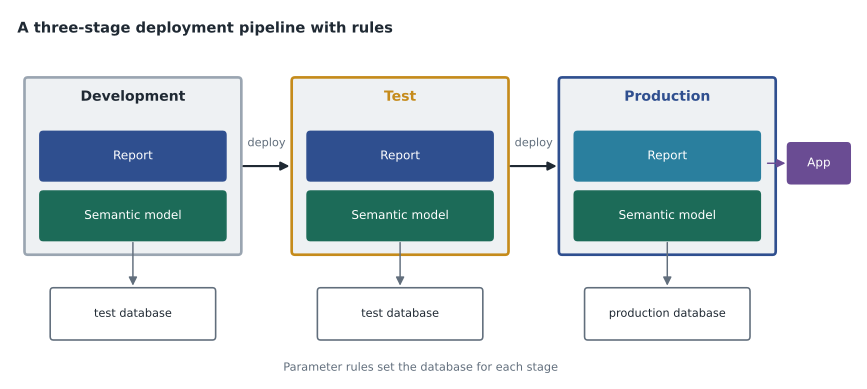
A deployment pipeline is a Fabric item that links a series of workspaces, one per stage. The default pipeline has three stages, Development, Test and Production, and Microsoft documents that a pipeline can have between two and ten stages, named as the team prefers; the number of stages is fixed when the pipeline is created. Each stage is assigned one workspace, and content moves forward by deploying from one stage to the next.
Builders work in the development workspace. When a change is ready, they deploy it to test, where reviewers check it against a test copy of the data. When the test stage is approved, someone with permission deploys to production, where the app lives. Readers never see half-finished work, and the production workspace is changed only by deliberate deployments.
Requirements and setup
Deployment pipelines need workspaces that run on a capacity: a Fabric capacity, a Premium capacity or Premium per user, depending on licensing; Microsoft's licensing documentation lists the current rules. The person creating the pipeline must be an admin of the workspaces being assigned. Anyone the pipeline is shared with becomes a pipeline admin, able to view, share, edit and delete it, so sharing is limited to the people who run releases.
Kwabena created the pipeline from the Student Success Analytics workspace, which assigned that workspace automatically. He then assigned Student Success [Dev] and Student Success [Test] to the earlier stages. A workspace can belong to only one pipeline, and each stage holds one workspace.
Deploying
There are three ways to deploy.
| Option | What it does | When to use it |
|---|---|---|
| Full deployment | Deploys all content in the source stage to the target | The first deployment, or a release of everything |
| Selective deployment | Deploys only the items you select | A fix to one report while other work is unfinished |
| Backward deployment | Deploys from a later stage to an earlier one | Refreshing an empty development stage from production; Microsoft documents it only when the target stage is empty |
When the target stage already has content, the pipeline pairs items across stages so that a deployment overwrites the right item. Items deployed through the pipeline are paired automatically. Items created separately in two stages with the same name and type are not paired, and deploying one creates a duplicate rather than overwriting the other, a detail that caught Kwabena once when Maribeth published a report directly to the test workspace. Paired items keep their pairing even if renamed.
Before deploying, the pipeline compares stages and shows which items are new, changed or the same, with a detailed comparison for changed items. Kwabena read the comparison every time; it was the step that would have caught October's test filter. Deployment can also run through the deployment pipelines REST APIs, which lets a release be part of an automated process. Microsoft has also introduced deployment plans, in preview, which set an explicit order and run actions before or after items deploy.
Deployment rules
The development and test stages should not use production data, and production must not point at the test database. Deployment rules solve this. A rule is set on an item in the target stage and keeps a stage-specific value whenever content is deployed into it. The two common kinds for semantic models are data source rules, which replace a connection with another, and parameter rules, which set a Power Query parameter to a stage-specific value.
Kwabena's model already used parameters, as MSBA-260 recommended: a *ServerName* parameter and a *DatabaseName* parameter. He set parameter rules in the test and production stages so that test pointed at the StudentRecords test database and production at the production database. After creating or changing a rule, the content must be deployed again for the rule to take effect. Rules also need the target item to exist, so they are created after the first deployment.
Reports that use a semantic model in the same stage are rebound when deployed: a report deployed from test to production connects to the production stage's paired model, not to the test model. Kwabena checked this behaviour in the production workspace after the first deployment by opening the report's lineage view.
Worked problem
Releasing a measure fix safely
A dean reports that the retention measure double-counts students who transferred between campuses. Kwabena fixes the measure in Desktop. At the same time, Maribeth has an unfinished new page in the development workspace's Registration report. How should the fix reach production without releasing Maribeth's page?
Show solution
- Publish the fixed Desktop file to the development workspace, replacing the semantic model and report.
- In the pipeline, compare Development and Test. Confirm the model and the Student Success report have changed, and the Registration report has also changed because of Maribeth's work.
- Use selective deployment to deploy only the semantic model and the Student Success report to Test.
- Check the measure in Test against the test data, and have Ilsabet review it.
- Selectively deploy the same items from Test to Production. Parameter rules keep production on the production database.
- Update the app so readers see any report changes; the measure fix itself is visible as soon as the model refreshes.
Answer: Selective deployment releases the model and the fixed report while the unfinished Registration page stays in development. Comparison catches unexpected changes, and rules keep each stage on its own data.
Who deploys to production
Pipelines are only as safe as the permissions around them. A person deploying to a stage needs suitable permissions on both the pipeline and the target workspace. At Lumenvale, Kwabena and Ilsabet could deploy to test; only Kwabena, Ilsabet and Rupert could deploy to production, and Rupert's governance site recorded each production release with a one-line note of what changed. The production workspace had no Contributors at all, so the pipeline was the only way content could change there.
Git integration
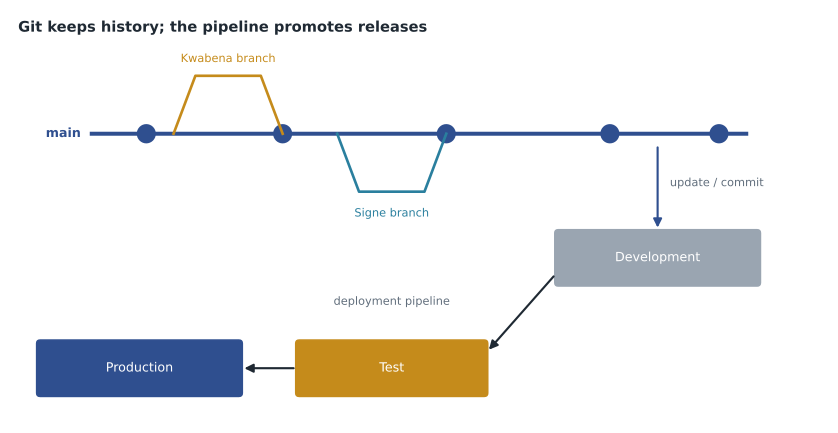
Deployment pipelines move content between workspaces. Git integration tracks the content's history as source files. A Fabric workspace can be connected to a branch of a repository in Azure DevOps or GitHub. Supported items, including Power BI reports and semantic models, are saved to the repository as text files: reports in the PBIR format and semantic models in TMDL, the formats introduced with Power BI projects. Builders commit workspace changes to the branch and update the workspace from changes made in the branch, and every change has a history, an author and a message.
Power BI Desktop can also save a report as a Power BI project (a .pbip folder) instead of a single .pbix file. Its folders of text files can be committed to the same repository, so the team can review changes line by line, such as a measure's DAX before and after a fix.
Lumenvale used both tools together, a common pattern. Only the development workspace was connected to Git, on the main branch of the institutional research repository. Signe and Kwabena each worked in their own feature branches and Desktop projects, merged reviewed changes into main, and updated the development workspace from Git; from there the deployment pipeline carried releases to test and production.
A release checklist
Rupert's release checklist for any Power BI change had seven lines, and Kwabena followed it for every production deployment: the change is described in one sentence; it was built and committed in development; the pipeline comparison shows only the expected items; a reviewer checked it in test with the test data; rules and parameters are correct for production; it was deployed to production; and the app was updated if any report content changed. It took about ten minutes, and it never again let a test filter reach the deans.
Planning stages and workspaces
Before creating a pipeline, the team decides what each stage is for. Development is where builders publish and experiment; it can be untidy and uses test or sample data. Test is where reviewers check a candidate release against data that looks like production; it should be stable while a review is under way. Production is what the app serves and changes only through deployments. Some organizations add a fourth stage, such as *User acceptance*, between test and production for business sign-off, or a *Hotfix* path. Lumenvale kept three stages for most subject areas, because the reviewers in test were the business owners themselves.
Each stage's workspace also needs the right people. Builders were Contributors or Members in development, reviewers were Viewers in test, and production had only the two admins and the app's readers. The pipeline itself was shared only with the people who deployed. Rupert's naming convention, *Subject [Dev]*, *Subject [Test]* and *Subject Analytics*, made the stage obvious from any list of workspaces.
Data in each stage
Test and development stages need data that is realistic but safe. Lumenvale's student information system had a test copy refreshed monthly from production with names and contact details replaced, and the development and test stages of the Student Success pipeline pointed at it through parameter rules. That let reviewers check measures against realistic volumes without exposing personal information more widely than production did. For sources without a test copy, such as Maribeth's SharePoint program list, all stages read the same list, which was acceptable because the list held no personal information.
Refresh schedules belong to each stage separately. The production model refreshed twice each weekday; the test model refreshed only when a release was being reviewed, which saved capacity; and the development model was refreshed by hand. Schedules are model settings in each workspace and are not copied by deployment, so Kwabena set the production schedule once after the first deployment and left it alone.
When something goes wrong in production
Even with a pipeline, a release occasionally needs undoing. Deployment pipelines do not keep old versions to roll back to, so the way back is to deploy a corrected version forward. With Git integration, the previous version of a report or model is one commit away: revert the change in the branch, update the development workspace and deploy through the pipeline. For urgent fixes, Lumenvale allowed a shortened path, still through test, with a reviewer on call, rather than ever publishing straight to production again.
Pipelines and app updates
Deploying to the production stage updates the items in the production workspace, but the app is a separate published snapshot. After a deployment that changes reports, pages or the set of items, someone must still select Update app before readers see the change; a deployment that only changes a semantic model's measures is visible as soon as the model refreshes, because the app's reports query the same model. Lumenvale's checklist therefore ended with the app update, and Kwabena's habit was to open the app as a reader immediately afterwards to confirm the change was visible and that nothing else had moved.
Org apps behave slightly differently, because they are items in their own right and Microsoft lists them among the items a pipeline can deploy, which means an org app's definition can move through the stages with the reports it contains. Lumenvale's classic app stayed in production only.
Common mistakes
MistakePublishing fixes straight to the production workspace.
InsteadPublish to development and promote through test with the deployment pipeline.
MistakeCreating items separately in each stage with the same names.
InsteadDeploy items through the pipeline so they are paired; unpaired items create duplicates.
MistakeHard-coding server names in Power Query.
InsteadUse parameters and set parameter rules for each stage.
MistakeExpecting a new deployment rule to apply immediately.
InsteadDeploy the content again after creating or changing a rule.
MistakeTreating the pipeline as version control.
InsteadUse Git integration or Power BI projects for history and reviews; pipelines move content between stages.
Summary and key terms
- A deployment pipeline links one workspace per stage; Microsoft documents 2 to 10 stages, default Development, Test and Production.
- Full, selective and backward deployments move content; paired items are overwritten, unpaired items are duplicated.
- Compare stages before deploying to see new and changed items.
- Data source and parameter rules keep each stage on its own data; redeploy after changing a rule.
- Reports are rebound to the paired semantic model in the target stage.
- Git integration with Azure DevOps or GitHub stores reports and models as text and records history.
- Deployment pipeline
- A Fabric item that promotes content through workspaces assigned to stages.
- Stage
- One step in a pipeline, such as Development, Test or Production, with one workspace.
- Selective deployment
- Deploying only chosen items from one stage to the next.
- Deployment rule
- A stage-specific setting, such as a data source or parameter value, kept during deployment.
- Pairing
- The link between corresponding items in adjacent stages that lets deployments overwrite the right item.
- Git integration
- Connecting a workspace to a branch in Azure DevOps or GitHub to store items as source files.
Practice problems
Work each problem on paper first, then reveal the answer to check.
How can a fixed report reach production while other unfinished items stay in development?
Show answer
Use selective deployment to deploy only the fixed items.
Why do test and production stages point at different databases after deployment?
Show answer
Deployment rules set data source or parameter values for each stage.
What does Git integration add that a deployment pipeline does not?
Show answer
Version history, branching and line-by-line review of changes to reports and models.
Lesson quiz · 5 questions
Score 60% or more to complete this lesson.
Create a free account to save your progress, take quizzes and earn a certificate.