
MSBA-263 · Lesson 3 of 12 · 19 min
Sharing and permissions
▶ Video coming soon A video version of this lesson is on the way.
Workspace roles and apps decide who can open the workspace and who can read the app. Underneath them sits a finer layer: permissions on individual items, permissions on semantic models, and row-level security that filters the rows each reader sees. The PL-300 study guide lists these as *configure item-level access*, *configure access to semantic models*, *implement row-level security roles* and *configure row-level security group membership*. This lesson works through them with the Student Success content, where the rule from the start was that a dean sees their own campus and nobody else's.
Layers of access
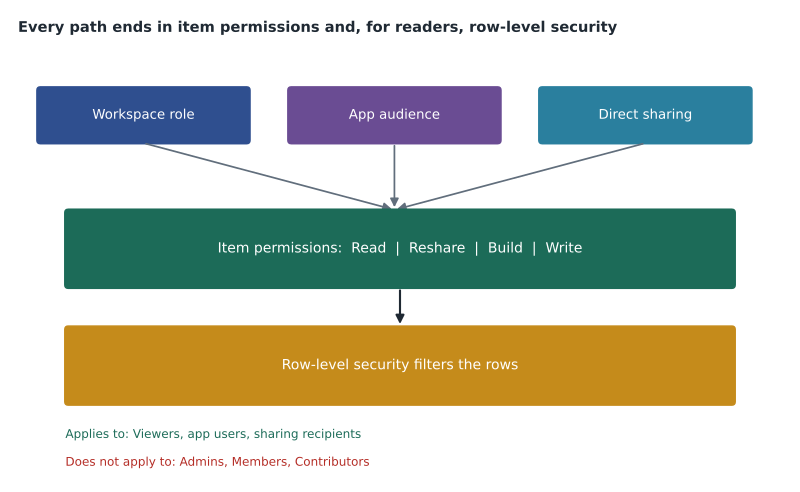
A reader can reach a Power BI report in three ways: through a workspace role, through an app audience, or through direct access to the item, granted by sharing. Whichever path they take, two more questions follow. Which permissions do they have on the item and its semantic model? And does row-level security filter the data they see?
Item permissions
Each item, such as a report or semantic model, has a set of permissions. The ones that matter most to a data analyst are these.
| Permission | On a report | On a semantic model |
|---|---|---|
| Read | Open and interact with the report | Read the data through reports that use it |
| Reshare | Share the report with others | Grant others access to the model |
| Build | Not applicable | Build new reports, explore data, analyze in Excel, use the model in composite models |
| Write | Edit and save the report | Edit model settings and properties |
Workspace roles carry these permissions automatically: Admins, Members and Contributors have Write on everything in the workspace; Viewers have Read. Sharing and apps grant them item by item. The Manage permissions page of an item shows who has which permission and by what route, and it is the first place to look when someone says *I can see the report but I cannot build my own*.
Sharing an item
The Share button on a report opens a dialog that creates a link. The link type decides who can use it.
| Link type | Who can use it | Typical use |
|---|---|---|
| People in your organization | Anyone signed in to the organization who has the link | Low-sensitivity content; often disabled by administrators |
| People with existing access | Only people who already have access | Sending a colleague a link without changing permissions |
| Specific people | Only the named people or groups | The safe default for most sharing |
In the dialog, two check boxes matter. Allow recipients to share this report grants Reshare. Allow recipients to build content with the data associated with this report grants Build on the semantic model. Both are on by default in many tenants, and Rupert's guidance was to clear them unless there was a reason. Sharing a report also grants Read on its semantic model, so the report can display its data.
Sharing works well for a few people and badly for many. Every share is an individual grant that someone must remember to remove, and sharing exposes the report outside the curated app. Kwabena used sharing for reviews, such as sending a draft to Dr. Okwuosa-Bell before release, and the app for everything else.
Guests, people outside the organization invited through Microsoft Entra business-to-business collaboration, can receive shared content if the tenant settings allow it. Lumenvale shared one report with an external evaluator from the provincial ministry this way, with the link limited to specific people and an expiry date on the guest account.
Access to semantic models
Semantic models are where reuse happens, so their permissions deserve as much attention as reports. A person who wants to build their own report on the Student Success model needs Build. There are three common ways to grant it: give the person a workspace role of Contributor or above; share the semantic model directly from its Manage permissions page with Build selected; or include the model in an app and allow app users to build content with it.
Kwabena chose the second route for a small group of analysts in the deans' offices. They received Read and Build on the semantic model, but no workspace role and no access to the report drafts. They could create reports from the model in their own workspaces, connect to it from Excel, and explore it in the service. Because the model had row-level security, their own reports were filtered exactly as the official ones were.
Row-level security roles
Row-level security (RLS) restricts the rows a reader can see by filtering tables with DAX expressions. It is defined in the model and applied by the service. Defining it has three steps.
First, create roles in Power BI Desktop. From the Modeling ribbon, Manage roles opens the role editor. A role has a name and one or more table filters. Kwabena created a role named *Campus* with a filter on the Campus table. The editor offers a simple filter builder for straightforward rules and a DAX editor for anything more complex.
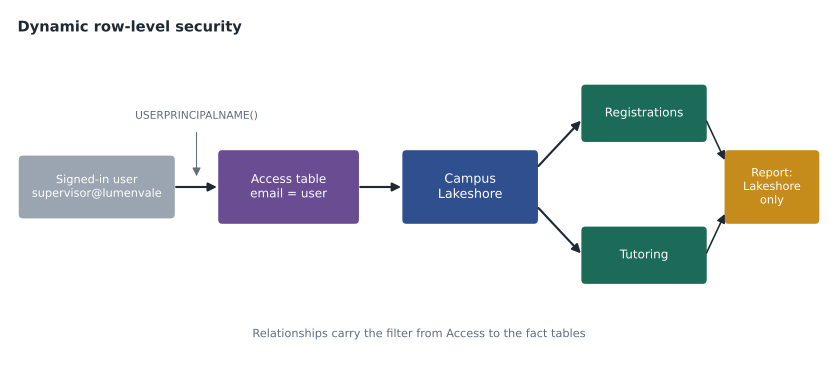
Second, choose static or dynamic rules. A static role hard-codes a value, such as a role named *Lakeshore* with the filter that the campus name equals Lakeshore. That works for a few values but needs a role per campus and constant maintenance. A dynamic role uses the signed-in user's identity. Kwabena's model had a small Access table listing each user's email address and the campus they were allowed to see, related to the Campus table, and the role filtered the Access table to the current user.
// Role: Campus   Table: Access
[UserEmail] = USERPRINCIPALNAME()
Because the Access table filtered Campus, and Campus filtered the enrolment and tutoring tables through relationships, one short expression secured the whole model. The relationships had to allow the filter to flow in the right direction; Signe checked that each was single-direction from Campus to the fact tables, and that the many-to-one relationship between Access and Campus used both cross-filter directions with the option to apply the security filter in both directions, so that filtering Access to one user also filtered Campus.
Third, test the roles. In Desktop, View as applies a role, and optionally another user's identity, so the author sees what that user would see. Kwabena tested the Campus role as three users, one from each campus, plus one user who was not in the Access table at all, who correctly saw nothing.
Row-level security group membership
Roles defined in Desktop do nothing until people are added to them in the service. After publishing, the semantic model's Security page lists the roles, and the admin adds members: users or groups. The exam objective *configure row-level security group membership* is about this step, and it has the same advice as workspace roles: use Microsoft Entra security groups rather than individuals. Lumenvale added one group, *SS-Readers-All-Campuses*, to the Campus role, because the dynamic filter itself decided which campus each person saw. With static roles, each role would have had its own group, such as a Lakeshore deans group in the Lakeshore role.
The Security page also offers Test as role, which opens the report in the service as a member of the role would see it. Kwabena used it after every change to the Access table.
Three rules govern how RLS behaves in the service. It applies to Viewers and to people who reach content through apps or sharing; it does not apply to Admins, Members or Contributors. A user in more than one role sees the union of what each role allows. And a user who is in no role at all sees no data from a model that has roles, which is safer than seeing everything.
Worked problem
Why a dean saw every campus
During testing, the Ridgeview dean opened the Student Success app and saw all three campuses. The Campus role worked in Desktop's View as. What are the likely causes, and how should Kwabena check them?
Show solution
- Check the dean's workspace role. If the dean is a Member or Contributor of the production workspace, row-level security does not apply. Remove the role; the app is enough.
- Check the Access table. If the dean's email appears with all three campuses, or the row uses a different address from the one they sign in with, the filter behaves accordingly.
- Check the roles the dean belongs to on the Security page. Membership in a second, broader role would show the union of both.
- Use Test as role with the dean's account to confirm the fix.
Answer: The dean had been added as a Contributor during the pilot, so security did not apply. Removing the workspace role and leaving app access fixed it, and Test as role confirmed that only Ridgeview rows appeared.
Beyond rows: object-level security
Sometimes it is not rows but whole tables or columns that must be hidden, such as a column of student birth dates that only the privacy office may see. Object-level security (OLS) hides tables or columns from members of a role so that they cannot query them at all. OLS is defined with external tools that edit the model's metadata, such as Tabular Editor, or in TMDL, and enforced by the service in the same way as RLS. It goes beyond the PL-300 objectives, but it explains why Lumenvale's model had a Privacy role that Kwabena did not create in the Desktop role editor.
Reviewing permissions
Permissions are reviewed in the same rhythm as workspace roles. Each term Kwabena opened Manage permissions for the Student Success semantic model and its main reports, removed direct shares that were no longer needed, and checked that every Build grant matched a current analyst. Rupert's tenant-level reports showed which items were shared with whole-organization links, and those were the first to be cleaned up.
Static roles, and when they are enough
Dynamic security is not always necessary. A model used by four teams that each see one fixed region can use four static roles, each with a filter such as the region name equals a value, and four groups assigned to them. Static roles are easier to read in the role editor and need no access table. They become hard to maintain when the number of values grows, when people move between values often, or when one person needs several values, which is why Lumenvale preferred the dynamic pattern for campuses and programs.
A model can mix both. The Student Success model had the dynamic Campus role for readers and a static *All campuses* role, with a filter that always returns true, for the Student Success Leadership group. A person in both would see everything, because roles combine as a union, so membership of the static role was reviewed each term.
Security and sharing together
Sharing and row-level security work together rather than replacing each other. Sharing a report with a dean gives them Read on the report and its model; row-level security then decides which rows they see. If a model has roles and the dean is in none, the shared report opens but shows no data, which looks like a broken report. Kwabena's sharing checklist therefore included one line: *if the model has roles, confirm the recipient is in a role or in the access table.*
Guests and external sharing in exam scenarios
Questions about people outside the organization usually turn on tenant settings and permissions together. Guests invited through Microsoft Entra business-to-business collaboration can view shared content, or content in an app, when administrators allow guest access; whether a guest can also edit content or browse the organization's catalog depends on further settings. The safest pattern for an external reviewer is the one Lumenvale used: a specific-people link, no Reshare or Build, a sensitivity label on the content, and an expiry on the guest account.
Common mistakes
MistakeLeaving Reshare and Build ticked by default when sharing.
InsteadClear them unless the recipient needs to share or build; grant Build deliberately on the semantic model.
MistakeCreating one static role per campus with individual members.
InsteadUse a dynamic role with USERPRINCIPALNAME() and an access table, and assign groups to roles.
MistakeForgetting to add members to roles after publishing.
InsteadRoles do nothing until users or groups are added on the semantic model's Security page.
MistakeTesting roles only in Desktop.
InsteadAlso use Test as role in the service with real accounts, including one with no access.
MistakeUsing row-level security to hide a sensitive column.
InsteadRLS filters rows; hiding tables or columns needs object-level security or a separate model.
Summary and key terms
- Readers reach content through workspace roles, app audiences or direct sharing, and then item permissions apply.
- Read, Reshare, Build and Write are the key permissions; Build on a semantic model allows new reports and Excel analysis.
- Share with specific people and clear Reshare and Build unless they are needed.
- Row-level security roles are created in Desktop with DAX filters and tested with View as.
- Dynamic roles use USERPRINCIPALNAME() with an access table; groups are added to roles in the service.
- RLS applies to Viewers, app users and sharing recipients; object-level security hides tables and columns.
- Build permission
- Permission on a semantic model to create new content from it, explore it and analyze it in Excel.
- Reshare permission
- Permission to share an item with other people.
- Row-level security
- Filters defined as DAX expressions in roles that restrict the rows a user can see.
- Dynamic security
- Row-level security that uses the signed-in user's identity, typically with USERPRINCIPALNAME().
- View as
- A Desktop feature that previews the report as a member of one or more roles or as another user.
- Object-level security
- Security that hides whole tables or columns from members of a role.
Practice problems
Work each problem on paper first, then reveal the answer to check.
An analyst can view the report but cannot connect to its semantic model from Excel. What is missing?
Show answer
Build permission on the semantic model.
A user belongs to the Lakeshore role and the Ridgeview role. What do they see?
Show answer
The union of both roles: Lakeshore and Ridgeview rows.
A user is not in any role of a model that has roles. What do they see?
Show answer
No data from the model.
Lesson quiz · 5 questions
Score 60% or more to complete this lesson.
Create a free account to save your progress, take quizzes and earn a certificate.