
MSBA-260 · Lesson 7 of 12 · 19 min
Parameters and functions
▶ Video coming soon A video version of this lesson is on the way.
In October, the database team gave Lumenvale a proper test environment, and Rupert asked every analyst to develop against test and publish against production. Kwabena's queries had the server name typed into a dozen Source steps. Changing them all before each release, and back again afterwards, was the kind of manual work he had promised to get rid of. At the same time, the outlet sales files were arriving weekly in a SharePoint library, one per outlet per week, and appending them by hand had stopped being practical after the first month. Both problems had the same answer: stop repeating yourself. Parameters hold values that change; functions hold logic that repeats.
This lesson covers the PL-300 objective *create and modify parameters*, and the custom functions and folder-combining pattern that build on them. Parameters also appear later in the course: incremental refresh in lesson 8 depends on two of them.
Creating parameters
On the Home tab of the Power Query editor, Manage parameters opens a dialog where you create a parameter with a name, an optional description, a Required flag, a type (such as Text, Decimal number or Date/Time), the suggested values (any value, a list of values, or a query that returns a list) and a current value. A parameter appears in the Queries pane as a query of its own, shown with a parameter icon, and its value can be used anywhere a value of its type is accepted.
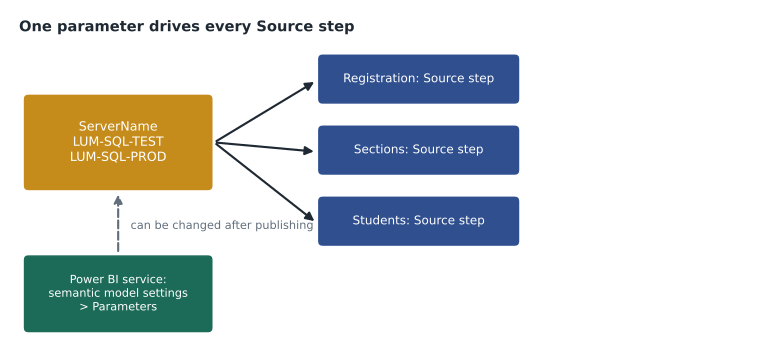
Kwabena created two Text parameters, ServerName and DatabaseName, with a list of suggested values for ServerName: LUM-SQL-TEST and LUM-SQL-PROD. Then he edited each Source step to use them. Many connector dialogs let you switch a field from typing a value to choosing a parameter; in the formula bar, it is simply the parameter's name in place of the quoted text.
Source = Sql.Database(ServerName, DatabaseName),
Enrolment = Source{[Schema = "dbo", Item = "Enrolment"]}[Data]
Switching environments became one change: set ServerName's current value, refresh, done. Rupert added one more step to the release checklist: confirm the parameter value before publishing, because a model accidentally published pointing at test data is worse than one that fails.
Parameters after publishing
Once a model is published to the Power BI service, its parameters can be changed without opening Power BI Desktop. In the workspace, open the semantic model's Settings and expand Parameters to see and edit current values, then refresh. This is how deployment pipelines and administrators retarget a model from test to production. Some changes, such as a server name, also require credentials to be configured for the new source in the model's data source settings, and a gateway if the source is on-premises (lesson 11).
Other uses for parameters
Parameters are not only for server names. They can hold a file path, a starting date for a filter, a currency code, or a threshold. A list of suggested values produces a drop-down, which helps people who maintain the model choose valid values. Parameters can also be prompted when a Power BI template is opened: saving a report as a template file (.pbit) keeps the queries, model and report but not the data, and opening the template asks for each parameter's value before loading. Kwabena saved the campus scorecard as a template so each campus's business office could open it against their own folder.
Two parameters have special names and meaning. An incremental refresh policy requires DateTime parameters named exactly RangeStart and RangeEnd, used to filter a date column. The service replaces their values to load only the partitions that need refreshing. Lesson 8 shows why the filter must fold for this to work well.
Custom functions
A function in M takes inputs and returns a result. Every transformation you have used is a function, such as Text.Trim or Table.SelectRows; Power Query also lets you write your own. The easiest way is to build a query that works for one case, using a parameter for the part that varies, and then right-click the query and choose Create Function. Power Query creates a function query whose body is the original query, with the parameter as its input, and keeps the two linked: edit the original, and the function updates.
Kwabena's academic-term codes, such as 202609 for fall 2026, needed converting to a readable term name and a start date in several queries. He built the logic once, as a function:
(TermCode as text) as record =>
let
    Year = Number.FromText(Text.Start(TermCode, 4)),
    MonthNumber = Number.FromText(Text.End(TermCode, 2)),
    Season = if MonthNumber = 1 then "Winter" else if MonthNumber = 5 then "Spring" else if MonthNumber = 9 then "Fall" else "Other",
    Result = [Term Name = Season & " " & Text.From(Year), Term Start = #date(Year, MonthNumber, 1)]
in
    Result
To use it, he chose Invoke custom function on the Add Column tab, picked fnTermInfo and the TermCode column, and expanded the resulting record into two columns. A custom function applied row by row is convenient but not free: it runs in the Power Query engine for every row and usually prevents query folding for the steps after it. For large tables from a database, it can be faster to do such logic in the source, or with a merge against a small term table. Kwabena eventually replaced fnTermInfo with a Term dimension table for exactly that reason, but kept the function for small files.
Combining files from a folder
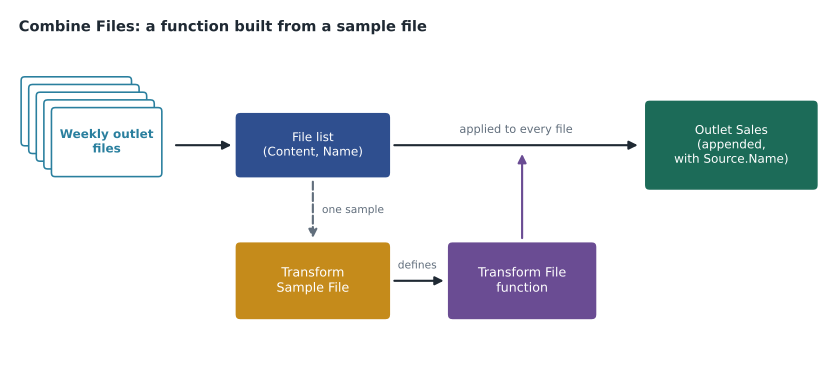
The most important use of a function in everyday Power Query is one you rarely write yourself: Combine files. Connect to a folder, or to a SharePoint folder, and the result is a table of files with columns such as Content, Name, Extension, Date modified and Folder Path. Filter it to the files you want, then click the Combine Files icon in the Content column header. Power Query asks which file to use as the example, and how to read it, such as which sheet or table in a workbook. It then builds a set of helper queries in a group called Transform File from the query's name:
| Helper query | What it is | Edit it when |
|---|---|---|
| Sample File | A query returning one example file | Rarely; it chooses the example |
| Parameter (Sample File Parameter) | A binary parameter whose value is the sample file | Never, normally |
| Transform Sample File | The steps applied to the sample file | You need to change how every file is shaped |
| Transform File | A function created from Transform Sample File | Never directly; it updates from the sample |
The main query then invokes Transform File on every file's Content, appends the results, and keeps the Name column, called Source.Name, so you know which file each row came from. The essential rule: shaping that must happen to every file goes in Transform Sample File; steps that work on the combined table, such as types, filters and merges with other tables, go in the main query.
Worked problem
Fixing a header row in every file
Each weekly outlet file has two title lines above the column headers. After combining, the table has two junk rows per file and the headers are wrong. Where should Kwabena fix it?
Show solution
- Open Transform Sample File, not the main query, because the problem exists in every file.
- Add Remove top rows with a count of 2, then Use first row as headers.
- Return to the main query. The combined result now has correct headers and no junk rows.
- If the main query's automatic Changed Type step refers to the old column names, delete and recreate it.
Answer: Fix per-file shaping in Transform Sample File. Fixing it in the main query would mean removing junk rows file by file from a combined table, which breaks as soon as a new file arrives.
Two more precautions make folder combining reliable. First, filter the file list before combining: by extension (only .xlsx), by name pattern (files that start with Sales_), and by folder path, so that a stray file someone saves in the library does not break the refresh. Second, choose a typical sample file. If the example file has an unusual column, every file is expected to have it.
When to use which
| Need | Use |
|---|---|
| A value that changes between environments or users | Parameter |
| A choice from a fixed set, prompted when a template opens | Parameter with a list of suggested values |
| The same logic applied to many values or rows | Custom function |
| Many files of the same shape | Folder or SharePoint folder with Combine Files |
| Loading only new data on refresh | RangeStart and RangeEnd with an incremental refresh policy |
Parameters that drive filters
Parameters can also hold values used in filters. Kwabena created a Date/Time parameter, HistoryStart, set to 1 September 2016, and used it in the registration query's date filter. In development he set it to the last year only, so the editor stayed fast; before publishing he set it back to ten years of history. Because the filter on a parameter value folds like any other filter, the database returned only the rows he asked for in both cases.
A parameter's suggested values can come from a query. Kwabena built a small query listing the three campus names and used it as the source of suggested values for a Campus parameter in the scorecard template. When the college opened a fourth campus, updating the query updated the drop-down without editing the parameter.
Reading and editing a function
A custom function's M begins with its parameters in parentheses, followed by =>, and then the body. A type after a parameter, such as TermCode as text, makes Power Query check the input; a type after the parentheses describes the output. Selecting a function in the Queries pane shows an Enter parameters form where you can test it with a value, which is the quickest way to check a function before invoking it over a whole column.
When a function was created with Create Function from a query, edit the original query, not the function. The function is linked to it and updates when the original changes. Editing the function's code directly breaks that link, and Power Query warns you before it does.
Folder combines in the service
Folder-combine queries behave the same after publishing, with one difference that catches people out. The Folder connector reads a path on a local disk or a network share, so a published model needs a gateway with access to that path, and the path must be the same as the one used in Desktop. The SharePoint folder connector reads from SharePoint Online in the cloud, so no gateway is needed. This is one of the main reasons Lumenvale moved the outlet exports into a SharePoint library, and lesson 11 returns to it.
A second difference is scale. A library that gains a file every week grows to hundreds of files within a few years, and every refresh reads them all. For large histories, two techniques help: filter the file list by Date modified or by a year folder so only recent files are read and older results are kept elsewhere, or move the preparation to a dataflow that writes the combined result once and appends only new files (lesson 9).
Exam patterns for parameters and functions
Exam questions on this objective usually ask how to make a value easy to change, such as a server, path or date, and the answer is a parameter. If a question describes changing that value after publishing without Power BI Desktop, the answer is the semantic model's settings in the service. If a question describes applying the same steps to many files, the answer is a folder connection with Combine Files, and if it asks where to change the steps for every file, the answer is Transform Sample File.
A parameter and function checklist
Kwabena's checklist for parameters and functions grew out of a few mistakes. Name parameters clearly, in a way that says what they control, such as ServerName or HistoryStart rather than Parameter1. Give each a description, because the description appears in the service's settings where someone else may change it. Set the type correctly: a DateTime parameter for incremental refresh, Text for paths and names. Keep functions small and single-purpose, test them with Enter parameters before using them, and prefix their names with fn so they stand out in the Queries pane. And group parameters and functions in their own folders, so that anyone opening the file can see at a glance what can be changed and what is reused.
The checklist also had one warning. Parameters that hold secrets, such as an API key, are visible to anyone who can open the file or edit the model's settings. Credentials belong in data source settings or a connection, never in a parameter.
Common mistakes
MistakeTyping server names into every Source step.
InsteadUse parameters so a single value change switches environments.
MistakeApplying per-file fixes in the combined main query.
InsteadPut shaping that every file needs in Transform Sample File.
MistakeCombining every file in a folder without filtering.
InsteadFilter by extension, name and path before combining.
MistakeUsing row-by-row custom functions on large database tables.
InsteadThey often stop query folding; prefer source-side logic or a merge with a small table.
Summary and key terms
- Parameters hold changeable values such as server names, paths and dates, and can be edited in the service after publishing.
- Templates (.pbit) prompt for parameter values when opened.
- Incremental refresh uses DateTime parameters named RangeStart and RangeEnd.
- Create Function turns a query with a parameter into a reusable custom function.
- Combine Files creates Sample File, a parameter, Transform Sample File and the Transform File function.
- Parameter
- A named value that queries can use in place of typed text or numbers.
- Suggested values
- The values offered for a parameter: any value, a list, or a query.
- Template file (.pbit)
- A saved report and model without data, prompting for parameters when opened.
- Custom function
- An M function you create to reuse logic across values or rows.
- Transform Sample File
- The helper query where shaping for every combined file is defined.
- Source.Name
- The column that records which file each combined row came from.
Practice problems
Work each problem on paper first, then reveal the answer to check.
Where can a published model's parameter be changed without Power BI Desktop?
Show answer
In the semantic model Settings, under Parameters, in the Power BI service.
What exact names must incremental refresh parameters have?
Show answer
RangeStart and RangeEnd, both of type DateTime.
Each file has an extra blank column that should be removed. Which query do you edit?
Show answer
Transform Sample File.
Lesson quiz · 5 questions
Score 60% or more to complete this lesson.
Create a free account to save your progress, take quizzes and earn a certificate.