
MSBA-260 · Lesson 10 of 12 · 18 min
Handling errors and nulls
▶ Video coming soon A video version of this lesson is on the way.
The Monday after the first full week of outlet sales files, the scheduled refresh failed. The email from the Power BI service said only that a column could not be found. Kwabena traced it in minutes: the café on the Ridgeview campus had started using a new till system, and its export called the column "Total" instead of "Amount". One file, one renamed column, and the whole model had stopped refreshing. The same week, the sales totals for the Lakeshore campus bookstore came out lower than its manager expected, and that turned out to be a quieter problem: rows where the amount had failed to convert to a number were being silently removed. Errors and nulls are where data preparation either becomes robust or becomes fragile.
This lesson covers the PL-300 objectives *resolve import errors* and *resolve inconsistencies, unexpected or null values, and data quality issues*. Power Query has two very different kinds of error, and confusing them is the root of most trouble.
Two kinds of error
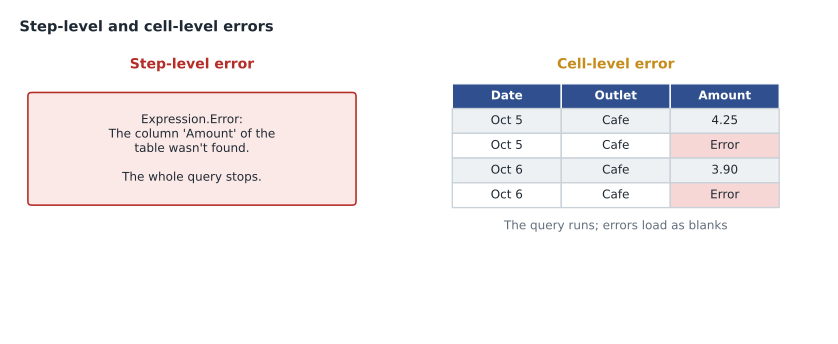
A step-level error stops the query. The preview shows an error message instead of a table, and a refresh fails. Typical causes: a column named in a step no longer exists (*The column 'Amount' of the table wasn't found*), a file or table has moved, credentials have expired, or a privacy level blocks combining sources (*Formula.Firewall*, lesson 11). The fix is in the query's structure or the source settings.
A cell-level error affects individual values. The query runs, but some cells show Error, such as when the text "N/A" cannot be converted to a number, or a division by zero in a custom column. Column quality (lesson 3) shows their share. By default, when a query with cell-level errors is loaded into the model, the erroring cells are loaded as null, and Power BI Desktop reports how many rows had errors with a link to view them. That default is why the Lakeshore campus totals were low: amounts that failed to convert became blank and summed as nothing.
Fixing step-level errors
Most step-level errors in maintained queries come from hard-coded column names meeting a source that changed. Every automatic Changed Type step lists every column by name, so it breaks the moment any column is renamed or removed. Defensive habits reduce the risk:
| Fragile pattern | More robust alternative |
|---|---|
| Automatic Changed Type naming every column | Set types only for the columns you use, after choosing columns |
| Remove columns by name | Choose columns (Remove other columns) keeping a fixed list |
| Rename by position or by the current source name only | Standardize names early, for example with a lookup of known variants |
| Referencing a sheet by name in every file | Reference the first sheet or a named table consistently in the sample file |
For the Ridgeview campus café, the long-term fix was agreeing a standard export layout with campus services. The short-term fix was a rename step inside Transform Sample File (lesson 7) that renamed Total to Amount only when Total existed. Power Query's Table.RenameColumns accepts a MissingField.Ignore option, so a rename list can include variants that only some files have without failing on the others:
#"Standard Names" = Table.RenameColumns(#"Promoted Headers",
    {{"Total", "Amount"}, {"Sale Amt", "Amount"}, {"Txn Date", "Date"}},
    MissingField.Ignore)
The same option exists on Table.SelectColumns and Table.RemoveColumns. It is a tool for known variation, not a way to hide problems: if a required column is missing from a file, it is better for the query to fail loudly than to load blanks.
Fixing cell-level errors
Start by finding the errors. Right-click a column header and choose Keep errors, or use Keep rows, Keep errors on the Home tab, to see only the failing rows; selecting an error cell shows its message at the bottom of the preview, such as *DataFormat.Error: We couldn't convert to Number*. Kwabena created a reference query, Sales Errors, that kept only error rows and loaded it as a small table so the campus managers could see which rows had problems.
Then decide what each error means and choose a fix:
| Option | What it does | Use when |
|---|---|---|
| Fix the cause upstream | Change the step or source so the value converts | The error reveals a systematic problem, such as a wrong locale |
| Replace errors | Puts a chosen value, often null, in place of the error | A missing value is acceptable and should be visible as blank |
| Remove errors | Deletes rows that have an error in the selected columns | The row is meaningless without the value |
| try ... otherwise | Returns an alternative value when an expression fails | A custom column must keep going for unusual values |
The Lakeshore campus errors had a systematic cause. The new till system wrote amounts with a comma as the decimal separator, such as 12,50, because it had been set up with a European locale. Converting with Change Type Using Locale for that one source, rather than replacing the errors, recovered every amount. Removing or replacing those errors would have hidden real sales.
#"Added Amount" = Table.AddColumn(#"Standard Names", "Amount Number",
    each try Number.From([Amount], "fr-FR") otherwise null, type nullable number)
M also has try ... catch, which passes the error record to a function so you can return different values for different errors, and a plain try returns a record with HasError and Error fields that you can inspect. These are useful in functions applied to many files, where one bad file should not stop the whole combine.
Nulls are not errors
A null is the absence of a value. It is normal and often meaningful: a student with no second phone number, an outlet with no sales on a holiday. Nulls become problems in three ways. They break logic: as lesson 4 showed, comparing null with a value returns null, and an if test on null raises an error. They break arithmetic: null plus 5 is null, so a custom column adding two amounts returns null when either is missing. And they break matching: a merge on a key column with nulls matches nothing for those rows.
M's coalesce operator, written as two question marks, returns the first value that is not null. It keeps custom columns short and safe:
#"Added Total" = Table.AddColumn(#"Added Amount", "Total With Tip",
    each ([Amount Number] ?? 0) + ([Tip] ?? 0), type number)
Replacing null with zero is not always right. For an amount, a missing value and a zero are different facts: zero means a sale was recorded as free; null means nobody knows. Kwabena replaced nulls with zero only in calculations where the business rule said so, such as tips, and left Amount itself null so a measure could count missing values. For text dimensions, a value such as "Unknown" is better than a blank, because a slicer item labelled (Blank) confuses users and a value of Unknown can be explained.
Empty strings, blanks and spaces
Text columns can contain three kinds of nothing: null, an empty string ("") and spaces. They look the same in a report and behave differently in Power Query: a filter on null does not catch empty strings, and an empty string is a distinct value in column distribution. Kwabena's standard for text keys was Trim, then Replace values of empty with null, so there was only one kind of missing value to handle.
Worked problem
Diagnosing missing sales
The Lakeshore campus bookstore manager says October sales were about 48,200 dollars. The report shows 41,950. Column quality on Amount shows 2 percent errors in Lakeshore campus rows, about 130 rows, and no empty values before loading. What is the likely cause, and what should Kwabena check?
Show solution
- The gap is 48,200 - 41,950 = 6,250 dollars.
- Errors in the query become nulls in the model by default, so those 130 rows contribute nothing.
- Keep errors on the Lakeshore campus rows and read the message: DataFormat.Error on values such as 47,95.
- The comma decimal separator points to a locale problem: convert with the right culture instead of replacing errors.
Answer: About 130 amounts failed to convert and were loaded as blanks, roughly 6,250 dollars of sales. Fixing the conversion locale recovers them; replacing or removing the errors would have hidden the problem.
Refresh failures in the service
A query that works in Power BI Desktop can still fail on a scheduled refresh in the service. The causes are usually not in the M at all: credentials missing or expired for the published model, a source on the internal network with no gateway (lesson 11), a privacy level conflict, a file path on someone's computer rather than SharePoint, or a timeout on a long query. The refresh history in the semantic model's settings shows the error message for each failure, and owners can receive failure emails. Kwabena added two colleagues as recipients so that a failure on his day off would still be seen.
Building checks into the query
The safest queries do not just handle errors; they report them. Kwabena added a few simple checks to every important query. A row count check: a separate query that counted rows per file and per week, loaded as a small table, so a week with zero rows from an outlet stood out. A range check: a conditional column flagging amounts below zero or above an outlet's plausible maximum. A completeness check: counting nulls in key columns after each merge. None of these stop the refresh, but together they make the Monday-morning look at the report a quality review.
For checks that must stop a refresh, M can raise an error deliberately with the error keyword: for example, if the combined sales table has no rows at all, return an error with a clear message instead of loading an empty table that would make every report show zero. A loud failure on Monday is better than a quiet zero that someone presents to the board.
Errors from sources
Some errors come from the source rather than the query. A database may time out on a long query; a web API may refuse too many requests; a SharePoint file may be locked while someone has it open in the desktop app; a file may be password protected. These usually appear as step-level errors with a message naming the source. The fixes are outside Power Query's transformation steps: optimize or filter the query so it runs faster, ask the API owner about limits, store files in a way that avoids locks (the browser and the desktop apps both save to SharePoint without blocking reads in most cases), or remove the password.
Exam patterns for error questions
Error questions usually describe a symptom and ask for the fix. If a refresh fails with a message about a missing column, think step-level error from a renamed or removed source column, and fix the step or the source. If totals are lower than expected and some values could not be converted, think cell-level errors loaded as blanks, and fix the conversion. If a question asks how to see only the problem rows, the answer is Keep errors. If it asks how to keep a custom column working for unusual values, think try ... otherwise.
Error handling in folder combines
When many files are combined, one bad file can break the whole refresh. A corrupted workbook, a file saved in an older format, or a file with no Export sheet all raise step-level errors inside the Transform File function, and the combined query fails. Kwabena handled this in two layers. In the main query, after invoking the function, he added a step that kept errors aside: a reference query, Files With Errors, kept only rows where the function returned an error, with the file name, and the main query removed those rows. The model refreshed with all good files, and the Files With Errors table showed which files needed attention. This is a reasonable use of Remove errors, because the bad files are still visible and someone is responsible for them.
Common mistakes
MistakeReplacing or removing every error to make the warning go away.
InsteadRead the error message first; systematic errors usually need a fix to the conversion or source.
MistakeForgetting that load errors become blanks in the model.
InsteadCheck error counts before loading and review the rows Desktop reports as errors.
MistakeReplacing every null with zero.
InsteadUse zero only where the business rule says missing means zero; otherwise keep null or use Unknown for text.
MistakeUsing MissingField.Ignore to hide required columns.
InsteadUse it for known variants only; a missing required column should fail loudly.
Summary and key terms
- Step-level errors stop the query; cell-level errors affect individual values.
- Cell-level errors are loaded as null by default, which can silently reduce totals.
- Keep errors to inspect them, then fix the cause, replace errors, remove errors or use try ... otherwise.
- Nulls break comparisons, arithmetic and merges; the ?? operator supplies a default.
- Standardize missing text values (trim, empty to null, Unknown) and read refresh history for service failures.
- Step-level error
- An error that stops a query, such as a missing column or source.
- Cell-level error
- An error in individual values while the rest of the query runs.
- Keep errors
- A command that shows only rows with errors in the selected columns.
- try ... otherwise
- An M expression that returns an alternative value when an expression fails.
- Coalesce operator (??)
- An M operator returning the first non-null value.
- MissingField.Ignore
- An option that lets column operations skip columns that do not exist.
Practice problems
Work each problem on paper first, then reveal the answer to check.
A refresh fails with "The column 'Amount' of the table wasn't found." Is this a step-level or cell-level error?
Show answer
Step-level: the query stops because a step names a missing column.
What happens by default to cell-level errors when the query loads into the model?
Show answer
The erroring cells are loaded as null, and Desktop reports the rows with errors.
What does [Tip] ?? 0 return when Tip is null?
Show answer
Zero.
Lesson quiz · 5 questions
Score 60% or more to complete this lesson.
Create a free account to save your progress, take quizzes and earn a certificate.