
MSBA-260 · Lesson 5 of 12 · 19 min
Merging and appending queries
▶ Video coming soon A video version of this lesson is on the way.
The fix for the 41 programs, Kwabena had decided, was not more Replace values steps. It was a lookup. Maribeth kept the official program list in a SharePoint list: one row per program, with its code, its approved name, its school and whether it was active. If every enrolment row matched that list by code, the program name, school and status would come from one place. "So you're joining my list to your enrolments," Maribeth said. "Exactly," said Kwabena. "In Power Query it's called a merge."
This lesson covers the two ways Power Query combines queries. Merge joins two tables side by side on matching key values, like a database join or a lookup. Append stacks tables on top of each other, adding rows. The PL-300 objectives here are *merge and append queries*, *identify and create appropriate keys for relationships* and *identify when to use reference or duplicate queries and the resulting impact*. All three come up together in practice.
Merge: matching rows by key
On the Home tab, Merge queries opens a dialog with two tables. You select the matching column or columns in each, choose a join kind, and Power Query adds a new column to the first table containing, for each row, a nested table of matching rows from the second. You then expand that column to bring in the fields you want. Merge queries as new does the same but creates a new query, leaving the first unchanged.
Kwabena merged Enrolment (the left table) with Program (the right table) on ProgramCode, chose a Left outer join, and expanded only Program Name, School and Active. Because names now came from the official list, the misspellings in the enrolment system no longer mattered. The program count dropped to 34 active programs plus one retired.
The six join kinds
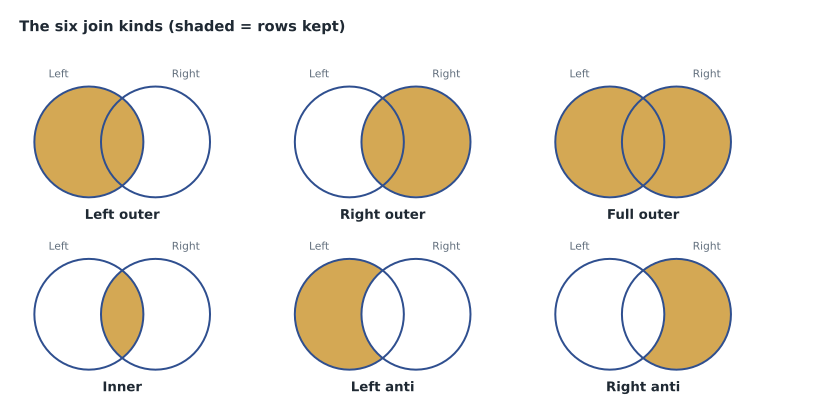
| Join kind | Rows kept | Typical use |
|---|---|---|
| Left outer | All rows from the first table, with matches from the second | Lookups: add details without losing rows |
| Right outer | All rows from the second table, with matches from the first | The same, seen from the other side |
| Full outer | All rows from both tables | Reconciling two lists |
| Inner | Only rows that match in both | Keeping only matched records |
| Left anti | Rows in the first table with no match in the second | Finding orphans and missing lookups |
| Right anti | Rows in the second table with no match in the first | Finding unused lookup values |
The anti joins are the analyst's quality tool. After the left outer merge, Kwabena ran a Left anti merge of Enrolment against Program to list enrolments whose code matched nothing in the official list. There were 58 rows, all with a code, BADM, that had been renamed to BUSA years earlier. Rather than patch them in Power Query, he asked Maribeth to add BADM to her list as a retired alias. A Right anti merge then showed two programs on her list with no enrolments at all, which she confirmed were new programs starting next fall.
Worked problem
Predicting row counts from join kinds
Enrolment has 96,090 rows. Every row has a ProgramCode. 96,032 rows have a code that appears once in the Program list; 58 have code BADM, which is not in the list. Program has 37 rows, of which 2 have no enrolments. How many rows does each merge return?
Show solution
- Left outer (Enrolment first): every enrolment row is kept, so 96,090. The 58 BADM rows get null program details.
- Inner: only matched rows, so 96,090 - 58 = 96,032.
- Left anti: unmatched enrolments only, so 58.
- Right anti (Program as the second table): programs with no enrolments, so 2.
Answer: 96,090; 96,032; 58; and 2. Because each code appears only once in Program, the left outer merge does not multiply rows. If a code appeared twice in Program, each matching enrolment row would appear twice after expanding.
That last point is the most common merge mistake. Before merging for a lookup, check that the key in the lookup table is unique, using the distinct and unique counts from lesson 3. If it is not, rows in the first table multiply when the merge is expanded, and every total in the report is inflated.
Keys: choosing and creating them
A key is a column, or a set of columns, whose values identify each row. In a lookup or dimension table, the key must be unique. Natural keys come from the source, such as ProgramCode or StudentID. When no single column is unique, a composite key of several columns may be, such as StudentID plus TermCode plus SectionCode for a registration. Power Query's Merge dialog accepts several matching columns: select them in the same order in both tables, holding Ctrl.
The semantic model, however, relates tables on a single column. If a relationship needs a composite key, create a single key column in both tables, either by merging the key columns into one text column with a separator, or by building a surrogate key: an Index column added in the dimension table and brought into the fact table with a merge. Kwabena's Section dimension used a merged key, Campus|TermCode|SectionCode, because the same section code repeated across campuses and terms.
#"Added Section Key" = Table.AddColumn(Sections, "Section Key",
    each Text.Combine({[Campus], [TermCode], [SectionCode]}, "|"), type text)
Fuzzy matching
Sometimes keys are not available and only names exist. The campus services team had a list of vendors typed by hand, and Kwabena needed to match it with the finance system's supplier list. Exact matching failed on "Lakeshore Paper Co." against "Lakeshore Paper Company". The Merge dialog offers Use fuzzy matching to perform the merge, with options for a similarity threshold between 0 and 1 (the default is 0.80), ignoring case, combining text parts, the maximum number of matches, and a transformation table that maps known variants to standard values.
Fuzzy matching is a helper, not a key. It can match the wrong things when names are similar, and it does not fold to the source, so it runs in the Power Query engine. Kwabena used it once to build a reviewed mapping table of vendor names to supplier IDs, which campus services then maintained, and used exact merges on IDs from then on.
Append: stacking rows
Append queries adds the rows of one or more tables below another. It is the tool for data that arrives in pieces of the same shape: one table per campus, per year or per outlet. Choose Two tables or Three or more tables, and Power Query lines up columns by name. Columns that exist in only some tables appear in the result, with null in the rows from tables that lack them. That behaviour makes appending forgiving, but also means a renamed column in one source silently creates a second, half-empty column.
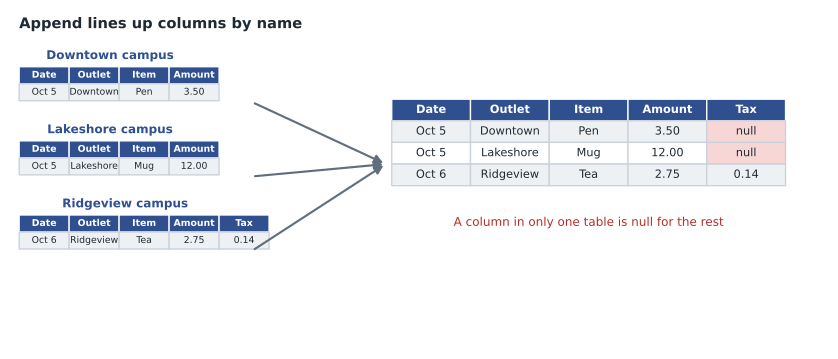
Before folders and the Combine feature were set up (lesson 7), the three campuses sent separate bookstore files, and Kwabena appended them. He found that the Lakeshore campus file called the amount column "Sale Amt" while the others used "Amount". The appended table had both columns, each half null. He renamed the column in the Lakeshore campus query before the append, and added a check: a quick column quality look at the appended table, where any column with a large empty share flagged a naming mismatch.
Reference versus duplicate
Right-click a query in the Queries pane and you can choose Duplicate or Reference. The difference is a favourite exam topic.
| Duplicate | Reference | |
|---|---|---|
| What it creates | A copy of the query with all its steps | A new query whose source is the original query's result |
| Effect of changing the original | None: the copy is independent | Flows through to the referencing query |
| Typical use | Trying a variation without risk | Building several outputs from one cleaned base |
| Risk | Fixes must be made in every copy | Breaking the original breaks every dependant |
Kwabena built one query, Enrolment Base, that connected to the database and did all the common cleaning. From it he created references: Enrolment (the fact table), Program Summary (a grouped table for a quick view) and Enrolment Exceptions (rows that failed checks). A fix to Enrolment Base flowed to all three. The Query dependencies view, on the View tab, showed the chain as a diagram.
References have an impact on refresh that the exam may test. Each query that loads to the model is evaluated during refresh, and a referenced query's steps may be evaluated again for each query that depends on it, rather than once and shared. The engine caches some results, but heavy base queries referenced many times can still slow refresh. For the base query itself, Kwabena turned off Enable load so it did not become an extra table in the model; lesson 9 covers these load settings.
Fact and dimension tables
Merges, appends and references come together when shaping data into a star schema: fact tables that record events or measurements, such as enrolments, registrations or sales, with numeric values and keys; and dimension tables that describe the things involved, such as student, program, campus and date, with one row per item. The modelling course (MSBA-261) covers star schemas in depth; Power Query's job is to produce clean fact and dimension tables with matching keys.
Kwabena's source enrolment table mixed both: every row repeated the program name, school and campus address. He referenced the base query twice. One reference kept the key columns and numbers as the Enrolment fact. The other kept only program columns, removed duplicates on ProgramCode and became the Program dimension, which he later replaced with Maribeth's official list once it was complete.
Merges and performance
Merges are among the most expensive steps in Power Query when they do not fold. A merge between two tables in the same SQL database usually folds into a SQL join, and the database does the work. A merge between a database table and an Excel file, or a SharePoint list, cannot fold: Power Query must read both sides and join them itself. For a lookup table of a few hundred rows that is fast. For two large tables it can be slow and memory-hungry.
Kwabena used three techniques when merges were slow. He filtered and removed columns on both sides before the merge, so less data was joined. He merged on single text or whole-number keys rather than on several columns where possible. And for lookups that existed only to add a label, he often skipped the merge entirely and let the semantic model do the work with a relationship. A relationship between the Enrolment fact and the Program dimension gives every report access to program names without copying them into millions of fact rows. Merging in Power Query is for when the result must physically exist in a table, such as building a dimension or creating a key.
Expanding merged columns
After a merge, the new column holds a nested table for each row. The expand button in its header offers Expand, which adds the chosen columns and repeats the row for each match, and Aggregate, which summarizes the matching rows into one value per row, such as a count or a sum. Clear the option to use the original column name as a prefix unless the names would clash, because prefixed names such as Program.Program Name are awkward for report users.
When append meets real files
Appending looks simple, but real sources make it harder. The tables must mean the same thing as well as have the same columns. When the continuing studies division sent its enrolments to append with the credit programs, Kwabena found their Credits column counted contact hours, not credits. The append worked perfectly and produced nonsense. He added a conversion before appending, and a Source column to every appended table recording where the rows came from, so any later question about a number could be traced. A Source column costs almost nothing and saves a great deal of time.
Exam patterns for merge and append
Exam questions often give two tables and a goal and ask which operation and join kind to use. If the goal is to add columns from another table, it is a merge; if the goal is to add rows, it is an append. Among merges, a request to keep all records from one table with details where available is a left or right outer join; only matching records is inner; records that are missing from another table is an anti join. If the question mentions inflated totals after a merge, the lookup key is probably not unique.
Common mistakes
MistakeMerging on a lookup key that is not unique.
InsteadCheck distinct and unique counts first; duplicates in the lookup multiply rows.
MistakeUsing an inner join for lookups and silently losing unmatched rows.
InsteadUse left outer for lookups and a left anti merge to find what failed to match.
MistakeAppending tables whose column names differ.
InsteadRename columns to match before appending; append lines up columns by name.
MistakeDuplicating a query to build several outputs.
InsteadReference one cleaned base query so fixes flow to every output.
Summary and key terms
- Merge joins tables side by side on matching keys; append stacks rows from tables of the same shape.
- The six join kinds are left outer, right outer, full outer, inner, left anti and right anti.
- Anti joins find unmatched rows; lookup keys must be unique or rows multiply.
- Fuzzy matching uses a similarity threshold (default 0.80) and should feed a reviewed mapping, not replace keys.
- Duplicate copies a query; Reference builds on its result so changes flow through.
- Merge
- Joining two queries on matching column values to add columns.
- Append
- Combining queries by adding the rows of one below another.
- Join kind
- The rule deciding which rows a merge keeps.
- Anti join
- A merge that keeps only rows without a match in the other table.
- Surrogate key
- A key created for a table, such as an index number, rather than taken from the source.
- Reference query
- A query whose source is the result of another query.
Practice problems
Work each problem on paper first, then reveal the answer to check.
Which join lists enrolments whose program code is missing from the official list?
Show answer
A left anti merge with Enrolment as the first table.
Why did the appended sales table have both Amount and Sale Amt columns?
Show answer
Append matches by name, and one source used a different column name.
What happens to a referencing query when the original query changes?
Show answer
The change flows through, because the reference starts from the original's result.
Lesson quiz · 5 questions
Score 60% or more to complete this lesson.
Create a free account to save your progress, take quizzes and earn a certificate.