
MSBA-221 · Lesson 7 of 12 · 18 min
Custom apps and the Teams app store
▶ Video coming soon A video version of this lesson is on the way.
Corvallin's visit checklist app began as a side project. A scheduling analyst built a simple Power Apps form that nurses could fill in after each visit, and a developer at the scheduling vendor wrapped it, along with a notification bot, into a Teams app package so that nurses could open it from the app bar. The analyst sent the package file to a few colleagues, who uploaded it themselves. Within a month there were four slightly different versions in use, and nobody could say which was current.
This lesson covers how organizations bring their own apps into Teams properly, how the Teams app store is curated and customized, how app purchases work, and which extensibility option fits which need. The MS-700 outline lists uploading an app, managing purchases, customizing the store's appearance and recommending extensibility options, so all four are here.
What a Teams app is
A Teams app is a package that tells Teams how to present one or more capabilities. The package is a ZIP file containing a manifest, a JSON file describing the app, its permissions and its capabilities, and two icons. The capabilities the manifest can declare include:
| Capability | What it does | Example at Corvallin |
|---|---|---|
| Tab | Shows a web page or app inside a channel, chat, meeting or as a personal app | The visit checklist form as a personal tab |
| Bot | A conversational service users chat with | The scheduling bot that answers "what's my next visit?" |
| Message extension | Lets users search or act on content from the compose box or a message | Inserting a client visit card into a chat |
| Meeting extension | Adds an app to the meeting stage or side panel | A case review checklist shown during case conferences |
| Connector or workflow | Posts updates into channels from other systems, now usually through Workflows built on Power Automate | Posting the daily staffing gaps into Scheduling |
| Agent | An AI agent that users chat with in Teams, often built in Copilot Studio | A proposed policy questions agent |
Recommending the right extensibility option is a practical skill. A notification that a daily report is ready does not need a custom bot; a Workflow posting to a channel is simpler and easier to maintain. A small form that fills in a list may be best as a Power Apps app added as a tab. A full custom app with a bot and message extension makes sense when people need to interact with a business system from many places in Teams. Teodor's rule for staff requests was to start with the simplest option and move up only when the simple one could not do the job.
Uploading custom apps
There are two very different ways a custom app gets into Teams. A user can upload a custom app for their own use or for a team, sometimes called sideloading, if the org-wide setting and their own policy allow it. Or an administrator can publish the app to the organization's app catalog, where it appears in the store under a section built for the organization.
Personal upload is meant for developers testing their work. It is controlled by the org-wide custom app setting and by the upload custom apps setting in the user's app setup policy. Corvallin turned it off for everyone except two developers at the scheduling vendor, who received a setup policy that allowed it. That ended the four-versions problem at once: the only way to get the checklist app was now the published version.
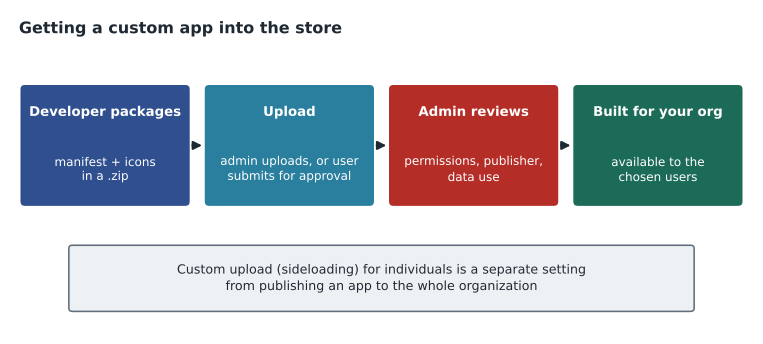
To publish, an administrator goes to Manage apps in the Teams admin center and uploads the package, or approves a package that a developer has submitted for approval from the Teams client or through Microsoft Graph. A submitted app waits in a pending state until an administrator reviews it. Once published, the app appears to users under the built-for-your-organization section of the store, subject to its availability. New versions can be uploaded over the existing app, and users get the update without reinstalling.
# Publish an approved custom app package to the organization's catalog
New-TeamsApp -DistributionMethod organization -Path .\VisitChecklist-1.4.zip
# Find it again later and upload a new version
Get-TeamsApp -DisplayName 'Visit Checklist' -DistributionMethod organization
Set-TeamsApp -Id $appId -Path .\VisitChecklist-1.5.zip
Corvallin set up a simple process for custom apps. The requester completes a short form that names a business owner, describes the data the app uses and lists its permissions. Teodor checks the manifest and permissions, the privacy officer reviews data use, and the app is published with availability limited to the group that needs it. The visit checklist app went through the process in a week and is now available to the Branch-Care-Staff group and pinned by the Frontline-Setup policy.
The Teams app store
The Teams app store is where users find apps. It shows Microsoft apps, apps from third-party publishers and apps built for the organization, filtered by what each user is allowed to use. Administrators control what appears through availability (lesson 6) and can shape how the store looks.
Customizing the store is done in the Teams admin center under Teams apps and then Customize store. An administrator can add the organization's logo, a small logo, a background image or colour and a text colour, so that staff know the store as their organization's. Corvallin used its own colours and logo so that the built-for-your-org section looked official, which helped staff trust the visit checklist app over the stray copies that had circulated.
Users who find an app they are not allowed to use can request it if that setting is on. Requests appear in the Teams admin center on the app's page and in a list of requested apps, so an administrator can see demand. Corvallin's request list quickly showed which tools staff actually wanted, and two of them, a signature app and a translation app, went through review and were approved for specific groups.
Purchasing apps
Some third-party apps are sold through Microsoft. The MS-700 outline asks administrators to manage purchasing of apps in the Teams app store. An administrator with the right role can buy licences for a subscription-based app from the Teams admin center, review the vendor's plans and pricing, and then manage the licences in the Microsoft 365 admin center alongside Microsoft licences. Purchased apps still need the right availability and, often, admin consent.
Users can sometimes buy apps themselves through self-service purchase for some Microsoft products, but Corvallin turned self-service purchase off for apps so that every purchase went through the review process and the finance office. Teodor's view was that a licence bought on a personal card was still an app holding company data.
| Task | Where |
|---|---|
| Upload or approve a custom app | Teams admin center, Teams apps, Manage apps |
| Allow or block personal upload | Org-wide app settings, plus the upload setting in app setup policies |
| Brand the store | Teams admin center, Teams apps, Customize store |
| Review app requests | Teams admin center, the app's page and the requested apps list |
| Buy third-party app licences | Teams admin center (purchase), Microsoft 365 admin center (licences) |
| Grant admin consent | The app's page in the Teams admin center, or Enterprise applications in Microsoft Entra ID |
Line-of-business apps and the developer relationship
Most organizations do not write Teams apps themselves; they get them from vendors or from internal Power Platform makers. The administrator's job is to set the rules: who can build, where test versions run, how packages are reviewed and who owns each app after release. Corvallin required that every published custom app have an internal business owner and a named technical contact, and that the vendor sign off on each new version before Teodor uploaded it.
Developers testing apps should use a separate developer tenant or a tightly limited set of test users rather than uploading test builds into the production organization. Microsoft offers developer programme options for this, and Corvallin's vendor used its own tenant to test, then sent Corvallin only release packages.
Worked problem
Recommending an extensibility option
The finance office wants staff to be told in Teams when their expense claim is approved. A vendor offers to build a custom bot for a fee. What should Teodor recommend?
Show solution
- Identify the need: a one-way notification to a person when a system event happens.
- A custom bot can do it, but it must be built, reviewed, hosted and maintained.
- A Workflow in Teams, built on Power Automate, can send a chat message or adaptive card when the expense system records an approval, if the system has a connector or can call a webhook.
- Recommend the Workflow, with a custom app only if staff later need to act on claims from Teams.
Answer: A Workflow that posts a notification is simpler, cheaper and easier to govern than a custom bot for one-way notifications.
Reviewing a custom app before publishing
When the scheduling vendor sent version 1.4 of the visit checklist app, Teodor reviewed it the same way every time. He opened the package and read the manifest: the app's name, version, developer details, privacy policy and terms of use links, the capabilities it declared and the domains it was allowed to load content from. He checked the permissions it requested, especially any resource-specific consent permissions that would let the app read team or chat data, and compared them with the previous version. Any new permission needed a reason from the vendor before he would publish.
He also checked the practical details. Did the icons meet the size rules, so the app looked right in the store? Did single sign-on work, so nurses were not asked for another password? Did the app behave on a phone, where most nurses would use it? He tested on his own account first, then on a test frontline account with the Frontline-Setup policy, and only then uploaded the new version over the existing app.
| Manifest item | What to check |
|---|---|
| Developer and privacy links | They point to the real vendor and a current privacy policy |
| Valid domains | Only the vendor's and Corvallin's own domains, nothing unexpected |
| Capabilities | Match what the business owner asked for, with no extra bots or extensions |
| Permissions and consent | No new permissions without a reason; resource-specific permissions understood |
| Version number | Higher than the published version, with change notes |
Power Platform apps in Teams
Many internal apps never become full custom app packages. A maker can add a Power Apps app to a channel as a tab, or build an app inside Teams with the Power Apps app in Teams, which uses Dataverse for Teams storage within that team. These options are quick and often right for small team-specific needs. They also need governance: Corvallin's Power Platform environment strategy, managed by the IT team, decides who can create apps and where they are stored, and apps that serve the whole agency are rebuilt properly and published, as the visit checklist was.
The boundary Teodor drew was simple. If an app serves one team and its data stays in that team, a tab or an app built in Teams is fine. If it serves many teams, holds client data or needs to be pinned for a whole group, it goes through the custom app process and is published to the organization catalog with limited availability.
Retiring apps
Apps also reach the end of their lives. When Corvallin replaced an old training app with Viva Learning, Teodor set the old app to No one after a notice period, removed it from setup policies, and asked the vendor to confirm data deletion. Removing an app from setup policies first avoids a confusing period where an app is pinned but unavailable. The app's entry stayed in the catalog for a month in case anyone needed to export data, and was then deleted.
Common mistakes
MistakeLetting everyone upload custom apps.
InsteadLimit personal upload to developers and publish approved apps to the organization catalog.
MistakeBuilding a custom bot for simple notifications.
InsteadUse a Workflow or connector for one-way updates; reserve custom apps for interactive needs.
MistakePublishing a custom app to Everyone by default.
InsteadLimit availability to the group that needs it.
MistakeTreating purchased apps as automatically approved.
InsteadPurchased apps still need availability, consent and a data review.
Summary and key terms
- A Teams app is a ZIP package with a manifest and icons that can include tabs, bots, message extensions, meeting extensions, connectors or workflows, and agents.
- Choose the simplest extensibility option: Workflows for notifications, tabs for forms and pages, custom apps for interactive integration.
- Personal upload is for developers; publishing to the organization catalog is the controlled route.
- Administrators upload or approve custom apps in Manage apps and can update them with new versions.
- The store can be branded under Customize store, and user requests show demand.
- Third-party app purchases are made in the Teams admin center and managed with other licences in the Microsoft 365 admin center.
- App manifest
- The JSON file in a Teams app package that describes the app, its capabilities and permissions.
- Custom app upload
- Uploading an app package for personal or team use, also called sideloading.
- Built for your org
- The store section for apps an organization has published to its own catalog.
- Message extension
- An app capability that lets users search or act on content from the compose box or a message.
- Workflow
- An automation in Teams, built on Power Automate, that can post messages and cards.
Practice problems
Work each problem on paper first, then reveal the answer to check.
How do you stop four different copies of an internal app circulating?
Show answer
Turn off personal upload for most users and publish one approved version to the organization catalog.
Where do you brand the Teams app store?
Show answer
In the Teams admin center under Teams apps, Customize store.
What is the simplest way to post a daily report link into a channel?
Show answer
A Workflow in Teams built on Power Automate.
Lesson quiz · 5 questions
Score 60% or more to complete this lesson.
Create a free account to save your progress, take quizzes and earn a certificate.