
MSBA-221 · Lesson 3 of 12 · 19 min
Templates and team settings
▶ Video coming soon A video version of this lesson is on the way.
Corvallin has a head office and four branches, and each branch team had grown up differently. The North Branch had 14 channels, three of them called some version of "Schedule". The West Branch had two channels and kept everything in General. When a coordinator moved from one branch to another, she had to learn a new layout before she could find the day's visit list. Ines asked Teodor to make every branch team look the same, and to make sure the next new branch, or the next acquisition like Kittiwake, started out that way.
The answer was a team template, plus a consistent set of team settings. This lesson explains what templates are, how Microsoft's built-in templates differ from custom ones, how template policies decide which templates users see, and which team settings owners and administrators should make consistent across teams. The MS-700 outline asks candidates to create a team from a template and to create and manage templates and template policies, so both halves matter.
What a template contains
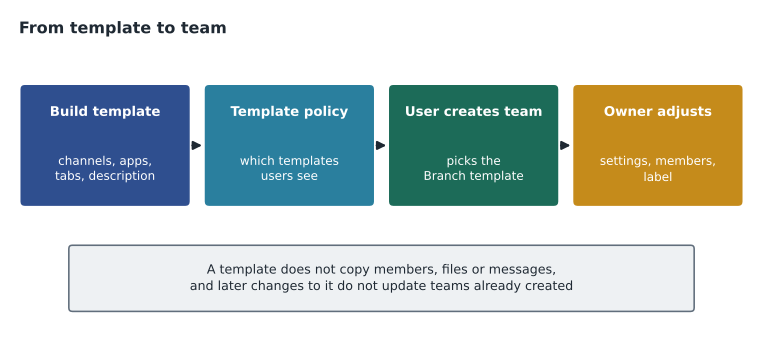
A team template is a predefined team structure. It defines a set of channels, the apps and tabs that should be added to those channels, a description and some team settings. When a user creates a team from the template, Teams builds the team with that structure in place, ready for the owner to add people.
A template does not copy people, conversations or files. It describes the shape of a team, not its content. It also does not stay linked to the teams created from it: if Teodor later changes the Branch template, existing branch teams keep their old structure. That is a common surprise, and it shaped how Corvallin planned changes. When the agency added a new channel to every branch, Teodor updated the template for future teams and ran a short script to add the channel to the existing branch teams.
Built-in and custom templates
Microsoft provides a set of built-in templates for common scenarios, such as managing a project, managing an event, onboarding employees, organizing a store or coordinating incident response, and several for healthcare and education. Each has a sensible set of channels and apps. Built-in templates cannot be edited, but they can be duplicated and the copy changed.
Administrators create custom templates in the Teams admin center, under Teams and then Team templates. A custom template can start from scratch, from a built-in template or from an existing team. Starting from an existing team is often fastest: Teodor built the ideal branch team by hand, tested it with the North Branch pilot, and then created the Branch template from it.
| Corvallin template | Channels | Apps and tabs |
|---|---|---|
| Branch | General, Scheduling, Visits Today, Clinical Questions, Branch News | Shifts, Planner board in Scheduling, visit checklist app, OneNote for branch procedures |
| Project | General, Planning, Decisions, Risks | Planner, a Lists tracker for decisions, Loop workspace |
| Clinical committee | General, Agenda, Policy Review | OneNote for minutes, Approvals |
Corvallin kept the number of templates small on purpose. Three templates covered nearly every request, and each extra template is another object to maintain. Teodor also hid most built-in templates from staff, for reasons explained in the next section.
Template policies
A template policy controls which templates appear to users when they create a team. Policies are created in the Teams admin center under Teams and then Team templates, and they can show or hide each built-in and custom template. Like other Teams policies, a template policy is assigned to users or groups, with the Global (Org-wide default) policy applying to anyone not covered by another.
Corvallin's Global template policy hides almost every built-in template and shows only the three Corvallin templates. Because only members of the Team Creators group can create teams anyway, the policy's main job is to keep the creation screen simple for the people who do create them, and to stop someone from picking the store or classroom template by mistake. The IT team has its own template policy that also shows Microsoft's incident response template, which IT uses for major outages.
Templates also matter for automation. Microsoft Graph can create a team from a template by referring to the template's ID, which is how Corvallin's request form, built with Power Automate, creates teams: a member of Team Creators approves the request, and the flow builds the team from the chosen template with the requester and a second person as owners.
# List the templates available in the tenant
Get-CsTeamTemplateList | Select-Object Name, Category, OdataId
# Create a branch team from the custom Branch template with Microsoft Graph PowerShell
$body = @{
  'template@odata.bind' = "https://graph.microsoft.com/v1.0/teamsTemplates('standard')"
  displayName = 'CHC-Truro Satellite'
  description = 'Scheduling, visits and news for the Truro satellite office'
}
# For a custom template, use the template ID returned by Get-CsTeamTemplateList instead of 'standard'
Team settings
Every team has settings that decide what its members can do. Owners change them in the Teams client under the team's settings, and administrators can view and change them from the Manage teams page. The main groups are:
Member permissions. Whether members can create, update and delete channels; create private channels; add and remove apps; upload custom apps; create, update and remove tabs and connectors; and delete or edit their own messages. Guest permissions. Whether guests can create, update and delete channels. @mentions. Whether people can use @team and @channel mentions, which notify everyone. Fun stuff. Whether GIFs, stickers and memes are allowed, and whether content ratings filter GIFs. Team code. A code that lets people join a team without an invitation, useful for training sessions.
| Setting | Corvallin's branch standard | Reason |
|---|---|---|
| Members can create and update channels | Off | Keeps the branch layout identical; owners add channels on request |
| Members can create private channels | Off | Private channels are for owners to create when truly needed |
| Members can add and remove apps | Off | Apps are pinned by setup policy; owners add others |
| Members can delete their own messages | On | People need to correct mistakes |
| @team mentions | Owners only | Prevents 60-person notifications for routine questions |
| GIFs | On, moderate rating | Staff morale; the branch decided |
Some team settings can be part of a template, but owners can still change them afterwards. If a setting must not change, it should be enforced by something stronger than a team setting: a sensitivity label for privacy and guest access, a Teams policy for channel creation, or app availability for apps. Corvallin's Clinical Confidential label, for example, keeps clinical teams private and blocks guests regardless of what an owner clicks.
Privacy and sensitivity settings
The MS-700 outline asks administrators to configure privacy and sensitivity settings for a team. Privacy is the public, private or org-wide choice covered in lesson 1. Sensitivity is a sensitivity label applied to the team as a container. When labels are enabled for groups and sites, a container label can set the team's privacy, control whether guests can be added, control external sharing on the team's SharePoint site and decide whether unmanaged devices get limited web-only access to files.
Corvallin uses three container labels: General, Partner Work and Clinical Confidential. When a branch team is created from the Branch template, the creator must choose a label, and Clinical Confidential is the expected choice for clinical teams. The label is applied in Microsoft Purview and the details belong to the compliance course, but the team administrator needs to know that labels can override team settings, and that changing a label can change a team's privacy.
Applying a standard to existing teams
Templates help only with new teams. For the 96 teams Corvallin kept after the clean-up, Teodor needed to bring settings into line. The MicrosoftTeams module can read and change team settings in bulk. He tested the script on two teams first, recorded what changed, and only then ran it against all branch teams, which he identified by the CHC- prefix and the branch naming pattern.
# Apply Corvallin's branch standard to every branch team
$branch = Get-Team | Where-Object { $_.DisplayName -like 'CHC-* Branch' }
foreach ($t in $branch) {
    Set-Team -GroupId $t.GroupId `
        -AllowCreateUpdateChannels $false `
        -AllowCreatePrivateChannels $false `
        -AllowAddRemoveApps $false `
        -AllowTeamMentions $false `
        -AllowGiphy $true -GiphyContentRating Moderate
    Write-Output "Updated $($t.DisplayName)"
}
Worked problem
Rolling out a new channel to every branch
In November 2026, Corvallin's clinical director asks for a new standard channel called Infection Control in every branch team, with a OneNote tab for procedures. There are five branch teams today and two more planned for 2027. What should Teodor do?
Show solution
- Edit the Branch template to add the Infection Control channel and its OneNote tab, so future branch teams include it.
- Remember that template changes do not reach existing teams.
- Add the channel to the five existing branch teams with New-TeamChannel in a loop, testing on one team first.
- Ask each branch owner to add the OneNote tab, or add it through Microsoft Graph, and confirm in each team.
Answer: Update the template for future teams and script the change for existing teams; the template alone would leave the current five unchanged.
Designing a good template
A template is only as good as the thinking behind it. Teodor's approach was to design the branch template with the people who would use it, not for them. He asked two coordinators and a branch manager from the North Branch pilot to describe a normal day: where they looked first in the morning, what they posted, which files they opened and which questions they answered most. Their answers became the channel list. Scheduling holds the day's changes. Visits Today holds the live visit list and quick updates from the road. Clinical Questions is where nurses ask senior clinicians for advice. Branch News holds announcements from the manager. General stays mostly quiet, used only for the occasional message that concerns everyone.
Each channel then received the tabs that matched its job. Scheduling has a Planner board for open shifts and a link to the scheduling system. Clinical Questions has a OneNote tab with branch procedures and the infection control guide. Branch News is moderated so that only the manager and coordinators can start posts. The template description explains all of this in two sentences, so a new owner knows what each channel is for.
Good templates also leave things out. The first draft had eleven channels, including separate channels for each shift. In the pilot, people posted in the wrong shift channel or missed updates in channels they had not followed. Cutting to five channels made the branch teams easier to scan on a phone, which mattered for staff who mostly use Teams in a car between visits.
Testing and changing templates
Teodor tested every template before releasing it. He created a test team from the template, checked that each channel, tab and app appeared, confirmed that the frontline setup policy pinned the right apps for a test frontline account, and deleted the test team afterwards. He also kept a version number and change notes in the template description, such as "Branch v3, November 2026: added Infection Control", so anyone could tell which version a team came from.
When a template needs to change, the change has two parts: the template itself and the existing teams. Corvallin's change process asks three questions. Does the change matter for existing teams? If yes, who will apply it and how? Do owners need to be told? For small changes, such as a new tab, owners are simply told and can add it. For changes that matter, such as the Infection Control channel, IT applies them by script and tells owners afterwards.
| Template element | Copied into new teams? | Changed later by template edits? |
|---|---|---|
| Channels and their names | Yes | No, only for teams created afterwards |
| Apps and tabs | Yes | No |
| Team description | Yes | No |
| Some team settings | Yes | No |
| Members, files, messages | No | Not applicable |
| Sensitivity label | No, chosen at creation | Not applicable |
Teodor also wrote a short owners' note for each template, pinned as a post in the General channel of every new team. It says what each channel is for, who the second owner is, which label the team carries and how to ask IT for changes. New owners read it on their first day, and it answers most of the questions they would otherwise send to the help desk.
Common mistakes
MistakeExpecting a template change to update teams created from it.
InsteadTemplates apply only at creation; change existing teams separately.
MistakeLeaving every built-in template visible to everyone.
InsteadUse template policies to show only the templates people should use.
MistakeRelying on a team setting to protect a sensitive team.
InsteadUse a sensitivity label, Teams policy or app availability for anything that must not change.
MistakeCreating a different template for every request.
InsteadKeep a few well-maintained templates that cover most needs.
Summary and key terms
- A team template defines channels, apps, tabs, a description and some settings; it does not copy members, messages or files.
- Teams created from a template do not change when the template changes.
- Built-in templates cannot be edited but can be duplicated; custom templates can start from scratch, a built-in template or an existing team.
- Template policies decide which templates users see when they create a team.
- Team settings cover member and guest permissions, @mentions, fun features and team codes; owners can change them.
- Sensitivity labels applied to teams can enforce privacy, guest access and sharing choices that owners cannot override.
- Team template
- A predefined structure of channels, apps, tabs and settings used when creating a team.
- Template policy
- A Teams policy that controls which templates users see when creating a team.
- Container label
- A sensitivity label applied to a team, group or site that sets privacy, guest access and sharing.
- Team code
- A code that lets people join a team without an invitation.
- @team mention
- A mention that notifies every member of a team.
Practice problems
Work each problem on paper first, then reveal the answer to check.
A manager wants all existing teams to pick up a new channel that was added to the template. What do you tell her?
Show answer
Templates apply only at creation, so the channel must be added to existing teams separately, by script or by hand.
How do you stop staff from seeing Microsoft's retail store template?
Show answer
Hide it in the template policy assigned to them, usually the Global policy.
Which tool should enforce that a clinical team can never add guests?
Show answer
A sensitivity label applied to the team that blocks guest access.
Lesson quiz · 5 questions
Score 60% or more to complete this lesson.
Create a free account to save your progress, take quizzes and earn a certificate.