
MSBA-221 · Lesson 10 of 12 · 18 min
Lifecycle and orphaned teams
▶ Video coming soon A video version of this lesson is on the way.
The 214 teams Corvallin found in its old environment did not appear overnight. They built up over three years because nothing ever ended. Teams were created for a project, an event or a single meeting, and when the work finished the team simply stayed. Owners left the agency and their teams kept running without anyone in charge. Ines put it plainly at the project kick-off: "Cleaning up once is not enough. If we do not manage how teams live and die, we will be back here in three years with another 200."
This lesson covers the governance tools that manage a team's whole life: who can create teams, how names are controlled, how expiration policies retire inactive teams, how access reviews keep membership honest, how the ownerless group policy deals with teams whose owners have gone, and how reporting shows what is happening. The MS-700 outline places most of these in its first domain, including identifying the licences lifecycle management needs.
The life of a team
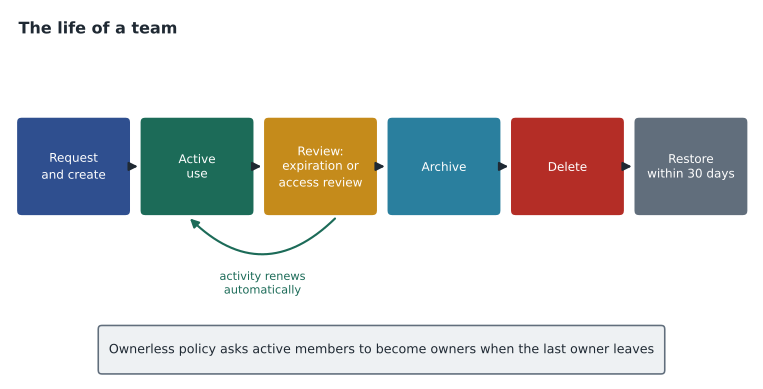
A team goes through a predictable life: it is requested and created, it is actively used, it is reviewed from time to time, and eventually it is archived or deleted. Each stage has tools. Creation is governed by group creation settings, naming policies and templates. Use is governed by policies and team settings. Review is supported by expiration policies, access reviews and reports. The end of life uses archiving, deletion and restoration from lesson 9.
Controlling creation and names
Team creation follows Microsoft 365 group creation settings in Microsoft Entra ID. By default every user can create groups. Corvallin restricted creation to the Team Creators security group, so staff request teams through a form. A naming policy adds a prefix or suffix to group names and can block certain words; Corvallin's adds the prefix CHC- and blocks words such as "test", "temp" and "CEO". Both features are Microsoft Entra ID P1 capabilities for the users they affect, which Corvallin has through Microsoft 365 E3 and F3.
Restricting creation can feel like bureaucracy, but it does not need to be slow. Corvallin's form asks four questions: purpose, owners, template and sensitivity label. A member of Team Creators approves it, usually the same day, and a flow builds the team. The result is that every new team has two owners, a template, a label and a name that means something.
Expiration policies
A Microsoft 365 group expiration policy gives groups, and therefore teams, a lifetime, such as 180 or 365 days, or a custom number of days. As a team approaches the end of its lifetime, owners receive notifications asking them to renew it, at 30, 15 and 1 days before expiry. If nobody renews and the team has no activity, the group is deleted and enters the 30-day soft-delete window. Teams with activity, such as people opening the team, posting or viewing files, are renewed automatically, so active teams are not affected.
The policy can apply to all groups or to selected groups. Corvallin applied a 180-day policy to project teams only, by selecting them, and left branch and department teams without expiration, because those teams exist as long as the branch does. Expiration is an Entra ID P1 feature, and every member of a group under the policy needs the licence.
| Tool | What it does | Licence notes |
|---|---|---|
| Group creation restriction | Limits who can create Microsoft 365 groups and teams | Microsoft Entra ID P1 for users affected |
| Naming policy | Adds prefixes or suffixes and blocks words in group names | Microsoft Entra ID P1 |
| Expiration policy | Deletes inactive groups that are not renewed | Microsoft Entra ID P1 for members of covered groups |
| Access reviews | Asks owners or members to confirm who still needs access | Microsoft Entra ID Governance or P2 capabilities |
| Ownerless group policy | Asks active members to become owners when no owner remains | Included with eligible Microsoft 365 plans; security group targeting needs P1 or P2 |
| Container sensitivity labels | Set privacy, guest access and sharing for teams | Licensing for Purview information protection |
Access reviews
Teams accumulate members, especially guests. Access reviews in Microsoft Entra ID ask reviewers, such as team owners, to confirm whether each member or guest still needs access, on a schedule. Reviewers can approve or deny, and denied users can be removed automatically. Reviews can target all Microsoft 365 groups with guests, which is a common starting point.
The MS-700 outline asks when to use access reviews for teams and groups. The answer is when membership changes faster than owners notice, particularly for guests and for teams that hold sensitive content. Corvallin set a quarterly review of guests in all teams, with team owners as reviewers and automatic removal if an owner does not respond. The first review removed 31 of 58 guests, most of them consultants whose contracts had ended years before.
Orphaned teams
An orphaned or ownerless team is one whose owners have all left or been removed. Members can keep working, but nobody can add members, change settings, manage channels or renew the team when its expiration date approaches. Ownerless teams often end up expiring by accident or living forever with no one accountable.
Microsoft's ownerless group policy, configured in the Microsoft 365 admin center under Settings, Org settings and Microsoft 365 Groups, deals with this automatically. When a group has no owner, the policy emails the most active members, or random members if there is no activity, and asks them to accept ownership. The administrator chooses how many members to ask and for how many weeks to keep asking, and can use a security group to control who may or may not be asked. Up to two members can accept. If nobody accepts by the end of the period, the policy stops and an administrator must assign an owner.
Administrators can also find ownerless teams directly. The Teams admin center and the Microsoft 365 admin center can filter for teams and groups with no owner, and a short PowerShell script can list teams with fewer than two owners, which catches problems before they happen.
# List teams with fewer than two owners
Get-Team | ForEach-Object {
    $owners = Get-TeamUser -GroupId $_.GroupId -Role Owner
    if ($owners.Count -lt 2) {
        [pscustomobject]@{ Team = $_.DisplayName; Owners = $owners.Count }
    }
} | Sort-Object Owners | Format-Table
Corvallin turned on the ownerless policy, asking the three most active members for four weeks, and excluded a security group of frontline staff on short contracts, who should not become owners. Teodor also scheduled the two-owner report monthly. Its first run, near the end of the clean-up, still found 11 teams with one owner, and the branch managers fixed them within a week.
Reporting on teams
Reports show whether lifecycle policies are working. The Teams admin center includes usage reports for team activity, app usage, active users and storage, and the Microsoft 365 admin center has activity reports for Microsoft 365 groups. The MS-700 outline also mentions monitoring and reporting on the creation and deletion of teams, which the Purview audit log covers.
| Question | Where to look |
|---|---|
| Which teams are inactive? | Teams usage report, team activity, in the Teams admin center |
| Which teams have no owners? | Manage teams filters in the Teams admin center, or the ownerless filter in the Microsoft 365 admin center |
| Who created or deleted a team, and when? | Microsoft Purview audit log |
| Which teams have guests? | Manage teams in the Teams admin center, or a PowerShell report |
| How much storage do teams use? | SharePoint site usage and the storage information in Teams reports |
Teodor built a quarterly governance report from these sources for Ines: total teams, teams created and deleted in the quarter, teams with guests, teams with one owner and teams with no activity in 90 days. The first report after the clean-up showed 96 active teams; the next showed 103, all with two owners and labels, which Ines considered a success.
Worked problem
An expiration notice nobody saw
A project team for the 2026 accreditation visit disappeared in October. The project lead says she never received a renewal email. The team was covered by the 180-day expiration policy. What happened, and what should Teodor do?
Show solution
- Check the audit log: the group was deleted by the expiration policy, not by a person.
- Check the owners: the project lead was a member, not an owner; the only owner had left Corvallin in July, so nobody received renewal notices.
- Inactivity confirmed: the team had no activity during the summer, so it was not renewed automatically.
- Restore the group within 30 days, make the project lead and a colleague owners, and check that the ownerless policy covers project teams so this does not recur.
Answer: The team was ownerless and inactive, so expiration deleted it. Restore it, add two owners and rely on the ownerless policy and the two-owner report to prevent a repeat.
Designing an expiration policy
Choosing an expiration lifetime is a trade-off. Too short, and owners are bothered by renewal emails for teams they still need. Too long, and dead teams linger. Corvallin chose 180 days for project teams because most projects ran three to nine months, and active teams would renew themselves through activity anyway. Permanent teams, such as branch and department teams, were left out, because their lifetime matches the branch's.
Teodor also made sure owners understood the emails before the first ones arrived. The owners' guide explained what an expiration notice is, that active teams renew automatically, and that clicking renew is enough for a team that has been quiet but still matters. He also checked that the notices came from an address owners would know and not mark as spam.
| Team type | Expiration | Reason |
|---|---|---|
| Branch and department teams | None | Exist as long as the branch or department |
| Project teams | 180 days | Natural end; activity renews them while needed |
| Committee teams | None, but reviewed yearly | Long-lived with changing members |
| Event teams | 180 days | Short life; archived if records matter |
Guests across the lifecycle
Guests need their own lifecycle. A guest invited for a short consultancy should not keep access for years. Corvallin's quarterly access review covers guests in all teams, but Teodor added two other controls. First, owners are asked to remove guests when a piece of work ends, and the owners' guide shows how. Second, a Microsoft Entra access review can target guests who have not signed in for a set period and remove those nobody confirms; Corvallin set it to 180 days of inactivity.
Guest numbers are part of the quarterly governance report. After the first review removed 31 of 58 guests, the number stabilised at between 25 and 35, mostly partner clinicians and consultants with current contracts. A rising number would prompt a closer look at which teams were adding guests and why.
Lifecycle for frontline teams
Frontline teams created at scale from dynamic groups have a different lifecycle. Membership changes automatically as staff join, move and leave, so owners do not need to manage it, and the teams last as long as the location. The main lifecycle tasks are making sure each location team has accountable owners, usually the branch manager and a senior coordinator, and updating the template and dynamic rules when the organization changes, such as when a new branch opens or two branches merge.
Lifecycle in the request form
Corvallin's team request form also captures lifecycle information at the start. It asks whether the team is permanent or temporary, and if temporary, roughly when the work will end. Temporary teams are added to the expiration policy and tagged in the inventory with their expected end date, so the quarterly report can flag teams that have outlived their purpose. Asking at creation costs the requester ten seconds and saves a debate later.
Common mistakes
MistakeApplying a short expiration policy to every group, including permanent departmental teams.
InsteadApply expiration to groups with a natural end, such as projects, and leave permanent teams out.
MistakeAssuming active teams will be deleted by expiration.
InsteadActivity renews teams automatically; only inactive, unrenewed teams expire.
MistakeWaiting for users to report ownerless teams.
InsteadTurn on the ownerless group policy and run a regular two-owner report.
MistakeForgetting licensing for lifecycle features.
InsteadCheck Entra ID P1 or governance licensing for naming, expiration, creation restriction and access reviews.
Summary and key terms
- Team lifecycle runs from request and creation through use and review to archiving or deletion.
- Group creation restrictions and naming policies control how teams start; both rely on Entra ID P1.
- Expiration policies delete inactive, unrenewed groups; activity renews teams automatically, and owners get notices at 30, 15 and 1 days.
- Access reviews confirm membership on a schedule and are especially useful for guests.
- The ownerless group policy asks active members to become owners when none remain; admins choose how many members and how many weeks.
- Usage reports, admin center filters and the audit log show whether lifecycle controls are working.
- Expiration policy
- A Microsoft 365 group setting that deletes inactive groups that owners do not renew.
- Naming policy
- Rules that add prefixes or suffixes and block words in group names.
- Access review
- A scheduled Entra ID process in which reviewers confirm who still needs access.
- Ownerless group policy
- A Microsoft 365 setting that asks active members to accept ownership of groups with no owner.
- Orphaned team
- A team with no remaining owners.
- Auto-renewal
- Automatic renewal of a group under an expiration policy when it shows activity.
Practice problems
Work each problem on paper first, then reveal the answer to check.
Why did an active team survive an expiration policy without anyone clicking renew?
Show answer
Activity in the team renewed it automatically.
What does the ownerless group policy do if nobody accepts ownership?
Show answer
It stops sending notices at the end of the period, and an administrator must assign an owner.
When are access reviews most useful for teams?
Show answer
When membership, especially guest membership, changes faster than owners notice, or when teams hold sensitive content.
Lesson quiz · 5 questions
Score 60% or more to complete this lesson.
Create a free account to save your progress, take quizzes and earn a certificate.