
MSBA-221 · Lesson 4 of 12 · 18 min
Messaging policies
▶ Video coming soon A video version of this lesson is on the way.
Felix Okonkwo-Reyes forwarded Teodor a screenshot in early October. A home-care nurse had posted a photo of a client's medication list in a group chat to ask a colleague a quick question. The colleague had answered, the nurse had deleted the photo a minute later, and everyone had moved on. But the chat included a contractor who had already left Corvallin's service, and the photo had been in the chat long enough to be seen. Nobody had done anything malicious, yet the incident went to the privacy officer.
Part of the response was training and part was data loss prevention, which belongs to the compliance course. Part was a review of Corvallin's messaging policies, the Teams policies that control what users can do in chats and channel conversations. This lesson explains what messaging policies control, how they are assigned and how Teams decides which one applies to a particular user.
What messaging policies control
A messaging policy is a set of settings that governs chat and channel messaging features for the users it is assigned to. Administrators manage them in the Teams admin center under Messaging and then Messaging policies, or with the MicrosoftTeams PowerShell module, where they are called messaging policies too. The settings fall into a few families.
| Family | Examples of settings |
|---|---|
| Message changes | Owners can delete sent messages; users can delete sent messages; users can edit sent messages |
| Read receipts | Read receipts on for everyone, off for everyone, or user controlled |
| Chat | Chat on or off; whether users can chat with themselves; chat permission roles for supervised chat |
| Rich content | Giphy, memes and stickers; URL previews; immersive reader |
| Translation and audio | Translate messages inline; send audio messages in chats and channels |
| Priority and urgent | Priority notifications that repeat every two minutes until read |
| Other features | Suggested replies; Copilot-related messaging experiences where available; removing users from group chats |
Microsoft adds and retires messaging settings regularly, and names change. The exam tests the concept and the common settings, not every toggle. In practice, Teodor checked the current list in the admin center before each policy review rather than relying on last year's notes.
Messaging policies are distinct from the messaging settings that apply to the whole organization, also under Messaging in the Teams admin center. Org-wide messaging settings include whether channels accept email and from which domains, and whether users can use third-party cloud storage in Teams. They apply to everyone and are not assigned.
Corvallin's messaging policies
Corvallin had always used the Global (Org-wide default) policy unchanged. After the October incident and a discussion with the privacy officer, Teodor proposed three policies, which Ines approved.
| Policy | Assigned to | Key differences from Global |
|---|---|---|
| Global (Org-wide default) | Everyone not covered below | Users can edit and delete sent messages; read receipts user controlled; Giphy on with moderate rating; URL previews on |
| Frontline-Messaging | Branch-Care-Staff group (rank 1) | Read receipts on for everyone so coordinators know urgent messages were seen; priority notifications on; memes off; audio messages on for staff who dictate in cars |
| IT-Messaging | IT staff directly | Same as Global plus preview features; owners can delete sent messages for moderation tests |
Read receipts were the most debated setting. Coordinators wanted to know when a nurse had seen a message about a changed visit. Some nurses felt watched. The compromise was read receipts on for frontline staff, where the safety case was clear, and user controlled for everyone else. Dr. Marguerite Ostrander-Bey supported the decision at the staff meeting and explained it in terms of client safety, which helped.
The October incident also led to a rule that is not a messaging setting at all: contractors' accounts must be disabled the day their contract ends. Teodor noted in the decision log that messaging policies cannot stop someone from seeing a message they are entitled to see; access control and offboarding do that.
How policies are assigned
Messaging policies, like most Teams policies, can be assigned in three ways. A policy can be assigned directly to a user, in the Teams admin center or with Grant-CsTeamsMessagingPolicy. It can be assigned to a group, such as a security group or a Microsoft 365 group, with a rank that decides which group assignment wins when a user is in several groups. Or a user can simply fall back to the Global (Org-wide default) policy.
Policies can also arrive through policy packages, which bundle several policy types for a role. Corvallin's Corvallin-Frontline package, created during the planning phase, bundles the Frontline-Messaging policy with the frontline app setup and meeting policies, and is assigned to the Branch-Care-Staff group.
Working out the effective policy
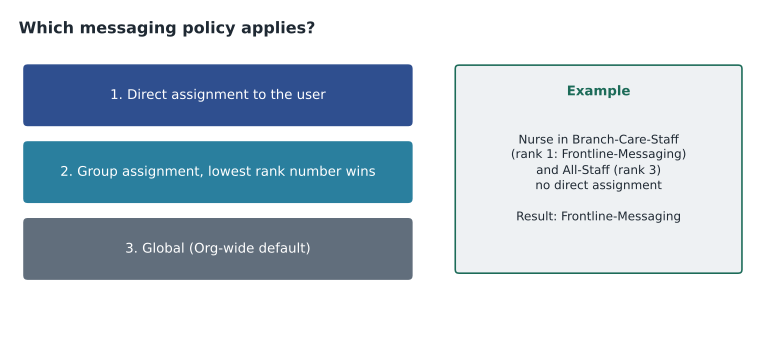
Teams applies one messaging policy to each user, called the effective policy. The rules are simple. A direct assignment always wins. If there is no direct assignment, the group assignment with the highest priority wins, and priority is the lowest rank number: rank 1 beats rank 3. If the user has neither, the Global policy applies.
The Teams admin center shows each user's effective policies on the user's page, under Policies, with the source of each one. PowerShell shows the same information. Ama's help desk added this check to its routine for any "why can't I" question about messaging, because it answers most of them in seconds.
# Assign Frontline-Messaging to the branch care staff group at rank 1
New-CsGroupPolicyAssignment -GroupId 'branch-care-staff@corvallincare.example' `
    -PolicyType TeamsMessagingPolicy -PolicyName 'Frontline-Messaging' -Rank 1
# Give one IT user a direct assignment
Grant-CsTeamsMessagingPolicy -Identity 'ama@corvallincare.example' -PolicyName 'IT-Messaging'
# Check which messaging policy a nurse actually gets, and why
Get-CsUserPolicyAssignment -Identity 'nurse.north@corvallincare.example' -PolicyType TeamsMessagingPolicy
Group assignments take time to apply, especially to large groups, and changes in group membership flow through as Entra ID updates them. Microsoft documents that policy changes can take hours to reach users. When a coordinator was moved into the Branch-Care-Staff group and did not see read receipts the same morning, the answer was patience, not a new policy.
Worked problem
Predicting an effective policy
Callixte is a scheduler at head office who also covers weekend shifts at the North Branch. He is in the All-Staff group (rank 3, Global-like policy called Standard-Messaging), the Branch-Care-Staff group (rank 1, Frontline-Messaging) and has no direct assignment. Which messaging policy applies, and what changes if Teodor gives him IT-Messaging directly for a week of testing?
Show solution
- Check for a direct assignment: none.
- Compare group assignments: Branch-Care-Staff at rank 1 and All-Staff at rank 3.
- The lowest rank number wins, so Frontline-Messaging applies.
- A direct assignment would override both groups, so during the test week IT-Messaging applies; removing it returns him to Frontline-Messaging.
Answer: Frontline-Messaging now; IT-Messaging while the direct assignment exists, because direct assignments always win.
Bulk changes
Assigning policies one user at a time does not scale. For many users without a convenient group, batch policy assignment processes a list of users in one background operation, which can be checked later. Teodor used it once, to assign Frontline-Messaging to 40 bank staff who were not yet in any branch group, before switching to a group assignment when HR fixed their attributes.
$users = Get-Content .\bank-staff.txt
New-CsBatchPolicyAssignmentOperation -PolicyType TeamsMessagingPolicy `
    -PolicyName 'Frontline-Messaging' -Identity $users -OperationName 'Bank staff messaging'
# Check progress later
Get-CsBatchPolicyAssignmentOperation | Select-Object OperationName, OverallStatus, CompletedCount, ErrorCount
Supervised chat and other special cases
Some organizations need to control who can start chats with whom. Supervised chat, designed mainly for education, uses chat permission roles in the messaging policy so that some users, such as students, can chat only with users who have a supervising role. Corvallin did not need it, but Teodor read about it because the Kestrelmoor school board, where he sits on a technology committee, uses it to stop students from chatting privately with each other without a teacher present.
Turning chat off entirely is also possible in a messaging policy, and some organizations do it for shared kiosk accounts or for specific roles. It is a blunt instrument, though. Most problems that tempt administrators to turn chat off are better solved with training, data loss prevention or retention, which control what happens to content rather than whether people can talk.
Messaging policies and compliance
Messaging policy settings such as "users can delete sent messages" are about the user experience. They do not decide what is retained for legal or regulatory reasons. When a user deletes a message, Microsoft Purview retention policies for Teams chats and channel messages can still keep a copy in a hidden location for eDiscovery. That was important in the October incident: the photo the nurse deleted was still discoverable by the privacy officer, which allowed a proper review of who had seen it.
For an administrator, the lesson is that messaging policies and compliance policies work together but do different jobs. Messaging policies shape behaviour; retention, data loss prevention and communication compliance protect content and meet obligations. Corvallin's later data loss prevention rule for health card numbers in Teams chats, covered in the compliance course, would have blocked the photo's text if it had been typed, but images need different controls.
Designing messaging policies
Good messaging policy design starts with roles, not settings. Teodor listed Corvallin's main groups of staff, what each needed from chat and what risks each carried. Home-care staff needed fast, reliable messages to and from coordinators, often from a phone in a car. Office staff needed the normal collaboration features. IT needed to test new features early. Short-term bank staff needed the same as home-care staff but for shorter periods. That list produced three policies, not ten, because most needs overlapped.
He also kept the number of differences small. Each custom policy differed from Global in a handful of settings, recorded in a table in the decision log with the reason for each. Fewer differences mean fewer surprises when Microsoft adds a new setting: new settings arrive with Microsoft's default in every policy, and an administrator then decides whether any policy should differ. Teodor reviews new messaging settings when Message center announces them, using the Tenant changes plan.
| Design question | Example answer at Corvallin |
|---|---|
| Who needs something different from Global? | Frontline staff and IT |
| What exactly is different, and why? | Read receipts on and priority notifications for frontline safety; preview features for IT |
| How is it assigned? | Group assignment for frontline staff, direct assignment for a few IT users |
| What rank does each group get? | Branch-Care-Staff rank 1, so it wins over broader groups |
| How will we know it works? | Help desk checks effective policies; quarterly review of tickets about chat |
Priority notifications and urgent messages
One messaging setting deserves special mention for a care organization. Priority notifications let a sender mark a chat message as urgent, so the recipient is notified repeatedly, every two minutes for up to 20 minutes, until they read it. For coordinators trying to reach a nurse about a cancelled visit or a client emergency, that feature matters. Corvallin turned it on in Frontline-Messaging and trained coordinators to use it only when a message truly could not wait, because overuse would make staff ignore it.
The training included a simple rule written by Dr. Marguerite Ostrander-Bey: urgent means a client's safety or a visit happening within the hour. Anything else is a normal message. After three months, coordinators were sending about a dozen urgent messages a week across the whole agency, which the clinical director considered the right level.
Reviewing policies over time
Messaging policies are not set and forgotten. Teodor's quarterly review checks three things: whether any policy is assigned to nobody and can be removed, whether group assignments and ranks still match how staff are organized, and whether help desk tickets show a setting causing friction. In the first review after the relaunch, he removed an old policy left over from the pandemic, called Remote-Nurses, that was still assigned directly to 40 people and quietly overriding their frontline policy.
Common mistakes
MistakeExpecting the newest group assignment to win.
InsteadAmong group assignments the lowest rank number wins; a direct assignment beats all groups.
MistakeTurning off message deletion to meet retention requirements.
InsteadUse Purview retention policies; they keep copies even when users delete messages.
MistakeChanging the Global policy for a need that affects one group.
InsteadCreate a specific policy and assign it to that group with a rank.
MistakeAssuming a policy change applies instantly.
InsteadPolicy changes, especially group assignments, can take hours to reach users.
Summary and key terms
- Messaging policies control chat and channel features such as editing and deleting messages, read receipts, rich content, translation, audio messages and priority notifications.
- Org-wide messaging settings, such as channel email, apply to everyone and are not assigned.
- Policies are assigned directly, to groups with a rank, through policy packages, or fall back to the Global policy.
- The effective policy is the direct assignment if one exists, otherwise the lowest-ranked group assignment, otherwise Global.
- Batch policy assignment handles many users at once; group assignment handles changing membership.
- Messaging policies shape behaviour; Purview retention and data loss prevention protect content.
- Messaging policy
- A Teams policy that controls chat and channel messaging features for assigned users.
- Effective policy
- The one policy of a given type that actually applies to a user after precedence rules.
- Group policy assignment
- Assigning a policy to a group, with a rank that decides which group wins.
- Batch policy assignment
- A background operation that assigns a policy to a list of users.
- Supervised chat
- A messaging policy feature that limits who certain users can chat with, mainly used in education.
- Read receipts
- Indicators that show when a chat message has been seen.
Practice problems
Work each problem on paper first, then reveal the answer to check.
A user has a direct messaging policy assignment and is in a group with a rank 1 assignment. Which applies?
Show answer
The direct assignment.
Where do you see which messaging policy a user actually has?
Show answer
On the user's page in the Teams admin center under Policies, or with Get-CsUserPolicyAssignment.
If users can delete their messages, can the organization still find them in an investigation?
Show answer
Yes, if a Purview retention policy for Teams messages keeps them.
Lesson quiz · 5 questions
Score 60% or more to complete this lesson.
Create a free account to save your progress, take quizzes and earn a certificate.