
MSBA-221 · Lesson 11 of 12 · 18 min
Troubleshooting collaboration problems
▶ Video coming soon A video version of this lesson is on the way.
By November 2026 the relaunch was in its final weeks, and the help desk queue had changed shape. Calls about call quality had fallen after Felix's network work, and the new complaints were about collaboration: a member who could not see a channel, a guest who could not open a file, an app that had vanished, a team that had disappeared, a chat that someone could not leave. Ama asked Teodor for a routine her team could follow for any of them, so that every analyst would ask the same questions in the same order.
This lesson builds that routine. It draws on everything earlier in the course, because almost every collaboration problem comes back to membership, policy, app availability or the service that stores the content. The MS-700 exam's monitoring and troubleshooting domain is worth 15 to 20 percent and includes troubleshooting Teams experiences, so practising a structured approach pays off on the exam as well as at the help desk.
A routine for any collaboration problem
The routine has six steps. Scope the problem: is it one user, one team, one channel or everyone? Check service health for a known incident. Check licence and policy: does the user have the licences and effective policies the feature needs, and is the app available to them? Check membership: is the user in the team, channel or chat, with the right role? Check the underlying service: SharePoint, OneDrive, Exchange or Entra ID. Finally, check the client: version, cache, sign-in and whether the web app behaves differently.
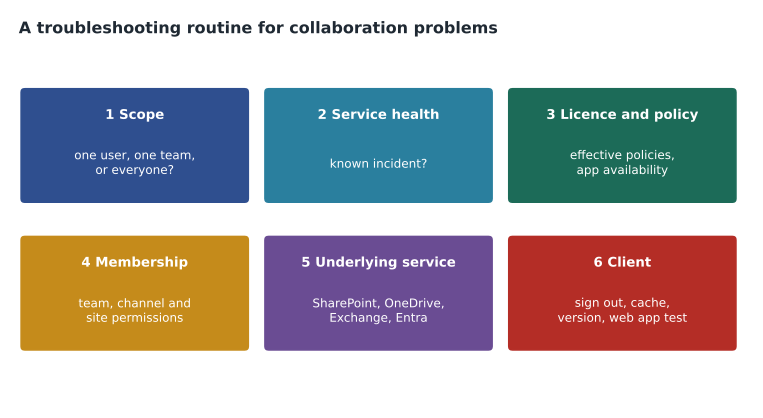
The order matters. Starting with the client, by clearing caches and reinstalling, wastes time when the cause is a policy or a missing licence. Starting with scope prevents the most common mistake: treating one user's problem as everyone's or the reverse. Ama's team found that about half of their collaboration tickets ended at step 3 and most of the rest at step 4.
Step 1 and 2: scope and service health
Scope questions are quick. Does a colleague in the same team have the same problem? Does it happen in the web app as well as the desktop app? Did it start after a change, such as a new policy, a group membership change or a renamed channel? Asking "what changed?" often solves the problem before any tool is opened.
Service health in the Microsoft 365 admin center shows current incidents and advisories for Teams, SharePoint, Exchange and other services. The help desk checks it first for any problem that affects more than one person. Message center posts explain planned changes, such as a new default for built-in agents or a retired feature, which often explain why something "suddenly" behaves differently. Corvallin syncs Message center posts to a Planner plan called Tenant changes, so the help desk can search it.
Step 3: licence, policy and app availability
For any "I can't do X" problem, check the user's licences and effective policies. The user's page in the Teams admin center lists assigned policies and their source: direct, group or Global. Lessons 4 and 6 explained the precedence rules. Common findings are a user who has not yet been added to the group that carries the right policy, a group assignment with a lower priority than expected, or an app whose availability does not include the user.
# Effective policies and their sources for one user
Get-CsUserPolicyAssignment -Identity 'nurse.west@corvallincare.example' |
    Select-Object PolicyType, PolicyName, @{n='Source';e={$_.PolicySource.AssignmentType}}
# Is the visit checklist app available to this user?
Get-M365TeamsApp -Id $visitChecklistId
Step 4: membership and roles
Many problems are simply membership. A user cannot see a channel because it is private and they are not a member. A member cannot add an app because team settings do not allow members to. A user cannot leave a group chat because chat settings or the organizer restrict it. A guest cannot see a shared channel because shared channels do not use guest accounts. Checking membership at the right level, team, channel or chat, settles these.
| Symptom | Membership-related cause | Fix |
|---|---|---|
| Cannot see a channel others mention | Private or shared channel; user not added | Channel owner adds the user if appropriate |
| Cannot create a channel | Team setting disallows members, or policy disallows private or shared channels | Owner creates it, or the setting or policy is changed |
| Can see the team but not its files | Guest blocked by site sharing level, or site permissions changed by hand | Align sharing settings; restore membership-based permissions |
| Lost access to a private channel | Removed from the team, which removes private channel membership | Re-add to the team and channel if appropriate |
| Still sees a shared channel after leaving the team | Direct shared channel membership is separate | Remove from the shared channel |
Step 5: the underlying service
Teams depends on other services, and their settings and limits show up as Teams problems. File problems usually trace to SharePoint or OneDrive: sharing levels, renamed folders, a full site, a deleted user's OneDrive. Calendar and scheduling problems trace to Exchange Online: a user without a mailbox cannot use the Teams calendar. Sign-in and access problems trace to Entra ID: Conditional Access, a disabled account, an expired guest invitation or a blocked cross-tenant setting.
Sign-in logs in the Microsoft Entra admin center are especially useful. If a guest or a user in another tenant cannot reach a shared channel, the sign-in log shows whether cross-tenant access settings or Conditional Access blocked them, with the policy name. Felix used the sign-in log to find that the partner pharmacy had restricted B2B direct connect to a group that did not yet include a new pharmacist.
Step 6: the client
Client problems are real but less common than people think. Users should be on a current version of the new Teams client, which updates automatically for most organizations. Signing out and back in, clearing the Teams cache, or testing in the web app at teams.microsoft.com separates client problems from service problems: if the web app works, the problem is local. Teams on virtual desktops and on shared devices has its own considerations, covered in the planning course.
Microsoft also provides diagnostics. Self-help diagnostics in the Microsoft 365 admin center can run checks for common Teams scenarios, and users can collect diagnostic logs from the client for the help desk or Microsoft support. Teodor added the steps for collecting client logs to the help desk knowledge base, because Microsoft support asks for them early in most cases.
Collaboration problems and the audit log
For "something changed and nobody knows who did it" problems, the Microsoft Purview audit log records activities in Teams, such as team and channel creation and deletion, membership changes, setting changes and app installs, along with SharePoint and Entra activities. An administrator with the right role can search by activity, user and date. The audit log turned several mysteries at Corvallin into simple answers, including a channel deleted by a well-meaning champion and a team setting changed by a former owner.
Worked problem
A team owner cannot add an app
The East Branch manager, a team owner, wants to add the newly approved translation app to her team but cannot find it in the store. Her colleague at head office can. Walk through the routine.
Show solution
- Scope: one user, one app; the colleague can find it, so it is not a service-wide problem.
- Service health: nothing relevant.
- Licence, policy and availability: the translation app is available to the Interpreting group only; the East Branch manager is not in it, so the store hides it from her.
- Decide with the app owner whether the manager should have it; if yes, add her to the Interpreting group or extend availability, and allow up to 24 hours for the change.
Answer: App availability excluded her. The routine found the cause at step 3 without touching the client.
Writing good tickets
A structured routine works best when tickets carry the right information from the start. Ama changed the help desk's Teams ticket form to ask five questions: what the user was trying to do, what happened instead, whether colleagues see the same thing, whether it happens in the web app, and when it started. Those answers cover steps 1 and 6 of the routine before an analyst even opens the admin center. The form also asks for a screenshot, which often shows the exact error text and saves a callback.
Analysts record which step resolved each ticket. After two months the data showed that policy and app availability problems (step 3) were the largest group, followed by membership (step 4). That pointed to two improvements: clearer guidance for owners about adding people to private channels, and a faster process for adding new staff to the right groups, which HR and IT then fixed together.
| Step that resolved the ticket | Share of collaboration tickets (Sept to Nov 2026) |
|---|---|
| 1-2 Scope and service health | About 10 percent |
| 3 Licence, policy and app availability | About 35 percent |
| 4 Membership and roles | About 30 percent |
| 5 Underlying service | About 15 percent |
| 6 Client | About 10 percent |
When to escalate
Some problems are beyond the help desk. Ama's team escalates to Teodor when a fix needs an admin role they do not hold, such as changing a policy or app availability, and to Felix for anything involving networks, devices or calling. Problems that look like a Microsoft fault, such as a feature failing for everyone with no service health notice, go to Microsoft support through the Microsoft 365 admin center, with client logs, timestamps, affected users and the steps already tried. A good support case saves days.
Escalation also has a time element. If a problem affects many users, such as a whole branch unable to open files, the help desk escalates immediately rather than working through every step, while checking service health in parallel. Speed matters more than tidiness when a branch cannot see the day's visit list.
Learning from problems
Every month, Teodor and Ama review the collaboration tickets for patterns. A cluster of guest file problems led to aligning sharing settings with labels. Repeated "missing channel" tickets led to the channel naming convention. Several "app disappeared" tickets after a Microsoft change led to the weekly Message center review. Treating tickets as evidence, not just tasks, is what turned the routine into lasting improvements.
The review also feeds the owners' guide and champion training. When a new kind of problem appears, the fix is written up in plain language and added to the guide, so the next owner can solve it alone. Over the relaunch, the guide grew from four pages to eleven, and collaboration tickets fell from about 120 a month to about 70.
Practising the routine
New help desk analysts at Corvallin learn the routine with practice scenarios taken from real tickets, with names changed. A trainer describes the symptom, and the analyst says which step they would take next and what they would check. The trainer then reveals what that check found. Analysts quickly learn to ask about scope first and to look at effective policies before touching the client, and they learn which symptoms point straight to a particular layer.
Ama also keeps a short list of quick checks that every analyst can run without admin rights: whether a colleague sees the same thing, whether the web app behaves differently, whether service health shows an incident and whether the user is a member of the team or channel. Only when those checks do not settle the problem does the ticket move to someone with admin roles. That division keeps admin roles with few people, as Corvallin's least-privilege rules require, while still resolving most tickets quickly.
The routine is printed on a single card at every help desk desk and in the champions' guide. It is deliberately short: six steps, one question each. Analysts say the card matters most on busy days, when it is tempting to jump straight to the fix that worked last time.
Common mistakes
MistakeStarting with a client reinstall.
InsteadCheck scope, service health, licences, policies and membership first.
MistakeTreating every report as a single-user problem.
InsteadAsk whether colleagues see the same thing and check service health for wider issues.
MistakeGuessing who changed a setting.
InsteadSearch the Purview audit log for the activity.
MistakeIgnoring cross-tenant and Conditional Access logs for external collaboration problems.
InsteadUse Entra sign-in logs to see which policy blocked the access.
Summary and key terms
- Use a fixed routine: scope, service health, licence and policy, membership, underlying service, client.
- Service health and Message center explain incidents and planned changes.
- Effective policies and app availability settle most "I can't" problems.
- Membership at the right level, team, channel or chat, explains most visibility problems.
- SharePoint, OneDrive, Exchange and Entra ID settings often cause problems that look like Teams problems; Entra sign-in logs help with external access.
- The Purview audit log answers "who changed this?" and the web app separates client problems from service problems.
- Service health
- The Microsoft 365 admin center page showing current incidents and advisories.
- Message center
- The Microsoft 365 admin center feed of planned changes and new features.
- Effective policy
- The policy of a given type that actually applies to a user.
- Sign-in logs
- Microsoft Entra records of authentication attempts and the policies applied to them.
- Teams cache
- Local data the Teams client stores, which can be cleared to fix some client problems.
Practice problems
Work each problem on paper first, then reveal the answer to check.
What is the first question to ask about any collaboration problem?
Show answer
Its scope: one user, one team or channel, or everyone.
A problem appears in the desktop app but not in the web app. What does that suggest?
Show answer
A local client problem rather than a service, policy or membership problem.
How do you find out who deleted a channel?
Show answer
Search the Microsoft Purview audit log for channel deletion activities.
Lesson quiz · 5 questions
Score 60% or more to complete this lesson.
Create a free account to save your progress, take quizzes and earn a certificate.