
MSBA-213 · Lesson 4 of 12 · 18 min
Microsoft Store and winget apps
▶ Video coming soon A video version of this lesson is on the way.
Some of the apps on Ama's list did not need packaging at all. Company Portal, Windows App for reaching Cloud PCs, the scanner app from the vendor of Corvallin's document scanners and a few others were all in the Microsoft Store. For years, organizations deployed Store apps through the Microsoft Store for Business, a separate portal that synchronized licensed apps into Intune. Microsoft retired that portal, and the replacement is built into Intune: an app type called Microsoft Store app (new), which searches the Store catalog directly from the admin center and installs apps through the Intune Management Extension using the same Windows Package Manager technology, often called winget, that powers the Store's own installations.
Adding a Store app
In the admin center, an administrator creates an app, chooses Microsoft Store app (new), searches the catalog and selects the app. Intune fills in the name, publisher, description and icon from the Store listing. The administrator then picks the install context and assigns the app. That is the whole packaging process: no source folder, no detection rule, no install command. Intune knows how to detect and install the app because the Store does.
Microsoft's documentation, last revised in mid-2026, notes a few limits. The search defaults to the United States catalog, and choosing a different region was temporarily unavailable at the time of writing; existing apps are not affected. Paid Store apps are not supported. Some apps do not appear in search because they are not offered in the region or on the platform. And the device needs at least two processor cores, support for the IME and network access to the Store and to wherever the app's content is hosted.
| Kind of Store app | Package type | Who updates it | Notes |
|---|---|---|---|
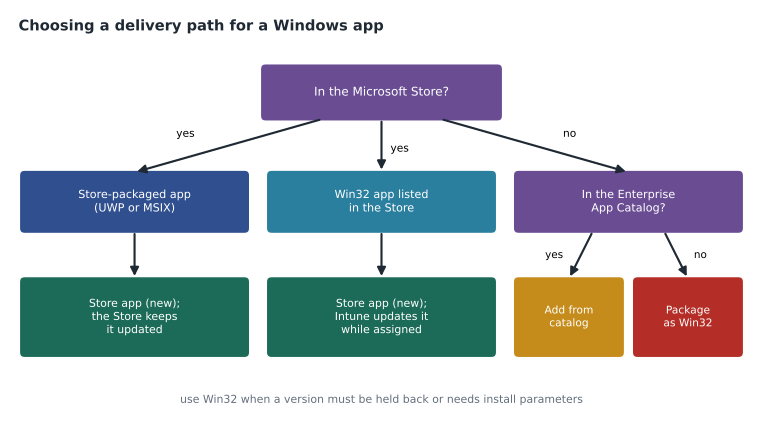
| Store-packaged (UWP) | .appx or .msix from the Store | The Store, with or without an Intune assignment, unless Store auto-update is turned off | Supports user and system context |
| Win32 app listed in the Store | The publisher's EXE or MSI, hosted by the publisher | Intune, while the app has an active assignment | Marked Win32 in the catalog; in preview at the time of writing; context fixed by the installer |
The difference between the two kinds matters for updates and networks. A Store-packaged app comes from Microsoft's servers and the Store keeps it current. A Win32 app listed in the Store is really the publisher's own installer, downloaded from the publisher's site, so firewalls must allow that site and Intune keeps it updated only while an assignment exists. When Felix asked why a scanner app download was going to an unfamiliar domain, the answer was that the scanner vendor hosted its own installer.
Install context
Store apps install in either user or system context. Store-packaged apps support both. In system context the app is provisioned on the device and installs automatically for each user who signs in, which suits shared training tablets and kiosks. In user context it installs only for the targeted user. For Win32 apps listed in the Store, the context is set by the publisher's installer, and the admin center greys out the option that is not supported.
Microsoft recommends not mixing contexts for the same app, because a user-context and a system-context copy can conflict. Two other details from the documentation are useful in troubleshooting. On devices that are only registered with Microsoft Entra ID rather than joined, system context must be used, or an Available user-context app fails in Company Portal with a requirements message. And assigning a system-context Store app to a device that already has it can show an error code even though the app installs correctly, so a single error on an otherwise healthy device is not always a real failure.
Worked problem
Company Portal on every laptop
Company Portal must be on every corporate laptop, including the twelve shared training tablets. Which assignment should Ama use?
Show solution
- Company Portal is a Store-packaged app, so it supports system context.
- System context provisions it for every user who signs in, which covers shared devices.
- Required intent installs it without anyone asking.
Answer: Microsoft Store app (new), system context, Required, assigned to the corporate Windows device group. The training tablets get it automatically for each new user.
Store policies: blocking users without blocking Intune
Ines did not want staff installing whatever they liked from the Store. That is a common request, and the policies behave in ways that surprise people. Microsoft's documentation lists the settings and their effects, and the key point is that blocking the Store for users does not have to block Intune.
| Setting | Effect | Recommended |
|---|---|---|
| Turn off the Store application | Users cannot open the Store to install apps or update manually; Intune installs and Store auto-updates still work | Enabled, to block user installs |
| Only display the private store | Still valid, but Microsoft now recommends the setting above for blocking user access | Not needed if the Store is turned off |
| Disable all apps from the Microsoft Store | Stops Store apps from running | Not configured, or Store apps stop working |
| Turn off Automatic Download and Install of updates | Stops Store auto-updates | Not configured or disabled, so Store apps stay current |
Ama turned off the Store application for standard users through the settings catalog, left automatic updates on and tested on the IT ring. Intune's Store app installs worked, Company Portal still installed Available Store apps, and staff who opened the Store app saw a message that it was blocked. Two caveats went into her notes. Blocking the Store app does not stop someone with administrator rights from using the winget command line, but at Corvallin no standard user had administrator rights after the LAPS work. And blocking the Store does not remove apps users installed earlier; those showed up in discovered apps and were handled in lesson 9.
What winget is and why administrators care
Windows Package Manager, invoked as winget, is a command-line tool built into current Windows for finding, installing and updating apps from configured sources, including the Microsoft Store and a community repository of desktop app manifests. Intune's Store app type uses the same installer service behind the scenes. Administrators meet winget in three places: when testing an app's silent install on a lab machine, when writing a Remediation script that checks for outdated apps, and when they hear that "winget can update everything", which is true only for apps installed in a way winget recognizes.
winget search "Windows App" --source msstore
winget show --id 9N1F85V9T8BN --source msstore
winget list --upgrade-available
Ama did not use winget scripts to deploy apps across the fleet. Intune's Store app type already does that with reporting, retries and assignments, and a script that installs software outside Intune's view is exactly the kind of drift the project was trying to end. She kept winget for testing and for one read-only Remediation that reported, but did not fix, laptops where a common app was far behind; the fixing was done through Intune.
Migrating from older Store integrations
Corvallin had a handful of apps that had been added years earlier through the old Store for Business connection. They still appeared in Intune as legacy Store apps. Microsoft provided a path to recreate them as Store app (new) entries, and its guidance was to add the new app, assign it to the same groups, confirm it reported installed, and then remove the legacy assignment, so devices never went without the app. Ama did this for four apps in one afternoon and deleted the legacy entries once the reports showed every device on the new type.
When the Store is not the answer
The Store is the easiest source, but not always the right one. A Store app's version is whatever the publisher last published, so it cannot be held back for testing. If an app must stay on a tested version, for example because it integrates with VisitWise, a Win32 package gives Ama control over when each version arrives. If an app needs configuration at install time, such as a server address or licence key, the Store app type has nowhere to put it, and either a Win32 package or an app configuration method is needed. And a Store-listed Win32 app downloads from the publisher, so if the publisher's site is slow or blocked, installs fail even though Intune is healthy.
| Need | Store app (new) | Win32 package |
|---|---|---|
| Zero packaging effort | Yes | No |
| Automatic updates | Yes, by the Store or Intune | Only when you package and assign a new version |
| Pin to a tested version | No | Yes |
| Install-time parameters | No | Yes |
| Content from Microsoft's network | Store-packaged apps yes; Store-listed Win32 apps no | Yes, from Intune's content delivery network |
Store apps on Cloud PCs and shared devices
The contract therapists' Cloud PCs and the training tablets showed the value of system context. Windows App, which the therapists use on their own computers, is not needed on the Cloud PCs themselves, but the scanner app and Company Portal are. Assigned in system context to a device group that includes the Cloud PCs, they appeared for every user without anyone installing them. On the training tablets, where a different new employee signs in each day, user-context apps would have installed again and again for each person, each taking a few minutes. System context turned that into a one-time install per tablet.
Reporting for Store apps
Store apps report install status like any other app, but two details help. The app's version column in device status shows the version installed on each device, which for Store-packaged apps may be newer than when the app was added, because the Store keeps updating it. And because Store-packaged apps can update with or without an Intune assignment, removing an assignment does not freeze them at a version; it only stops Intune from reinstalling them if a user removes them. Ama kept Required assignments for Store apps that must always be present, such as Company Portal, and Available for the rest.
| Store app at Corvallin | Kind | Context | Intent |
|---|---|---|---|
| Company Portal | Store-packaged | System | Required, all corporate Windows devices |
| Windows App | Store-packaged | User | Available, staff who reach Cloud PCs |
| Scanner vendor's app | Win32 listed in the Store | System (set by installer) | Required, laptops with scanners |
| Diagramming app | Store-packaged | User | Available, head office |
Store apps and the exam
MD-102 lists deploying Microsoft Store apps alongside Win32 and line-of-business apps, so expect questions that test which type fits a scenario. The usual traps are paid apps, which the Store app type does not support; apps that must stay on a fixed version, which point to Win32; shared devices, which point to system context; and the difference between blocking the Store for users and disabling Store apps. Knowing that Store-packaged apps keep updating through the Store, while Store-listed Win32 apps rely on an active Intune assignment, answers many of the rest.
Felix's request for this lesson was the same as for Win32 apps: no surprise downloads during the morning visit runs. Store-packaged apps update in the background through the Store's own schedule, which already favours idle time, so he left them alone. For the scanner vendor's app, which downloads from the publisher, he added the publisher's domains to the branch firewall's allow list after checking them against the app's documentation, and asked to be told before any other Store-listed Win32 app was assigned so he could do the same.
Common mistakes
MistakeTurning on Disable all apps from the Microsoft Store to stop users installing apps.
InsteadThat setting stops Store apps from running. Use Turn off the Store application to block user installs.
MistakeAssuming every Store app is updated by the Store.
InsteadWin32 apps listed in the Store are updated by Intune only while they have an active assignment.
MistakeAssigning the same Store app in user context to some groups and system context to others.
InsteadUse one context per app to avoid conflicts.
MistakeDeploying apps fleet-wide with winget scripts.
InsteadUse Intune's Store app type so installs are assigned, reported and retried.
Summary and key terms
- Microsoft Store app (new) searches the Store catalog from Intune and installs apps through the IME.
- Store-packaged apps are updated by the Store; Win32 apps listed in the Store are updated by Intune while assigned and download from the publisher.
- System context provisions an app for every user who signs in; user context installs for one user.
- Turn off the Store application blocks user installs without stopping Intune or Store auto-updates.
- Use a Win32 package instead when an app must stay on a tested version or needs install-time parameters.
- Microsoft Store app (new)
- The Intune app type that deploys apps from the Microsoft Store catalog.
- Windows Package Manager (winget)
- The Windows command-line tool and service for finding and installing apps from configured sources.
- System context
- An install mode where an app is provisioned for the device and all its users.
- User context
- An install mode where an app installs for one signed-in user.
- Microsoft Store for Business
- A retired portal formerly used to license and sync Store apps into Intune.
Practice problems
Work each problem on paper first, then reveal the answer to check.
Who updates a Win32 app that Intune deployed from the Store?
Show answer
Intune, while the app has an active assignment.
Which setting blocks users from installing Store apps but lets Intune keep working?
Show answer
Turn off the Store application.
Why might a Store app download fail even when Intune is healthy?
Show answer
A Win32 app listed in the Store downloads from the publisher's own site, which may be slow or blocked.
Lesson quiz · 5 questions
Score 60% or more to complete this lesson.
Create a free account to save your progress, take quizzes and earn a certificate.