
MSBA-213 · Lesson 1 of 12 · 19 min
App types in Intune
▶ Video coming soon A video version of this lesson is on the way.
By the middle of October 2026, Ama Owusu-Pratt had Corvallin Home Care's devices where she wanted them. Every Windows laptop was enrolled and compliant, the corporate iPhones and Samsung phones were managed, and Conditional Access was about to start requiring compliant devices. Ines Duvernay-Sato, the IT manager, then asked the question that comes after every device project: what is actually running on all these machines, and who decided it should be there? The board's condition for the spring 2027 Copilot pilot covered apps as well as devices. Copilot would reach client information through Outlook, Teams and the Office apps, so those apps had to be current, configured and protected, and nothing unapproved should be sitting beside them.
This course follows Ama's application project from October to late November 2026. Teodor Klimaszewski, the Microsoft 365 administrator, handled the Microsoft 365 Apps side and the policies that live in the Microsoft 365 Apps admin center. Felix Okonkwo-Reyes, who runs the branch networks, cared about how much data the app installs would pull across branch links. Dr. Marguerite Ostrander-Bey, the clinical director, wanted to know what the project would mean for the nurses and personal support workers who carry the Samsung phones. The project starts, as Ama did, with a map of the kinds of apps Intune can manage and how each one reaches a device.
Why app types matter
Microsoft Intune does not treat every app the same way. A Windows desktop program packaged by Corvallin's help desk, a Microsoft Store app, an iPhone app from the App Store and a web link pinned to a home screen are all "apps" in the admin center, but they are delivered by different mechanisms, they report their status differently, and they fail in different ways. Choosing the right type is the first decision in every deployment, and most later problems trace back to it. The MD-102 exam, now titled Managing and Securing Microsoft 365 Endpoints by using Intune, gives applications their own skill group, weighted at 15 to 20 percent in the skills measured as of October 27, 2026, and its first bullet is preparing applications for deployment.
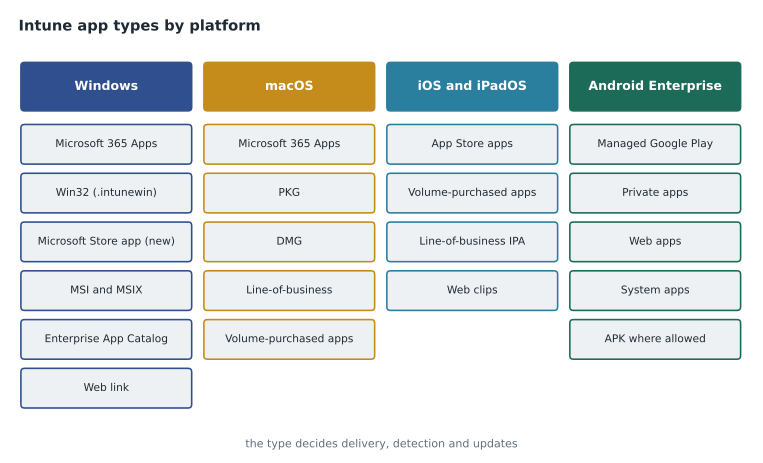
The Windows app types
Windows has the widest choice, and Corvallin's 520 laptops make it the most important platform for this project.
| App type | What it is | Delivered by | Typical use |
|---|---|---|---|
| Microsoft 365 Apps | A built-in app type that installs the Office apps from the Office content delivery network | The Windows MDM client, using the Office Deployment Tool configuration that Intune builds | Word, Excel, PowerPoint, Outlook, Teams and OneDrive on every laptop |
| Windows app (Win32) | Any installer (EXE, MSI, script) wrapped into an .intunewin file | The Intune Management Extension | Line-of-business programs, utilities, anything with a custom install |
| Microsoft Store app (new) | An app chosen from the Microsoft Store catalog inside Intune | The Intune Management Extension, which uses the Store's installer service | Free Store apps such as Company Portal, Windows App and many vendor desktop apps |
| Line-of-business (MSI or MSIX) | A single MSI or an MSIX package uploaded directly | The Windows MDM client | Simple, self-contained installers |
| Enterprise App Catalog app | A Win32 app that Microsoft has already packaged, from a catalog in Intune | The Intune Management Extension | Common third-party apps such as browsers and PDF readers |
| Web link | A shortcut to a URL | Shown in Company Portal | Intranet pages and portals |
| Microsoft Edge | A built-in app type for Edge on Windows | The Intune Management Extension | Choosing the Edge channel; Edge is already part of Windows 11 |
Two delivery paths run through that table. Line-of-business apps and Microsoft 365 Apps go through the Windows MDM client, the management stack built into Windows. Win32, Store and catalog apps go through the Intune Management Extension (IME), the agent Intune installs on Windows devices. The IME supports far more: custom install commands, detection rules, requirement rules, dependencies, supersedence, retries and detailed logs. For that reason Microsoft's own guidance, and Ama's, is to prefer the Win32 app type for anything more complicated than a single, well-behaved MSI. Mixing MSI line-of-business apps with Win32 apps during Windows Autopilot can also cause installations to collide, because the two channels do not wait for each other; lesson 3 returns to that rule.
The macOS, iOS and Android types
Corvallin has only nine Macs, but they belong to the communications and finance staff, who use them every day. On macOS, Intune can deploy Microsoft 365 Apps and Microsoft Edge as built-in types, and it can deploy installers in three formats: PKG packages, DMG disk images and line-of-business apps. Mac App Store apps bought through Apple Business Manager can be assigned as volume-purchased apps. Shell scripts, covered in the device course, fill the gaps.
On iPhones and iPads, Intune deploys App Store apps, volume-purchased apps from Apple Business Manager, line-of-business apps as IPA files signed for enterprise distribution, and web clips, which are home-screen links. On Android Enterprise devices, almost everything comes through managed Google Play: public Play Store apps that an administrator approves, private apps published only to Corvallin's organization, and web apps that appear like apps on the home screen. Line-of-business APK files are possible on some Android device types but are increasingly the exception. Lesson 5 covers both mobile stores in detail.
| Platform | Store-based types | Uploaded or packaged types | Links |
|---|---|---|---|
| Windows | Microsoft Store app (new), Enterprise App Catalog | Win32 (.intunewin), MSI, MSIX | Web link |
| macOS | Volume-purchased Mac App Store apps | PKG, DMG, line-of-business | Web link |
| iOS and iPadOS | App Store, volume-purchased apps | Line-of-business IPA | Web clip |
| Android Enterprise | Managed Google Play public, private and web apps | Line-of-business APK on some device types | Managed Google Play web app |
Assignment intents
Adding an app to Intune does nothing on its own. The app needs an assignment, and every assignment has an intent. Required means Intune installs the app on the targeted devices or for the targeted users without asking. Available for enrolled devices means the app appears in the Company Portal, where users can install it when they choose. Available with or without enrollment applies to mobile apps that users can get even on unenrolled devices, used with app protection. Uninstall removes the app. Each intent targets Microsoft Entra groups, and assignment filters, covered in the device course, narrow a group by device properties such as model or ownership.
The intent changes what happens later. A Required app is reinstalled if a user removes it and is checked at every evaluation. An Available app is installed once, when the user asks, and afterwards Intune only reports on it. Both can be updated, but in different ways, as lesson 9 shows. And Uninstall wins over Available when a device is in both groups, which is the classic surprise when someone adds an Uninstall assignment to a broad group.
| Intent | Who acts | Good for |
|---|---|---|
| Required | Intune installs automatically | Microsoft 365 Apps, the VPN client, the visit verification app, security tools |
| Available for enrolled devices | The user chooses in Company Portal | Optional tools such as a PDF editor or a diagramming app |
| Available with or without enrollment | The user installs from the store; Intune protects the data | Outlook and Teams on personal phones |
| Uninstall | Intune removes the app | Retiring old software |
Worked problem
Choosing the right type for three requests
In one week Ama receives three requests. The intake team wants the free Windows App so they can reach Windows 365 Cloud PCs. A branch manager wants the label-printer utility on the three label-printer laptops. Finance wants a vendor's MSI that prompts for a licence key during setup and installs a printer driver. Which app type should each use?
Show solution
- Windows App is in the Microsoft Store, so the Microsoft Store app (new) type is simplest; the Store keeps it updated.
- The label-printer utility comes as an EXE with a silent switch and needs a detection rule, so it becomes a Win32 app.
- The finance MSI needs a property for the licence key and a separate driver, so it also becomes a Win32 app, with the key passed on the command line and the driver as a dependency.
Answer: One Store app and two Win32 apps. Ama's rule: Store first, then the Enterprise App Catalog if it has the app, then Win32 for anything else. Plain MSI line-of-business apps only when nothing else needs to happen.
Corvallin's app inventory
Before deciding anything, Ama needed to know what was installed. Intune collects two kinds of app data. Managed apps are the ones Intune deployed; their install status is in each app's device and user status reports. Discovered apps are everything Intune's inventory sees on corporate devices, whether Intune put it there or not. On Windows, discovered app data comes from the IME and refreshes roughly once a day. Ama exported the discovered apps report from the admin center, removed duplicate version rows and sorted the result by number of devices.
| Group | Examples | Count | Decision |
|---|---|---|---|
| Microsoft 365 Apps and Teams | Word, Excel, Outlook, Teams, OneDrive | On every laptop | Keep; move to one managed configuration (lesson 2) |
| Required line-of-business | Visit verification app, VPN client | About 520 | Repackage as Win32 with proper detection (lesson 3) |
| Store apps | Company Portal, Windows App, a vendor's scanner app | Varies | Deploy as Store app (new) (lesson 4) |
| Common third-party tools | Two PDF readers, three browsers besides Edge, a compression tool | About 380 devices | Standardize; consider the Enterprise App Catalog (lesson 8) |
| Old or unapproved | PrintAssist, an old dictation app, two remote-control tools installed by a former vendor | Scattered | Retire (lessons 9 and 12) |
The inventory confirmed some suspicions and raised new worries. The PrintAssist printer utility, which had slowed startup at the North Branch, was still installed on 61 laptops even after the start-up entry had been removed. Two remote-control tools left by a former IT vendor were on 14 laptops; nobody could say who had the passwords. And an old dictation program, VoxNote Pro 4, was used every day by about 30 intake and care coordinators even though it needed local administrator rights to run, which the device project had just taken away from the last two people who still had them. VoxNote is a fictional product used in this course; lesson 12 follows its replacement.
The Company Portal
Every Intune-managed device should have the Company Portal, Intune's user-facing app. On Windows it comes from the Microsoft Store and is itself deployed by Intune as a Store app. On iPhones and Android phones it is installed during enrollment. It shows the apps assigned as Available, lets users install or reinstall them, shows device compliance and offers a Sync button. Its branding, contact details, privacy statement and featured apps are set in the tenant's customization settings, so Ama put the help desk phone number and Corvallin's logo there and marked a handful of apps as featured.
Users install Available apps themselves, which matters for a workforce that rarely visits head office. A scheduler who needs the diagramming app does not call the help desk; she opens Company Portal, finds it under Productivity and installs it. Ama added short descriptions to every Available app, written for staff rather than administrators, because the description is the only help most users read.
Prerequisites that catch people out
A few requirements sit under every Windows app deployment. The device must be enrolled in Intune, because the IME installs only on enrolled devices, and devices joined to Microsoft Entra ID or hybrid joined get it automatically when a Win32, Store or script assignment first targets them. The IME needs outbound access to Intune's service endpoints and to the content delivery network that holds app content. Windows must be a supported version, and for the Store app type the device needs at least two processor cores and access to the Store's endpoints. Microsoft lists all these endpoints on Microsoft Learn, and Felix checked the branch firewalls against that list before the first large deployment.
Licensing is simpler. Deploying apps, including Win32, Store and Microsoft 365 Apps, is part of Intune Plan 1, which Corvallin's Microsoft 365 E3 and F3 licences include. The Enterprise App Catalog is part of Enterprise App Management, which is not in Plan 1 or Plan 2; lesson 8 deals with what that meant for Corvallin. Remote Help needs its own licence for both the helper and the person being helped, a detail that shaped lesson 10.
Common mistakes
MistakeUploading every Windows installer as a line-of-business MSI because it is quicker.
InsteadUse Win32 for anything that needs parameters, detection, dependencies or retries. Reserve MSI line-of-business apps for simple, self-contained installers.
MistakeAdding an app and expecting it to install.
InsteadAn app needs an assignment with an intent, such as Required or Available, to a group.
MistakeAssigning Uninstall to a broad group and Available to a smaller one, expecting the smaller group to keep the app.
InsteadUninstall takes precedence when a device or user is in both. Use exclusions instead.
MistakeTreating the discovered apps report as a list of what Intune deployed.
InsteadDiscovered apps shows everything inventory finds. Managed app status is in each app's own reports.
Summary and key terms
- Intune supports different app types on each platform; the type decides how an app is delivered, detected and updated.
- On Windows, Microsoft 365 Apps and MSI line-of-business apps use the MDM client; Win32, Store and catalog apps use the Intune Management Extension.
- Every app needs an assignment with an intent: Required, Available, Available with or without enrollment, or Uninstall.
- The discovered apps report is the starting point for an app inventory.
- The Company Portal is the self-service front door for Available apps and should be branded and described for staff.
- Win32 app
- An installer wrapped into an .intunewin file and installed by the Intune Management Extension.
- Line-of-business app
- An app file, such as an MSI, MSIX, IPA or APK, uploaded directly to Intune.
- Assignment intent
- What an assignment asks Intune to do: install, offer, or remove an app.
- Discovered apps
- Intune's inventory of apps found on managed devices, whatever installed them.
- Company Portal
- Intune's app for users to install Available apps, check compliance and get help.
- Web clip
- A home-screen shortcut to a website on iOS and iPadOS.
Practice problems
Work each problem on paper first, then reveal the answer to check.
Which component installs Win32 and Store apps on Windows?
Show answer
The Intune Management Extension.
A device is in a group with an Available assignment and a group with an Uninstall assignment for the same app. What happens?
Show answer
Uninstall wins and the app is removed.
Why did Ama start with the discovered apps report?
Show answer
It shows everything installed on managed devices, not only what Intune deployed, so it reveals old and unapproved software.
Lesson quiz · 5 questions
Score 60% or more to complete this lesson.
Create a free account to save your progress, take quizzes and earn a certificate.