
MSBA-213 · Lesson 11 of 12 · 20 min
Troubleshooting app installs
▶ Video coming soon A video version of this lesson is on the way.
By November the help desk was closing most app calls within a day, but a few problems took longer, and they all had the same shape: Intune said one thing, the laptop said another, and the user said a third. Ama wrote a troubleshooting guide for the help desk based on the cases from October and November. It follows the order she used herself: read what Intune reports, confirm what the device received, read what the device did, and only then change something. MD-102 asks candidates to monitor app deployment status and troubleshoot installation failures by using Intune, and the same order works in the exam as it does on a help desk.
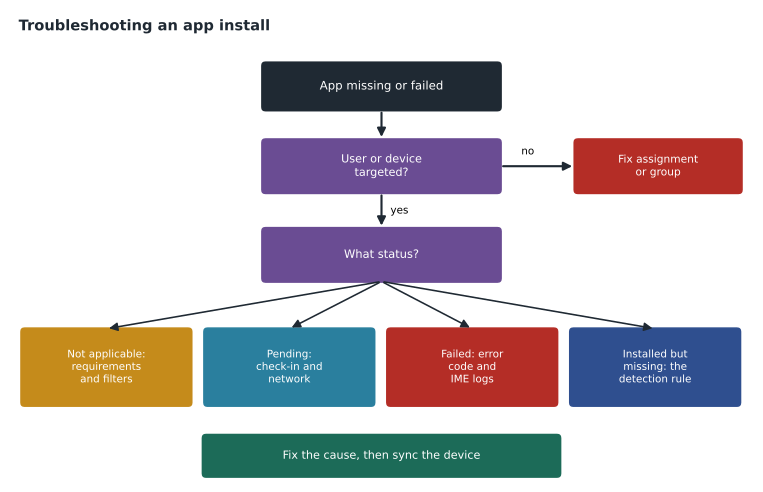
Step 1: read what Intune reports
Each app has an overview with counts of installed, failed, pending and not applicable devices, and device install status and user install status lists with a status and, for failures, an error code. The Troubleshooting + support page in the admin center shows one user's devices, their assigned apps and policies, and recent failures in one place, which is usually faster than opening each app. Reports are not instant: devices report after they process an app, and the admin center's summaries can lag behind the device for a while, so a fresh failure may not appear for some time.
| Status | What it usually means | First thing to check |
|---|---|---|
| Not applicable | The device failed a requirement rule or an assignment filter excluded it | Requirement rules, filters, operating system version, architecture |
| Pending | Intune is waiting for the device to process or report | Last check-in time; is the device on and online? |
| Failed | The install command, download or detection failed | The error code, then the device logs |
| Installed, but the user says it is missing | Detection found something, but not a working app | The detection rule |
| Not installed, but the user has it | Detection did not find the version deployed | The detection rule and the version check |
Step 2: confirm the targeting
Many app problems are targeting problems. Is the user or device actually in the assigned group? Is it excluded by another group or a filter? Is there an Uninstall assignment that wins over Available? Does a device-targeted app need the device in a device group, rather than the user in a user group? For Available apps, the user must be targeted, because Company Portal shows apps to users. The Cloud PC case in lesson 10 was a targeting problem: the app was fine, the group rule was not.
Step 3: read the device's logs
On Windows, the Intune Management Extension keeps detailed logs in its Logs folder under ProgramData, Microsoft, IntuneManagementExtension. The main log records check-ins and processing; recent versions write app processing to a separate AppWorkload log; and the AgentExecutor log records scripts, including detection and requirement scripts. Each entry names the app by its Intune ID, so the first step is to copy the app's ID from the admin center URL and search the log for it.
| Log | What it shows |
|---|---|
| IntuneManagementExtension.log | Agent check-ins, policy and app processing overview |
| AppWorkload.log | Win32 and Store app processing: requirement checks, download, install command, exit code, detection |
| AgentExecutor.log | PowerShell scripts, including custom detection and requirement scripts |
| Event Viewer: DeviceManagement-Enterprise-Diagnostics-Provider | MDM-channel events, including Microsoft 365 Apps and line-of-business MSI installs |
The help desk rarely needed to sign in to a laptop to read these. The Collect diagnostics remote action gathers the IME logs, event logs and other files from a Windows device and uploads them to Intune, where an administrator can download them. With Remote Help for E3 users, a technician could also open the log folder during a session. Ama's guide said: collect diagnostics first, open a Remote Help session only if the logs do not explain the problem.
Common Windows error patterns
Some patterns came up again and again, and the guide listed them with their usual causes. Microsoft publishes a reference of Intune app error codes, and the help desk looked up each code there rather than guessing.
| Symptom | Usual cause | Fix |
|---|---|---|
| Installed successfully but reported as not detected | The detection rule does not match what the installer produces, such as a different version string or path | Correct the detection rule on a test device |
| Install command returned a code Intune treats as failure | The vendor uses its own success or restart codes | Add the vendor's codes to the return code list |
| Download failed or timed out | Firewall or proxy blocking content, or the device lost network | Check endpoints; for Store-listed Win32 apps, the publisher's site |
| Installer waited forever | The install command is not silent, so it waits for a prompt nobody sees | Use the correct silent switches |
| Another installation in progress | Windows Installer is busy, return code 1618 | Intune retries; check for stuck installers |
| Works when installed by hand, fails from Intune | The command was tested as a user, not as the system account | Test in system context |
Retries also confuse people. When a Required Win32 app fails, the IME retries it a few times and then waits, re-evaluating on a longer schedule, roughly once a day, rather than looping constantly. A technician who fixes the cause should therefore trigger a sync and, if needed, restart the IME service or the device, rather than waiting for the next scheduled attempt. Available apps behave differently: the user starts the install from Company Portal, and Company Portal shows the error, so the user's screenshot is often the fastest evidence.
Microsoft 365 Apps
Office installs through the MDM channel when the built-in app type is used, so its errors appear in the MDM event log and in the Office Click-to-Run logs rather than the IME logs. At Corvallin, after the move to a Win32 package containing the ODT, Office failures showed up in AppWorkload.log like any other Win32 app, with the ODT's own log in the Windows temporary folder for detail. The most common Office failure was a user with Word open during an install that tried to close running apps; the FORCEAPPSHUTDOWN property in the configuration was set to false precisely so that staff would not lose work, which meant the install waited and retried later.
Mobile apps
Phones have their own patterns.
| Symptom | Usual cause |
|---|---|
| Volume-purchased iPhone app fails with a licence error | No licences left, or the Apps and Books location token expired |
| iPhone prompts for an Apple Account password | The app was assigned with user licensing instead of device licensing |
| Android app does not install on a fully managed phone | The app is not approved in managed Google Play, or the phone has not synced with Play |
| App protection settings not applied | The user is not targeted, the app is not signed in with the work account, or on Android the broker app is missing |
| App configuration not applied | The configuration targets the wrong platform or app, or the app on iOS is not managed |
For app protection, the protected app can show its own diagnostics: Outlook and Edge both have a hidden diagnostics page, and the Company Portal or Microsoft Intune app on Android can upload logs. In the admin center, the App protection status report shows which users have policies applied in which apps on which devices. During the North Branch pilot, the report was the first place Ama looked when someone said their PIN prompt had not appeared; in each case the user had not yet signed in to the app with the work account.
Case notes from November
Worked problem
The PDF editor that would not stay installed
The PDF editor, assigned as Available to 20 users, installs from Company Portal, then reappears as Install a day later, and the user installs it again. What is going on?
Show solution
- The device install status shows Not installed after each successful install.
- AppWorkload.log shows exit code 0, then detection failed.
- The detection rule checked a file version of 24.2, but the vendor's latest installer wrote 24.3, because the package had been updated without updating the rule.
Answer: Ama corrected the detection rule to greater than or equal to 24.2 and added the release routine's step 2, update the detection rule, to the package checklist. The installs stopped repeating.
Worked problem
A new laptop stuck on the enrollment status page
A new laptop at the West Branch sits on the app installation step of the enrollment status page for 40 minutes, then shows a timeout. The same model worked at head office.
Show solution
- The ESP waits for Office, the visit verification app and the VPN client.
- Collected diagnostics show the Office download crawling; the branch's Delivery Optimization peers were all off for the evening.
- The ESP timeout was 60 minutes at head office but 30 at the branches, from an older profile.
Answer: Felix confirmed the branch link was busy with the evening backup. Ama aligned the ESP timeout to 60 minutes everywhere and asked branch managers to set up new laptops in the morning; the next one finished in 22 minutes.
Building the guide into the help desk routine
The guide was only useful if technicians used it the same way each time. Ama turned it into a short form in the help desk ticket system with five fields: the app and its Intune ID, the status Intune showed, whether targeting was confirmed, what the logs said, and the fix. Filling it in took a few minutes and made patterns visible. By late November the form showed that detection rules caused more than a third of Win32 problems, which led to the extra detection tests in the package checklist from lesson 3.
| Cause of app tickets, Oct 15 to Nov 20 | Tickets |
|---|---|
| Detection rule wrong or outdated | 11 |
| Targeting or group membership | 8 |
| Device offline or not checked in | 6 |
| Network or content download | 3 |
| Install command or return codes | 3 |
| User error or expectation | 2 |
When to escalate
Some problems are not Corvallin's to fix. If an app's installer fails the same way on a clean test machine, the vendor needs to know. If the Intune service itself is degraded, the Service health page in the Microsoft 365 admin center and the Intune tenant status page say so, and no local troubleshooting will help. And if a problem affects many devices at once after a change, the first step is to undo the change, such as removing the new assignment, and investigate afterwards. Ama's guide ended with these three escalation rules, because the most expensive troubleshooting is the kind that keeps going after the cause is known to be somewhere else.
A note on patience
The last line of the guide was about time. Intune processes changes when devices check in, the IME evaluates apps on its own schedule, and reports summarize what devices have told the service. A technician who changes an assignment and checks the report two minutes later will often see no change and be tempted to change something else. The guide asked technicians to trigger a sync, wait for the device to report, and only then judge the result, and to note in the ticket the time each step was taken so the next person could follow the sequence.
Two weeks after the form was introduced, the median time to close an app ticket fell from two days to under one, mostly because technicians stopped reinstalling apps before reading the logs.
Common mistakes
MistakeReinstalling an app before reading its status and error code.
InsteadRead the report, confirm targeting and applicability, read the logs, then fix.
MistakeSigning in to a user's laptop to read logs as the first step.
InsteadUse Collect diagnostics, then Remote Help if the logs are not enough.
MistakeWaiting a day after fixing the cause of a failed Required app.
InsteadSync the device, and restart the IME service or device if needed, to trigger a new attempt.
MistakeAssuming an Office install failure will appear in the IME logs.
InsteadBuilt-in Microsoft 365 Apps installs use the MDM channel and Office's own logs; a Win32 ODT package appears in the IME logs.
Summary and key terms
- Work in order: report, targeting, applicability, device logs, detection.
- Not applicable points to requirements or filters; Pending to check-in; Failed to the error code and logs.
- The IME logs, including AppWorkload and AgentExecutor, record Win32 and script processing on Windows.
- Collect diagnostics retrieves logs remotely; Remote Help adds a live view when needed.
- Mobile failures usually come from licences, store approval, user targeting or a missing broker app.
- Device install status
- An app report listing each device's install state and error code.
- Troubleshooting + support
- The admin center page that shows one user's devices, policies, apps and failures.
- AppWorkload log
- The IME log that records Win32 and Store app processing in recent versions.
- Collect diagnostics
- A remote action that uploads logs and diagnostic files from a Windows device to Intune.
- App protection status report
- A report showing which users have app protection applied in which apps.
Practice problems
Work each problem on paper first, then reveal the answer to check.
An app reports Not applicable on a device. Where should you look first?
Show answer
The app's requirement rules and any assignment filters.
Which log records a custom detection script's run?
Show answer
The AgentExecutor log.
Why did the PDF editor keep asking to be installed?
Show answer
Its detection rule checked an older exact version, so detection failed after each successful install.
Lesson quiz · 5 questions
Score 60% or more to complete this lesson.
Create a free account to save your progress, take quizzes and earn a certificate.