
MSBA-213 · Lesson 3 of 12 · 19 min
Win32 app packaging and deployment
▶ Video coming soon A video version of this lesson is on the way.
Two apps blocked every new laptop at Corvallin: the VPN client and the visit verification app, a small Windows program that home-care staff use to confirm visits when they are back at a branch. Both had been uploaded in 2022 as line-of-business MSI files with no detection logic beyond the MSI product code. That had worked until the vendor of the visit verification app switched to an EXE installer with an MSI inside it, and the next version silently failed on 37 laptops while Intune reported them as installed. Ama decided that every app Corvallin depended on would become a properly built Win32 app, with an install command, a detection rule and requirement rules that she had tested herself.
The .intunewin package
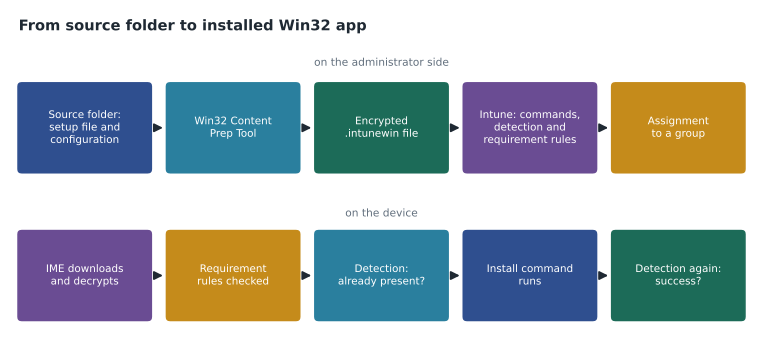
A Win32 app starts as a folder containing the installer and anything it needs: transforms, configuration files, a licence file or a script. Microsoft's Win32 Content Prep Tool, a small command-line program called IntuneWinAppUtil, compresses and encrypts that folder into a single .intunewin file, recording which file is the setup file. Intune stores the encrypted package, and the IME downloads and decrypts it on the device before running the install command.
IntuneWinAppUtil.exe -c C:\Packages\VisitVerify\5.4.2 -s VisitVerifySetup.exe -o C:\Packages\OutputThe package format matters less than the discipline around it. Ama kept one source folder per app version, named with the version number, and never edited a folder after packaging it. When the vendor shipped 5.4.3, she created a new folder and a new package. That way the package Intune held could always be traced back to exactly the files that were tested.
Install and uninstall commands
Every Win32 app needs an install command and an uninstall command. They must run silently, because the IME runs them without a user interface when the app installs in the system context. Silent switches differ by installer: MSI files use msiexec with /qn or /quiet, while EXE installers use whatever switches their vendor supports, such as /S, /silent or /quiet. The vendor's documentation, or running the setup file with /? in a test virtual machine, tells you which. Recent Intune releases also allow a PowerShell script to act as the installer, uploaded with the app, which helps when an install needs several steps.
| Installer | Install command | Uninstall command |
|---|---|---|
| MSI | msiexec /i "App.msi" /qn /norestart | msiexec /x {product-code} /qn /norestart |
| EXE with silent switch | VisitVerifySetup.exe /quiet /norestart | The vendor's uninstall EXE with its silent switch |
| MSI with a transform | msiexec /i "Client.msi" TRANSFORMS="corvallin.mst" /qn | msiexec /x {product-code} /qn |
| Script | powershell.exe -ExecutionPolicy Bypass -File install.ps1 | powershell.exe -ExecutionPolicy Bypass -File uninstall.ps1 |
The install behaviour is either System or User. System runs the command as the local system account, which can write to Program Files and the machine part of the registry; it is right for almost every corporate app. User runs it as the signed-in user, which suits apps that install only into the user's profile. If an app installs per user, a device with several users needs it installed for each of them.
Restart behaviour also needs a decision. Intune can let the app's return code decide, force a restart, allow a restart with a grace period, or never restart. Ama set the VPN client, which needs a restart for its network driver, to follow return codes, and configured the device restart grace period so staff saw a countdown with a snooze rather than losing their work.
Return codes
When the install command finishes, the IME reads its return code. Intune maps codes to results, and the defaults cover the common Windows Installer codes. Vendors sometimes use their own; adding them to the list prevents false failures.
| Code | Default meaning in Intune |
|---|---|
| 0 | Success |
| 1707 | Success |
| 3010 | Soft restart: success, restart needed |
| 1641 | Hard restart: success, the installer started a restart |
| 1618 | Retry: another installation is in progress |
Detection rules
The detection rule answers one question: is this app, at this version, installed? Intune runs detection before installing, so it does not reinstall an app that is already there, and after installing, so it can report success. A wrong detection rule is the most common cause of an app that Intune says is installed when it is not, or that reinstalls endlessly. That was exactly the visit verification problem: the old MSI product code stayed in the registry after the new EXE failed, so detection passed.
| Detection method | Checks | Good for |
|---|---|---|
| MSI | An MSI product code, optionally with a version check | Genuine MSI installs |
| File or folder | Existence, version, size or date of a file or folder | EXE installers that put a known file in Program Files |
| Registry | Existence or value of a key, including a version string | Apps that write an uninstall entry with DisplayVersion |
| Custom script | A PowerShell script that writes output and exits 0 when the app is present | Anything the other methods cannot express |
For the new visit verification package, Ama used a file rule: the main executable in Program Files, with a version greater than or equal to 5.4.2. If an install failed, the file would be missing or older, and Intune would report a failure instead of a false success. For a script rule, the script must write something to standard output and exit with code 0 when the app is detected; a script that exits 0 without writing output is treated as not detected, which catches many first attempts.
$exe = Join-Path $env:ProgramFiles 'VisitVerify\VisitVerify.exe'
if (Test-Path $exe) {
    $v = [version](Get-Item $exe).VersionInfo.FileVersion
    if ($v -ge [version]'5.4.2') { Write-Output "Detected $v"; exit 0 }
}
exit 1
Requirement rules
Requirement rules decide whether a device is eligible before Intune even tries to install. Every Win32 app has an operating system architecture and a minimum Windows version; optional rules check disk space, physical memory, processor count, processor speed, a file, a registry value or a script. A device that does not meet the requirements reports Not applicable rather than failed, which keeps the failure reports meaningful. Ama required Windows 11 24H2 or later, matching the enrollment restriction set in the device project, and 2 GB of free disk space for the larger apps.
Requirement rules are also how one package reaches only the devices that should have it. The label-printer utility should be only on the three label-printer laptops, which Ama marked with a registry value during setup; the app's requirement rule checks that value. A filter could have done the same at assignment time, and Ama used filters for broad device properties such as model. Requirement rules suit checks that only the device itself can answer.
Dependencies
A dependency is another Win32 app that must be present before this one installs. The finance app from lesson 1 depended on a printer driver, so Ama packaged the driver as its own Win32 app and added it as a dependency, set to install automatically. When the finance app is assigned, Intune installs the driver first even though the driver has no assignment of its own. Dependencies can chain, and Intune evaluates the whole chain before installing anything. Lesson 9 covers supersedence, the related relationship for replacing one app with another, and the limits on how large these relationship graphs can be.
Delivery and branch networks
Win32 content comes from Intune's content delivery network, and the IME can use Delivery Optimization to share it between laptops on the same network. That mattered to Felix. The branch links were faster after the Teams project, but a 600 MB package to 60 laptops at the North Branch was still 36 GB if each fetched its own copy. With Delivery Optimization peers on the branch subnet, most laptops pulled the content from neighbours. Felix asked for one more thing: large Required apps would be assigned with an installation deadline a few days ahead and a start time after the morning visit runs, so downloads happened when the branch was quiet.
Worked problem
Repackaging the visit verification app
Version 5.4.2 of the visit verification app is an EXE that wraps an MSI, installs per machine, needs no restart and returns 0 on success. Version 5.4.1 is still on 483 laptops; 37 have a broken 5.4.0 state. How should the new Win32 app be set up?
Show solution
- Package the 5.4.2 folder with IntuneWinAppUtil, setup file VisitVerifySetup.exe.
- Install command: VisitVerifySetup.exe /quiet /norestart; uninstall with the vendor's uninstaller and its silent switch; install behaviour System.
- Requirement rules: x64 or ARM64, Windows 11 24H2 or later, 1 GB free disk space.
- Detection rule: VisitVerify.exe file version greater than or equal to 5.4.2.
- Assign as Required to the IT ring first, then the pilot, then everyone, with the move away from the old line-of-business app handled as in lesson 9.
Answer: Within a week the 37 broken laptops reported the true state, failed with a clear return code from the old leftovers, and were fixed by the vendor's clean-up tool added as a dependency. The rest moved to 5.4.2 without calls.
Testing a package before it reaches anyone
Ama's test routine for a new package had four parts, and none of them involved her own laptop. First, she ran the install command on a clean Windows 11 virtual machine from an elevated command prompt started as the system account, using a free system-context tool from Microsoft's Sysinternals collection, which reproduces how the IME runs commands. If the installer showed any window or asked any question, the command was not silent enough. Second, she ran the uninstall command the same way and confirmed the program and its folders were gone. Third, she checked that her detection rule passed after the install and failed after the uninstall. Only then did she upload the package and assign it to the IT ring of six devices.
The fourth part was a deliberate failure. She assigned the package to one test device with too little free disk space to meet the requirement rule, confirmed it reported Not applicable, and then removed a file the detection rule looked for to confirm Intune noticed the app was missing and reinstalled it. That last check proved the Required assignment would repair a broken installation without anyone calling the help desk, which was the behaviour the visit verification app had lacked.
| Test | Pass condition |
|---|---|
| Silent install as system | No windows or prompts; exit code 0, or 3010 when a restart is expected |
| Silent uninstall as system | Program, shortcuts and folders removed |
| Detection after install | Detected at the expected version |
| Detection after uninstall | Not detected |
| Requirement failure | Not applicable on an ineligible device |
| Repair | Intune reinstalls after the detected file is removed |
Naming and documentation
Every Win32 app at Corvallin had the same naming pattern, product then version, such as Visit verification 5.4.2, and its description field held three lines: who owns the app in the business, which group it is assigned to, and where its source folder lives. The notes field recorded the install switches and the reason for any unusual setting. This looked like bureaucracy until the first time a technician needed to rebuild a package at short notice and found everything in one place. Intune also lets administrators add a logo and set the information and privacy URLs that appear in Company Portal, which mattered for the Available apps.
Scope tags and multi-admin approval for apps
The device course set up scope tags and multi-admin approval. Both apply to apps. Northlight AV, the outside firm that supports the Teams Rooms, could see and assign only the apps tagged AV-Northlight, so its technicians could update the room software without touching anything else. And because a malicious or careless Win32 app runs as the system account on every targeted device, Ines extended multi-admin approval to app changes: a new or modified app assignment to all corporate devices needed a second approver from the rota before it took effect. Ama found this slowed her down by an hour or two on release days and judged it worth it.
Common mistakes
MistakeDetecting an EXE-based app by an old MSI product code.
InsteadDetect the file or registry value the current version installs, with a version check.
MistakeTesting install commands only interactively as an administrator.
InsteadTest in the system context and silently, as the IME will run them, for example in a test virtual machine.
MistakeUsing requirement rules and filters interchangeably without thinking.
InsteadFilters are evaluated at assignment from device properties Intune knows; requirement rules run on the device and can check local state.
MistakeIgnoring a vendor's own return codes.
InsteadAdd them to the app's return code list so successes and restarts are reported correctly.
Summary and key terms
- Win32 apps are folders packaged with the Win32 Content Prep Tool into encrypted .intunewin files.
- Each needs silent install and uninstall commands, an install behaviour and a restart behaviour.
- Detection rules decide whether the app is present; they must detect the exact version deployed.
- Requirement rules make ineligible devices report Not applicable instead of failing.
- Dependencies install other Win32 apps first; Delivery Optimization reduces branch network load.
- Win32 Content Prep Tool
- Microsoft's IntuneWinAppUtil tool that packages a source folder into an .intunewin file.
- .intunewin file
- The compressed, encrypted package Intune stores for a Win32 app.
- Detection rule
- A check that decides whether a Win32 app is installed.
- Requirement rule
- A condition a device must meet before Intune installs a Win32 app.
- Dependency
- A Win32 app that Intune installs before the app that depends on it.
- Return code
- The exit code of an install command, mapped by Intune to success, restart, retry or failure.
Practice problems
Work each problem on paper first, then reveal the answer to check.
What must a custom detection script do when the app is present?
Show answer
Write output to standard output and exit with code 0.
A device lacks the disk space a requirement rule demands. How does it report?
Show answer
Not applicable.
Why did 37 laptops report the visit verification app as installed when it was not?
Show answer
Detection checked an old MSI product code that remained after the new installer failed.
Lesson quiz · 5 questions
Score 60% or more to complete this lesson.
Create a free account to save your progress, take quizzes and earn a certificate.