
MSBA-173 · Lesson 7 of 12 · 22 min
Calendars and appointments
▶ Video coming soon A video version of this lesson is on the way.
If the inbox is the business's memory, the calendar is its plan. A single Maple & Pine wedding needs a first consultation, two venue visits, a tasting, a florist meeting, a dress fitting reminder, the rehearsal, the day itself and a follow-up call, and the team runs about forty weddings a year plus the summer festival. The sixth session turned to the “Manage schedules” domain, about a third of MO-400. This lesson covers calendars and appointments: work time, views, multiple calendars, creating appointments and events, recurring items, time zones, availability, reminders and creating calendar items from messages. Meetings, which involve other people, follow in lesson 8.
Appointments, meetings and events
Outlook's calendar holds three kinds of item. An appointment is a block of time in your own calendar with no invitations, such as an hour set aside to write a run sheet. A meeting is an appointment to which you invite other people, so it is sent as a meeting request and tracks their responses. An event is an all-day item, such as a trade show, a holiday or the wedding day itself; it appears as a banner at the top of the day rather than as a block of time and, by default, does not mark you as busy.
| Item | Create with | Invitations | Default Show As |
|---|---|---|---|
| Appointment | Home > New Appointment (Ctrl+Shift+A) | None | Busy |
| Meeting | Home > New Meeting (Ctrl+Shift+Q) | Sent to attendees | Busy |
| Event | New Items > All Day Event, or select All day in an appointment | None unless you invite people | Free |
Calendar views
In the Calendar module, the Home > Arrange group switches between Day, Work Week, Week, Month and Schedule View. Keyboard shortcuts are Ctrl+Alt+1 for Day, Ctrl+Alt+2 for Work Week, Ctrl+Alt+3 for Week and Ctrl+Alt+4 for Month. The Go To group has Today and Next 7 Days, and the Date Navigator, the small month calendar at the top of the folder pane, jumps to any date; dragging across dates in it shows several days together. View > Change View offers Calendar, Preview, List and Active views, and View Settings works as in mail.
Schedule View shows calendars as horizontal rows across a timeline, which is the clearest way to compare several people's or rooms' calendars. Lesson 8 uses it for planning.
Setting work times
The objective “set calendar work times” refers to File > Options > Calendar > Work time. Start time and End time set your working hours; Work week has a check box for each day; First day of week sets which day starts the week; and First week of year sets how week numbers are counted. Working hours are shaded differently in Day and Week views, the Work Week view shows only the checked days, and other people's Scheduling Assistant shows your non-working time.
Worked problem
A Tuesday to Saturday work week
Odile works Tuesday to Saturday, 10:00 to 18:00, because weddings happen on Saturdays. Her calendar shows Monday to Friday, 8:00 to 17:00. How should she change it so the Work Week view and her colleagues' scheduling show the right days and hours?
Show solution
- Choose File > Options > Calendar.
- Under Work time, set Start time to 10:00 AM and End time to 6:00 PM.
- Under Work week, clear Mon and select Sat, leaving Tue to Sat selected.
- Leave First day of week as Sunday or set it as the office prefers, then choose OK.
Answer: Work time options set the hours, the working days and the first day of the week; Work Week view then shows Tuesday to Saturday.
Microsoft 365 versions may also show Work hours and location, which lets you set different hours on different days and say where you will be working, at the office or remotely. MO-400 tests the classic work time settings.
Time zones
Maple & Pine plans weddings for couples who live elsewhere. Some come home to Prince Edward Island from Toronto, Calgary or Vancouver, and destination weddings involve vendors in other zones. MO-400 asks you to “set item times and time zones”, and there are two related settings.
The first is your own time zone and an optional second one. In File > Options > Calendar > Time zones, Label names your zone, Time zone sets it, and Show a second time zone adds a second time scale beside the first in Day and Week views, with its own label. Up to three zones can be shown in Microsoft 365 versions. The Swap Time Zones button switches which one is primary, which is how you move your calendar when travelling.
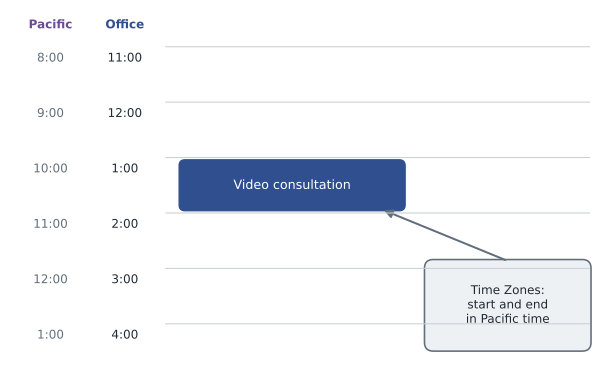
The second is the time zone of a single item. In an appointment or meeting window, Appointment > Options > Time Zones (in some versions Meeting > Options > Time Zones) adds time zone boxes beside the start and end times. You can then set the start and end in the zone where the event happens, such as a video call booked in Vancouver time; Outlook converts it and shows it at the right local time on everyone's calendar. Start and end can even use different zones, which is how a flight that departs in one zone and lands in another is entered correctly.
Creating appointments
Home > New Appointment opens an appointment window. Its main fields are Title (the subject), Location, Start time and End time, with an All day check box, and a large notes area for details. The Appointment tab holds Show As, Reminder, Recurrence, Time Zones, Categorize, Private and High or Low Importance. Double-clicking a time slot in the calendar opens a new appointment at that time, and typing directly into a selected slot creates a quick appointment with that title.
Availability: Show As
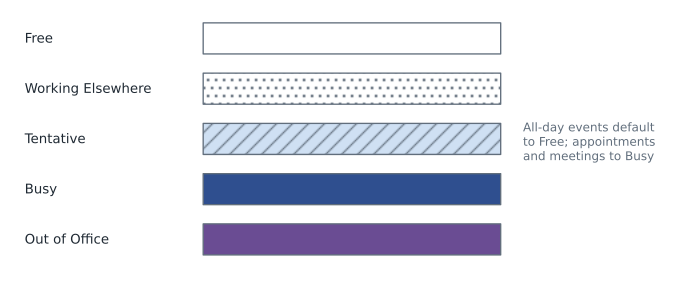
The objective “set availability” refers to the Show As menu. Each item can show you as Free, Working Elsewhere, Tentative, Busy or Out of Office. Show As does not affect your own calendar much beyond its colour, but it is what other people see when they look at your free/busy time or use the Scheduling Assistant to invite you. A wedding day entered as an all-day event is Free by default, so Odile changes it to Out of Office to stop colleagues booking her.
Marking an item Private hides its details from anyone you share your calendar with, including delegates; they see only that you are busy. It is set with the padlock button on the appointment tab, and it is not a security feature for people who have full access to the mailbox, but it keeps personal appointments discreet.
Reminders
The Reminder menu on the appointment tab sets when Outlook pops up a reminder: from None and 0 minutes to 2 weeks, plus Sound to choose or turn off the sound. The default for new appointments is set in File > Options > Calendar > Calendar options > Default reminders, 15 minutes unless changed. When a reminder appears, you can Dismiss it, Snooze it for a chosen time, or open the item. The objective “configure reminders” covers both the default and the setting on one item. All-day events default to a reminder 18 hours before, at 6:00 the evening before, which suits wedding days.
Recurring items
The objective “create recurring items” uses Appointment > Options > Recurrence. The Appointment Recurrence dialog has three parts: Appointment time (start, end and duration), Recurrence pattern (Daily, Weekly, Monthly or Yearly, each with options such as every weekday, every second Tuesday, the last Friday of each month), and Range of recurrence (start date and No end date, End after a number of occurrences, or End by a date).
| Pattern | Options | Maple & Pine example |
|---|---|---|
| Daily | Every n days, or every weekday | Inbox review every weekday at 9:00 |
| Weekly | Every n weeks on chosen days | Wednesday Outlook session every week |
| Monthly | Day n of every n months, or the first, second, third, fourth or last weekday of the month | Supplier invoices on the last Friday of each month |
| Yearly | On a date, or on the first to last weekday of a month | Each couple's anniversary card reminder |
Worked problem
The monthly vendor call
Rosalind wants a one-hour call with the venue managers at 10:00 on the second Wednesday of every month, starting in January 2027, for twelve occurrences. How does Teo enter it as a recurring appointment in his calendar?
Show solution
- Create a new appointment titled Venue managers call, and choose Recurrence.
- Set the start to 10:00 AM and the end to 11:00 AM.
- Choose Monthly, select The second Wednesday of every 1 month(s).
- Set Start to the first such Wednesday in January 2027, choose End after 12 occurrences, and choose OK. Save & Close.
Answer: Monthly with a relative day (second Wednesday) and an End after range creates exactly twelve occurrences.
Recurring items show a circular arrow icon. Opening one asks whether to open just this one or the entire series, which decides whether a change applies to one occurrence or all of them. Lesson 8 returns to this for meetings, where it matters more.
Creating calendar items from messages
The objective “create calendar items from messages” has several routes in classic Outlook. Dragging a message onto the Calendar icon in the navigation bar opens a new appointment with the message's subject as the title and its text in the notes. Home > Respond > Meeting (Reply with Meeting) creates a meeting with the message's sender and recipients as attendees. And Home > Move > Move > Calendar, or right-click drag to the Calendar, gives choices such as Copy Here as Appointment with Attachment, which keeps the original message attached to the appointment.
Odile uses the attachment option for tastings: the caterer's confirmation message, with its menu attached, becomes an appointment with everything she needs on the day, and the original stays in the Inbox.
Managing multiple calendars
The objective “manage multiple calendars” covers creating, opening and displaying more than one calendar. Folder > New Calendar (or right-click My Calendars > New Calendar) creates a blank calendar in your mailbox, such as one for the summer festival. Home > Manage Calendars > Add Calendar opens others: Open Shared Calendar for a colleague's calendar, From Room List for meeting rooms, From Address Book, From Internet for a published iCalendar address, and Calendar Groups for a saved set.
Each calendar appears with a check box under My Calendars, Other Calendars or Shared Calendars in the folder pane. Selecting more than one shows them side by side; View > Arrangement > Overlay (or the arrow on a calendar's tab) stacks them in one grid in different colours, and Schedule View shows them as rows. A calendar group saves a set of calendars to open together: Home > Manage Calendars > Calendar Groups > Create New Calendar Group. The team made one called Wedding team with everyone's calendar and the shared Events calendar.
| Task | Where |
|---|---|
| Create a new calendar | Folder > New Calendar |
| Open a colleague's shared calendar | Home > Add Calendar > Open Shared Calendar |
| Show calendars on top of each other | View > Overlay, or the arrow on the calendar's tab |
| Save a set of calendars | Home > Calendar Groups > Create New Calendar Group |
| Share your calendar | Home > Share Calendar, then choose the person and the level of detail |
| Remove a calendar from view | Clear its check box, or right-click > Delete Calendar for one you own |
Share Calendar sends a sharing invitation and lets you choose how much the person sees: Can view when I'm busy, Can view titles and locations, Can view all details, Can edit or Delegate. Teo shared his calendar with Rosalind at Can view all details, and with the rest of the team at Can view titles and locations.
By the end of the session Odile's calendar showed a Tuesday to Saturday week, a second time scale in Pacific time for the West Coast couples, the Morrison wedding as an Out of Office event with an evening-before reminder, and the Wedding team group overlaid in colours. Lesson 8 turns these calendars into meetings.
Calendar tasks on the exam
MO-400 calendar tasks often combine two or three settings in one sentence, such as “Create an appointment on the date shown from 2:00 PM to 3:30 PM in the Pacific time zone, shown as Tentative, with a reminder 1 hour before.” Work through such a task in the order it is written, then reopen the item and check each setting against the words of the task before marking it complete.
Common mistakes
MistakeEntering a video call in your own time zone after converting the time in your head.
InsteadUse Time Zones on the item and enter the time in the other person's zone.
MistakeLeaving a wedding day as an all-day event with Show As Free.
InsteadSet Show As to Out of Office or Busy so colleagues do not book you.
MistakeChanging work hours in View Settings.
InsteadWork time is in File > Options > Calendar.
MistakeChoosing day 14 of every month when the task says the second Wednesday.
InsteadUse the relative option, The second Wednesday of every month.
Summary and key terms
- Appointments are your own time, meetings include invitations, and events are all-day items.
- Work time options set hours, work days and the first day of the week.
- Calendar options can show a second time zone; Time Zones on an item sets its start and end zones.
- Show As sets availability as Free, Working Elsewhere, Tentative, Busy or Out of Office.
- Reminders have a default in Calendar options and can be changed on each item.
- Recurrence sets daily, weekly, monthly or yearly patterns with an end date or count.
- You can create calendar items from messages and manage multiple calendars side by side, overlaid or in groups.
- Appointment
- A calendar item for your own time, with no invitations.
- Event
- An all-day calendar item shown as a banner.
- Show As
- The availability an item displays to others: Free, Working Elsewhere, Tentative, Busy or Out of Office.
- Recurrence
- A repeating pattern for a calendar item with a range of dates or occurrences.
- Overlay
- A view that stacks several calendars in one grid.
- Calendar group
- A saved set of calendars opened together.
Practice problems
Work each problem on paper first, then reveal the answer to check.
Where do you add a second time zone to the calendar?
Show answer
File > Options > Calendar > Time zones > Show a second time zone.
How do you create an appointment from a message and keep the message attached?
Show answer
Right-drag the message to the Calendar and choose Copy Here as Appointment with Attachment (or Move > Calendar).
Which Show As option shows you as away to others?
Show answer
Out of Office.
How do you set a recurring appointment to stop after ten times?
Show answer
In the Recurrence dialog, choose End after 10 occurrences.
Lesson quiz · 5 questions
Score 60% or more to complete this lesson.
Create a free account to save your progress, take quizzes and earn a certificate.