
MSBA-173 · Lesson 2 of 12 · 25 min
Outlook settings and options
▶ Video coming soon A video version of this lesson is on the way.
The second session began with a small mystery. Odile's messages arrived in colleagues' inboxes in a cramped, grey font; Teo's arrived in Aptos; Dagny Holmqvist's replies came back in plain text, stripped of the formatting the others had used. Nobody had chosen any of it. “Everyone is using Outlook's defaults,” Teo said, “and some of you have changed them without meaning to.” The first domain of MO-400, “Manage Outlook settings and processes”, is mostly about knowing where those defaults live and how to change them on purpose. This lesson covers the settings: display, accounts, automatic replies and the mail options for fonts and replies. Signatures follow in lesson 4, and search and printing in lessons 6 and 11.
Backstage view and Outlook Options
The File tab opens Backstage view. Its Info page shows the account settings for the selected mailbox, with buttons for Add Account, Account Settings, Automatic Replies, Mailbox Settings (the Tools menu for cleanup and storage), and Rules and Alerts. The Options command at the bottom left opens the Outlook Options dialog, which holds most of Outlook's preferences.
| Outlook Options page | What it controls | MO-400 examples |
|---|---|---|
| General | Your name and initials, Office theme, start-up options | Office theme (Colorful, Dark Gray, Black, White, Use system setting) |
| Composing, signatures, stationery and fonts, replies and forwards, tracking, message format, saving and sending | Default fonts; reply and forward behaviour; signatures | |
| Calendar | Work time, calendar options, display, time zones, scheduling assistant | Work hours and days; second time zone |
| Groups | Microsoft 365 group options | Rarely tested |
| People | How names are shown and sorted | File as order |
| Tasks | Reminders on tasks with due dates, colours, work hours for tasks | Default task reminder time |
| Search | Indexing, results and search scope | Default search scope |
| Language, Accessibility | Editing and display languages, accessibility options | Alt text reminders |
| Advanced | Outlook panes, start-up folder, AutoArchive, reminders, send and receive, export, RSS | Start Outlook in this folder |
Most settings in Outlook Options apply to the whole program or to the account selected where a page asks which account. A few settings live elsewhere because they are stored with the mailbox on the server rather than on the computer: automatic replies are the main example. Knowing which is which explains why automatic replies work when your computer is off, but your default font does not follow you to another computer.
Changing how items are displayed
The objective “change the display of messages, calendar items, contacts and tasks” covers the View tab tools introduced in lesson 1. The exam typically asks for one specific change, so it helps to know each tool's job.
| Tool | Where | What it changes |
|---|---|---|
| Change View | View > Current View | Switches to another saved view for the folder |
| View Settings | View > Current View | Columns, Group By, Sort, Filter, Other Settings, Conditional Formatting, Format Columns |
| Reset View | View > Current View | Restores the view's defaults |
| Show as Conversations | View > Messages | Groups mail by conversation thread |
| Message Preview | View > Arrangement (Outlook 2019) or Messages | Number of preview lines in the message list |
| Arrangement gallery | View > Arrangement | Sort and group by Date, From, To, Categories, Flag, Size, Subject, Type, Attachments, Account, Importance |
| Reading Pane, Folder Pane, To-Do Bar | View > Layout | Window layout |
| People Pane | View > People Pane (classic versions) | Shows details about the people on a message |
View Settings is the most flexible. In the Advanced View Settings dialog, Columns chooses which fields appear in list views and in what order; Group By groups items by a field, such as Categories; Sort sets the sort order by up to four fields; Filter hides items that don't match conditions, such as messages older than thirty days; Other Settings changes fonts, grid lines and the reading pane position; and Conditional Formatting applies a font or colour to items that meet a condition. Outlook already includes conditional formatting rules for unread messages and overdue tasks, and you can add your own.
Worked problem
Highlighting messages from couples
Rosalind wants every message from the office's main client domain, in this case any address ending in the Maple & Pine booking form's reply domain, to appear in green bold in the Inbox so the team spots couples' questions first. How should Teo do this without moving the messages?
Show solution
- In the Inbox, choose View > Current View > View Settings.
- Choose Conditional Formatting, then Add, and name the rule Couples.
- Choose Font and set Bold and a green colour.
- Choose Condition, and in the From box, or in Search for the word(s) with the domain text in the From field, enter the condition. Choose OK three times.
Answer: Conditional formatting changes how matching items look without moving them, and it applies only to the folder whose view you edited.
The same tools work in the other modules. In Calendar, View > Arrangement switches between Day, Work Week, Week, Month and Schedule View, and View Settings changes fonts, the colour of the calendar and the time scale (from five to sixty minutes per line, set from the Arrangement group's Time Scale menu). In People, Change View offers People, Business Card, Card, Phone and List. In Tasks, the views include Detailed, Simple List, To-Do List, Prioritized, Active, Completed, Today, Next 7 Days, Overdue, Assigned and Server Tasks. Each of these is a valid answer to a “change the display of” task, so read which view the task names.
Focused Inbox, conversations and density
Three display settings cause the most confusion in offices. Focused Inbox (View > Show Focused Inbox) splits the Inbox into Focused and Other tabs based on Outlook's judgement of what matters; messages can be moved between tabs with Move to Other or Move to Focused, and Outlook learns from that. Show as Conversations groups related messages under a single thread, which is tidy for long conversations but confusing when someone expects each message on its own line; turning it on asks whether to apply it to the current folder or all folders. And in Microsoft 365 versions, the density and message preview options change how much fits on the screen.
Teo turned off Focused Inbox on the shared mailbox, because the team had missed two vendor invoices that Outlook had filed under Other, and left it on for personal mailboxes where people liked it. He also set conversations on for the shared mailbox, because a single couple's thread with the venue, caterer and photographer could run to forty messages.
Adding accounts
Outlook can hold more than one mailbox. File > Info > Add Account opens a short wizard: type the email address, choose Connect, and Outlook tries to configure the account automatically by looking up its server settings. For a work account in Microsoft 365 or Exchange, that is usually all it needs. For other accounts, Advanced options lets you choose Let me set up my account manually and pick the account type: Microsoft 365, Outlook.com, Exchange, Google, POP or IMAP.
POP and IMAP are the two older protocols for receiving mail. POP downloads messages to the computer and, by default, may remove them from the server; IMAP keeps them on the server and synchronizes folders, so the same mail appears on every device. Exchange and Microsoft 365 accounts go further, synchronizing calendars, contacts and tasks as well. For a small business like Maple & Pine, all mailboxes are Microsoft 365 accounts, and Odile's old personal email, which she still used for some vendors, was added as an IMAP account.
Each account appears as a separate set of folders in the folder pane, and new messages are sent from the account of the folder you are in unless you change the From field. File > Account Settings > Account Settings lists accounts, lets you set the default, repair or change an account's settings, and remove an account. Removing an account from Outlook does not delete the mailbox on the server.
| Account type | Where mail is stored | What synchronizes | Typical use |
|---|---|---|---|
| Microsoft 365 or Exchange | On the server | Mail, calendar, contacts, tasks, rules, automatic replies | Work and school mailboxes |
| Outlook.com | On the server | Mail, calendar, contacts | Personal Microsoft accounts |
| IMAP | On the server | Mail folders only | Many personal and hosted mailboxes |
| POP | Downloaded to the computer | Nothing beyond downloading mail | Older or very limited mail services |
In new Outlook for Windows, accounts are added through Settings > Accounts > Email accounts > Add account. Shared mailboxes that you have permission for appear automatically in both versions when your administrator grants Full Access, so you rarely add them by hand.
Automatic replies
Automatic replies, once called the Out of Office Assistant, send a reply to people who write to you while you are away. In classic Outlook with a Microsoft 365 or Exchange account they are set in File > Info > Automatic Replies. Because the setting is stored on the server, replies are sent even when Outlook is closed.
The dialog has four parts. Send automatic replies turns them on. Only send during this time range sets a start and end date and time; without it, replies continue until you turn them off. The Inside My Organization tab holds the reply sent to colleagues, and the Outside My Organization tab holds the reply sent to everyone else, with a check box to turn external replies on and a choice between My contacts only and Anyone outside my organization. Each tab has its own formatted message box, so the internal reply can be brief and the external one more formal.
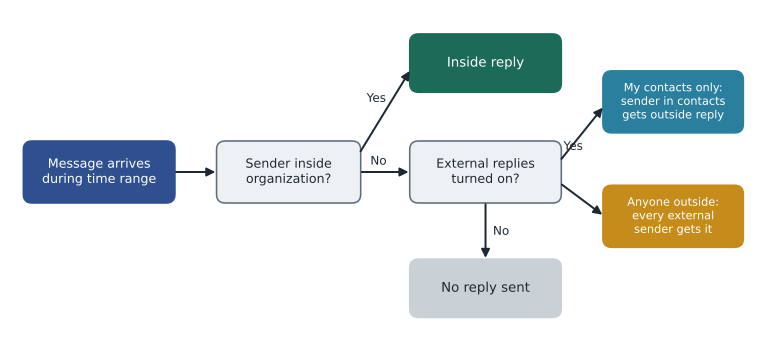
A Rules button at the bottom of the dialog adds rules that run only while automatic replies are on, such as forwarding urgent messages to a colleague. And in the same dialog in Microsoft 365, options may appear to block your calendar and decline or cancel meetings during the period; these come from the newer Outlook on the web settings and are not part of the MO-400 objectives.
Worked problem
The week of the regional trade show
Odile will be at a regional wedding trade show in Halifax from Monday 9:00 to Friday 17:00. Colleagues should get a short note. Couples and vendors writing from outside should get a fuller message with the office phone number, but only if they are already in her contacts, because she does not want to confirm her absence to every sender of junk mail. What settings meet this exactly?
Show solution
- Choose File > Info > Automatic Replies, then Send automatic replies.
- Select Only send during this time range and set the start to Monday 9:00 and the end to Friday 17:00.
- On Inside My Organization, type the short note.
- On Outside My Organization, select Auto-reply to people outside my organization, choose My contacts only, and type the fuller message.
Answer: A time range, separate inside and outside messages, and the My contacts only option meet every part of the requirement.
Accounts that are not Exchange or Microsoft 365, such as POP and IMAP, do not have the Automatic Replies button. For them, an automatic reply is built with a rule that replies using a template and runs only while Outlook is open. On the exam, automatic replies tasks use the Exchange-style dialog.
In new Outlook for Windows, the same settings are in Settings > Accounts > Automatic replies, with a toggle, an optional time period and separate options for people outside the organization.
Message format and default fonts
Outlook composes messages in one of three formats. HTML is the default and supports fonts, colours, pictures and tables. Rich Text is an older Outlook-specific format that other mail programs often turn into an attachment called winmail.dat. Plain Text removes all formatting. File > Options > Mail > Compose messages in this format sets the default, and the Format Text tab of an open message switches a single message.
Dagny's plain-text replies had a simple cause: she had once set the default to Plain Text for a supplier whose system could not read HTML. Teo changed it back to HTML and showed her how to switch individual messages instead.
The objective “specify default fonts for new messages and responses” refers to File > Options > Mail > Stationery and Fonts. The Personal Stationery tab has three Font buttons: New mail messages, Replying or forwarding messages, and Composing and reading plain text messages. For replies there is also an option to Mark my comments with your name, and a choice to Pick a new color when replying or forwarding. The Theme button applies a stationery theme, which most offices avoid because it makes messages look dated.
| Setting | Path | Effect |
|---|---|---|
| Default format | File > Options > Mail > Compose messages | HTML, Rich Text or Plain Text for new messages |
| New message font | Mail > Stationery and Fonts > Personal Stationery > New mail messages > Font | Font, size, colour and effects for new messages |
| Reply and forward font | Same tab > Replying or forwarding messages > Font | Font for your text in replies and forwards |
| Plain text font | Same tab > Composing and reading plain text messages > Font | Font used to show plain text messages |
| Mark comments | Same tab > Mark my comments with | Labels your inline comments in replies |
Teo set the office standard to Aptos 11 point in dark grey for new messages and replies, matching the house style from the Word sessions. Because these are local settings, he walked to each desk and changed them on each computer. New Outlook keeps its default font in Settings > Mail > Compose and reply.
Reply and forward settings
The objective “customize reply message settings” covers the Replies and forwards section of File > Options > Mail. Its main options are:
| Option | Choices | Why it matters |
|---|---|---|
| Open replies and forwards in a new window | On or off | Off composes replies in the reading pane; on opens a separate window |
| Close original message window when replying or forwarding | On or off | Reduces clutter of open windows |
| When replying to a message | Do not include original; attach original; include original text; include and indent; prefix each line | Controls how the quoted text looks |
| When forwarding a message | Attach original; include original; include and indent; prefix each line | Controls whether the forwarded message is inline or attached |
| Prefix each line in a plain-text message with | A character such as > | Marks quoted lines in plain text |
| Preface comments with | Your name | Labels inline comments |
Nearby in the same page are other sending options the exam can touch: Tracking (request delivery and read receipts for all messages, and how to respond to read receipt requests), Message arrival (sound, envelope icon, desktop alert), and Send messages (default importance and sensitivity levels, and whether to warn about a missing attachment). Lesson 3 uses some of these for individual messages.
Teo left the reply style at the default, “Include original message text”, but turned on Close original message window when replying or forwarding, because Odile regularly ended the day with thirty open windows.
Start-up and other useful options
Two Advanced settings round out the domain. Start Outlook in this folder opens Outlook to a chosen folder, which Odile set to the shared mailbox's Inbox. And Reminders controls whether reminders show and play a sound. The General page's Office Theme choices change the colours of the whole Office interface, not individual messages.
By the end of the session every message from Maple & Pine arrived in the same font, replies quoted the original consistently, and Odile's automatic reply for the trade show was saved and ready, with its time range set so she could not forget to turn it off.
Common mistakes
MistakeLooking for default fonts on the Format Text tab of an open message.
InsteadDefault fonts are in File > Options > Mail > Stationery and Fonts; Format Text changes only the current message.
MistakeTurning on automatic replies without a time range for a fixed trip.
InsteadUse Only send during this time range so replies stop on their own.
MistakeWriting one automatic reply and assuming external senders get it.
InsteadInside and Outside My Organization are separate messages, and external replies must be turned on.
MistakeAssuming removing an account from Outlook deletes the mailbox.
InsteadIt only removes it from Outlook on that computer.
Summary and key terms
- File > Info holds account settings and Automatic Replies; File > Options holds most preferences.
- View tab tools change how messages, calendar items, contacts and tasks are displayed; View Settings controls columns, grouping, sorting, filters and conditional formatting.
- Add Account configures Microsoft 365, Exchange, Outlook.com, IMAP and POP accounts.
- Automatic replies have separate inside and outside messages, an optional time range and a choice of external audience.
- Default fonts for new messages and replies are set in Stationery and Fonts; reply behaviour in Mail > Replies and forwards.
- Backstage view
- The File tab's full-window area for account information, options, printing and saving.
- Conditional formatting
- A view rule that changes the font or colour of items that meet a condition.
- Focused Inbox
- A feature that splits the Inbox into Focused and Other tabs.
- IMAP
- A protocol that keeps mail on the server and synchronizes folders across devices.
- POP
- A protocol that downloads mail to one computer.
- Automatic reply
- A server-side reply sent to people who write to you while you are away.
Practice problems
Work each problem on paper first, then reveal the answer to check.
Where do you set Outlook to send automatic replies only to external senders who are in your contacts?
Show answer
File > Info > Automatic Replies > Outside My Organization, with My contacts only selected.
How do you make replies open in a separate window?
Show answer
File > Options > Mail > Replies and forwards > Open replies and forwards in a new window.
Which dialog adds conditional formatting to a folder view?
Show answer
View > View Settings (Advanced View Settings) > Conditional Formatting.
Why do automatic replies work when Outlook is closed?
Show answer
For Microsoft 365 and Exchange accounts they are stored and sent by the server.
Lesson quiz · 5 questions
Score 60% or more to complete this lesson.
Create a free account to save your progress, take quizzes and earn a certificate.