
MSBA-173 · Lesson 10 of 12 · 20 min
Tasks and to-do lists
▶ Video coming soon A video version of this lesson is on the way.
Every wedding at Maple & Pine has a checklist of about sixty jobs, from “send the contract” eight months out to “confirm the cake delivery time” the week before. For years the checklist lived in a Word document that each planner printed and ticked by hand. In the ninth session Teo moved one couple's checklist into Outlook tasks to show what changes when the list can remind you, sort itself by due date and include the messages you have flagged. The MO-400 objective for this lesson is short, “create and manage tasks”, but it covers a good deal of Outlook, from the Task window to views, recurring tasks, flags and the To-Do Bar.
Tasks and flagged items
Outlook's Tasks module (Ctrl+4) holds two kinds of thing. Tasks are items you create in the Tasks folder, each with its own subject, dates, status and notes. Flagged items are messages, contacts and other items you have flagged for follow-up, as in lesson 5; they stay in their own folders but also appear in the task lists. The To-Do List view shows both together, sorted by due date and grouped under headings such as Today, Tomorrow, This Week and Next Week. The Tasks folder view shows only real tasks.
| Kind | Created by | Stored in | Shows in |
|---|---|---|---|
| Task | New Task (Ctrl+Shift+K), or typing in the To-Do List | Tasks folder | Tasks folder, To-Do List, To-Do Bar |
| Flagged message | Follow Up flag on a message | Its mail folder | To-Do List, To-Do Bar |
| Flagged contact | Follow Up flag on a contact | Contacts | To-Do List, To-Do Bar |
The Task window
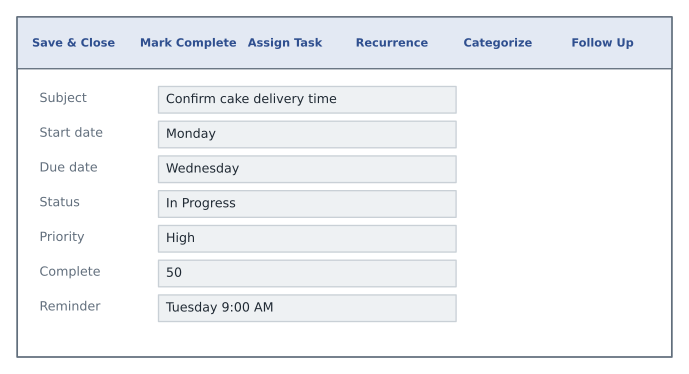
Home > New Task (Ctrl+Shift+K) opens a Task window. Its fields are Subject, Start date, Due date, Status (Not Started, In Progress, Completed, Waiting on someone else, Deferred), Priority (Low, Normal, High), % Complete shown as a number from 0 to 100, Reminder with a date, time and sound, and a large notes area. The Task tab holds Save & Close, Delete, Mark Complete, Assign Task, Send Status Report, Recurrence, Categorize, Follow Up, Private and the priority buttons. A Details page records dates completed, total and actual work, mileage, billing information and companies, rarely used but sometimes tested by name.
A quick task can also be typed straight into the Type a new task box at the top of the To-Do List, or into the To-Do Bar's task list; it is created with today's date as due date unless you change it. Dragging a message onto the Tasks icon on the navigation bar creates a task with the message's subject and text, and right-dragging offers to copy or move the message as an attachment, the same idea as creating calendar items from messages in lesson 7.
Worked problem
One task from the checklist
The Morrison checklist includes “Confirm cake delivery time with Sugar Tide Bakery”. It must be done by Wednesday of the wedding week, Teo will start on Monday, it is high priority, and he wants a reminder on Tuesday at 9:00 if it is not finished. How should he enter it?
Show solution
- Choose Home > New Task.
- Type the subject, set Start date to Monday and Due date to Wednesday.
- Set Priority to High and select Reminder, setting Tuesday at 9:00 AM.
- Add the bakery's phone number in the notes, categorize it Morrison wedding, and choose Save & Close.
Answer: Start and due dates, priority and a reminder are all set in the Task window; the category ties the task to the wedding.
Managing tasks: status, completion and editing
Managing tasks means changing them as work happens. Open a task to change Status and % Complete; setting % Complete to 100 marks the task Completed, and setting Status to Completed sets % Complete to 100. Mark Complete (on the Task tab, the Home tab or the right-click menu, or by selecting the check box beside a task in some views) does the same in one click and strikes the task through. Completed tasks disappear from the To-Do List and active views but remain in the Tasks folder and in the Completed view.
Remove from List, on the Home tab, removes a flagged item from the task lists without marking it complete; for a real task it deletes the task. Delete removes a task entirely. To change a task's due date quickly, use Follow Up on the Home tab, which offers the same Today, Tomorrow, This Week, Next Week, No Date and Custom choices as flags, or drag the task to a different heading in the To-Do List.
| To | Do this |
|---|---|
| Mark a task complete | Mark Complete, or set Status to Completed, or set % Complete to 100 |
| Change the due date quickly | Home > Follow Up > a date, or drag in the To-Do List |
| Change priority | Open the task and set Priority, or use the High and Low Importance buttons |
| Add a reminder | Open the task and select Reminder, or Follow Up > Add Reminder |
| See completed tasks | View > Change View > Completed |
| Remove a flagged message from the list without completing it | Home > Remove from List |
Task views
The Tasks module's Change View gallery is where most task management happens. Detailed shows columns for subject, status, due date, % complete and categories. Simple List shows subject and due date with completion check boxes. To-Do List shows tasks and flagged items grouped by due date. Prioritized groups by priority. Active hides completed tasks. Completed shows only completed ones. Today, Next 7 Days and Overdue filter by date. Assigned shows tasks you have assigned to others, and Server Tasks shows tasks stored on the server. Arrange By and View Settings work as in mail, and the built-in conditional formatting shows overdue tasks in red and completed ones struck through.
Teo set the team's default task view to To-Do List arranged by due date, with the Categories column shown, so each planner sees their next jobs across every wedding with the wedding named on each line.
Recurring tasks
Task > Recurrence works like the appointment recurrence dialog, with one important addition: a choice between a fixed pattern and Regenerate new task a set number of days, weeks, months or years after each task is completed. A fixed pattern, such as every Friday, creates the next task on schedule even if the last one is not done. Regenerating creates the next task only after you complete the current one, timed from that completion, which suits jobs like “back up the shared drive” that should happen a week after the last time, whenever that was.
Assigning tasks and status reports
Classic Outlook can send a task to someone else with Assign Task. The Task window gains a To line; you can choose Keep an updated copy of this task on my task list and Send me a status report when this task is complete, and then Send. The recipient receives a task request with Accept and Decline buttons; accepting moves the task to their list and makes them its owner, and their updates are reflected in your copy. Send Status Report sends a message summarizing a task's status and percentage.
Task assignment works between people using classic Outlook with Exchange or Microsoft 365, but it is not supported by Microsoft To Do or new Outlook for Windows, which handle shared work through shared lists and Microsoft Planner instead. Rosalind preferred to assign work with a flagged message, which every version understands.
The To-Do Bar
View > Layout > To-Do Bar adds up to three sections to the right side of every module: Calendar (a date navigator and upcoming appointments), People (favourite contacts) and Tasks (the To-Do List with a box to type new tasks). Choosing Off hides it. Each section can be closed separately with its own close button. Odile keeps only the Tasks section on, so her list is visible while she works in mail.
In the Calendar module, the Daily Task List can appear below each day in Day and Week views, showing tasks due that day; it is turned on from View > Layout > Daily Task List. Dragging a task from it onto a time slot blocks out time to do it, a simple way to plan a busy day.
Tasks in Microsoft To Do and new Outlook
Microsoft has been moving tasks from classic Outlook's Tasks folder to Microsoft To Do. The two share the same data for Microsoft 365 and Outlook.com accounts: tasks created in classic Outlook appear in To Do's Tasks list, and flagged messages appear in To Do's Flagged email list. New Outlook for Windows has no Tasks module; it shows tasks in a To Do app on its left bar and in My Day on the right, where you can drag a task onto the calendar. Lists, steps within tasks and My Day planning are To Do features without exact classic equivalents.
For MO-400, everything is done in classic Outlook's Tasks module. In everyday work, knowing that the same tasks appear in To Do on a phone is useful: Teo's checklist could be ticked from the venue on the wedding day.
A checklist that runs itself
By the end of the session the Morrison checklist was sixty-two tasks, each with a due date counted back from the wedding, a Morrison wedding category and reminders on the dozen that mattered most. Flagged vendor messages joined the list automatically. Teo saved one finished checklist and showed how it could be reused: export the tasks or keep a template folder, a technique the team chose to explore later. “The best part,” Odile said, “is that it tells me what to do on Monday morning.”
Tasks on the exam
The MO-400 objective “create and manage tasks” is broad, so tasks on the exam can touch any part of the Task window. Common instructions include creating a task with a given subject, start date, due date and priority; setting a reminder at a specific date and time; changing a task's status to In Progress or Waiting on someone else; setting the percentage complete; marking a task complete; making a task recurring; and changing the Tasks view or arranging the list. Each is a field or button you have now used. As always, check the details the task names: a due date is not a start date, a reminder at 9:00 AM on Tuesday is not a reminder on the due date, and High priority is set with Priority, not with a category.
Tasks also overlap with other domains. A task that says “Flag the message from Lakeview Catering for follow-up next week” belongs to messages, but the result appears in the To-Do List. A task that says “Create a task from the message with the subject Tasting menu options” is done by dragging the message to Tasks or using Move > Tasks, and the new task should keep the message's subject unless the task says otherwise.
Planning a day with tasks and the calendar
Teo's own routine shows how tasks, flags and the calendar work together. Each morning he opens the To-Do List, sorted by due date, and looks only at Today and Overdue. He drags the two or three most important items onto free time in his calendar from the Daily Task List, which turns each into a block of time that colleagues see as busy. Anything that cannot be done today gets a new date with Follow Up rather than being left overdue, so the list stays honest. On Fridays he opens the Completed view to see what the week achieved before planning the next one. None of this needs special software; it uses the views and commands covered in this lesson, and it works the same way for a checklist of sixty wedding jobs as for a personal list of six.
For teams, the same discipline applies to shared work. Maple & Pine kept individual checklists in each planner's Tasks and used categories to tie items to weddings, so Rosalind could ask each planner to arrange their To-Do List by Categories in their weekly meeting and see at a glance which wedding had the most open items. A shared list in Microsoft To Do or a Planner board would be the next step if the team grew, and both read the same Outlook flags.
Common mistakes
MistakeLooking for flagged messages only in the Tasks folder view.
InsteadFlagged items appear in the To-Do List view and the To-Do Bar, not in the plain Tasks folder view.
MistakeUsing a fixed weekly pattern for a job that should happen a week after it was last done.
InsteadUse Regenerate new task with a period after completion.
MistakeDeleting completed tasks to clear the list.
InsteadMark them complete; active views hide them and the Completed view keeps the record.
MistakeExpecting Assign Task to work for people using To Do or new Outlook.
InsteadUse flagged messages, shared lists or Planner for shared work outside classic Outlook.
Summary and key terms
- Tasks live in the Tasks folder; flagged items stay in their folders but appear in the To-Do List and To-Do Bar.
- The Task window sets subject, start and due dates, status, priority, % complete and reminders.
- Mark Complete, Status and % Complete record progress; completed tasks stay in the Completed view.
- Task views include Detailed, Simple List, To-Do List, Prioritized, Active, Completed, Today, Next 7 Days and Overdue.
- Recurring tasks can follow a fixed pattern or regenerate after each completion.
- Classic Outlook can assign tasks; To Do and new Outlook handle tasks through lists and My Day.
- Task
- An Outlook item for a job to be done, with dates, status and priority.
- To-Do List
- The view that shows tasks and flagged items together by due date.
- To-Do Bar
- An optional pane showing the calendar, favourite people and tasks beside any module.
- Regenerate new task
- A recurrence option that creates the next task a set time after the current one is completed.
- Task request
- A task sent to someone with Assign Task, which they can accept or decline.
- Microsoft To Do
- Microsoft's task app, which shares tasks and flagged email with Outlook.
Practice problems
Work each problem on paper first, then reveal the answer to check.
Which shortcut creates a new task from anywhere in Outlook?
Show answer
Ctrl+Shift+K.
How do you see tasks you have completed?
Show answer
In Tasks, choose View > Change View > Completed.
What is the difference between a weekly recurrence and Regenerate new task?
Show answer
Weekly keeps a fixed schedule; Regenerate creates the next task a set time after the last one is completed.
How do you show your task list beside your mail?
Show answer
View > Layout > To-Do Bar > Tasks.
Lesson quiz · 5 questions
Score 60% or more to complete this lesson.
Create a free account to save your progress, take quizzes and earn a certificate.