
MSBA-173 · Lesson 5 of 12 · 22 min
Organizing mail with folders, categories and rules
▶ Video coming soon A video version of this lesson is on the way.
At the fifth session Teo put the shared Inbox on the projector: 9,214 messages in one folder, sorted by date, with no categories, a handful of flags from 2024 and nothing else. “Rosalind's under-a-minute rule is impossible in this,” he said. “So today we decide where things go, how we mark what needs doing, and what Outlook can do for us automatically.” This lesson covers the MO-400 objective “organize and manage messages”: sorting, folders, moving messages, categories, flags on received messages, ignoring conversations and changing how messages are displayed. It adds rules and Quick Steps, which are the tools that keep a mailbox organized after the first big clean-up.
Sorting and arranging messages
The message list can be sorted by any field. Clicking a column header in a list view sorts by that column, and clicking again reverses the order. In the compact view most people use, the sort control at the top of the list (shown as By Date with an arrow in some versions, or a Sort menu in Microsoft 365) chooses the field and direction. The View > Arrangement gallery does the same and adds grouping: Date, From, To, Categories, Flag: Start Date, Flag: Due Date, Size, Subject, Type, Attachments, Account and Importance. Reverse Sort flips the order, and Show in Groups turns the group headings (such as Today, Yesterday and Last Week, or one heading per sender) on or off.
| Arrange by | Useful for |
|---|---|
| Date (newest on top) | Normal daily reading |
| From | Finding everything a vendor or couple has sent |
| Size (largest first) | Freeing space by removing big attachments |
| Categories | Seeing all items for one wedding or one task type together |
| Flag: Due Date | Working through follow-ups in deadline order |
| Attachments | Finding messages with files |
| Importance | Seeing High importance messages first |
Sorting never changes where messages are stored; it only changes the order you see. That makes it the safest first step. Teo sorted the shared Inbox by From, collapsed all groups (right-click a group heading > Collapse All Groups), and the team could see at once that four senders, the booking form, two venues and the office's own scanner, accounted for nearly half of all messages.
Creating folders and moving messages
Folder > New > New Folder (or right-click a folder in the folder pane > New Folder, or Ctrl+Shift+E) creates a folder. The Create New Folder dialog asks for the name, what the folder will contain (Mail and Post Items for a mail folder) and where to put it, for example as a subfolder of the Inbox. Folders can be renamed, moved, copied and deleted from the Folder tab or the right-click menu, and Show in Favorites adds a folder to the Favorites list at the top of the folder pane.
There are several ways to move a message to a folder, and all of them count on the exam: drag the message onto the folder; choose Home > Move > Move and pick the folder; right-click the message > Move; or press Ctrl+Shift+V to open the Move Items dialog. The Move menu remembers recently used folders at the top of its list. Copy to Folder, at the bottom of the Move menu, leaves the original where it is.
Teo argued for few folders. Every extra folder is another place to look, and a message can live in only one folder. The team settled on four under the Inbox (Couples, Vendors, Venues and Admin), with three subfolders under Vendors, plus an Archive folder for each past year. Which wedding a message belonged to would be shown by a category, because a message about the Morrison wedding from the photographer is both a Morrison message and a photographer message.
Categories
A category is a coloured label you can add to any Outlook item: messages, appointments, contacts and tasks. An item can have several categories, so categories solve exactly the problem folders cannot. Home > Tags > Categorize (or right-click an item > Categorize) shows the list of categories; choosing one applies it. All Categories at the bottom of the list opens the Color Categories dialog, where you can create a New category, Rename or Delete one, change its Color, and assign a Shortcut Key from Ctrl+F2 to Ctrl+F12.
The first time you use one of Outlook's default categories, such as Blue Category, Outlook offers to rename it. Renaming a category that is already in use renames it on every item.
Worked problem
A category for each wedding
The team wants a category for each wedding this season, a gold category called Needs Rosalind for anything waiting for her decision, and a quick way to apply the Needs Rosalind category from the keyboard. How does Teo set this up?
Show solution
- Choose Home > Tags > Categorize > All Categories.
- Choose New, type Morrison wedding, pick a colour and choose OK. Repeat for each wedding.
- Select the Orange Category or choose New, name it Needs Rosalind, set the colour to a gold or yellow and set Shortcut Key to Ctrl+F2.
- Choose OK. To apply it later, select a message and press Ctrl+F2.
Answer: The Color Categories dialog creates, renames, colours and assigns shortcut keys to categories; any item can then carry several categories.
Set Quick Click (in the Categorize menu) chooses the category applied when you click the category column in a list view, a fast way to mark many messages one after another. To remove categories, choose Clear All Categories, or clear the check mark beside one category in the list. Categories can then be used for arranging (Arrange by Categories), searching (the Categorized filter in lesson 6) and colouring the calendar.
Flagging received messages
A flag marks a message as needing action and adds it to the To-Do list and Tasks. Home > Tags > Follow Up offers Today, Tomorrow, This Week, Next Week, No Date and Custom, plus Add Reminder, Mark Complete, Clear Flag and Set Quick Click. Clicking the flag column beside a message in the list applies the Quick Click flag, Today by default, and pressing Insert flags the selected message. The flag colour fades from red for today to lighter shades for later dates; a completed flag becomes a check mark.
| Flag | Start date | Due date |
|---|---|---|
| Today | Today | Today |
| Tomorrow | Tomorrow | Tomorrow |
| This Week | Two working days from today, but not later than the last work day of this week | Last work day of this week |
| Next Week | First work day of next week | Last work day of next week |
| No Date | None | None |
| Custom | Your choice | Your choice, with optional text such as Call or Reply |
The work days used by This Week and Next Week come from the calendar's work week settings, covered in lesson 7. The MO-400 distinction to remember is between flags on received messages, which are for you, and the Flag for Recipients option on outgoing messages, from lesson 3.
A flag is the best way to turn a message into a task without copying it. Flagged messages appear in the To-Do List view of Tasks and in the To-Do Bar, sorted by due date, so the team's Monday routine became simple: open the To-Do List, sort by due date and work down. When a request is done, Mark Complete clears it from the active list while keeping the message.
Ignoring conversations
Every office has threads it no longer needs: a long discussion about the parking at a venue Maple & Pine never booked, or a group chat-by-email among vendors. Home > Delete > Ignore (or Ctrl+Del) moves the selected conversation, and every future message in it, straight to Deleted Items. Outlook asks for confirmation. To stop ignoring a conversation, find it in Deleted Items, select it and choose Ignore again, which now reads Stop Ignoring Conversation.
Clean Up, next to Ignore, removes redundant messages: those whose text is completely contained in later replies in the same conversation. Clean Up Conversation, Clean Up Folder and Clean Up Folder & Subfolders apply it at different scopes, and the settings in File > Options > Mail > Conversation Clean Up decide where cleaned messages go and which to keep, such as flagged or categorized ones. Clean Up is useful for long internal threads; Teo tried it on the Admin folder and removed several hundred duplicates.
Changing the display of messages
The last part of the objective repeats a theme from lesson 2: changing how messages appear. For the exam, be ready to switch Show as Conversations on or off for one folder or all folders, change the Message Preview lines (Off, 1 line, 2 lines, 3 lines), move or turn off the reading pane, change the view with Change View (Compact, Single, Preview) and apply View Settings such as adding the Categories or Size columns. The People Pane and the To-Do Bar are also part of the display.
Rules
Rules are instructions Outlook follows automatically when messages arrive or are sent. The quickest way to make one is from an example message: select a message and choose Home > Move > Rules > Create Rule. The Create Rule dialog offers common conditions (from this sender, subject contains, sent to me) and actions (display in the New Item Alert window, play a sound, move to a folder). Advanced Options opens the full Rules Wizard.
The Rules Wizard, also reached through Rules > Manage Rules & Alerts > New Rule, builds a rule in four steps: choose a template or start from a blank rule; choose conditions (who it is from, words in the subject or body, sent only to me, marked as important, has an attachment and many more); choose actions (move to a folder, assign a category, flag, forward, delete, stop processing more rules); and choose exceptions. The bottom box of each step shows the rule's description with underlined values to click and set, such as the folder or the words.
Worked problem
Filing the caterer's messages
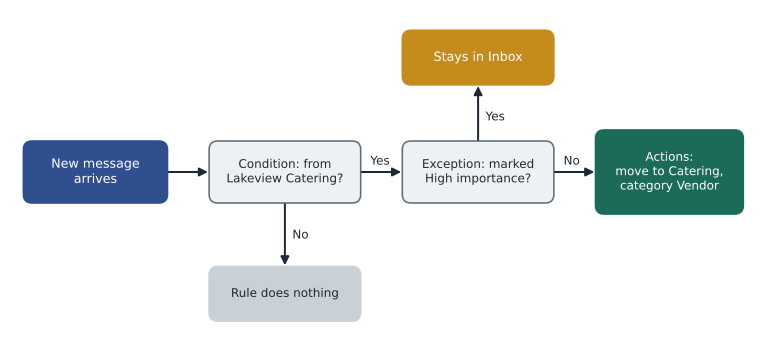
All messages from Lakeview Catering should go into Inbox > Vendors > Catering and get the Vendor category, except messages marked High importance, which should stay in the Inbox. The rule should also apply to messages already in the Inbox. How does Teo build it?
Show solution
- Select a message from Lakeview Catering and choose Rules > Create Rule > Advanced Options.
- Step 1, conditions: from Lakeview Catering is already selected. Choose Next.
- Step 2, actions: select move it to the specified folder and assign it to the category category. Click each underlined value to pick Catering and Vendor. Choose Next.
- Step 3, exceptions: select except if it is marked as importance and set the value to High. Choose Next.
- Step 4: name the rule, select Run this rule now on messages already in Inbox, and choose Finish.
Answer: Conditions, actions and exceptions are chosen in order, and the final step can run the rule on existing messages.
Manage Rules & Alerts lists all rules for each account. The check box beside each rule turns it on or off; Change Rule, Copy, Delete and the arrows to change the order are above the list; Run Rules Now runs selected rules on a folder you choose. Rules run in order, and the action stop processing more rules prevents later rules from acting on the same message. Rules that the mail server can run, such as moving messages, work even when Outlook is closed. Rules that need the computer, such as playing a sound or moving to a folder in a local data file, are marked (client-only) and run only while Outlook is open.
In new Outlook for Windows, rules are made in Settings > Mail > Rules or from a message's More actions > Rules > Create rule, with a simpler builder of conditions, actions and exceptions.
Quick Steps
Quick Steps (Home > Quick Steps) bundle several actions into one click: for example, Move to: a folder and mark as read, Reply & Delete, or Team Email to a saved list of people. Create New opens a dialog where you add actions in order, give the Quick Step a name, an optional shortcut key from Ctrl+Shift+1 to Ctrl+Shift+9, and a tooltip. Unlike rules, Quick Steps run only when you choose them, which makes them ideal for decisions that need a person. The team made one called Done, file to Couples: mark complete, mark as read, categorize with the current wedding's category and move to Couples.
By the end of the session the Inbox held 212 messages, every one of which needed something from somebody. Odile timed herself finding a venue's floor plan from 2025. It took her thirty-one seconds.
Common mistakes
MistakeCreating a folder for every wedding and every vendor.
InsteadUse a few folders by kind of correspondence and categories to mark which wedding each item belongs to.
MistakeChoosing This Week when the task says Tomorrow, or vice versa.
InsteadRead the date in the task; each flag sets specific start and due dates.
MistakeBuilding a rule but forgetting to run it on existing messages.
InsteadSelect Run this rule now on messages already in the folder in the last step, or use Run Rules Now.
MistakeExpecting Ignore to block the sender.
InsteadIgnore sends one conversation to Deleted Items; blocking a sender is done with Junk > Block Sender.
Summary and key terms
- Sorting and arranging change only the order you see; Arrangement can sort and group by many fields.
- Create folders with Ctrl+Shift+E and move messages by dragging, with the Move menu or with Ctrl+Shift+V.
- Categories are coloured labels managed in the Color Categories dialog; one item can have several.
- Follow Up flags on received messages set start and due dates and add the message to the To-Do list.
- Ignore sends a conversation and its future messages to Deleted Items; Clean Up removes redundant messages.
- Rules act automatically using conditions, actions and exceptions; Quick Steps run several actions on demand.
- Category
- A coloured, named label that can be applied to any Outlook item.
- Flag
- A follow-up marker with start and due dates that adds an item to the To-Do list.
- Ignore
- A command that moves a conversation and its future messages to Deleted Items.
- Rule
- An automatic instruction applied to messages that meet conditions.
- Client-only rule
- A rule that runs only while Outlook is open on the computer.
- Quick Step
- A saved set of actions run with one click or shortcut.
Practice problems
Work each problem on paper first, then reveal the answer to check.
How do you assign a keyboard shortcut to a category?
Show answer
Categorize > All Categories, select the category and choose a Shortcut Key.
What does the Next Week flag set as the due date?
Show answer
The last work day of next week.
How do you stop ignoring a conversation?
Show answer
Select it in Deleted Items and choose Ignore again (Stop Ignoring Conversation).
What does stop processing more rules do?
Show answer
It prevents rules lower in the list from acting on a message once this rule has run.
Lesson quiz · 5 questions
Score 60% or more to complete this lesson.
Create a free account to save your progress, take quizzes and earn a certificate.