
MSBA-173 · Lesson 4 of 12 · 22 min
Attachments and signatures
▶ Video coming soon A video version of this lesson is on the way.
Wedding planning is a business of documents: contracts, floor plans, menus, run sheets, invoices and hundreds of photos. Maple & Pine's shared inbox had grown to more than twelve gigabytes, almost all of it attachments, and the office's email signatures were a patchwork. Rosalind's had the old logo, Teo's had none, and Odile's still listed a phone extension the office had given up two years earlier. The fourth session covered both: sending, previewing and saving attachments properly, and building signatures that look the same for everyone. Attachments appear in two MO-400 domains (adding and removing them under “create messages”, and saving and previewing them under “print and save information”), and signatures appear under “configure mail settings” and “insert message content”.
Attaching files
In a message window, Message > Include > Attach File (or Insert > Include > Attach File) opens a menu. The top of it lists Recent Items, the files you have opened recently in Office apps; below that are Browse Cloud Locations and Browse This PC. You can also drag a file from File Explorer into the message window, or copy it in File Explorer and paste it into the body or the attachment area.
Attached files appear in a row below the Subject line, each with a small menu. That menu holds the commands the exam asks for: Remove Attachment, Open, Save As, Copy, and, for files stored in OneDrive or SharePoint, Change Permissions and Upload options.
| To do this | Do this |
|---|---|
| Attach a recent file | Attach File > choose from Recent Items |
| Attach a file from the computer | Attach File > Browse This PC |
| Attach a file from OneDrive or SharePoint | Attach File > Browse Cloud Locations, or pick from Recent Items |
| Attach another Outlook item, such as a message or contact | Attach Item > Outlook Item (or Business Card, or Calendar) |
| Remove an attachment | Attachment menu > Remove Attachment, or select it and press Delete |
| Attach a file to a reply | Replies do not include the original attachments; attach them again or use Forward |
Attach Item (beside Attach File) inserts other Outlook items: Business Card attaches a contact as a vCard, Calendar attaches a range of your calendar as an iCalendar file or inline summary, and Outlook Item attaches a message, appointment, contact or task from any folder. Teo used Outlook Item to send Rosalind the original quote request from a couple, intact, so she could see exactly what they had asked for.
Copies or links
When the file you attach is stored in OneDrive or SharePoint, classic Outlook in Microsoft 365 offers a choice: Share link or Attach as copy. A shared link sends a link to the one file in the cloud, so everyone sees the latest version, the message stays small, and you can set permissions such as whether recipients can edit. An attached copy sends a separate file to each recipient, frozen at the moment you sent it. The attachment shows a cloud icon when it is a link.
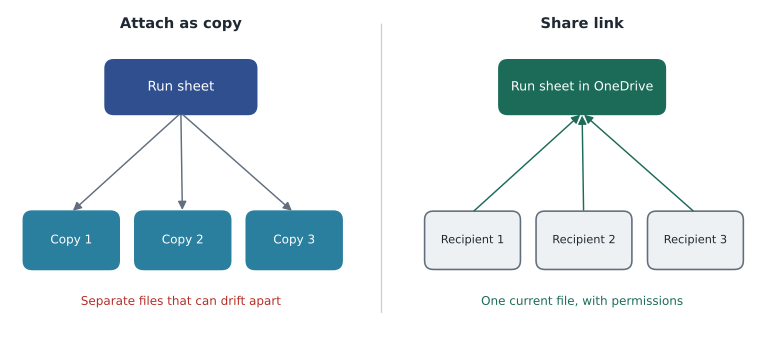
For the wedding run sheet, which changes until the day itself, the team now always shares a link with edit permission for colleagues and view permission for vendors. For a signed contract, which must not change, they attach a PDF copy. The MO-400 objective is simply to add and remove attachments, but knowing the difference prevents the most common problem in busy offices: two people editing different copies of the same document.
Outlook also warns about large attachments. Messages are limited in size by the mail service; for Microsoft 365, administrators set the limit, and Outlook may offer to upload a large file to OneDrive and send a link instead. Photos can be resized as they are attached in classic Outlook through File > Info > Resize large images when I send this message, a setting that appears in Backstage view of an open message with picture attachments.
The attachment reminder
Outlook watches for words such as “attached” or “enclosed” in a message with no attachment and asks “Did you forget to attach a file?” when you send. The option is File > Options > Mail > Send messages > Warn me when I send a message that may be missing an attachment. Teo checked that it was on for everyone, because the second most common reply in the shared inbox was “I think you forgot the attachment.”
Previewing attachments
When you receive a message with attachments, they appear above the message body in the reading pane. Selecting an attachment once shows it in the reading pane with an attachment previewer, without opening it in another program. Previewers are included for Word, Excel, PowerPoint, PDF files, pictures and other Outlook items; the Back to message button returns to the message text. The Attachments contextual tab appears while an attachment is selected, with Open, Quick Print, Save As, Save All Attachments, Remove Attachment, Copy and Select All.
Some file types cannot be previewed, and Outlook blocks some types completely for safety, such as executable files with .exe or .bat extensions. If an attachment you expected is missing, the sender may need to share it through a link instead. The Trust Center settings for attachment handling (File > Options > Trust Center > Trust Center Settings > Attachment Handling) can turn previewing off or remove specific previewers; that is normally left to administrators.
Worked problem
Checking the floor plan before printing
A venue has sent a message with three attachments: a floor plan PDF, a menu in Word and a photo of the terrace. Odile needs to check the floor plan quickly, then keep all three in the Morrison wedding folder on the shared drive. What is the quickest correct way?
Show solution
- In the reading pane, click the floor plan PDF once. The previewer shows it in the reading pane.
- Choose Back to message when finished.
- Select any attachment, then choose Attachments > Save All Attachments.
- In the Save All Attachments dialog, keep all three selected and choose OK, then browse to the Morrison folder and choose OK.
Answer: Preview in the reading pane, then Save All Attachments saves every file to one folder in a single step.
Saving attachments
The objective “save attachments” covers three methods. Save As on one attachment's menu saves that file. Save All Attachments saves every attachment on the message to one folder. And dragging an attachment from the reading pane to a folder in File Explorer or to the desktop copies it there. In an open message window, the same commands are on the File tab under Save Attachments.
Once attachments are saved where they belong, they can be removed from the message to save mailbox space: select the attachment and choose Remove Attachment. Outlook keeps a note in the message saying which files were removed. Teo and Odile spent part of the session doing exactly that for old weddings, using a search for messages larger than five megabytes (a technique from lesson 6), and cut the shared mailbox by more than a third.
| Method | Where | Saves |
|---|---|---|
| Save As | Attachment menu, or Attachments tab | One file, with a new name or location if you like |
| Save All Attachments | Attachment menu, Attachments tab, or File > Save Attachments in an open message | Every attachment, to one folder |
| Drag and drop | From the reading pane to File Explorer | A copy of one or more files |
| Save to OneDrive | Attachment menu > Upload (Microsoft 365) | The file to your OneDrive |
Signatures
A signature is a block of text, and often a logo, added to the end of messages. The objective “create, assign and modify signatures” uses the Signatures and Stationery dialog, opened from File > Options > Mail > Signatures, or from a message window with Message > Include > Signature > Signatures.
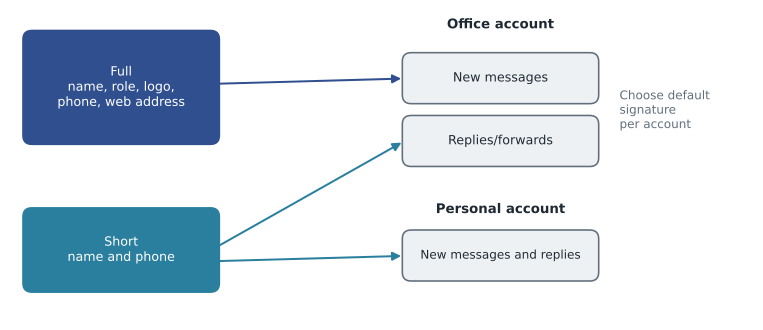
The E-mail Signature tab has two halves. On the left, Select signature to edit lists your signatures, with New, Delete, Save and Rename buttons. Below is an editing box with basic formatting buttons, and buttons to insert a picture, a hyperlink or a business card. On the right, Choose default signature sets, for each email account, the signature added automatically to New messages and the one added to Replies/forwards. That right-hand half is what “assign” means in the objective.
Worked problem
Two signatures for the office
Rosalind wants every new message from the office account to end with a full signature: name, role, the Maple & Pine logo, phone and web address. Replies and forwards should end with a short signature of name and phone only. How does Teo set this up for Odile?
Show solution
- Open File > Options > Mail > Signatures.
- Choose New, name it Full, and type the details. Use the picture button to insert the logo and the link button to make the web address a hyperlink. Choose Save.
- Choose New again, name it Short, type the name and phone number, and choose Save.
- Under Choose default signature, select the office account. Set New messages to Full and Replies/forwards to Short. Choose OK.
Answer: Create both signatures, then assign them separately for new messages and for replies and forwards on the right side of the dialog.
To modify a signature, select it in the list, edit the text or formatting, and choose Save. To rename or delete one, use the buttons above the list; deleting a signature that is a default removes it from new messages. Changing a signature does not change messages already sent.
Adding a signature to one message
The objective “add signatures to individual messages” is the other side of signatures. In any message, place the insertion point where the signature should go and choose Message > Include > Signature, then pick a signature by name from the list. Outlook inserts it. If a default signature is already there, choosing another one replaces it. This is how a team member uses a special signature for one occasion, such as Rosalind's “Wedding Show” signature with the show's booth number, without changing the defaults.
| Task | Where |
|---|---|
| Create, edit, rename or delete a signature | File > Options > Mail > Signatures > E-mail Signature tab |
| Set the default for new messages | Same dialog, Choose default signature > New messages |
| Set the default for replies and forwards | Same dialog, Choose default signature > Replies/forwards |
| Insert a signature into one message | Message > Include > Signature > choose the name |
| Remove the signature from one message | Select it in the body and press Delete |
Signatures across devices
Classic Outlook historically stored signatures on the computer, which is why Odile's old extension had survived on her laptop long after it was fixed on her desktop. In Microsoft 365, Outlook now saves signatures to the mailbox so they can follow you to other computers and to Outlook on the web; Microsoft calls this cloud or roaming signatures, and administrators can turn it off. New Outlook for Windows keeps signatures in Settings > Account > Signatures, with the same idea of separate defaults for new messages and replies. Outlook on phones has its own simpler signature setting. For a consistent office signature, it is worth checking each place once.
A good business signature
Teo's guidance for the signature itself was short. Name, role and company on one or two lines; a single phone number; the web address as a link; the logo small and with alt text, because some recipients see only the alt text; no inspirational quotes; and no images of text, because they cannot be read by screen readers or found by search. The full signature came to five short lines, and the reply signature to one.
By the end of the session, every person had the same two signatures, assigned the same way, and Odile had a third for the trade show. She also removed her old extension, on both computers.
Attachments and signatures on the exam
MO-400 tasks in this area are short and literal: “Attach the file Menu.docx from the Documents folder”, “Remove the attachment from the draft”, “Save all attachments from the message from Harbour Hall to the Documents folder”, or “Create a signature named Short and set it as the default for replies and forwards.” The traps are scope and naming. A signature task that names an account applies only to that account; a task that says “replies and forwards” leaves new messages alone; and a signature must be saved with the exact name the task gives. Before choosing OK in the Signatures dialog, check the name in the list, the account in Choose default signature and both default boxes.
Common mistakes
MistakeCreating a signature but never assigning it as a default.
InsteadSet New messages and Replies/forwards for the account on the right of the Signatures dialog.
MistakeExpecting Reply to include the original attachments.
InsteadReplies drop attachments; forward the message or attach the files again.
MistakeSaving attachments one by one from a message with many files.
InsteadUse Save All Attachments to save them to one folder at once.
MistakeAttaching a copy of a document that several people will edit.
InsteadShare a link to the file in OneDrive or SharePoint instead.
Summary and key terms
- Attach File inserts recent, local or cloud files; Attach Item inserts business cards, calendars and Outlook items.
- Cloud files can be sent as a shared link or attached as a copy.
- Attachments are previewed in the reading pane and saved with Save As, Save All Attachments or drag and drop.
- Signatures are created and assigned in File > Options > Mail > Signatures, with separate defaults for new messages and replies.
- Message > Include > Signature inserts or replaces the signature in one message.
- Attachment
- A file or Outlook item sent with a message.
- Attachment previewer
- A built-in viewer that shows an attachment in the reading pane.
- Shared link
- A link to one file in OneDrive or SharePoint, sent instead of a copy.
- Signature
- A saved block of text and images added to the end of messages.
- Default signature
- The signature Outlook adds automatically to new messages or to replies and forwards for an account.
- vCard
- A standard file format for sharing contact details, used for business cards.
Practice problems
Work each problem on paper first, then reveal the answer to check.
How do you save every attachment on a message to one folder?
Show answer
Select an attachment and choose Save All Attachments (or File > Save Attachments in an open message).
Where do you choose the signature added to replies and forwards?
Show answer
File > Options > Mail > Signatures > Choose default signature > Replies/forwards.
How do you add a different signature to one message?
Show answer
Message > Include > Signature and choose the signature's name.
What is the difference between sharing a link and attaching a copy?
Show answer
A link points everyone to one current file with permissions; a copy sends separate files frozen at sending time.
Lesson quiz · 5 questions
Score 60% or more to complete this lesson.
Create a free account to save your progress, take quizzes and earn a certificate.