
MSBA-173 · Lesson 12 of 12 · 17 min
Practice project: organizing a busy inbox
▶ Video coming soon A video version of this lesson is on the way.
The last session was a rehearsal. Teo built a practice mailbox from a copy of the shared mailbox's structure, filled it with invented messages, appointments, contacts and tasks, and gave Odile a set of projects to complete in fifty minutes, the length of the real MO-400 exam. Rosalind sat in with a stopwatch. This lesson is that practice project. It is original, written to match the four MO-400 domains and the style of MOS tasks, and it is followed by the answers, Odile's debrief and a plan for exam day.
How to use this lesson
Set up a practice environment first: a test mailbox, or a folder of your own mailbox, with a few dozen messages from at least three senders, two of them with attachments, a handful of contacts and a calendar you can change freely. Then work through the five projects in order, timing yourself. Each project has five or six tasks. Do each task exactly as written, mark any you are unsure of, and come back to them at the end. Check your work only after all five projects are done.
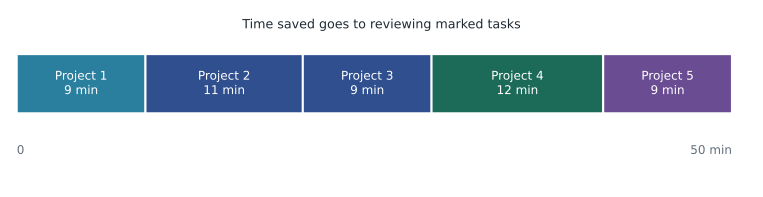
| Project | Domain focus | Tasks | Suggested time |
|---|---|---|---|
| 1. Settings for the shared inbox | Manage Outlook settings and processes | 6 | 9 minutes |
| 2. Taming the Inbox | Manage messages | 6 | 11 minutes |
| 3. Vendor correspondence | Manage messages | 5 | 9 minutes |
| 4. The wedding calendar | Manage schedules | 6 | 12 minutes |
| 5. People and the checklist | Manage contacts and tasks | 5 | 9 minutes |
Project 1: Settings for the shared inbox
Maple & Pine's coordinator is setting up Outlook on a new laptop.
1. Set the default font for new messages and for replies and forwards to Aptos, 11 point.
2. Configure Outlook so that replies and forwards open in a new window.
3. Create a signature named Office that contains the text Maple & Pine Events and the office phone number on a second line. Make it the default signature for new messages only.
4. Configure automatic replies to be sent only from 9:00 AM next Monday to 5:00 PM next Friday. Inside the organization, reply with “At the trade show this week.” Outside the organization, reply only to contacts, with “I am away until Monday. For urgent matters please call the office.”
5. Change the Inbox view so that messages are shown as conversations in the Inbox only.
6. Create a search folder that displays unread mail from all folders of the mailbox.
Project 2: Taming the Inbox
The Inbox has grown again during a busy month.
1. Create a folder named Venues as a subfolder of the Inbox.
2. Create a rule that moves all messages from the sender Harbour Hall to the Venues folder and assigns them the Venue category. Run the rule on messages already in the Inbox.
3. Rename the Blue Category to Needs Rosalind and assign it the shortcut key Ctrl+F2.
4. Flag the message with the subject “Tasting menu options” for follow-up This Week.
5. Ignore the conversation with the subject “Parking at the old venue”.
6. Arrange the Inbox by sender (From), and turn off the reading pane.
Project 3: Vendor correspondence
Write and manage messages to vendors.
1. Create a new message to Lakeview Catering with a copy to Rosalind and a blind copy to Odile. Use the subject “Morrison wedding: final headcount” and the body “Please confirm the final headcount by Thursday at noon.” Do not send it yet.
2. In the same message, set the importance to High and the sensitivity to Confidential.
3. Flag the message for recipients with Reply by and a due date of this Thursday, then send it.
4. Forward the message from Northshore Florals with the subject “Updated arrangements” to Teo, including its attachment.
5. Save the attachment from the message with the subject “Floor plan” to the Documents folder.
Project 4: The wedding calendar
Plan meetings and appointments for the Morrison wedding.
1. Set the calendar work week to Tuesday to Saturday, with working hours from 10:00 AM to 6:00 PM.
2. Create a recurring appointment named Inbox review every weekday at 9:00 AM for 30 minutes, ending after 20 occurrences.
3. Create an all-day event named Morrison wedding on the last Saturday of next month, shown as Out of Office, with a reminder 18 hours before.
4. Create a meeting named Morrison final planning next Tuesday from 2:00 PM to 3:00 PM. Invite Rosalind as a required attendee and Northshore Florals as an optional attendee. Set the meeting's time zone to Eastern Time. Send the invitation.
5. Accept the meeting invitation from Rosalind named Wedding show debrief and include the comment “I will need to leave at 3:45.”
6. Cancel only next week's occurrence of the recurring meeting named Wednesday Outlook session, which you organize.
Project 5: People and the checklist
Bring contacts and tasks up to date.
1. Import the contacts in the file Vendors.csv in the Documents folder into the Contacts folder. Do not import duplicates. Map the column Cell to Mobile Phone.
2. Create a contact group named Festival vendors that contains Lakeview Catering, Northshore Florals and Sugar Tide Bakery.
3. Remove Sugar Tide Bakery from the Festival vendors group and add Harbour Hall.
4. Create a task named Confirm cake delivery with a due date of next Wednesday, High priority and a reminder next Tuesday at 9:00 AM.
5. Forward the contact for Northshore Florals to Teo as a business card.
Answers
Here is one correct method for each task. Other methods that produce the same result are also correct.
| Task | Method |
|---|---|
| 1.1 | File > Options > Mail > Stationery and Fonts > Personal Stationery; set Font for New mail messages and Replying or forwarding messages |
| 1.2 | File > Options > Mail > Replies and forwards > Open replies and forwards in a new window |
| 1.3 | File > Options > Mail > Signatures > New > Office; type two lines; Save; New messages: Office; Replies/forwards: (none) |
| 1.4 | File > Info > Automatic Replies; time range; Inside text; Outside tab, Auto-reply to people outside, My contacts only, text |
| 1.5 | In the Inbox, View > Show as Conversations; choose This folder |
| 1.6 | Folder > New Search Folder > Unread mail > OK |
| 2.1 | Right-click Inbox > New Folder > Venues |
| 2.2 | Select a Harbour Hall message > Rules > Create Rule > Advanced Options; from; move to Venues; assign Venue category; Finish with Run this rule now |
| 2.3 | Categorize > All Categories > Blue Category > Rename > Needs Rosalind; Shortcut Key Ctrl+F2 |
| 2.4 | Select the message > Follow Up > This Week |
| 2.5 | Select the conversation > Ignore (Ctrl+Del) > Ignore Conversation |
| 2.6 | View > Arrangement > From; View > Reading Pane > Off |
| 3.1 | New Email; To Lakeview, Cc Rosalind; Options > Bcc, Bcc Odile; subject and body |
| 3.2 | Message > High Importance; Tags launcher > Sensitivity > Confidential |
| 3.3 | Follow Up > Custom > Flag for Recipients > Reply by, due Thursday; Send |
| 3.4 | Select the message > Forward > To Teo > Send |
| 3.5 | Select the attachment > Save As > Documents |
| 4.1 | File > Options > Calendar > Work time; clear Mon, select Sat; 10:00 AM to 6:00 PM |
| 4.2 | New Appointment > Recurrence > Daily, Every weekday, 9:00 to 9:30, End after 20 |
| 4.3 | New Appointment > All day event; date; Show As Out of Office; Reminder 18 hours |
| 4.4 | New Meeting; Rosalind in Required, the florist in Optional; time; Time Zones > Eastern Time; Send |
| 4.5 | Open the request > Accept > Edit the Response before Sending; type the comment; Send |
| 4.6 | Open next week's occurrence > Just this one > Cancel Meeting > Send Cancellation |
| 5.1 | File > Open & Export > Import/Export > Import from another program or file > CSV; Do not import duplicate items; Contacts; Map Custom Fields Cell to Mobile Phone; Finish |
| 5.2 | New Contact Group > Festival vendors > Add Members > From Outlook Contacts |
| 5.3 | Open the group > select Sugar Tide Bakery > Remove Member; Add Members > Harbour Hall; Save & Close |
| 5.4 | New Task; due date; Priority High; Reminder Tuesday 9:00 AM |
| 5.5 | Select the contact > Forward Contact > As a Business Card > To Teo > Send |
Odile's debrief
Odile finished in forty-three minutes with two tasks marked for review, and Teo checked her work against the answers. She had completed twenty-six of the twenty-eight tasks exactly. The two misses were instructive.
In task 1.3 she had assigned the Office signature to both new messages and replies, because she had not noticed that the task said “new messages only”. In task 4.3 she had created the event correctly but left Show As at Free, the default for all-day events, because she had concentrated on the date. Both were reading errors, not knowledge errors, which is the most common pattern on MOS exams. Teo's advice: before marking any task complete, read the instruction once more and check each detail it names, such as only, optional, this week, this occurrence or a specific time.
She was quickest on messages and rules, which she does every day, and slowest on importing contacts, where she had to find Map Custom Fields. Rosalind's observation was that Odile never used the mouse to switch modules any more; Ctrl+1 to Ctrl+4 had become a habit in six weeks.
Exam-day strategy
The real exam follows the same pattern. A few habits make a large difference.
| Habit | Why |
|---|---|
| Read each task twice, once before and once after doing it | Most lost points come from a missed word such as only, optional or this occurrence |
| Use the method you know best | Any correct method counts; the ribbon, shortcuts and right-click menus are all fine |
| Do not change things the task does not mention | Extra changes can undo a setting the exam checks or break a later task |
| Mark for review and move on when stuck | A difficult task should not cost the time for three easy ones |
| Use the search box to find commands | Typing the command's name finds it even if the ribbon looks different |
| Watch the clock at each project | The 50 minutes cover every project; keep to a time plan |
| Restart a project only as a last resort | Restarting resets that project's tasks, including correct ones |
A few practical points about the exam itself, from Microsoft's and Certiport's published information. MO-400 is scheduled through Certiport, either at an authorized testing centre or, where offered, with online proctoring. Register with a personal Microsoft account rather than a work account, so the certification record stays with you if you change jobs. The exam uses Outlook 2019 in its own testing environment, so menus may look slightly different from the Microsoft 365 version you use every day; this course has pointed out the differences that matter. A score of 700 out of 1,000 passes, and the result appears when you finish.
After the exam
Passing MO-400 earns the Microsoft Office Specialist: Outlook Associate (Office 2019) certification. As lesson 1 explained, it can also count as one of the three exams for Microsoft Office Specialist: Associate (Microsoft 365 Apps), provided at least one of the other two is a Microsoft 365 Apps exam in a different program, such as MO-110 Word or MO-210 Excel. Odile's plan was exactly that: MO-400 first, then MO-110 and MO-210 with Teo in the new year.
Certifications are only part of the result. In six weeks the shared inbox had gone from nine thousand messages in one folder to a small Inbox, four folders, a category for every wedding, rules for the regular senders, search folders for the things Rosalind checks every morning, a shared vendor directory and a printed pack for every wedding day. Rosalind's one-minute rule now holds. Odile booked her exam for the second week of January.
A second practice round
For a second attempt a week later, Teo changed the details of every task (different senders, folder names, dates and settings) so Odile could not rely on memory. Repeat the project the same way: reset your practice environment, change the names and dates in each task, and time yourself again. Aim for every task correct with ten minutes left for review, which is a comfortable margin on the real exam.
Common mistakes
MistakeReading a task once, doing it, and marking it complete.
InsteadReread the instruction after doing it and check every named detail.
MistakeSpending ten minutes on one difficult task.
InsteadMark it for review, finish the easier tasks, and return at the end.
MistakeMaking helpful extra changes, such as tidying folders the task did not mention.
InsteadChange only what the task asks for.
MistakeRegistering for the exam with a work account.
InsteadUse a personal Microsoft account so the record stays with you.
Summary and key terms
- The practice project covers all four MO-400 domains in five timed projects.
- Most errors are reading errors: words such as only, optional and this occurrence decide whether a task is correct.
- Any correct method counts, so use the one you know best and the search box for commands you cannot find.
- Keep to a time plan, mark difficult tasks for review and avoid restarting projects.
- MO-400 earns MOS Outlook Associate (Office 2019) and can count toward MOS Associate (Microsoft 365 Apps).
- Project
- A group of related tasks in a MOS exam, completed in a live copy of the application.
- Task
- A single instruction in a MOS project, scored on the result.
- Mark for review
- An exam option to flag a task to return to later.
- Certiport
- The company that delivers MOS exams on Microsoft's behalf.
- Online proctoring
- Taking an exam at home or work under remote supervision, where offered.
- Passing score
- 700 out of 1,000 for MOS exams.
Practice problems
Work each problem on paper first, then reveal the answer to check.
What was the cause of both of Odile's missed tasks?
Show answer
Reading errors: she missed the words new messages only and the required Show As setting.
Why should you avoid restarting a project?
Show answer
It resets every task in that project, including ones already done correctly.
Which account should you use to register for a MOS exam?
Show answer
A personal Microsoft account.
What else must you pass to earn MOS Associate (Microsoft 365 Apps) with MO-400?
Show answer
Two more exams in different programs, at least one of them a Microsoft 365 Apps exam.
Lesson quiz · 5 questions
Score 60% or more to complete this lesson.
Create a free account to save your progress, take quizzes and earn a certificate.