
MSBA-150 · Lesson 3 of 12 · 19 min
Creating and configuring companies
▶ Video coming soon A video version of this lesson is on the way.
At the second project meeting, in mid-September, Noor drew three nested boxes on the whiteboard. "Before we create anything, you need to know where things live," she said. The outer box was labelled tenant, the middle boxes environments, and the small boxes inside them companies. Callum had assumed a company was simply a set of books. In Business Central it is that, but it lives inside an environment, which lives inside a tenant, and the difference matters for testing, updates and cost.
Tenants, environments and companies
A tenant is the organization's Microsoft cloud account, the same Microsoft Entra tenant that holds its Microsoft 365 users. Business Central subscriptions are bought for a tenant, and the users who sign in to Business Central are the tenant's users.
Inside the tenant are environments. An environment is a complete, separate instance of Business Central with its own database, its own version and its own installed extensions. There are two kinds. A production environment holds the live business. A sandbox environment is a non-production copy for testing, training, trying new features or developing extensions. Each subscription includes one production and three sandbox environments, and more production environments can be bought as add-ons, each bringing three more sandboxes. Environments are managed in the Business Central administration center, a separate site for administrators and partners where they create, copy, rename, update and restore environments.
Inside each environment are one or more companies. A company is a set of business data and setup: its own chart of accounts, customers, items, posting groups and ledger entries. Most master data and every transaction belong to one company. Some setup is shared across all companies in an environment, such as users, permission sets, profiles and installed extensions.
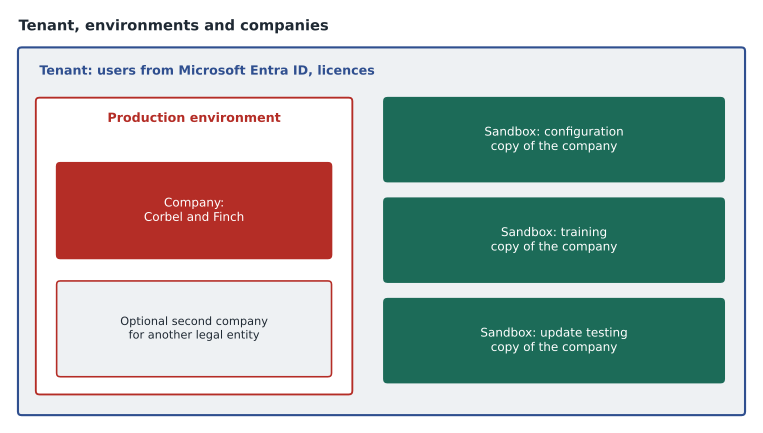
| Level | Holds | Managed in | Corbel & Finch |
|---|---|---|---|
| Tenant | Users, licences, Microsoft 365 services | Microsoft 365 admin center | The company's existing Microsoft 365 tenant |
| Environment | A database, a version, installed extensions | Business Central administration center | One production environment, sandboxes for testing and training |
| Company | Setup, master data, transactions | Business Central itself (Companies page) | Corbel & Finch Coffee Roasters Ltd. |
"Why not just make a test company inside production?" Callum asked. Noor shook her head. A test company in production shares the production environment's extensions and update schedule, and mistakes there can affect live users. Sandboxes exist so that testing happens safely somewhere else. Administrators can copy the production environment into a sandbox so that testers work with realistic data, and they can restore an environment to an earlier point in time if something goes badly wrong.
Choosing what goes in a company
One company usually equals one legal entity with its own books. Separate companies make sense for separate legal entities, each with its own tax registration and financial statements. They are not the right tool for departments, branches or product lines; those are handled inside one company with dimensions (lesson 8) or locations. Corbel & Finch is a single corporation, so it gets one company. The two cafés and the wholesale business will be distinguished with a dimension called BUSINESS LINE, and the roastery and the two cafés will be inventory locations.
If a group of companies grows, Business Central supports intercompany postings between companies and consolidation of several companies into group financial statements, both covered in the Business Central Finance course of the MB-800 program.
Creating a company
New companies are created from the Companies page, or with the assisted setup guide that the Companies page opens when a user chooses New. The guide asks for a name and offers choices about what data to start with. The options have been renamed over the years, but they fall into three groups: a company with full sample data for evaluation and training, a company with only the setup data needed to start real work, and an empty company with no data at all, usually for a partner who will import a complete configuration package. In the online service, Microsoft provides the demonstration company CRONUS in new trial and sandbox environments for learning.
| Starting point | What it contains | Use it for |
|---|---|---|
| Evaluation data (sample data) | Setup plus sample customers, items and transactions | Learning, demonstrations, training |
| Production setup only | Setup data such as standard posting groups and number series, but no transactions | Starting a real company with Microsoft's defaults |
| No data | An empty company | Importing a partner's complete configuration package |
Noor created a production-setup company in a sandbox for configuration work, and kept a CRONUS company there for training. Her plan was to finish and test the configuration in the sandbox, export it as a configuration package, and apply it to the real company in production (lesson 4).
Company Information
The first setup page for any real company is Company Information. It holds the legal name, address, phone, email and website, the logo printed on documents, bank details printed on invoices, and tax registration details. The Canadian and US versions add the registration fields relevant to their tax systems, such as the GST/HST and PST registration numbers. Company Information also holds the base calendar reference, the company's default location settings for shipping, and a responsibility centre option for organizations that route documents by branch.
Callum filled in the page in ten minutes but spent another twenty on the logo, because the first version printed so large on invoices that it pushed the address onto a second line. "Do it in the sandbox first," became his motto.
Accounting periods and the fiscal year
Business Central posts by date, and dates belong to accounting periods. On the Accounting Periods page, the Create Year action generates a fiscal year of periods, usually 12 monthly periods, starting from the first day the company chooses. The first period of each fiscal year is flagged as a new fiscal year. Accounting periods drive reports such as the trial balance by period, the inventory period closing, and the year-end close that transfers income statement balances to retained earnings.
Corbel & Finch's fiscal year runs from January 1 to December 31, so Callum created the 2027 fiscal year, and the 2026 year as well so that opening balances dated December 31, 2026 had a period to land in. Two related controls stop entries from going into the wrong period. On General Ledger Setup, the "Allow Posting From" and "Allow Posting To" dates set the window of dates anyone can post in. On User Setup, the same fields can be set per user, so that, for example, only Callum can post into the previous month while it is being closed.
Worked problem
Locking last month
Looking ahead: suppose it is February 4, 2027, and Callum is finishing the January close and wants everyone else to post only in February, while he can still post January adjustments. How should the posting dates be set?
Show solution
- On General Ledger Setup, set Allow Posting From to February 1, 2027 and Allow Posting To to February 28, 2027. This applies to all users without their own settings.
- On User Setup, add a line for Callum with Allow Posting From January 1, 2027 and Allow Posting To February 28, 2027.
- User Setup takes precedence over General Ledger Setup for users who have a line.
- When the close is done, Callum changes his own line to match February.
Answer: Company-wide window February 1 to 28 on General Ledger Setup; a User Setup line for Callum from January 1 to February 28.
Number series
Almost every record in Business Central gets a number from a number series: customers, vendors, items, sales quotes, orders, invoices, posted invoices, journal batches and many more. Number series are set up on the No. Series page. Each series has a code (such as S-INV for posted sales invoices), a description and one or more lines with a starting number, an optional ending number, an increment and a warning number. Options on the series control whether it is the default for new records and whether users may type numbers manually.
| Field | What it controls | Example |
|---|---|---|
| Code | The series identifier used in setup pages | S-INV |
| Starting No. | The first number, which also sets the pattern | PSI-27-00001 |
| Ending No. and Warning No. | The last allowed number and when to warn | PSI-27-99999, warning at PSI-27-99000 |
| Increment-by No. | The step between numbers | 1 |
| Default Nos. | Numbers are assigned automatically | Yes |
| Manual Nos. | Users may type their own number | No, for posted invoices |
Series are connected to records through setup pages. Sales & Receivables Setup names the series for customers, quotes, orders, invoices and posted invoices; Purchases & Payables Setup does the same for vendors and purchase documents; Inventory Setup for items and transfers. A series can be related to other series so that users choose among them, which Corbel & Finch uses to keep wholesale and web-shop customers in separate number ranges.
Two practical rules come from tax and audit requirements. First, posted invoice and credit memo numbers should be unbroken, so Business Central's option to allow gaps in a series, which improves performance for busy series, should not be used for them. Second, posted documents get their own series, separate from the unposted documents, so that an order numbered SO-1043 might become posted invoice PSI-27-00017. Business Central also includes a Copilot capability that suggests number series codes and patterns during setup, which Noor showed Callum but did not rely on.
Job queues
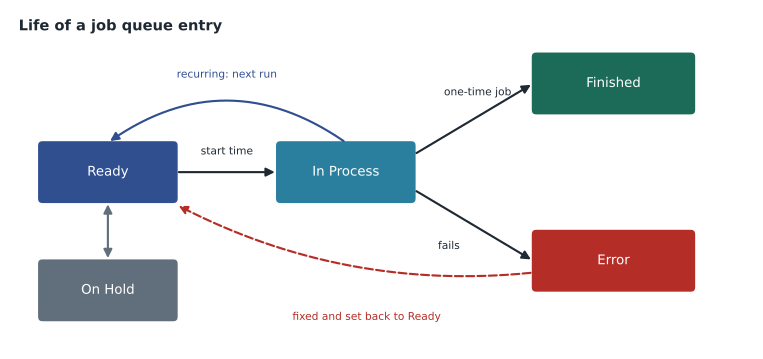
Some tasks should run on a schedule rather than when a person remembers them. The job queue runs reports and processes in the background at set times. Each job queue entry names the object to run, its parameters, a recurrence (for example every weekday at 6:00), and an earliest start date and time. Entries have a status: Ready, In Process, Error, On Hold or Finished. When a job fails, the entry shows the error, and users can be notified.
Common job queue entries in a company like Corbel & Finch include adjusting item costs and posting inventory cost to the general ledger every night, updating currency exchange rates, sending documents by email in batches, synchronizing with the web shop through an extension, and posting batches of documents so users do not wait for posting to finish. Job queue entries run with the permissions of the user who scheduled them, so a failed job is often a permissions problem; lesson 5 returns to that.
Report layouts
Documents that customers and vendors see, such as invoices, order confirmations, statements and remittance advice, are reports with layouts. A report can have several layouts, in Word, Excel or RDLC (a report definition format), and companies choose which layout each report uses. On the Report Layouts page, users with the right permissions can export a layout, change it in Word or Excel, and import it as a new layout, then set it as the default. Report Selections pages for sales and purchases decide which report is used for each document type and usage, for example which report prints when someone sends an invoice. Callum made a Word layout for the sales invoice that showed the roast date and origin of each coffee, using fields already in the data.
Copying, renaming and removing
Companies and environments are not set in stone. Inside an environment, the Companies page can copy a company, which creates a new company with the same setup and data, useful for training or a what-if test. Companies can be renamed and deleted by users with the right permissions; deleting a company removes all its data, so it is done rarely and carefully. In the administration center, environments can be copied (for example, production to a new sandbox), renamed, restored to an earlier point in time within the retention period, and deleted. A sandbox copied from production should be treated as containing real data: it holds real customers, prices and bank details, so access to it should be as controlled as access to production.
| Task | Where | Watch out for |
|---|---|---|
| Copy a company | Companies page | The copy includes all data; check who can access it |
| Copy an environment to a sandbox | Administration center | Real data in the sandbox; integrations should be turned off there |
| Restore an environment | Administration center | Restores to a point in time; later work is lost |
| Schedule a major update | Administration center | Choose a window and test in a sandbox first |
| Delete a company | Companies page | Permanent; export what you need first |
Noor added one rule for Corbel & Finch's sandboxes: whenever production is copied into a sandbox, the web-shop integration and outgoing email are switched off there first, so that test orders never reach real customers. Business Central helps with this, because copying to a sandbox disables some outbound integrations such as scheduled job queue entries by default, but the team checked by hand anyway.
Common mistakes
MistakeCreating test companies inside the production environment.
InsteadTest in a sandbox environment, which has its own database and can be copied from production.
MistakeCreating a company for each branch or department.
InsteadUse one company per legal entity and dimensions or locations for internal divisions.
MistakeAllowing gaps or manual numbers on posted invoice series.
InsteadKeep posted document series unbroken and automatic.
MistakeForgetting to create accounting periods for the opening balance date.
InsteadCreate the prior fiscal year too, so opening balances have a period.
Summary and key terms
- A tenant contains environments, and each environment contains companies; production and sandbox environments are managed in the administration center.
- A subscription includes one production and three sandbox environments; sandboxes are for testing, training and development.
- One company normally represents one legal entity; divisions inside it use dimensions and locations.
- New companies start with sample data, setup data only or no data.
- Company Information, accounting periods, posting date windows and number series are among the first setup tasks.
- Job queues run scheduled background tasks; report layouts and report selections control printed and emailed documents.
- Tenant
- The organization's Microsoft cloud account, which holds its users and subscriptions.
- Environment
- A separate Business Central instance with its own database, version and extensions.
- Sandbox
- A non-production environment for testing, training and development.
- Company
- A set of setup, master data and transactions inside an environment, usually one legal entity.
- Accounting period
- A date range, usually a month, used for reporting and closing.
- Number series
- A setup record that assigns sequential numbers to records and documents.
- Job queue entry
- A scheduled background task that runs a report or process.
Practice problems
Work each problem on paper first, then reveal the answer to check.
Where does an administrator create a new sandbox environment?
Show answer
In the Business Central administration center.
Which page sets a posting date window for one specific user?
Show answer
User Setup.
A nightly cost adjustment job shows Error. What is a common cause?
Show answer
The user who scheduled it lacks the permissions the job needs.
Lesson quiz · 5 questions
Score 60% or more to complete this lesson.
Create a free account to save your progress, take quizzes and earn a certificate.