
MSBA-150 · Lesson 2 of 12 · 19 min
Navigating role centres and pages
▶ Video coming soon A video version of this lesson is on the way.
Callum's week in the trial environment started badly. He signed in, saw a home page full of tiles about manufacturing orders and service contracts, and spent an hour looking for the customer list. When Noor checked in on Thursday, she laughed. "You signed in as the CEO of a demo company that does everything. Change your role and the whole screen changes with it." Ten minutes later, with the Accountant role selected, the home page showed what Callum actually cared about: overdue invoices, payments to approve, bank accounts to reconcile.
This lesson is about getting around Business Central quickly and confidently: role centres, the kinds of pages you will meet, how to find any page or report, how to filter and save views, and how to tailor pages for yourself or for everyone in a role. These are everyday skills, and the MB-800 exam tests them directly under "Perform basic tasks in Business Central".
Roles, profiles and the role centre
In Business Central, a profile describes a job role, such as Accountant, Order Processor, Sales Manager, Purchasing Agent or Business Manager. Each profile has a role centre: the home page users see when they sign in. A role centre is designed for one kind of work. It shows the actions, lists and figures that role needs most, so that a user can start the day from one screen.
Users can change their own role from My Settings, unless an administrator has fixed it, and administrators assign a default profile to users or to user groups through security groups and profile settings (lesson 5). Changing the role does not change what a user is permitted to do; permissions are separate. A user with the Order Processor role and the right permissions can still open the general ledger through search. The role only changes what is presented first.
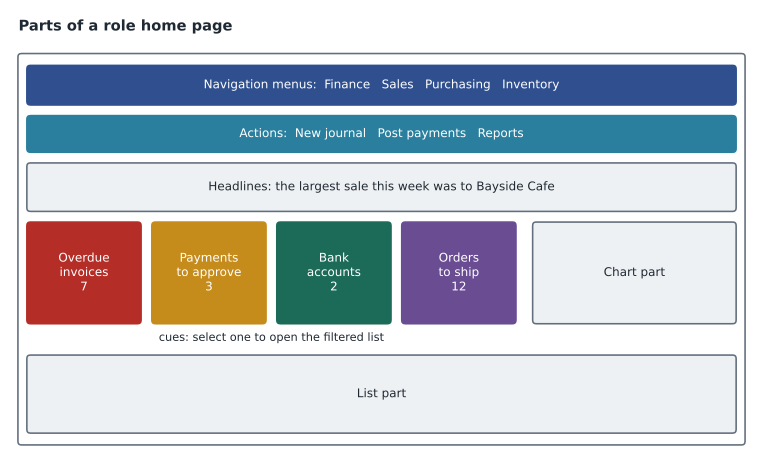
The parts of a role centre are worth naming, because consultants talk about them when they design a rollout:
| Part | What it does | Example on the Accountant role centre |
|---|---|---|
| Navigation menus | Group links to lists and tasks by area | Finance, Cash Management, Purchasing |
| Actions | Start common tasks directly | New general journal, Post Payments |
| Headlines | Short insights generated from the data | The largest sale this week |
| Cues (tiles) | Counts or amounts that open the matching filtered list | Overdue purchase invoices: 7 |
| Parts | Charts, lists and other embedded pages | Cash flow chart, Trial balance part |
Cues are especially useful because they are live: selecting the tile "Purchase invoices due next week: 12" opens the purchase invoice list already filtered to those 12 records. Many cues change colour when a threshold is crossed, which users can adjust in some cases.
Finding anything with search
The fastest way to any page, report or action in Business Central is the search feature, often called Tell Me. Select the magnifying glass at the top right or press Alt+Q, type part of a name such as "posting groups" or "customer aging", and Business Central lists matching pages, reports, actions and help articles. Search also finds data when typed in a list, and it looks across the departments the user has access to, not only the current role centre. Noor's advice to Callum was to stop browsing menus altogether for the first month: "Search everything. You will learn the names of things faster."
The kinds of pages
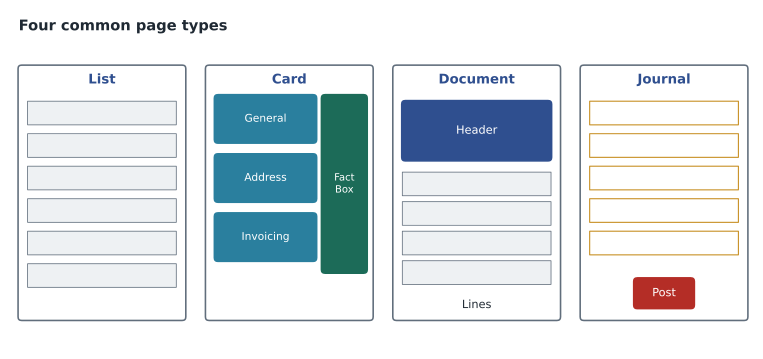
Business Central is made of pages, and most pages are one of a handful of types. Knowing the type tells you how the page behaves.
| Page type | What it shows | Example |
|---|---|---|
| List | Many records, one per row, with filtering and sorting | Customers, Items, Posted Sales Invoices |
| Card | One master record with fields grouped on FastTabs | Customer card, Item card |
| Document | A header plus lines for a business transaction | Sales order, Purchase invoice |
| Worksheet and journal | Editable lines for entries or calculations | General journal, Requisition worksheet |
| Role centre | The home page for a profile | Accountant, Order Processor |
| FactBox | A side pane showing related information for the selected record | Customer statistics beside a sales order |
| Report request page | Options and filters for running a report | Customer - Detail Trial Bal. |
On a card, fields are grouped into FastTabs, collapsible sections such as General, Address & Contact, Invoicing and Payments. Selecting "Show more" reveals less-used fields. On the right, the FactBox pane shows related figures: a customer card shows sales history and balances; a sales order line shows item availability. FactBoxes save many trips to other pages, and Callum quickly learned to keep the pane open.
A document page has a header and lines. On a sales order, the header holds the customer, dates, payment terms and shipping details, and the lines hold items, quantities and prices. Most document pages offer actions to release, post, print or send. Lesson 1 introduced posting; on document pages it is the Post action that turns a draft into ledger entries.
Filtering, sorting and saved views
Lists can hold thousands of records, so filtering is a core skill. Business Central offers three ways to narrow a list. Typing in the search box above the list finds any record containing the text. The filter pane lets users filter on any field with expressions, and those filters can be combined. Column headers allow sorting and quick filtering on that column. Filter expressions follow consistent rules:
| Expression | Meaning | Example on the Customers list |
|---|---|---|
| 10000..20000 | A range from 10000 to 20000 | Customer numbers in the wholesale range |
| >500 | Greater than 500 | Balance over 500 |
| VIC|VAN | Either value | Location VIC or VAN |
| <>BLOCKED | Not equal to | Exclude a value |
| *Café* | Contains the text | Names containing Café |
| '' | Blank | Customers with no email address |
| t, w, m, CW, CM | Today, week, month, current week, current month (date shortcuts) | Due date in the current month |
Once a useful combination of filters and sorting exists, users can save it as a view. Saved views appear at the top of the list, so Callum created "Wholesale customers over limit" and "Cafés with no PST number" in a few minutes. Views are personal by default; administrators can add views to a profile so everyone in the role sees them.
Worked problem
Building a collections view
Callum wants a list of wholesale customers whose balance due is above 1,000 dollars and who are in the customer number range 20000 to 29999, sorted by balance due, largest first. How does he build and keep it?
Show solution
- Open the Customers list through search.
- In the filter pane, add a filter on No. with the value 20000..29999.
- Add a filter on Balance Due with the value >1000.
- Sort the Balance Due column descending by selecting its header.
- Save the filters as a view named "Wholesale collections".
Answer: A saved view with two filters (No. = 20000..29999, Balance Due >1000) and a descending sort, available at the top of the Customers list.
Personalizing, customizing and designing
The exam expects candidates to "differentiate between designing, customizing and personalizing pages". The three are easy to confuse because the tools look similar. The difference is who the change affects and who can make it.
| Change | Who makes it | Who it affects | Typical changes |
|---|---|---|---|
| Personalize | Any user, for themselves | Only that user | Move, hide or show fields and columns; freeze columns; rearrange parts |
| Customize | An administrator, for a profile | Everyone using that profile (role) | The same kinds of changes, applied to the role |
| Design (Designer) | A developer or admin in a sandbox | Everyone, through an extension | Add fields from the table to pages, which is saved as an extension |
Personalization starts from the settings icon on a page, under Personalize. A banner appears, and the user can drag fields, hide columns, move FactBoxes or reorder actions. The changes follow the user across devices. Users can clear their personalization at any time.
Customization applies the same kinds of changes to a profile. An administrator opens the Profiles (Roles) page, chooses a profile and selects Customize pages, then works in the same way as personalization. Every user with that profile sees the result. This is how Noor will set up clean pages for each role at Corbel & Finch before go-live, for example hiding manufacturing fields that the café staff will never use. Administrators can also prevent users from personalizing certain pages.
Designer goes further. It is a development tool, typically used in a sandbox, that can add fields that exist in the underlying table but not on the page. Designer saves changes as an extension, so it overlaps with developer work and is covered more fully in the MB-820 program.
Inspecting pages and finding related entries
When Callum wanted to know which table a field came from, or what filters a page was using, he used page inspection: press Ctrl+Alt+F1 or choose Help, then Inspect pages and data. A pane opens showing the page and table names, the fields with their values, the filters in effect and the extensions that changed the page. Page inspection is invaluable when talking to developers, and administrators can control who may use it through permissions.
To trace where a posted entry came from or what it led to, Business Central offers Find entries (in older material called Navigate). From a posted document or ledger entry, Find entries lists every related entry with the same document number and posting date across all ledgers: the G/L entries, customer ledger entries, value entries, tax entries and so on. Auditors love it, and so does anyone investigating a puzzling balance.
Working in Excel and data analysis mode
Two features let users work with data without leaving the familiar tools. Open in Excel exports a list to a workbook for analysis. Edit in Excel goes further: it opens the list in Excel connected to Business Central through an add-in, so users can change values or add rows in Excel and publish them back. Callum later used Edit in Excel to update wholesale prices for 60 items in one go, which is exactly the kind of bulk change the MB-800 skills list mentions under data updates.
Data analysis mode turns a list into an interactive analysis without exporting it. On a supported list, a user switches to analyze mode and can group, pivot, total and filter data, then save the analysis as a tab on that list for later. It works on the data the user is allowed to see, and administrators can control access to it through a permission set. Lesson 11 returns to analysis and reporting options in detail.
Business Central beyond the browser
Most work happens in a web browser, but Business Central is also available in other places. Microsoft publishes mobile apps for phones and tablets that show the same role centre adapted to a smaller screen, which suits café managers checking stock or approving a request between customers. The apps use the same sign-in, permissions and data as the browser.
Business Central also connects to Microsoft Teams and Outlook. In Teams, users can paste a link to a Business Central record, such as a customer or sales order, into a chat, and Teams shows a card with key details that colleagues with access can open. Contact details from Business Central can be looked up from Teams. In Outlook, the Business Central add-in shows the customer or vendor behind an email and lets users create quotes or invoices from the message. These integrations need setup by an administrator, often through the Assisted Setup page and the Microsoft 365 admin center.
| Where | Useful for | Corbel & Finch use |
|---|---|---|
| Browser | All work | Finance, sales and purchasing staff |
| Phone and tablet apps | Lookups, approvals, simple entries on the move | Café managers and the warehouse lead |
| Teams | Sharing records in conversations | Discussing a wholesale order with the roastery |
| Outlook add-in | Turning emails into quotes and invoices; seeing customer details | Order processors with emailed orders |
Whatever the device, the same rules apply: the profile shapes what users see, permissions decide what they can do, and search is the fastest way to anything. Callum's training plan included ten minutes on each of the other channels, because staff adopt what they discover early.
Common mistakes
MistakeThinking a role (profile) controls what a user may do.
InsteadThe role shapes the home page and navigation; permission sets control access.
MistakeBrowsing menus to find a page.
InsteadUse search (Alt+Q), which finds pages, reports, actions and help across departments.
MistakeConfusing personalization with customization.
InsteadPersonalization affects one user; customization changes a profile for everyone in that role.
MistakeRebuilding the same filters every morning.
InsteadSave filters and sorting as a view, and add useful views to profiles.
Summary and key terms
- A profile represents a role; its role centre is the home page, with menus, actions, headlines, cues and parts.
- Search (Tell Me, Alt+Q) finds pages, reports, actions and help across the application.
- Main page types are list, card, document, worksheet/journal and role centre, with FactBoxes for related data.
- Filters use expressions such as ranges, comparisons and wildcards, and can be saved as views.
- Personalization changes pages for one user, customization changes them for a profile, and Designer creates extensions.
- Page inspection, Find entries, Edit in Excel and data analysis mode help users investigate and work with data.
- Profile
- A definition of a job role that determines a user's role centre and default pages.
- Role centre
- The home page for a profile, designed around that role's daily work.
- Cue
- A tile on a role centre showing a count or amount that opens the matching filtered list.
- FastTab
- A collapsible group of fields on a card or document page.
- FactBox
- A pane beside a page that shows information related to the selected record.
- View
- A saved combination of filters and sorting on a list.
- Find entries
- A feature that lists all entries related to a posted document number and date.
Practice problems
Work each problem on paper first, then reveal the answer to check.
What filter shows items with numbers from 1000 to 1999?
Show answer
1000..1999.
An administrator wants every order processor to see a simplified sales order. Personalize or customize?
Show answer
Customize the Order Processor profile.
Which feature shows the table behind a field and the filters on a page?
Show answer
Page inspection (Ctrl+Alt+F1).
Lesson quiz · 5 questions
Score 60% or more to complete this lesson.
Create a free account to save your progress, take quizzes and earn a certificate.