
MSBA-140 · Lesson 3 of 12 · 19 min
Navigating apps, forms and views
▶ Video coming soon A video version of this lesson is on the way.
The first training session at Kestrelbay was not about configuration at all. Mirela sat the six most sceptical users in the boardroom, gave each of them a sandbox login and asked them to find one thing: the last three orders for Harbour View Marina. Joaquim found them in forty seconds. The warehouse lead, who had never used anything but the old database, took six minutes and nearly gave up. "That gap is the whole lesson," Mirela told Ottilie afterwards. "If people can't move around the apps quickly, they'll go back to the spreadsheets." This lesson covers how users find their way in a model-driven app.
Opening an app
Users reach Dynamics 365 apps through a web browser, the Power Apps mobile app or the dedicated mobile apps such as Dynamics 365 Sales mobile. In the browser, the Apps page for an environment lists every model-driven app the user has access to, such as Sales Hub, Customer Service Hub and Customer Service workspace. Access to an app is controlled by security roles: an app is shared with one or more roles, and only users who hold one of them see it.
Each app is a curated slice of the environment. Sales Hub shows sales tables and dashboards; Customer Service Hub shows cases, queues and knowledge. The data underneath is the same, which is why a service agent can open an account that a seller created. Companies can build further apps with the app designer in Power Apps, choosing exactly which tables, forms, views and dashboards appear, so that a small team sees only what it needs.
The parts of the screen
A model-driven app has a consistent layout, and learning it once pays off in every app.
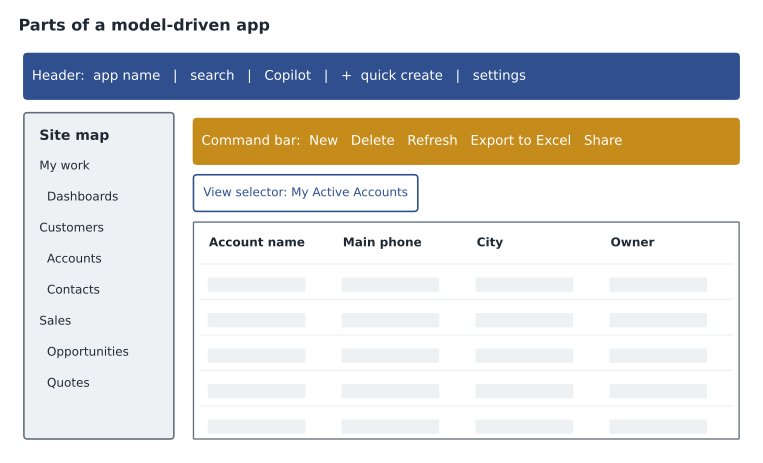
The header runs across the top. It shows the app name and holds global search, the Copilot pane button, a quick create button for adding a row without leaving the current page, notifications, settings and the user's profile. The site map runs down the left. It groups the areas of the app, such as My work, Customers and Sales, and lists the tables and dashboards in each. In apps with several areas, an area switcher appears at the bottom of the site map. The site map can be collapsed to give the main page more space, and a list of recently viewed and pinned rows sits at the top.
The command bar sits above the main content and changes with context. On a list it offers New, Delete, Refresh, Export to Excel, Import, Share and more; on a form it offers Save, Assign, Share, Delete and actions specific to the table, such as Qualify on a lead or Resolve Case on a case. The main area shows either a list of rows, a form for one row or a dashboard.
Views: lists of rows
A view is a saved query that decides which rows appear in a list, which columns show and how the list is sorted. Each table has several. System views are created by an administrator or the app and are available to everyone with access to the table, such as My Active Accounts, Active Accounts and Inactive Accounts. Personal views are created by users for themselves and can be shared with colleagues. There are also special view types that the platform uses in particular places: the quick find view defines which columns are searched when a user types in the search box on a list, the lookup view defines what appears when choosing a row in a lookup column, and the associated view lists related rows on a parent form.
Users can change a view on the fly without saving anything: filter a column by clicking its heading, sort, resize or reorder columns, or use the edit filters and edit columns panes. If the result is useful, Save as new view keeps it as a personal view. Joaquim built a personal view of marina accounts in his northern territory, sorted by last activity date, and shared it with the other field rep.
| View type | Who creates it | Where it is used |
|---|---|---|
| Public (system) view | Administrators and makers | The view selector on any list |
| Personal view | Any user, for themselves | The view selector, under My views; can be shared |
| Quick find view | Administrators and makers | Defines searchable columns for the list search box |
| Lookup view | Administrators and makers | The drop-down when filling a lookup column |
| Associated view | Administrators and makers | Related rows shown on a parent form |
Forms: one row in detail
Opening a row shows its form. A main form is the full-page layout, organized into tabs across the top, each tab containing sections and each section containing columns (fields). The header of the form shows a few key values, such as the account's owner and annual revenue, and stays visible as the user scrolls. Most main forms also show the timeline, where activities, notes and posts for the row appear, and subgrids listing related rows, such as the contacts of an account.
Other form types serve other moments. A quick create form is a short form that opens in a side pane from the plus button or from a subgrid, for adding a row fast. A quick view form shows read-only details from a related row inside another form; an opportunity form, for example, can show the customer's phone number and credit limit from the account without a click. A card form gives a compact view for lists on phones and in some dashboards.
A table can have several main forms, and each can be assigned to particular security roles. When a user has access to more than one, a form selector appears in the form title. Kestrelbay used this to give warehouse staff a simplified account form with only addresses, delivery notes and open orders.
Worked problem
Finding the right place
Ravi wants a list of all open cases for the two northern branches, sorted by oldest first, that he can check every morning. Nobody else needs it. What should he do?
Show solution
- Open Cases and pick the All Active Cases system view.
- Use edit filters to add a condition: Branch equals the two northern branches.
- Sort by Created On, oldest first, and add the Owner and Priority columns with edit columns.
- Choose Save as new view and name it Northern open cases.
Answer: A personal view, saved from a filtered system view. If the whole team later needs it, an administrator can create a matching system view.
Search
Model-driven apps offer two kinds of search. Quick find on a list searches the columns defined in that table's quick find view. Dataverse search, the box in the header, searches across many tables at once, returns results grouped by table and tolerates spelling mistakes and partial words. It is turned on per environment, and administrators choose which tables and columns are indexed. When Dataverse search is on, typing in the header box also suggests recent and relevant rows as the user types.
Because Dataverse search respects security, two users typing the same words can see different results. That surprised Kestrelbay's counter staff at first, until Mirela explained that some accounts belonged to a business unit they could not see.
Working faster
Small habits make a large difference to adoption. Users can pin frequently used rows and views to the site map, set a default view for each table and a default app in their personal settings, and change the number of rows per page. Editable grids let users change values directly in a list without opening each row, which is ideal for updating the estimated close dates on a dozen opportunities. The old Advanced Find tool has been replaced in modern apps by the filter and column panes on views, with the option to open a fuller query editor when needed. Keyboard shortcuts also help on forms, and the app lists them from its help menu.
Joaquim's favourite trick was quick create. From the opportunity form he could add a new contact in a side pane while the marina manager was still spelling her name, without losing his place.
Personal settings
Each user controls a set of personal options, opened from the settings icon in the header. They include the time zone and the date, time and number formats used to display values, the default currency for new rows, the default pane shown when the app opens, how many rows a list shows per page, the language of the interface where language packs are installed, and email settings such as whether email is tracked automatically. Getting the time zone right matters more than it sounds: a user whose time zone is wrong will see appointment times shifted by hours.
Administrators can set defaults for everyone, but users can usually override them. At Kestrelbay, Mirela set the organization default to show fifty rows per page and asked every user to check their time zone during the navigation drill. Two of the field reps had laptops still set to a time zone from a previous job, which would have made every appointment they booked look wrong to everyone else.
Mobile and offline
The same model-driven apps run on phones and tablets through the Power Apps mobile app or the dedicated Dynamics 365 Sales mobile app. Forms reflow for smaller screens, and administrators can enable offline use with an offline profile that decides which tables and rows are downloaded. Field reps like Joaquim, who visit marinas with patchy coverage, can then open accounts and log notes without a signal; changes synchronize when the device reconnects.
Mobile also changes what belongs on a form. A form that works on a wide monitor with four columns of fields becomes a long scroll on a phone. Mirela checked every main form on a phone in the sandbox before go-live and moved the fields that field reps actually use, such as the account's phone, address and open opportunities, into the first section and the header.
Training plan for navigation
After the first session, Mirela built a short navigation drill that every new user at Kestrelbay completed before touching real data. Each user had to open the right app, switch between two views of accounts, filter a view by region, save it as a personal view, open an account, find its contacts in a subgrid, add a phone call to the timeline with quick create, find the same account with header search by typing part of its name, and pin it. The drill took ten minutes for most people and about twenty for the slowest, and the warehouse lead who had struggled in the first session finished it in eight minutes on his second try.
The drill had a second purpose: it showed Mirela where the configuration was confusing. When three people in a row looked for delivery notes in the wrong tab, she moved the section. Navigation problems are often design problems, and watching real users is the quickest way to find them.
Help for users
Each model-driven app has a help menu that links to Microsoft's documentation, and administrators can add custom help that points to the company's own guides. Kestrelbay put its two-page quick reference for each role on a SharePoint page and linked it as custom help, so that a counter agent who forgot how to switch views found Kestrelbay's instructions, with Kestrelbay's screenshots, rather than a general article.
Related rows and the Related tab
Every main form has a Related tab, which lists the tables connected to the row through relationships. Opening an entry, such as Related, Cases on an account, shows the associated view of those rows without leaving the form. It is the quickest way to answer questions like "what cases has this marina opened this year?" when the form has no subgrid for them. Administrators can tidy the Related tab by hiding relationships that users never need, which Mirela did for the dozens of system relationships that confused new users on the account form.
Lookups are another way to move between rows. Clicking the value in a lookup column, such as the parent account on a contact, opens that row; hovering over it shows a small card with key details. Users soon learn to travel through the data this way, from a case to its customer to that customer's other cases, which is exactly the habit Mirela wanted Kestrelbay's counter staff to build.
Common mistakes
MistakeCreating a system view for every individual request.
InsteadLet users save personal views for their own needs; promote a view to the system only when many people need it.
MistakeExpecting quick find to search every column.
InsteadQuick find searches only the columns listed in the quick find view; add the columns people search by.
MistakeGiving every role access to every app.
InsteadShare apps with the roles that need them so each group sees a focused set of tables.
MistakePutting every column on the main form.
InsteadUse tabs, sections, quick view forms and role-specific forms to keep forms usable.
Summary and key terms
- Model-driven apps share a layout: header, site map, command bar and a main area showing a list, form or dashboard.
- Access to an app is granted through security roles; the data underneath is shared.
- Views are saved queries: system views for everyone, personal views for individuals, plus quick find, lookup and associated views.
- Main forms use tabs, sections, a header, timeline and subgrids; quick create, quick view and card forms serve other needs.
- Dataverse search finds rows across tables and respects security; offline profiles support mobile users.
- Site map
- The navigation pane listing an app's areas, groups, tables and dashboards.
- Command bar
- The row of actions above a list or form that changes with context.
- System view
- A view created by an administrator or maker and available to everyone with table access.
- Quick find view
- The view that defines which columns are searched from a list's search box.
- Quick view form
- A read-only panel showing data from a related row inside another form.
- Dataverse search
- Relevance search across multiple tables from the app header.
Practice problems
Work each problem on paper first, then reveal the answer to check.
Name the four main parts of a model-driven app screen.
Show answer
The header, the site map, the command bar and the main area.
What is the difference between a system view and a personal view?
Show answer
A system view is available to everyone with access to the table; a personal view belongs to one user, who can share it.
A seller wants to see the customer's credit limit on the opportunity form without opening the account. What form component does this?
Show answer
A quick view form of the account placed on the opportunity form.
Lesson quiz · 5 questions
Score 60% or more to complete this lesson.
Create a free account to save your progress, take quizzes and earn a certificate.