
MSBA-131 · Lesson 5 of 12 · 20 min
Cloud flows and triggers
▶ Video coming soon A video version of this lesson is on the way.
Within a few weeks of launch, requests were arriving through the canvas app and landing in the Requests table in Dataverse. Nobody at the media desks knew they had arrived unless someone happened to refresh the Loans view. Overdue equipment still depended on a technician remembering to check. Maribeth's next step was to make things happen automatically when data changed, and for that she turned to Power Automate.
Power Automate is the automation service of Power Platform. It has two main kinds of automation: cloud flows, which run in Microsoft's cloud and connect services through connectors, and desktop flows, which automate work on a Windows computer by driving applications the way a person would (lesson 6). This lesson covers cloud flows, their triggers and actions, the logic you can build into them, the common use cases the PL-900 outline names, and how Copilot helps create and change flows.
Triggers and actions
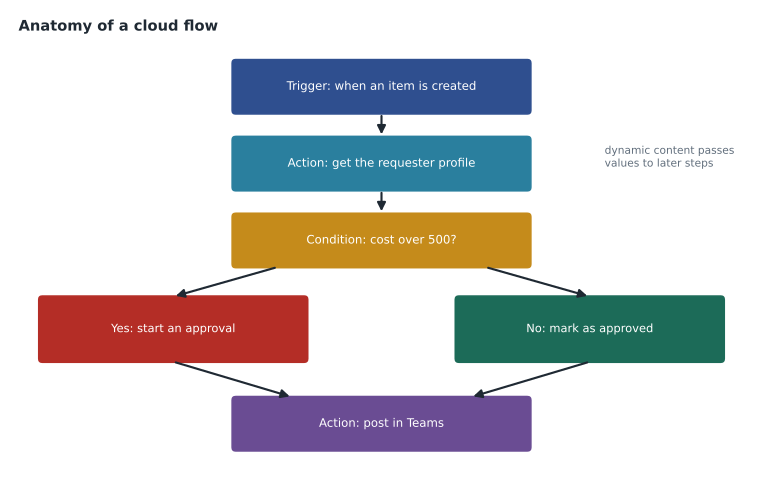
Every cloud flow has exactly one trigger and one or more actions. The trigger is the event that starts a run: a new row in a table, an email arriving, a file created in a folder, a person pressing a button, or a time on a schedule. Actions are the steps that follow: get a record, send an email, post a message in Teams, create a file, update a row, call an API, start an approval. Each trigger and action belongs to a connector, and each connector offers its own set of triggers and actions.
Cloud flows are grouped by how they start. The difference matters both for designing a flow and for answering exam questions, which often describe a scenario and ask which kind of flow fits.
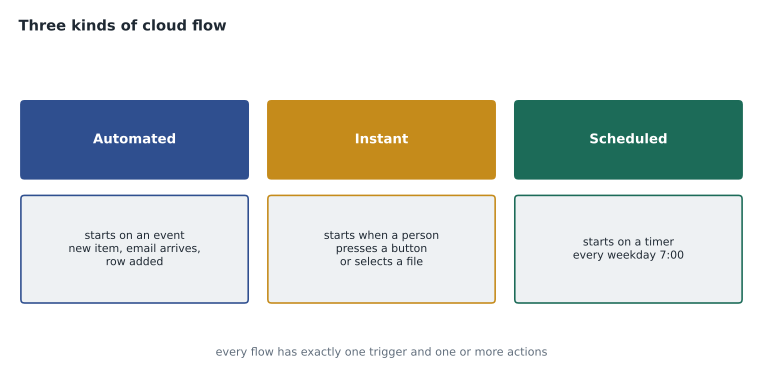
| Kind | Starts when | Examples of triggers | Lumenvale example |
|---|---|---|---|
| Automated | An event happens in a connected service | When a row is added (Dataverse); when an item is created (SharePoint); when a new email arrives (Outlook); when a new response is submitted (Forms) | Tell the media desk in Teams when a request is created |
| Instant | A person starts it on demand | Manually trigger a flow; for a selected item or file; from Power Apps; from Copilot Studio | A technician presses a button to send a loan receipt |
| Scheduled | A set time or interval arrives | Recurrence: every day, every hour, first Monday of the month | Email borrowers whose loans are overdue at 7:00 each weekday |
Under the surface, automated triggers work in one of two ways. Some services push an event to Power Automate the moment it happens, which is fast. Others are polling triggers: Power Automate checks the service at an interval, so a run may start a minute or more after the event, depending on the licence. Trigger conditions are expressions on a trigger that must be true for a run to start, such as only when a status column equals Submitted. They save runs, and therefore capacity, compared with starting every time and checking inside the flow.
Building a flow in the designer
Makers create cloud flows at make.powerautomate.com, choosing a template, a blank flow of one of the three kinds, or a description for Copilot. The flow designer shows the trigger at the top and each action below it as a card. Selecting a card opens its parameters. Every value that an earlier step produced, such as the requester's email from the trigger or the item name from a Get row action, appears as dynamic content that you can insert into later steps. When a value needs calculation, such as adding three days to a date or formatting a date for an email, makers write an expression using the flow expression language, with functions such as addDays, formatDateTime, utcNow, concat and if.
formatDateTime(addDays(triggerOutputs()?['body/cr123_neededon'], 3), 'MMMM d, yyyy')Logic: conditions, loops and errors
Flows become useful when they make decisions. A condition checks one or more comparisons and runs a Yes branch or a No branch. A switch chooses among several branches based on one value, which is tidier than nested conditions when a status can take five values. Apply to each repeats actions for every item in a list, such as every overdue loan returned by a query. Do until repeats until a condition is true or a limit is reached. Variables hold values that change during a run, and compose actions hold intermediate results.
Real flows fail sometimes: a person leaves the organization, a service is briefly unavailable, a value is blank. Every action has configure run after settings that decide whether it runs when the previous step succeeded, failed, was skipped or timed out. Grouping steps into scopes and adding a scope that runs only after a failure gives a try-and-catch pattern: if anything in the main scope fails, the catch scope sends a message to the flow owner with the error. Actions also have retry policies for temporary errors.
Worked problem
Designing the overdue reminder flow
The media desks wanted borrowers emailed every weekday morning about loans more than one day past their due date, with a copy to the desk on the item's campus. How should Maribeth structure the flow?
Show solution
- Trigger: a scheduled flow with a Recurrence trigger, weekdays at 7:00 in the college's time zone.
- Action: List rows from the Loan table with a filter for returned date empty and due date earlier than yesterday, so Dataverse does the filtering rather than the flow.
- Apply to each over the returned rows: get the borrower and the item, then send an email with the item name, due date and campus desk contact.
- Inside the loop, a switch on the campus column chooses which desk mailbox to copy.
- Wrap the loop in a scope, and add a catch scope that runs after failure and posts the error to the IT channel in Teams.
Answer: A scheduled flow, a filtered List rows action, Apply to each with a switch, and a try-and-catch scope. Filtering in the query keeps the flow fast and avoids looping over every loan.
Common use cases
The PL-900 outline asks you to describe Power Automate use cases for approvals, Microsoft Teams, Outlook, SharePoint, Forms and document automation. These are the everyday building blocks, and most organizations' first flows use them.
| Service | Typical flows |
|---|---|
| Outlook | Save email attachments to a folder; send a reminder; create a task from a flagged email; send a formatted email from a template |
| Teams | Post a message or adaptive card to a channel or chat; notify a person; start a flow from a message; collect a response in a card |
| SharePoint | Start work when an item or file is created or changed; copy files; set metadata; request sign-off on a document |
| Forms | When a response is submitted, get the response details and add a row, send a thank-you email or create a Planner task |
| Approvals | Send a request for approval and act on the answer (lesson 7) |
| Document automation | Extract data from invoices, receipts or forms with AI Builder and write it to a table for review |
Document automation deserves a word of explanation. Many organizations receive documents such as invoices, purchase orders or application forms as PDFs or scans. A cloud flow can pass each document to an AI Builder model that reads it and extracts the fields, such as supplier, date and total, with a confidence score. The flow writes the results to Dataverse, and a person reviews low-confidence values before they are used. Microsoft provides prebuilt models for common documents and lets makers train custom models on their own layouts. At Lumenvale, the finance office planned to use this for supplier invoices for repaired equipment, which arrived by email as PDFs.
Using Copilot to create and modify cloud flows
The PL-900 outline also asks how to use AI to create and modify cloud flows. In Power Automate, a maker can describe a flow in plain language, for example "when a row is added to the Requests table, post a message to the media desk channel in Teams with the item and date". Copilot proposes a trigger and actions, asks the maker to confirm the connections it needs, and builds the flow in the designer. While editing, the Copilot pane can add a step, change a condition, explain what an existing flow does or suggest an expression. Copilot can also help explain why a run failed by reading the error.
The review rules from lesson 3 apply here too. Check which connection each action uses, because a flow runs with the permissions of its connections. Check filters, because a missing filter can make a flow act on every row in a table. And check the trigger, because a flow triggered on "added or modified" may run far more often than intended, including when the flow itself updates the row, which can create a loop.
Running and monitoring flows
Each flow has a run history that shows every run, its status and the time it took. Opening a run shows each step with its inputs and outputs, which is the fastest way to find out why something went wrong. Failed runs can be resubmitted after a fix. When testing, makers can run a flow manually or reuse the data from a previous trigger, so they do not have to create a new record every time. Owners receive email notifications of repeated failures, and flows that keep failing or go unused for a long period may be turned off automatically under platform policies, so someone must own each flow and watch it.
Flows can also call other flows and agents. A cloud flow can run a child flow that holds shared steps, call a desktop flow (lesson 6), and, according to Microsoft's September 2026 documentation updates, call a Copilot Studio agent and use its answer. Agents in turn can use flows as tools, which lesson 8 explains.
Licensing in brief
Many Microsoft 365 plans include rights to use cloud flows with standard connectors in the context of Microsoft 365. Premium connectors such as Dataverse, HTTP and SQL Server, custom connectors and desktop flows started from cloud flows require a standalone licence such as Power Automate Premium for the user, or a Power Automate Process licence assigned to the flow itself when a flow serves many people or runs unattended. Each licence also comes with limits on actions per day. Details and prices change, so use the Power Platform licensing guide for current terms.
Maribeth's first automated flow went live in early October: when a request row was added, it posted an adaptive card to the campus media desk channel in Teams showing the item, the date and the requester. Technicians stopped refreshing views. The overdue reminder flow followed a week later and cut the number of loans more than a week overdue from 23 to 6 by the end of the month.
Naming and documenting flows
Flows multiply quickly, and a list of flows called "When a row is added -> Post message" tells the next maker nothing. Lumenvale adopted three habits. Every flow name starts with the solution and describes the business purpose, such as "Equipment - Notify desk of new request". Every action is renamed from its default, so "List rows 2" becomes "List overdue loans", which makes run history readable. And every flow has a description saying what it does, who owns it and what depends on it. Notes can also be added to individual actions to explain unusual choices, such as why a filter excludes a particular status. These habits cost a minute per flow and make troubleshooting far faster when something fails months later.
Common mistakes
MistakeUsing an automated trigger on "added or modified" and updating the same row in the flow.
InsteadUse trigger conditions or a separate status column so the flow does not trigger itself in a loop.
MistakeListing every row and filtering inside the flow.
InsteadFilter in the query (for example, a filter on List rows) so the data source returns only what you need.
MistakeBuilding flows without error handling.
InsteadUse scopes and configure run after to catch failures and tell someone.
MistakeLeaving a business-critical flow owned by one person.
InsteadAdd co-owners or put the flow in a solution owned by a service account or team.
Summary and key terms
- Cloud flows have one trigger and one or more actions; triggers and actions come from connectors.
- Automated flows start on events, instant flows start on demand and scheduled flows start on a timer.
- Dynamic content passes values between steps; expressions calculate new values.
- Conditions, switches, loops, variables and scopes add logic; configure run after handles errors.
- Common use cases involve Outlook, Teams, SharePoint, Forms, approvals and AI Builder document automation.
- Copilot can create and modify flows from descriptions; makers must check connections, filters and triggers.
- Run history shows each step's inputs and outputs and is the first place to look when a flow fails.
- Cloud flow
- An automation that runs in the cloud and connects services through connectors.
- Trigger
- The event that starts a flow run.
- Action
- A step a flow performs after its trigger.
- Dynamic content
- Values produced by earlier steps that can be used in later steps.
- Expression
- A formula in the flow expression language that calculates a value.
- Trigger condition
- An expression that must be true for a trigger to start a run.
- Run history
- The record of each flow run with the inputs and outputs of every step.
Practice problems
Work each problem on paper first, then reveal the answer to check.
Which kind of cloud flow would you use to email a weekly summary every Monday?
Show answer
A scheduled flow with a Recurrence trigger.
A technician wants to press a button in an app to send a receipt. Which kind of flow?
Show answer
An instant flow, triggered from Power Apps or manually.
What does configure run after control?
Show answer
Whether an action runs when the previous step succeeded, failed, was skipped or timed out.
Name one risk to check when Copilot builds a flow for you.
Show answer
Any of: which connections it uses, missing filters, a trigger that runs too often or loops.
Lesson quiz · 5 questions
Score 60% or more to complete this lesson.
Create a free account to save your progress, take quizzes and earn a certificate.