
MSBA-131 · Lesson 1 of 12 · 21 min
Canvas apps
▶ Video coming soon A video version of this lesson is on the way.
Early in the fall term of 2026, the media services team at Lumenvale Community Colleges in Kelowna was buried in paper. Every term, instructors and staff borrowed projectors, laptops, document cameras and portable microphones from the media desk on each of the three campuses, and every loan began with a printed request form, a signature from a manager and a phone call to check what was actually on the shelf. Maribeth Ferreira-Quon, the registrar's transcripts and records coordinator and the registrar's champion in the college's Power Platform Centre of Excellence, had been attending Rupert's weekly Power Platform clinic since September. When media services brought the problem to the clinic, she volunteered to build the request side while her transcript project moved toward its pilot. Rupert Ellingsworth, the IT governance lead, gave her a development environment and one condition: whatever she built had to be something IT could support after she moved on to other work.
This course, MSBA-131, follows that project from a single screen to a complete equipment request system. It is the hands-on companion to MSBA-130, which explained what Power Platform is for and how environments, Dataverse and connectors fit together. Here you build things. Each lesson takes one tool or one task, explains how it works, and shows what Maribeth, her colleagues and the IT team decided along the way. The course also maps to the Power Apps, Power Automate and Copilot Studio domains of Exam PL-900, Microsoft Power Platform Fundamentals, which together carry most of the exam's weight in the skills outline dated July 24, 2026.
We start where most makers start: the canvas app. A canvas app is an app you design screen by screen, placing every control where you want it, like arranging objects on a slide. You decide the layout, the colours, the order of screens and exactly what happens when someone selects a button. That freedom is the main reason to choose a canvas app, and also the main reason a canvas app can become hard to maintain if nobody plans it.
What a canvas app is
A canvas app is a Power Apps app whose user interface is drawn by the maker rather than generated by the platform. You build it in Power Apps Studio, the browser-based editor reached from make.powerapps.com, and you can start from a blank screen, from data, from a template or from a description given to Copilot (lesson 3). The finished app runs in a web browser, in the Power Apps mobile app on phones and tablets, inside Microsoft Teams, embedded in a SharePoint page, or inside a model-driven app as a custom page.
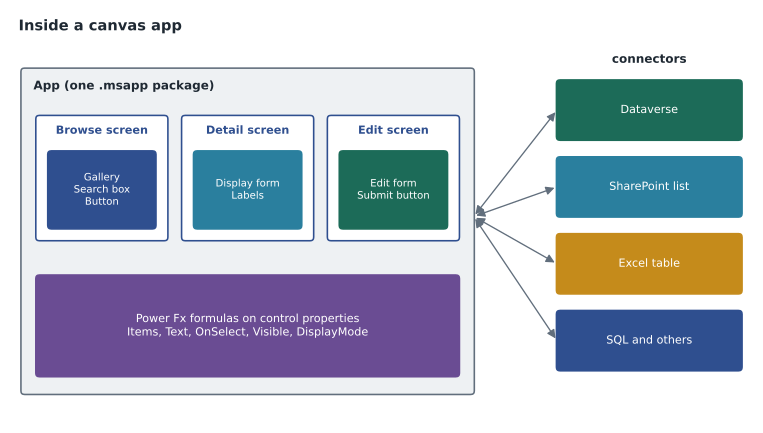
Under the surface, a canvas app is a package of screens, controls, data connections and formulas. Every screen holds controls such as labels, text inputs, galleries, forms, buttons, drop-down lists, date pickers and images. Every control has properties, and many properties hold Power Fx formulas rather than fixed values. A label's Text property might be a fixed phrase, or it might be a formula that combines a person's name with today's date. A button's OnSelect property holds the formula that runs when someone selects it. The app recalculates formulas automatically as data and inputs change, much as a spreadsheet recalculates cells.
Use cases for canvas apps
The PL-900 outline asks you to describe use cases for canvas apps, and the clearest way to do that is to compare them with model-driven apps, which lesson 2 covers. Canvas apps fit best when the experience matters more than the data model: when a task has a particular flow, when the app must work well on a phone, when it pulls data from several different sources, or when the people using it need a very simple screen with only the fields they care about.
| Situation | Why a canvas app fits |
|---|---|
| A mobile inspection checklist with photos and a signature | You control the layout for a small screen and can use the camera and pen input controls |
| A kiosk where visitors sign in at a front desk | A single screen with large buttons and no navigation is easy to design |
| An app that reads a SharePoint list, an Excel table in OneDrive and a SQL database | Canvas apps connect to many data sources through connectors at the same time |
| A request form that staff use a few times a term | A short, focused path through two or three screens beats a full business application |
| A Teams tab for a team's daily task | Canvas apps embed directly in Teams and can use Dataverse for Teams |
For the equipment project, Maribeth's first goal was narrow: an instructor should be able to open an app on a phone, choose a campus, see which equipment was available and send a request. That is a task-shaped problem with a specific path through a few screens, and the people using it would not want to learn a full business application. A canvas app was the obvious place to start.
Data sources and connectors
A canvas app does nothing useful without data. Power Apps reaches data through connectors, which are wrappers around a service's API that let the app read and write without code. More than a thousand connectors exist, from Microsoft services such as Dataverse, SharePoint, Excel Online, Outlook and Teams to third-party services. Connectors are either standard, included with the Power Apps rights that come with many Microsoft 365 plans, or premium, which require a standalone Power Apps licence such as Power Apps Premium. Dataverse and SQL Server are premium for canvas apps outside the Dataverse for Teams scenario; SharePoint and Excel Online are standard.
That licensing split shaped an early decision at Lumenvale. Maribeth's first prototype stored equipment in a SharePoint list, because every staff member could use it without an extra licence. Rupert pointed out that the college already held Power Apps Premium licences for the media desk staff and that a Dataverse table would bring relationships, security roles and auditing that a list could not. They agreed to keep the prototype on SharePoint for a week of feedback and move to Dataverse once the design settled. Lesson 2 picks up that move.
When you add a data source, Power Apps creates a connection using your credentials. When you share the app, each user signs in with their own account and the app acts with their permissions, not yours. This matters for security and for testing: an app that works perfectly for its maker may show nothing to a user who lacks permission on the underlying list or table. Lesson 9 returns to this point in detail.
Screens, galleries and forms
Most data apps follow the same three-screen pattern, which Power Apps generates automatically when you start from data. A browse screen shows records in a gallery, a control that repeats a template for each item in a table. A detail screen shows one record in a display form. An edit screen uses an edit form to create or change a record. Galleries can be vertical, horizontal or flexible-height, and each item in the template can hold labels, images, icons and buttons that show fields from the current record, written as ThisItem.FieldName.
Forms save a great deal of work. An edit form connected to a table builds one data card per field, each with a label, an input control suited to the field's type and validation based on the column's settings. The SubmitForm function writes the form's values to the data source and runs the form's OnSuccess or OnFailure formulas. For more control, the Patch function writes values directly, which is useful when you want to update one column or write to a table that has no form on the screen.
Filter(
    Equipment,
    Campus.Value = drpCampus.Selected.Value,
    StartsWith(Title, txtSearch.Text),
    Status.Value = "Available"
)
Power Fx in practice
Power Fx is the low-code formula language of Power Platform. It is based on Excel formulas, so functions such as If, Sum, Text, Concatenate and Now behave as Excel users expect, and it adds functions for apps such as Navigate, Filter, LookUp, Patch, Collect and Notify. Power Fx is declarative: you describe what a property should be rather than writing step-by-step instructions, and the app keeps the value current. Only behaviour properties such as OnSelect, OnVisible and OnStart run as a sequence of actions, separated by semicolons.
Variables let an app remember things. Global variables, set with Set, are available on every screen. Context variables, set with UpdateContext or passed through Navigate, belong to one screen. Collections, created with Collect or ClearCollect, hold tables in the app's memory, which is handy for a shopping-cart style list of items before they are saved. Newer apps can also use named formulas in the app's Formulas property, which define a value once and recalculate it whenever its inputs change, avoiding much of the logic people once crammed into OnStart.
If(
    IsBlank(dtpNeeded.SelectedDate),
    Notify("Choose the date you need the equipment.", NotificationType.Warning),
    Patch(
        Requests,
        Defaults(Requests),
        {
            Title: galEquipment.Selected.Title,
            NeededOn: dtpNeeded.SelectedDate,
            Requester: User().Email
        }
    );
    Notify("Request sent.", NotificationType.Success);
    Navigate(scrConfirm, ScreenTransition.Fade)
)
Worked problem
Reading a formula before trusting it
Kwabena Asante-Lowe, the college's institutional research analyst, reviewed Maribeth's Send button formula above and asked what would happen if two instructors requested the same projector at the same moment. What does the formula actually do, and what does it not do?
Show solution
- It checks one thing first: whether a date was chosen. If not, it shows a warning and stops.
- Otherwise it creates a new row in Requests with the equipment name, the date and the signed-in user's email.
- It does not check whether the item is already booked for that date, and it does not reserve anything; it only records a request.
- Two instructors could both send requests for the same projector. Someone, or a flow, has to decide which one wins.
Answer: The formula records a request; it does not prevent double booking. Maribeth noted the gap for the approval flow in lesson 7, which checks availability before anything is approved.
Delegation: the limit every maker meets
When a canvas app filters or sorts data, Power Apps tries to send the work to the data source so that only matching records come back. This is delegation. If a formula uses a function or operator the data source cannot process, Power Apps instead downloads a limited number of rows and does the work locally. The default limit is 500 rows and a maker can raise it to 2,000 in the app settings. Beyond that limit, records are silently left out, so a search may miss the item someone is looking for.
Power Apps Studio flags non-delegable formulas with a blue underline and a warning in the App checker. Dataverse supports the widest set of delegable functions; SharePoint supports a smaller set; Excel files are not delegable at all. Maribeth's SharePoint list had only 340 items, so delegation warnings did not bite yet, but the media desks expected over 2,000 items once every campus was added. That growth was one more reason to move to Dataverse.
Layout, accessibility and modern controls
Canvas apps can be built in phone or tablet layout. For apps that must look right on any screen, makers use responsive containers: horizontal and vertical containers that arrange their contents and resize with the screen. Modern controls, based on Microsoft's Fluent design system, look consistent with Microsoft 365 and support themes. Every control has accessibility properties such as AccessibleLabel and TabIndex, and the App checker reports problems such as missing labels or poor colour contrast. Accessibility is not optional at a public college: Lumenvale's policy required every staff tool to work with a screen reader and a keyboard.
A canvas app also has app-level settings: its name, icon and description, the default font and theme, whether it loads data on start, and which preview features are switched on. A good habit is to name controls as you add them, with a prefix for the type, such as galEquipment, txtSearch and btnSend. Names like Gallery3 and Button12 make formulas unreadable after a week.
Saving, versions and the App checker
Power Apps Studio saves your work to the cloud, and each save creates a version. Saving does not change what users see: users get the published version, and you publish when a version is ready. You can restore an earlier version from the app's details page if a change goes wrong. Before publishing, the App checker lists formula errors, runtime warnings, delegation issues, accessibility problems and performance suggestions. Monitor shows each data call and formula evaluation as the app runs, which helps when a screen is slow or a Patch fails. Lesson 10 covers testing and publishing fully.
After a week of evenings and clinic sessions, Maribeth had a three-screen app on her phone. She walked it over to the media desk at the Downtown campus and watched a technician try it. The technician found two problems in ten minutes: the campus list did not remember the last choice, and the gallery showed broken equipment as available. Both were quick formula fixes. The more important lesson was the one Maribeth wrote at the top of her notes: test with the people who will use it, on their devices, before you add anything else.
Common mistakes
MistakeAssuming that sharing the app gives users access to its data.
InsteadUsers need their own permission on every data source the app uses.
MistakeIgnoring delegation warnings because the test data is small.
InsteadPlan for the real number of records; above the row limit, results are silently incomplete.
MistakeLeaving default control names such as Button12.
InsteadName controls with a type prefix so formulas stay readable.
MistakePutting every calculation in OnStart.
InsteadUse named formulas and screen-level logic so the app starts quickly and stays maintainable.
MistakeThinking a save is a release.
InsteadUsers see only the published version; publish deliberately after checking.
Summary and key terms
- A canvas app is designed screen by screen in Power Apps Studio; you place every control and write Power Fx formulas on their properties.
- Canvas apps suit task-shaped, mobile or multi-source scenarios where the user experience matters most.
- Connectors link apps to data; standard connectors come with many Microsoft 365 plans, premium connectors such as Dataverse need a standalone licence.
- Galleries, display forms and edit forms give the common browse, detail and edit pattern; SubmitForm and Patch write data.
- Delegation sends filtering to the data source; non-delegable formulas work on only the first 500 to 2,000 rows.
- Users see the published version; the App checker and Monitor help find problems before and after publishing.
- Canvas app
- A Power Apps app whose screens and controls are laid out by the maker.
- Power Apps Studio
- The browser-based editor used to build canvas apps.
- Power Fx
- The Excel-based, low-code formula language used across Power Platform.
- Connector
- A wrapper around a service's API that lets apps and flows use it without code.
- Gallery
- A control that repeats a template for each record in a table.
- Delegation
- Sending filtering and sorting to the data source so that only matching records are returned.
- Collection
- A table held in the app's memory, created with Collect or ClearCollect.
Practice problems
Work each problem on paper first, then reveal the answer to check.
Which property of a button holds the formula that runs when it is selected?
Show answer
OnSelect.
A gallery searching a 5,000-item SharePoint list shows a delegation warning. What risk does that create?
Show answer
Only the first 500 to 2,000 rows are searched, so matching items beyond the limit are silently missed.
What is the difference between a global variable and a context variable?
Show answer
A global variable (Set) is available on every screen; a context variable (UpdateContext or Navigate) belongs to one screen.
Name two places a published canvas app can run.
Show answer
Any two of: a web browser, the Power Apps mobile app, Microsoft Teams, a SharePoint page, a model-driven app as a custom page.
Lesson quiz · 5 questions
Score 60% or more to complete this lesson.
Create a free account to save your progress, take quizzes and earn a certificate.