
MSAZ-342 · Lesson 1 of 12 · 21 min
KQL fundamentals for security
▶ Video coming soon A video version of this lesson is on the way.
On Thursday, October 22, 2026, two days after the phishing wave that opened the SC-200 story, Nadia Okonjo booked a meeting room at Harrow & Finch's head office in Winnipeg for a standing appointment: Tuesday and Thursday afternoons, from two until four, for the next four weeks. She called it the hunting clinic. Ama Boateng would bring her laptop and her questions; Sunil Rao would join when the Sentinel build allowed. Nadia's reason was simple. In the first week of shadow shifts, Ama had watched Nadia answer half a dozen questions in seconds by typing a few lines into the advanced hunting page, and had asked how she knew what to type. The answer was Kusto Query Language, KQL, and the clinic was where Ama would learn it.
This course follows that clinic and what came after it. Lessons 1 to 3 teach KQL itself. Lessons 4 to 7 use it to hunt, first in Microsoft Defender XDR's advanced hunting, then in Microsoft Sentinel, then with the MITRE ATT&CK framework and with notebooks. Lessons 8 to 11 cover what happens when a hunt or a rule finds something real: managing the incident, using Microsoft Security Copilot, containing and recovering, and reviewing afterwards. Lesson 12 walks through one investigation from first alert to closed case. Everything in the course is defensive: attacker techniques appear only as names from the MITRE ATT&CK framework and as the traces they leave in logs.
Why a query language
A security operations centre (SOC) lives on log data. At Harrow & Finch the Defender XDR tables alone hold about 6.5 GB a day of device events, and the Sentinel workspace adds sign-ins, audit records, Windows security events and firewall logs. Nobody reads that by scrolling. Portals give prebuilt views, such as an incident's attack story or a device timeline, and those views are where most investigations start. But every view answers a question someone else chose. When an analyst needs to ask a new question, such as which other users clicked the same link, or whether a process ever ran before last Tuesday, the answer comes from a query.
KQL is the language behind Azure Data Explorer, Azure Monitor Logs, Microsoft Sentinel and Defender XDR advanced hunting. A query written in one of them usually works in the others with small changes, mostly to table and column names. The SC-200 study guide asks candidates to identify the appropriate table for a KQL query, identify threats by using KQL and create advanced hunting queries, so the language is examined directly, not only as a tool.
The shape of a query
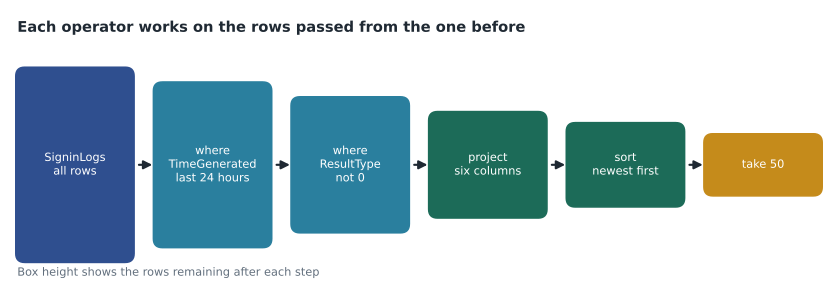
A KQL query starts with a source, usually a table name, and passes the rows through a pipeline of operators separated by the pipe character. Each operator takes the rows that arrive, does one thing to them, and passes the result on. Reading a query top to bottom is reading the steps in order. Nadia's first example looked at failed sign-ins in the Entra ID sign-in table in Sentinel.
SigninLogs
| where TimeGenerated > ago(24h)
| where ResultType != "0"
| project TimeGenerated, UserPrincipalName, IPAddress, Location, ResultType, ResultDescription
| sort by TimeGenerated desc
| take 50
The first line names the table. The first where keeps rows from the last 24 hours; ago(24h) means the current time minus 24 hours. The second where keeps rows whose ResultType is not zero, because zero means success in this table. The project operator keeps only the listed columns, in that order. The sort operator orders the rows, newest first, and take returns at most 50 of them. Ama noticed that take returned different rows when she ran it twice; Nadia explained that take returns any 50 rows, not a particular 50, unless the rows have already been sorted, which is why the sort came first.
Choosing the table
The first decision in any query is which table to start from, and it is the decision the exam tests most often. Tables differ between Sentinel and Defender XDR advanced hunting, and some events appear in both under different names.
| Question | Sentinel table | Advanced hunting table |
|---|---|---|
| Who signed in to Microsoft Entra ID, from where, with what result? | SigninLogs (interactive), AADNonInteractiveUserSignInLogs | EntraIdSignInEvents (replaces AADSignInEventsBeta) |
| What changed in the directory: users, groups, roles, apps? | AuditLogs | CloudAppEvents for some activity |
| What processes ran on a device? | DeviceProcessEvents (if streamed from Defender XDR) | DeviceProcessEvents |
| What network connections did a device make? | DeviceNetworkEvents (if streamed) | DeviceNetworkEvents |
| Which emails arrived, and what happened to them? | EmailEvents (if streamed) | EmailEvents, EmailPostDeliveryEvents, UrlClickEvents |
| What did users do in Exchange, SharePoint and Teams? | OfficeActivity | CloudAppEvents |
| Which Windows security events did servers log? | SecurityEvent | Not available unless the workspace is onboarded |
| Which firewall sessions were allowed or denied? | CommonSecurityLog (CEF), AzureDiagnostics or AZFW tables | Sentinel tables, when the workspace is onboarded |
Two details matter for the exam and for daily work. First, the time column has different names: Sentinel tables use TimeGenerated, while native advanced hunting tables use Timestamp. Second, Microsoft has replaced the advanced hunting beta sign-in tables with generally available ones. EntraIdSignInEvents replaces AADSignInEventsBeta and EntraIdSpnSignInEvents replaces AADSpnSignInEventsBeta; the new tables became generally available in October 2026, the old ones retire on January 31, 2027, and a device column is renamed from AadDeviceId to EntraIdDeviceId. Microsoft has said it will migrate custom detections that use the old names automatically, but saved queries, workbooks and scripts must be updated by hand. Sunil put that on the SOC's December task list.
Filtering with where
The where operator keeps rows for which a condition is true. Conditions compare columns with values using == and !=, the numeric comparisons <, <=, > and >=, and string operators. Conditions combine with and, or and not(). The most important habit is to filter on time first and on the most selective condition next, because every later operator then works on fewer rows.
String operators are where beginners lose time. KQL indexes text in terms: runs of letters and digits separated by punctuation or spaces. The has operator looks for a whole term and uses the index, so it is fast. The contains operator looks for any substring and cannot use the index in the same way, so it is slower on large tables. Equality with == is exact and case-sensitive; =~ is equality that ignores case. Most string operators ignore case by default and have a case-sensitive version ending in _cs.
| Operator | Matches | Example that is true | Notes |
|---|---|---|---|
| == | Exact value, case-sensitive | Account == "svc-rpt01" | Fastest for exact matches |
| =~ | Exact value, ignoring case | Account =~ "SVC-RPT01" | Use for names typed by people |
| has | A whole term | "invoice review.pdf" has "review" | Uses the term index; preferred |
| contains | Any substring | "previewer.exe" contains "review" | Slower; use only when has cannot work |
| startswith | Text at the start | Computer startswith "TILL-" | Good for naming conventions |
| in | Any value in a list | EventID in (4624, 4625) | in~ ignores case for strings |
| matches regex | A regular expression | Url matches regex "[a-z]+-login" | Slowest; filter by time first |
A good example is the AiTM phishing kit from October 20. The kit's sign-in pages sat on domains containing the word login preceded by a hyphenated brand name. Searching URL clicks for has "login" would find every URL containing login as a term, which in Harrow & Finch's data included hundreds of legitimate pages. Searching for the exact domains from the incident with has_any and a list was faster and produced only true matches. Ama's lesson: write the narrowest condition that answers the question, then widen it deliberately if you suspect you are missing something.
rows = [
    {"user": "mnovak", "url": "https://hf-supplier-login.example/review", "time": "2026-10-20 09:12"},
    {"user": "rdelgado", "url": "https://login.microsoftonline.com/common", "time": "2026-10-20 09:40"},
    {"user": "olind", "url": "https://previewer.example.net/doc", "time": "2026-10-20 10:05"},
    {"user": "kmoreau", "url": "https://hf-supplier-login.example/start", "time": "2026-10-20 11:31"},
]
import re
def has(text, term):
    # a whole term: letters and digits separated by anything else
    return term.lower() in re.split(r"[^a-z0-9]+", text.lower())
def contains(text, part):
    return part.lower() in text.lower()

kit = "hf-supplier-login.example"
print("has 'login':      ", [r["user"] for r in rows if has(r["url"], "login")])
print("contains 'review':", [r["user"] for r in rows if contains(r["url"], "review")])
print("has 'review':     ", [r["user"] for r in rows if has(r["url"], "review")])
print("exact kit domain: ", [r["user"] for r in rows if kit in r["url"]])has 'login': ['mnovak', 'rdelgado', 'kmoreau'] contains 'review': ['mnovak', 'olind'] has 'review': ['mnovak'] exact kit domain: ['mnovak', 'kmoreau']
What this code does
Four made-up URL clicks are checked in four ways. A term search for login matches the kit pages and also the legitimate Microsoft sign-in page, while a substring search for review also catches the unrelated previewer site, which a term search does not. Searching for the exact kit domain returns only the two users who clicked the phishing link, which is the answer Nadia wanted.
Shaping results: project, extend and their relatives
Results are easier to read and cheaper to process when they carry only the columns you need. The project operator keeps and orders columns and can rename them. The extend operator adds calculated columns while keeping the existing ones. project-away removes named columns, project-rename renames without dropping others, and project-reorder moves columns to the front. Calculations use functions such as strcat to join text, tolower, iff for if-then-else, case for several conditions, and datetime arithmetic.
DeviceLogonEvents
| where Timestamp > ago(7d)
| where DeviceName startswith "till-"
| extend Store = toupper(substring(DeviceName, 5, 3)),
         LocalHour = datetime_part("hour", Timestamp - 6h)
| extend AfterHours = iff(LocalHour < 7 or LocalHour >= 22, "yes", "no")
| project Timestamp, DeviceName, Store, AccountName, LogonType, AfterHours
The query extracts a three-letter store code from the device name, works out the local hour by subtracting six hours from the timestamp, and flags logons before seven in the morning or after ten at night. Nadia pointed out the weakness at once: Harrow & Finch's stores are in one time zone, but the subtraction of six hours is wrong for part of the year because of daylight saving time. A fixed offset is acceptable for a quick hunt if you say so in your notes; a rule that runs for years should use datetime_utc_to_local with a time zone name, which handles the change automatically.
Variables with let
The let statement names a value, a list, a time range or a whole query so it can be reused. It makes long queries readable and lets a hunter change one line instead of five. A let statement ends with a semicolon, and the query that uses it follows.
let lookback = 14d;
let kitDomains = dynamic(["hf-supplier-login.example", "hfsupply-login.example"]);
let clickers = UrlClickEvents
    | where Timestamp > ago(lookback)
    | where Url has_any (kitDomains)
    | distinct AccountUpn;
EntraIdSignInEvents
| where Timestamp > ago(lookback)
| where AccountUpn in (clickers)
| summarize SignIns = count(), Countries = make_set(Country) by AccountUpn
Here the first let sets the lookback, the second holds the two kit domains, and the third is a subquery that returns every account that clicked a kit link. The final query then lists sign-ins for those accounts and the set of countries each signed in from. This pattern, find a set of entities with one query and examine them with another, recurs throughout hunting.
Writing queries that run well
KQL is fast, but advanced hunting gives each tenant a share of processing, and a few careless queries can use it up. Microsoft's guidance, and Nadia's, reduce to a short list.
- Filter on time first, then on the most selective conditions.
- Prefer has and == over contains and regular expressions.
- Project only the columns you need before expensive steps such as joins.
- Put the smaller table on the left of a join (lesson 2).
- Test with a short time range, then widen it.
- Comment your intent with lines that start with //, so the next analyst knows what the query is for.
Ama started a personal query notebook in a shared OneNote page: each query, what question it answered, when she last ran it and what she learned. By the end of the clinic it held 41 queries, and three of them became detection rules.
Worked problem
Narrowing a slow query
Ama's first attempt at finding till PC logons by the service account svc-till was: DeviceLogonEvents | where AccountName contains "till" | where Timestamp > ago(30d). It took 48 seconds and returned 212,000 rows, more than the 100,000-row limit for advanced hunting results. How should she rewrite it?
Show solution
- Move the time filter first, so the rest of the query reads only the period of interest.
- Replace contains "till" with an exact match, AccountName =~ "svc-till", since she knows the account name. Substring matching also caught every user whose name contains till, such as tillman.
- Add DeviceName startswith "till-" to read only till PCs.
- Shorten the first test to 7 days, check the results, then widen to 30 days.
- Summarize instead of listing every logon, for example counting logons per device per day, so the result fits comfortably within the limits.
Answer: Filter time first, use an exact account name and a device-name prefix, test on 7 days and summarize per device and day; the rewritten query ran in under 3 seconds and returned 980 rows.
Common mistakes
MistakeUse contains for every text search because it finds more.
InsteadUse has or exact matches where possible; contains is slower and often returns false matches.
MistakeUse take to get a sample of the latest events.
Insteadtake returns arbitrary rows; sort first, or use top.
MistakeAssume a query from Sentinel works unchanged in advanced hunting.
InsteadTable and time column names can differ, such as TimeGenerated and Timestamp.
MistakeKeep using AADSignInEventsBeta in saved queries.
InsteadMove to EntraIdSignInEvents before the old table retires on January 31, 2027.
Summary and key terms
- KQL queries start from a table and pass rows through operators separated by pipes.
- Choosing the right table is the first step; Sentinel and advanced hunting name some tables and time columns differently.
- EntraIdSignInEvents and EntraIdSpnSignInEvents replace the beta sign-in tables, which retire on January 31, 2027.
- where filters rows; has, == and in are faster and more precise than contains and regular expressions.
- project, extend and their relatives shape the columns; let names values and subqueries.
- Filter on time first, test on short ranges and summarize to stay within limits.
- Kusto Query Language (KQL)
- The read-only query language used by Sentinel, Azure Monitor and Defender XDR advanced hunting.
- Operator
- A step in a KQL pipeline, such as where, project or summarize.
- Term
- A run of letters and digits that KQL indexes, used by the has operator.
- let statement
- A KQL statement that names a value, list or query for reuse.
- TimeGenerated
- The time column in Sentinel and Log Analytics tables.
- Timestamp
- The time column in native Defender XDR advanced hunting tables.
Practice problems
Work each problem on paper first, then reveal the answer to check.
Why did take return different rows each time?
Show answer
take returns any rows, not particular ones; to get the newest rows, sort first or use top.
Which table answers 'what processes ran on a device' in advanced hunting?
Show answer
DeviceProcessEvents.
What is the difference between has and contains?
Show answer
has matches a whole indexed term and is fast; contains matches any substring and is slower.
Why is subtracting six hours a weak way to get local time?
Show answer
It ignores daylight saving time; datetime_utc_to_local with a time zone name handles it.
Lesson quiz · 5 questions
Score 60% or more to complete this lesson.
Create a free account to save your progress, take quizzes and earn a certificate.