
MSAZ-341 · Lesson 10 of 12 · 21 min
Automation rules
▶ Video coming soon A video version of this lesson is on the way.
By the afternoon of November 12 the new rules had created 23 incidents in three days. Most of them needed the same first few minutes of work: someone had to assign the incident, tag it with the store or system involved, add the right checklist and, for the known noise, close it with a reason. Ama had done all of that by hand. "Every one of those clicks is a decision we've already made," Nadia said. "Write it down once and let Sentinel make it." The last two sessions of the sprint were about automation, starting with automation rules.
What automation rules are
Automation rules are Sentinel's central place for handling incidents and alerts automatically. Each rule has a trigger, conditions and actions. Simple actions, such as assigning an owner, changing severity or status, adding tags or adding tasks, run directly in the rule without any code. More complex work is handed to a playbook, a Logic Apps workflow covered in lesson 11, which the automation rule runs as one of its actions. Microsoft recommends automation rules as the way to run playbooks on incidents, so that all automation is visible and ordered in one place.
| Trigger | Runs when |
|---|---|
| When incident is created | A new incident appears, whether from a Sentinel analytics rule, from Defender XDR or created manually |
| When incident is updated | Status, owner or severity changes, alerts are added, or comments, tags or tactics are added |
| When alert is created | A scheduled or NRT analytics rule creates an alert |
Microsoft recommends incident triggers for most automation; the alert trigger is mainly for analytics rules that do not create incidents. In a workspace connected to the Defender portal, alert-triggered automation rules act only on Sentinel alerts unless you use the enhanced alert trigger, which also covers Defender XDR alerts.
Conditions
Conditions decide which incidents a rule acts on. On a create trigger, conditions test the incident's current properties, such as its title, severity, the analytics rule that produced it, its tactics, tags, entities or custom details, using operators such as equals, contains, starts with and ends with, and their negations. On an update trigger you can also test what changed, with conditions such as changed, changed from, changed to and added to, and who made the change: a user, an application, a playbook, another automation rule, automated investigation, alert grouping or something else. The actions run only if every condition is met.
The Defender portal changes one condition that many older guides rely on. The Incident provider condition, which let a rule act only on Sentinel incidents or only on Defender XDR incidents, is removed once the workspace is connected. Existing rules then run on incidents from both. To limit a rule to Sentinel incidents, Microsoft suggests a condition on an analytics rule name that exists only in Sentinel. And because incident titles can change as alerts are correlated (lesson 7), conditions on titles should be avoided.
Actions
| Action | Example at Harrow & Finch |
|---|---|
| Assign owner | Store incidents to the analyst on store rotation |
| Change status | Close a known benign pattern, with a closing reason and comment |
| Change severity | Raise to high for any incident involving a break-glass account |
| Add tags | Tag incidents with the store name or system |
| Add task | Add a phishing checklist to incidents from the mailbox and sign-in rules |
| Run playbook | Enrich IP entities with reputation data (lesson 11) |
Tasks were the action Ama liked most. A task is a checklist item on the incident, with a title and description, that the analyst ticks off. Nadia had a written phishing procedure; the automation rule added its steps as tasks to every incident from the phishing-related rules, so the procedure was in front of the analyst inside the incident instead of in a document nobody opened at 3 a.m.
Order, timing and expiry
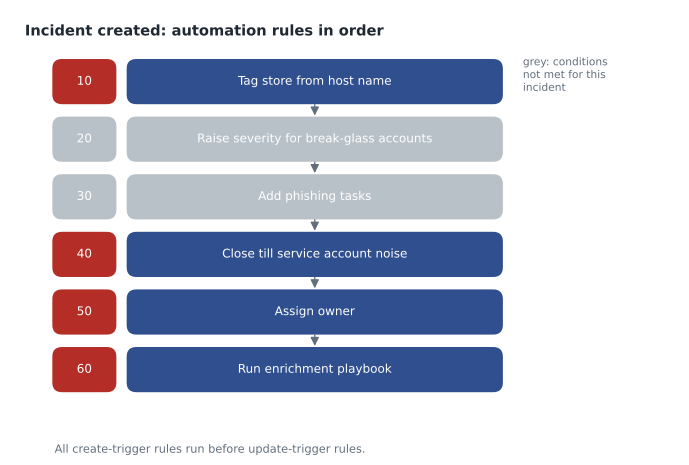
Automation rules run in sequence according to an order number, never in parallel, and each trigger type has its own sequence. All rules for the create trigger run before any rule for the update trigger. Rules with the same order number and trigger run in an unpredictable order, and the portal does not stop you from giving two rules the same number, so Sunil numbered them in tens, leaving room to insert rules later. Within a rule, actions run in the order listed.
Order matters because rules affect each other. A rule that tags an incident must run before a rule whose condition tests that tag. Ama found this the hard way: her first version assigned store incidents to the store rotation by testing for a store tag, but the tagging rule had a higher order number and ran afterwards, so nothing was ever assigned. Swapping the numbers fixed it.
incident = {"rule": "Failed sign-ins on till PCs", "host": "TILL-S07-04",
            "account": "svc-till", "severity": "Medium", "tags": [], "status": "New"}
rules = [
    # order, name, condition, action
    (10, "Tag store from host", lambda i: i["host"].startswith("TILL-"),
         lambda i: i["tags"].append("store:" + i["host"].split("-")[1])),
    (40, "Close till service account noise",
         lambda i: i["account"] == "svc-till" and i["rule"].startswith("Failed sign-ins"),
         lambda i: i.update(status="Closed (benign positive)")),
    (50, "Assign store rotation", lambda i: any(t.startswith("store:") for t in i["tags"]),
         lambda i: i.update(owner="store rotation")),
]
for order, name, cond, act in sorted(rules, key=lambda r: r[0]):
    if cond(incident):
        act(incident)
        print(f"{order}: {name} -> applied")
    else:
        print(f"{order}: {name} -> skipped")
print(incident)10: Tag store from host -> applied
40: Close till service account noise -> applied
50: Assign store rotation -> applied
{'rule': 'Failed sign-ins on till PCs', 'host': 'TILL-S07-04', 'account': 'svc-till', 'severity': 'Medium', 'tags': ['store:S07'], 'status': 'Closed (benign positive)', 'owner': 'store rotation'}What this code does
The program describes one incident and three automation rules, each with an order number, a condition and an action. It runs the rules from the lowest order number to the highest, applying each action only when its condition is true, and then prints the incident. The output shows the store tag added first, the incident closed as benign because it is the known service account noise, and the owner assigned because the tag now exists; if the tagging rule ran last, the assignment would have been skipped.
Playbooks add timing. When an automation rule runs a playbook, it waits before moving to the next action: if the playbook finishes in under a second, the rule continues straight away; if it takes less than two minutes, the rule continues up to two minutes after it started but no more than ten seconds after it finished; if it takes longer, the rule continues after two minutes whether or not the playbook has finished. In the Defender portal, Microsoft also notes that automation rules can run up to ten minutes after an alert creates or updates an incident, and that if several updates hit the same incident within a few minutes only the latest may reach Sentinel. Automation is fast, but not instant, and analysts should not assume the rules have run the moment an incident appears.
Rules can have an expiration date, after which they stop running. Sunil used one for the planned spring retest by the penetration testers: a rule that tags and lowers the severity of Defender for Identity alerts from the testers' agreed laptop, set to expire at the end of the test window, so it cannot quietly hide real attacks afterwards.
Watchlists in conditions and rules
Several rules needed lists that change: the break-glass accounts, the till PC service accounts, the reporting vendor's known locations from lesson 9, the stores and their managers. Hard-coding these into queries means editing rules whenever a list changes. Watchlists solve that. A watchlist is a list of values uploaded to Sentinel, from a CSV file or another source, with a search key column, and analytics rules and hunting queries read it with the _GetWatchlist function. Changing the watchlist changes every rule that uses it.
let breakglass = _GetWatchlist("BreakGlassAccounts") | project UserPrincipalName = SearchKey;
SigninLogs
| where UserPrincipalName in (breakglass)
| project TimeGenerated, UserPrincipalName, IPAddress, AppDisplayName, ResultType
Watchlists are used by queries, not directly by automation rule conditions, so the usual pattern is for the analytics rule to use the watchlist and put a value in a custom detail or tag-worthy field, and for the automation rule to test that. The break-glass rule, for example, sets its own severity to high through alert details, and an automation rule adds the incident to a priority queue and pages the on-call engineer through a playbook.
Where to create and manage rules
In the Defender portal, automation rules are created and managed from the Automation page under Microsoft Sentinel; Microsoft notes that you cannot create an automation rule from inside an incident there, as you could in the Azure portal. Rules created through the portal get the next order number automatically, while rules created through the API or templates must be numbered by hand. Sunil exported the six rules as an Azure Resource Manager template and stored it with the analytics rules in the SOC's Git repository, so changes are reviewed like code.
Closing incidents automatically, carefully
The most powerful action is closing an incident, and the most dangerous. An automation rule that closes incidents will close a real attack if the attack happens to match its conditions. Nadia's rules for automatic closure were strict: the pattern must be understood and written down, the conditions must be as narrow as possible, such as a specific account on a specific host from a specific rule, the closing reason and comment must say which automation rule closed it and why, and every closure rule must be reviewed monthly. The till PC service account rule met all four. A rule Ama proposed to close all low-severity incidents from the firewall at weekends did not, and Nadia rejected it.
Closed incidents are still visible and searchable, and the SOC weekly workbook in lesson 12 counts them by the automation rule that closed them. If a closure rule suddenly closes many more incidents than usual, that is itself worth a look: either the noise has grown, or something new is hiding inside an old pattern.
Automation on the update trigger
Update-trigger rules react to what people and systems do to an incident. The SOC used one: when an incident's severity changes to high, from any source other than an automation rule, the rule adds a tag and runs a playbook that posts the incident to the on-call channel. Using the Updated by condition to exclude automation rules prevents loops, where one rule's change triggers another rule whose change triggers the first again.
Worked problem
Automating the phishing incidents
Incidents from three rules, the new-country-then-MFA-change rule, the mailbox forwarding rule and the phishing domain match from lesson 8, should all get the phishing checklist, be assigned to the analyst on duty, and have their IP entities enriched. If an incident from the mailbox forwarding rule involves an executive, severity should be raised to high. Design the automation rules.
Show solution
- Rule at order 20, create trigger: if the analytics rule name is one of the three, add the phishing tasks (sign-in review, session revocation check, mailbox rule check, message trace, user contact).
- Rule at order 30, create trigger: if the analytics rule name is the forwarding rule and a custom detail marks the mailbox owner as an executive, change severity to high. The analytics rule sets that detail by joining with the Executives watchlist.
- Rule at order 50, create trigger: if the analytics rule name is one of the three, assign the owner to the analyst on duty.
- Rule at order 60, create trigger: if the incident has an IP entity, run the enrichment playbook from lesson 11.
- Avoid title conditions; use the analytics rule names, which do not change when alerts are correlated.
Answer: Four create-trigger rules ordered 20, 30, 50 and 60: tasks, severity for executives, assignment, then enrichment, all conditioned on analytics rule names and custom details.
Common mistakes
MistakeUse the Incident provider condition to separate Sentinel and Defender XDR incidents.
InsteadIt is removed in the Defender portal; condition on Sentinel-only analytics rule names instead.
MistakeGive automation rules the same order number when they do different things.
InsteadRules with the same number run in an unpredictable order; number them in steps such as tens.
MistakeAssume automation has run as soon as an incident appears.
InsteadRules can take up to several minutes to run in the Defender portal; check the incident's activity log.
MistakeHard-code lists of accounts or locations into rules.
InsteadUse watchlists so a list change updates every rule that uses it.
Summary and key terms
- Automation rules have a trigger, conditions and actions, and are the central place for incident automation.
- Triggers are incident created, incident updated and alert created; incident triggers are recommended.
- Actions include assigning owners, changing status and severity, adding tags and tasks, and running playbooks.
- Rules run in sequence by order number; create-trigger rules run before update-trigger rules.
- The Incident provider condition is removed in the Defender portal, and alert triggers need the enhanced alert trigger for Defender XDR alerts.
- Rules can expire, which suits temporary exceptions such as a penetration test.
- Watchlists hold changing lists that rules read with _GetWatchlist.
- Automation rule
- A rule with a trigger, conditions and actions that handles incidents or alerts automatically.
- Trigger
- The event that starts an automation rule: incident created, incident updated or alert created.
- Task
- A checklist item added to an incident.
- Order
- The number that sets when an automation rule runs relative to others.
- Expiration
- A date after which an automation rule stops running.
- Watchlist
- A list of values uploaded to Sentinel and read by queries with _GetWatchlist.
Practice problems
Work each problem on paper first, then reveal the answer to check.
What are the three automation rule triggers?
Show answer
Incident created, incident updated and alert created.
Why did Ama's first assignment rule never assign anything?
Show answer
It tested a tag that a higher-numbered rule added later.
How can a rule be limited to Sentinel incidents in the Defender portal?
Show answer
With a condition on an analytics rule name that exists only in Sentinel.
Why does the penetration test rule have an expiration date?
Show answer
So it stops hiding testers' alerts once the test window ends.
How do rules read a watchlist?
Show answer
With the _GetWatchlist function in KQL.
Lesson quiz · 5 questions
Score 60% or more to complete this lesson.
Create a free account to save your progress, take quizzes and earn a certificate.