
MSAZ-310 · Lesson 9 of 12 · 21 min
Git integration
▶ Video coming soon A video version of this lesson is on the way.
In the ninth hub session, on Thursday, November 5, Nikolai told a story against himself. At his previous job, a colleague had edited a production notebook directly to fix an urgent problem, and in doing so overwrote two weeks of someone else's unsaved changes. Nobody could say which version had been running the night before, and the team spent a week rebuilding what had been lost. Version control, he said, is how a team stops relying on memory. In Fabric that means Git integration.
What Git integration does
Git integration connects a Fabric workspace to a branch of a Git repository. Once connected, the definitions of supported items in the workspace, such as notebooks, pipelines, semantic models, reports, lakehouse and warehouse definitions, Dataflows Gen2 and many others, can be committed to the branch, and changes made in the branch can be brought into the workspace. Each item is stored as a folder of text files: code for a notebook, JSON for a pipeline, a model definition in TMDL for a semantic model, and a small metadata file describing the item. Because they are text, Git can show exactly what changed between versions, line by line, and who changed it.
Git holds definitions, not data. The rows in a lakehouse table, the files in its Files area and the data in a warehouse are not in the repository. Committing a lakehouse saves its definition, such as its name and shortcuts in supported cases, so that it can be recreated elsewhere, but not its contents. Data has its own protection, as lessons 4 to 6 described: Delta history, soft delete, restore points and reloading from raw data.
Providers and requirements
Fabric supports three Git providers: Azure DevOps, GitHub and GitHub Enterprise, all in their cloud-hosted forms; on-premises Git servers are not supported. Harrow & Finch already used Azure DevOps for the StockLine code, so the hub used a new Azure DevOps repository called finch-data-hub. The tenant setting that allows users to synchronize workspace items with Git repositories must be on, and for GitHub there are separate settings. Connecting a workspace to a repository is done by a workspace admin, who signs in to the provider and chooses the organization, project, repository, branch and folder. After that, Contributors who also have write access to the repository can commit and update.
| Step | Who | What happens |
|---|---|---|
| Connect | Workspace admin | Choose provider, repository, branch and folder; the workspace is linked to that branch |
| First sync | Workspace admin | If the workspace has content and the folder is empty, items are committed; if the folder has content, the workspace is updated from it |
| Commit | Contributor with repository write access | Selected changed items are written to the branch as one commit with a message |
| Update | Contributor with repository write access | Changes committed to the branch by others are applied to the workspace |
| Disconnect | Workspace admin | The link is removed; items stay in the workspace |
finch-data-hub/
  sales/                              <- folder connected to FDH Sales [Dev]
    lh_curated.Lakehouse/
      .platform                       <- item type, name and logical ID
      lakehouse.metadata.json
    nb_clean_sales.Notebook/
      .platform
      notebook-content.py
    pl_nightly_load.DataPipeline/
      .platform
      pipeline-content.json
    Sales Overview.SemanticModel/
      .platform
      definition/
        model.tmdl
        tables/FactSales.tmdl
Status, commit and update
The source control pane in a connected workspace shows each item's status. An item can be synced, meaning the workspace and the branch agree; uncommitted, meaning it was changed in the workspace and not yet committed; update required, meaning the branch has a newer version than the workspace; or in conflict, meaning it changed in both places. The pane has two tabs. Changes lists uncommitted items, which can be selected and committed with a message. Updates lists what has changed in the branch, and Update all applies those changes to the workspace. Updates are applied to all items together, not one at a time, so a workspace always reflects one consistent commit.
# Work out each item's Git status from three versions:
# what the last sync saw, what the workspace has now, and what the branch has now
items = {
    "nb_clean_sales":  {"synced": "v3", "workspace": "v4", "branch": "v3"},
    "pl_nightly_load": {"synced": "v2", "workspace": "v2", "branch": "v2"},
    "Sales Overview":  {"synced": "v5", "workspace": "v5", "branch": "v6"},
    "lh_curated":      {"synced": "v1", "workspace": "v2", "branch": "v3"},
}

def status(i):
    changed_here = i["workspace"] != i["synced"]
    changed_there = i["branch"] != i["synced"]
    if changed_here and changed_there: return "conflict"
    if changed_here: return "uncommitted (commit it)"
    if changed_there: return "update required (update the workspace)"
    return "synced"

for name, versions in items.items():
print(f"{name:16} {status(versions)}")nb_clean_sales uncommitted (commit it) pl_nightly_load synced Sales Overview update required (update the workspace) lh_curated conflict
What this code does
For each item the program keeps three version labels: the one both sides had at the last sync, the one now in the workspace, and the one now in the Git branch. If only the workspace moved on, the item has uncommitted changes; if only the branch moved on, the workspace needs an update; if both moved on, it is a conflict; if neither did, it is synced. The output shows one item of each kind, matching the four statuses in Fabric's source control pane.
Conflicts
A conflict means the same item changed in the workspace and in the branch since the last sync. Fabric does not merge the two silently. The person resolving it can choose to keep the workspace version, overwriting the branch with a new commit, or to accept the branch version, discarding the workspace change, or can resolve the difference in Git itself, for example by editing the files in a branch and merging there, and then updating the workspace. The safest habit is to avoid conflicts: commit small changes often, update before starting work, and do not have two people editing the same item in the same workspace.
Branches and private workspaces
A team that shares one development workspace soon steps on each other's work. Fabric's answer is branching out. From a connected workspace, a person can branch out to a new workspace: Fabric creates a new branch from the current one and a new workspace connected to it, and syncs the items into it. The person works there, commits to the feature branch, and when the work is ready, opens a pull request in Azure DevOps or GitHub to merge the feature branch into the main branch. After review and merge, the shared development workspace is updated from main.
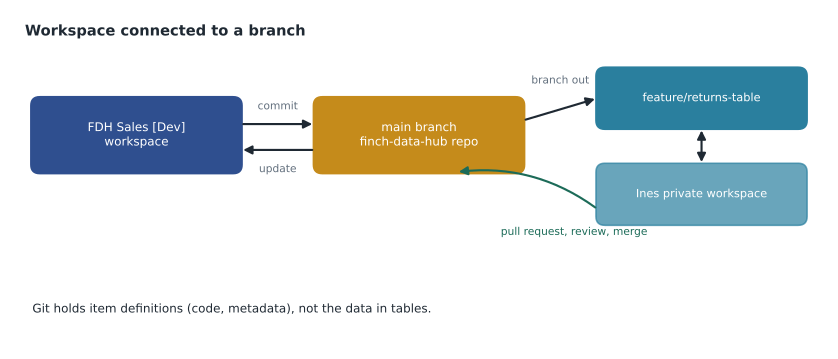
The hub adopted that pattern on November 5. The main branch is connected to FDH Sales [Dev], and nobody edits that workspace directly. Ines branched out to build a new returns table, in a workspace called FDH Sales [Ines], and committed three times over two days. Her pull request was reviewed by Nikolai, who asked for one change to a column name, and merged on November 9. Updating FDH Sales [Dev] took under a minute. Private workspaces created by branching out need a capacity and count against it, so the team agreed to delete them when their branch is merged.
Worked problem
Recovering from a bad change
On the afternoon of November 9, Keiko notices that the pl_nightly_load pipeline in FDH Sales [Dev] no longer loads the price files. The pipeline was last committed at 11 a.m.; since then someone has edited it in the workspace without committing. The version from the previous day worked. How can she get back to a working pipeline, and what does Git make possible that would otherwise be impossible?
Show solution
- In the source control pane, the pipeline shows as uncommitted, so the 11 a.m. commit is still in the branch.
- Keiko can undo the workspace changes for that item, which returns it to the last committed version from 11 a.m.
- If the 11 a.m. version is also broken, the branch history shows every commit with its message and author. She can compare the pipeline's JSON between yesterday's commit and today's to see exactly which activity changed.
- To restore yesterday's version, the team reverts the bad commit in Azure DevOps, which creates a new commit, and then updates the workspace from the branch.
Answer: Undo the uncommitted change, or revert the faulty commit in the repository and update the workspace; Git shows exactly what changed and who changed it.
Power BI projects and text formats
Power BI Desktop can save work as a Power BI project, a folder with the .pbip extension, instead of a single .pbix file. The project stores the semantic model in TMDL, a readable text format for tabular models, and the report in the enhanced report format PBIR, as text files. That makes Desktop work fit the same Git workflow: Keiko can develop a report on her laptop, commit the project folder to a feature branch, and let Git integration bring it into the workspace. Text formats also make reviews meaningful, because a reviewer sees that a measure's formula changed rather than that a binary file changed.
One repository, several workspaces
A single repository can serve several workspaces, each connected to its own folder. The hub's finch-data-hub repository has a folder for each domain, sales, stores and supply, and each domain's development workspace is connected to its folder on main. Workspace folders, from lesson 3, are mirrored as subfolders in the repository, so the structure a developer sees in Fabric matches the structure a reviewer sees in Azure DevOps. Keeping all three domains in one repository made shared standards easy to enforce, such as a branch policy that requires one reviewer for every pull request into main; Elena set that policy in Azure DevOps on November 6.
Only development workspaces are connected to Git in the hub's design. Test and production workspaces receive content through the deployment pipeline described in lesson 10, so that nothing reaches production except a version that was committed, reviewed and deployed. Some teams instead connect each stage's workspace to its own branch, such as main for development and release for production, and promote by merging branches. Both patterns are valid, and the exams expect candidates to recognize each. The important principle is the same in both: production is never where changes are first made.
Git integration also changes how a new team member starts. When a third engineer joins the hub in 2027, she will not need anyone to explain which version of each notebook is current. She will clone the repository, read the commit history and branch out to her own workspace, with every item defined exactly as the team left it.
Automation
Everything the source control pane does can also be done through the Fabric REST APIs, which is how teams run Git operations from Azure DevOps pipelines or GitHub Actions: commit, update from Git, check status and connect workspaces. Some teams go further and deploy entirely from Git, using tools such as the open-source fabric-cicd library to publish items from a repository folder into a test or production workspace, without a deployment pipeline at all. Lesson 10 compares that approach with Fabric's built-in deployment pipelines.
What to commit and how often
Teams new to Git tend to commit too rarely, which turns every commit into a large, hard-to-review bundle. The hub's guideline was one commit per logical change, with a message that says why, not just what: 'Exclude cancelled orders from FactSales load' rather than 'update notebook'. Notebooks are a special case, because they can hold outputs and cell results; Fabric commits notebook code and settings, and the team made a habit of clearing large outputs before committing so diffs stayed readable. Secrets never go in item definitions: connections and credentials are stored in Fabric's connection settings or in Azure Key Vault, not in a notebook cell that would be committed to the repository for anyone with read access to see.
Nikolai also asked that every pull request into main describe how the change was tested, for example 'ran nb_clean_sales on the October 28 extract; row counts match StockLine'. That single sentence, he said, would save more time in a year than any tool.
Common mistakes
MistakeGit integration backs up the data in lakehouses and warehouses.
InsteadGit stores item definitions only; data is protected by Delta history, restore points and reloads.
MistakeAny Contributor can connect a workspace to Git.
InsteadConnecting is a workspace admin task; Contributors with repository write access can commit and update.
MistakeUpdate applies changes one item at a time.
InsteadUpdate all applies every incoming change together so the workspace matches one commit.
MistakeOn-premises Azure DevOps Server works with Fabric Git integration.
InsteadOnly cloud-hosted Azure DevOps, GitHub and GitHub Enterprise are supported.
Summary and key terms
- Git integration links a workspace to a branch and folder in Azure DevOps, GitHub or GitHub Enterprise in the cloud.
- Item definitions are stored as text files; data is not.
- Items are synced, uncommitted, update required or in conflict; Commit sends workspace changes, Update all brings branch changes.
- Avoid conflicts by committing small changes, updating first and working in private workspaces.
- Branch out creates a feature branch and a connected workspace; pull requests merge work into main.
- Power BI projects (.pbip) with TMDL and PBIR bring Desktop work into Git; REST APIs automate it.
- Git integration
- The Fabric feature that connects a workspace to a branch of a Git repository.
- Commit
- Writing selected workspace changes to the connected branch with a message.
- Update
- Applying changes from the connected branch to the workspace.
- Branch out
- Creating a new branch and a new workspace connected to it from an existing connected workspace.
- Pull request
- A request, in Azure DevOps or GitHub, to review and merge one branch into another.
- TMDL
- Tabular Model Definition Language, a text format for semantic models.
- Power BI project (.pbip)
- A Power BI Desktop save format that stores a report and model as text files in a folder.
Practice problems
Work each problem on paper first, then reveal the answer to check.
Which Git providers does Fabric support?
Show answer
Azure DevOps, GitHub and GitHub Enterprise, cloud-hosted.
Who can connect a workspace to a repository?
Show answer
A workspace admin.
What does an item in conflict mean?
Show answer
It changed in both the workspace and the branch since the last sync.
What does branch out create?
Show answer
A new branch and a new workspace connected to it.
Why save Power BI work as a .pbip project?
Show answer
So the model and report are text files that Git can version and diff.
Lesson quiz · 5 questions
Score 60% or more to complete this lesson.
Create a free account to save your progress, take quizzes and earn a certificate.