
CSCO-122 · Lesson 3 of 12 · 24 min
Malware protection and endpoint detection
▶ Video coming soon A video version of this lesson is on the way.
At 10:42 on the morning of Monday, November 9, 2026, an alert appeared on Brightline's security console. A paralegal at Riverside Family Law had opened a document attached to an email that looked like a court filing notice. When she clicked a button in the document that said it would enable the content, the endpoint protection on her laptop saw the word processor try to start a scripting program, something a document has almost no legitimate reason to do. The tool stopped the script, isolated the laptop from the network and opened ticket BL-25219. Keisha called Jordan over to watch. This, she said, is what endpoint detection is for: not just catching files that are already known to be bad, but noticing behaviour that does not make sense.
This lesson explains the kinds of malicious software that endpoints face, how protection tools find them, how endpoint detection and response goes further than traditional antivirus, and how a technician removes malware safely. Lessons 9 and 10 follow the same ticket through incident response and evidence handling.
What malware is
Malware is any software designed to do something the owner of the device has not agreed to, such as stealing data, damaging files, spying on the user or giving someone else control. The CCST Cybersecurity exam expects you to recognize the common types by what they do, so that you can describe them, spot their signs and choose the right response. You do not need to know how to build them, and this course does not describe how.
| Type | What it does | Typical signs |
|---|---|---|
| Virus | Attaches to files or programs and spreads when they are run or shared | Changed or damaged files, unexpected program behaviour |
| Worm | Spreads across networks on its own, without a user opening anything | Sudden network traffic, many devices affected quickly |
| Trojan | Pretends to be useful software while doing something harmful | New unknown programs or services after installing software |
| Ransomware | Encrypts files or systems and demands payment | Files that will not open, ransom notes, renamed files |
| Spyware and keyloggers | Watch activity or record keystrokes and send them out | Stolen accounts, unexpected outbound connections |
| Rootkit | Hides itself or other malware deep in the system | Security tools disabled or reporting nothing while problems continue |
| Remote access trojan | Gives an attacker hidden remote control of the device | Unexplained remote sessions, mouse or settings changing |
| Adware and potentially unwanted programs | Shows ads or changes settings, often bundled with free software | Pop-ups, a changed browser home page or search engine |
| Fileless malware | Runs in memory using built-in system tools rather than files on disk | Few files to find; suspicious use of scripting tools |
Real attacks often combine types. A phishing email may deliver a small program, often called a loader or dropper, whose only job is to fetch more malware. The next stage might steal passwords, and a later stage might deploy ransomware across every device it can reach. This is why a single detection should be treated as a possible first step, not a finished story.
How malware arrives
Most malware reaches small businesses through a short list of routes: email attachments and links, malicious or compromised websites, fake software updates and pirated software, infected USB drives, and attacks on internet-facing systems that were not patched. Remote access tools left open to the internet are another common route. The defences from earlier lessons map neatly onto these routes. Email filtering and user awareness address phishing, patching closes known holes, removable-media controls handle USB drives, least privilege limits what a malicious program can do, and multi-factor authentication makes stolen passwords less useful.
Users are often the first to notice that something is wrong, so it helps to know the symptoms they describe. A computer that has suddenly become slow, a browser that opens pages nobody asked for, pop-ups demanding payment or offering fake technical support, files that will not open, an antivirus tool that has turned itself off, friends receiving odd messages from the user's email account, or a mouse pointer that moves on its own are all reasons to call the help desk. None of these proves malware, because slow computers and odd pop-ups have innocent causes too, but each deserves a ticket and a quick look at the protection console. Brightline's awareness sessions, covered in Lesson 7, ask staff to report these signs early rather than restarting and hoping they go away.
How protection tools detect malware
Traditional antivirus compared files with signatures, which are patterns that identify known malware. Signatures are fast and accurate for threats that are already known, but they cannot catch something new, and attackers change their files constantly to avoid matching. Modern endpoint protection therefore combines several methods.
- Signature matching compares files with patterns of known malware.
- Heuristics look for suspicious characteristics in a file, such as code that tries to hide itself, even when no exact signature exists.
- Behaviour monitoring watches what programs do while they run, such as a document starting a script or a program encrypting hundreds of files in a minute.
- Reputation checks how common and trusted a file or website is across the vendor's customers.
- Machine learning models, trained on large sets of good and bad files, score new files that have never been seen before.
- Sandboxing runs a suspicious file in an isolated environment to see what it does before allowing it.
Windows includes Microsoft Defender Antivirus, which uses several of these methods and is a reasonable baseline for many small businesses. macOS includes built-in protections called XProtect and Gatekeeper. Third-party products add central management, reporting and stronger behaviour detection. Whatever the product, the baseline from Lesson 1 requires that protection be turned on, updated automatically and reporting to a console where someone actually looks.
Endpoint detection and response
Endpoint detection and response, or EDR, goes beyond blocking. An EDR agent records detailed activity on each device: which programs started, what started them, which files they changed, which network connections they made and which accounts they used. It sends that telemetry to a central console that looks for suspicious patterns across many devices. When it finds one, it can raise an alert and respond automatically or at an analyst's command.
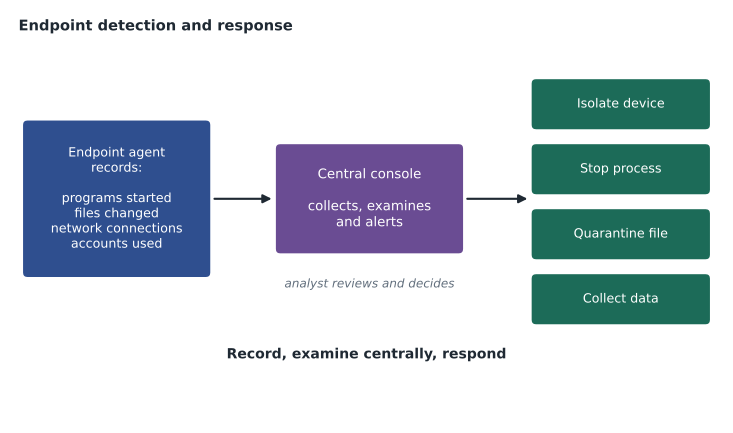
The response actions are what make EDR valuable during an incident. Isolating a device cuts it off from the network except for its connection to the console, so an analyst can keep investigating while the malware cannot spread. The tool can stop a process, quarantine a file, collect data for investigation and, in some products, roll back changes. In the Riverside case, isolation happened automatically within seconds of the blocked script, before anyone at Brightline had read the alert.
Several related terms appear in job postings and on the exam. Extended detection and response, or XDR, combines endpoint data with data from email, network, identity and cloud tools. Managed detection and response, or MDR, is a service in which an outside team watches the console around the clock, which suits small providers like Brightline that cannot staff a night shift. Endpoint protection platform, or EPP, is the industry's name for the prevention side: antivirus, firewall and device control.
Alerts, false positives and tuning
Not every alert is an attack. A false positive is an alert on something harmless, such as an accounting tool that legitimately runs scripts. A false negative is a real attack the tool missed, which is more dangerous because nobody knows to look. Every alert should be triaged: is it real, how serious is it, and does it need to be escalated? Keisha's rule was that an analyst who marks an alert as a false positive must write down why, so that the next person can check the reasoning.
When the same harmless activity triggers alerts again and again, the tool is tuned with an exclusion or an allow rule. Exclusions must be narrow and documented. An exclusion for a specific signed program in a specific folder is reasonable; an exclusion for an entire drive turns the protection off where an attacker would most like to hide.
Worked problem
Triage of an endpoint alert
The console shows an alert on a Kettle & Crumb office laptop: a program in the user's downloads folder tried to change the browser's search settings. The program is a free PDF converter the bookkeeper installed last week. No other devices show the same alert. How should Jordan triage it?
Show solution
- Identify: the program is a potentially unwanted program bundled with free software, not a confirmed attack.
- Scope: only one device is affected, and the activity is limited to browser settings.
- Severity: low, but the program was installed without approval, which breaks the baseline.
- Action: remove the program, reset the browser settings, run a full scan and confirm a clean result.
- Follow-up: remind the bookkeeper of the software policy and record the outcome in the ticket.
Answer: Treat it as a low-severity potentially unwanted program on one device: remove it, reset the browser, scan, document and follow up on the policy breach.
Removing malware safely
The exam expects familiarity with malware removal. A widely taught sequence for technicians has seven steps, and Brightline used a version of it for infections that the tools did not clean up on their own.
- Identify and research the symptoms, and confirm that malware is the likely cause.
- Quarantine the infected device by disconnecting it from the network or isolating it with EDR.
- Disable system restore points on Windows, so that infected restore points are not reused later.
- Remediate: update the protection tool, scan, and remove the malware, often in a safe or pre-boot scan mode.
- Schedule scans and confirm that automatic updates are running.
- Re-enable system restore and create a new, clean restore point.
- Educate the user about what happened and how to avoid it.
For serious infections the better answer is often to reimage the device, which means wiping it and reinstalling the operating system and applications from a known clean image, then restoring the user's data from a backup taken before the infection. Cleaning can miss hidden components, and a rootkit or remote access trojan may survive a scan. Keisha's rule was simple: if an attacker may have had control of the device, reimage it. Before reimaging, consider whether evidence needs to be preserved, which Lesson 10 covers.
Removing the malware is not the end. If the malware could have captured passwords, the user's passwords must be changed from a clean device, and active sessions should be signed out. If it reached other devices or accounts, the problem has become an incident that needs the process described in Lesson 9. In the Riverside case, the EDR data showed that the script never ran, no new connections were made and no files were changed. Keisha still had the laptop reimaged as a precaution, changed the paralegal's password, and added a mail-filter rule for the sender's domain.
Worked problem
Choosing between cleaning and reimaging
Two devices are flagged at Northfield Community Centre. Device A, a front-desk PC, has adware that changed the browser home page; the EDR history shows no other activity. Device B, a staff laptop, shows a remote access tool that was installed and connected to an unknown address three times over two days. What should be done with each?
Show solution
- Device A: the activity is limited and fully visible in the EDR history, so cleaning with the protection tool and resetting the browser is reasonable.
- Device B: someone may have had remote control for two days, so cleaning cannot be trusted.
- Device B is isolated, evidence is preserved if needed, the device is reimaged, and the user's passwords are changed from a clean device.
- Device B's connections are reviewed to see whether other systems or accounts were reached, which may turn the event into an incident.
Answer: Clean Device A; isolate, preserve, reimage and investigate Device B.
Common mistakes
MistakeRelying only on signature-based antivirus.
InsteadCombine signatures with behaviour monitoring, reputation and EDR.
MistakeClosing an alert as a false positive without notes.
InsteadRecord why it was judged harmless so others can check the reasoning.
MistakeWriting broad exclusions to stop noisy alerts.
InsteadKeep exclusions narrow, specific and documented.
MistakeCleaning a device that an attacker may have controlled.
InsteadReimage it from a known clean image and restore data from a clean backup.
MistakeForgetting passwords after an infection.
InsteadChange affected passwords from a clean device and sign out active sessions.
Summary and key terms
- Malware types include viruses, worms, trojans, ransomware, spyware, rootkits, remote access trojans, adware and fileless malware.
- Common routes in are email, websites, fake updates, USB drives and unpatched internet-facing systems.
- Modern protection combines signatures, heuristics, behaviour monitoring, reputation, machine learning and sandboxing.
- EDR records endpoint activity, examines it centrally and can isolate devices, stop processes and collect data.
- Alerts must be triaged, and exclusions kept narrow and documented.
- Removal follows a set sequence; when an attacker may have had control, reimage instead of cleaning.
- Malware
- Software designed to act against the interests of the device owner.
- Ransomware
- Malware that encrypts files or systems and demands payment.
- Rootkit
- Malware that hides itself or other malware deep in the system.
- Signature
- A pattern that identifies a known piece of malware.
- Behaviour monitoring
- Watching what programs do while they run to spot malicious actions.
- EDR
- Endpoint detection and response: recording, examining and responding to endpoint activity.
- False positive
- An alert on activity that turns out to be harmless.
- Reimage
- Wipe a device and reinstall it from a known clean image.
Practice problems
Work each problem on paper first, then reveal the answer to check.
Why can signature matching alone miss new malware?
Show answer
It only recognizes patterns that are already known, and attackers change their files to avoid them.
What does isolating a device with EDR do?
Show answer
It cuts the device off from the network except for the console, stopping spread while investigation continues.
What is the difference between EDR and MDR?
Show answer
EDR is the technology; MDR is a service where an outside team monitors and responds using it.
Why is a false negative more dangerous than a false positive?
Show answer
Nobody knows to investigate, so the attack continues unnoticed.
Why are Windows restore points disabled during malware removal?
Show answer
So that restore points that may contain the malware are not used to bring it back.
When should a device be reimaged rather than cleaned?
Show answer
When an attacker may have had control or hidden components may remain.
Lesson quiz · 5 questions
Score 60% or more to complete this lesson.
Create a free account to save your progress, take quizzes and earn a certificate.