
COMP-110 · Lesson 8 of 12 · 23 min
Operating systems
▶ Video coming soon A video version of this lesson is on the way.
Fairhaven's technology inventory lists seven operating systems, and Noor has to support all of them. Staff desktops run Windows 11. The design team in the communications office uses Macs. The public labs run Windows in a locked-down kiosk mode, while the children's area uses Chromebooks. The server room has Linux and Windows Server machines. Staff carry Android and iPhone phones for the branch apps. And the self-checkout kiosks, the print-release stations and the digital signage all run embedded systems that most people never think of as having an operating system at all. Lorna's advice is not to memorize seven sets of menus but to understand what every operating system is for, what its main parts are, and how the families differ. Tech+ covers this as identifying the components of an operating system and explaining its purpose.
What an operating system does
An operating system, or OS, is the software that manages a computer's hardware and provides services to applications and users. Without it, every program would have to know how to talk directly to every model of processor, drive, keyboard and network card. The operating system sits in between, so that a word processor can say "save this file" without knowing whether the drive is a hard disk, an SSD or a network share.
Its main jobs fall into a few groups. Process management decides which programs run on the processor and when, switching between them so quickly that many appear to run at once. Memory management gives each program its own area of RAM, keeps programs from interfering with one another, and moves data to virtual memory when RAM is full. File management organizes storage through the file system and controls access to files. Device management uses drivers to control hardware. Security and access control check who is signed in and what they are allowed to do. Finally, the user interface lets people give instructions, whether by clicking, tapping, speaking or typing commands.
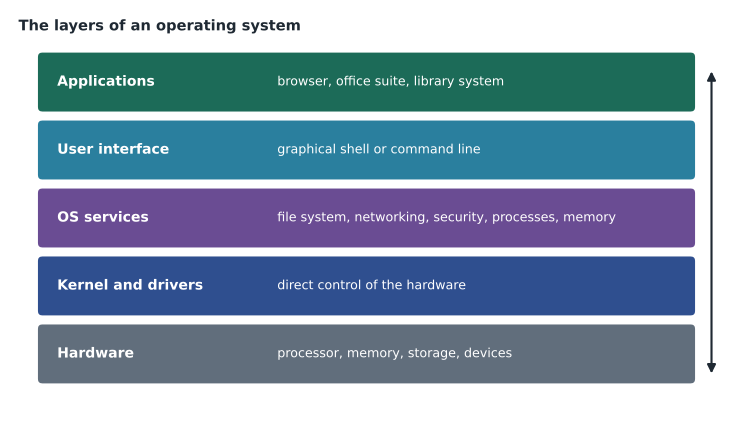
The parts of an operating system
The kernel is the core of the operating system. It runs with full control of the hardware, manages processes and memory, and handles requests from programs. Drivers, as lesson 4 described, are kernel-level software that control particular devices. The file system organizes data on storage. System services, called services on Windows and daemons on Linux and macOS, are background programs that provide features such as printing, networking, updates and indexing for search. The shell is the part users interact with: a graphical user interface, or GUI, with windows, icons, menus and a pointer, or a command-line interface, or CLI, where users type commands. Most desktop operating systems offer both.
Operating systems also provide utilities for managing the computer: a settings app or control panel, a task manager to see and end running programs, a disk management tool, a backup tool, an update service and a way to manage user accounts. Knowing where these tools live on each family of operating system is most of what a help desk technician needs day to day.
| Job | Windows tool | macOS tool | Linux tool |
|---|---|---|---|
| See and end running programs | Task Manager | Activity Monitor | System Monitor or top |
| Change settings | Settings and Control Panel | System Settings | Settings app of the desktop environment |
| Browse files | File Explorer | Finder | Files or another file manager |
| Install updates | Windows Update | Software Update | The package manager, such as apt |
| Command line | PowerShell and Command Prompt | Terminal | Terminal |
Desktop operating systems
Windows, made by Microsoft, is the most common desktop operating system in offices and public computer labs. It runs on a huge range of hardware from many makers and supports a vast library of business software. Windows comes in editions: Home for personal use, and Pro and Enterprise for organizations, which add features such as BitLocker drive encryption and the ability to join a corporate directory for central management. Windows 10 reached the end of free support in October 2025, so organizations like Fairhaven have moved to Windows 11, which requires a computer with a TPM security chip and a supported processor.
macOS, made by Apple, runs only on Apple's Mac computers. Because Apple designs both the hardware and the software, macOS is tightly integrated with its devices and with iPhones and iPads, which is one reason creative teams favour it. Linux is a family of open-source operating systems built on the Linux kernel and packaged as distributions, such as Ubuntu, Fedora and Debian. Linux runs most of the world's web servers and cloud systems, and is free to use and modify. ChromeOS, made by Google, is a lightweight operating system built around the Chrome browser and cloud services; Chromebooks start quickly, update themselves and are easy to manage centrally, which is why schools and the library's children's area use them.
Mobile, server and embedded operating systems
Mobile operating systems are designed for touchscreens, sensors, cellular radios and long battery life. Android, developed by Google and used by many phone makers, is the most widely used operating system in the world by number of devices. Apple's iOS runs on iPhones and iPadOS on iPads. Both install apps from curated app stores, run each app in a sandbox that limits what it can reach, and ask the user's permission before an app can use the camera, microphone, location or contacts. Mobile devices are often managed by organizations through mobile device management, which can enforce passcodes, install work apps and wipe a lost phone.
Server operating systems, such as Windows Server and server distributions of Linux, are built to run continuously and provide services to many users: file sharing, directories of user accounts, websites, databases and printing. They are usually managed remotely and often run without a graphical interface at all. Embedded and real-time operating systems run inside devices such as kiosks, printers, routers, cars and medical equipment. They are small, focused on one job, and in the case of real-time systems, built to respond within strict time limits, such as a car's braking system. Users rarely see them, but they still need updates, which usually arrive as firmware.
Open source and proprietary
Operating systems differ in how they are licensed. Proprietary, or closed-source, operating systems such as Windows, macOS and iOS are owned by a company that controls the source code and sets the license terms. Open-source operating systems such as Linux publish their source code under licenses that let anyone read, modify and share it. Android is a mix: its core is open source, but the versions on most phones include proprietary Google apps and services. Open source does not automatically mean free of cost, and proprietary does not mean less secure; both models have strengths, and lesson 9 returns to software licensing in more detail.
32-bit and 64-bit
Processors and operating systems are built for a word size, the amount of data handled in one operation. A 32-bit operating system can use only about 4 GB of RAM, which is far too little today. Modern desktop operating systems are 64-bit, which allows vastly more memory, and Windows 11 and current macOS versions are available only in 64-bit form. You may still meet old 32-bit programs; 64-bit Windows can run most of them, but 32-bit drivers will not work on it.
The command line
Every desktop operating system has a command-line interface, and many support tasks are faster there than in menus. Tech+ does not expect you to be a command-line expert, but it does expect you to know that commands exist and what a few basic ones do. A command is typed at a prompt and run with Enter. Here are commands that show basic system information on each family; the output varies by computer.
systeminfo
winver
hostnamesw_vers
uname -m
hostnamecat /etc/os-release
uname -r
df -hUpdates and support life
Operating systems receive regular updates that fix security weaknesses, repair bugs and sometimes add features. Windows releases security updates on a monthly schedule and larger feature updates about once a year. macOS and iOS update several times a year, with a major version each autumn. Linux distributions publish updates through their package repositories. Every operating system version eventually reaches the end of support, after which it receives no more security fixes; running an unsupported operating system on a networked computer is a serious risk, which is why the library replaced its last Windows 10 machines before support ended. A technician should always know which version a computer runs and whether it is still supported.
User accounts and permissions
Every modern operating system supports several user accounts, each with its own files, settings and permissions. The operating system checks who is signed in, through a password, PIN, fingerprint, face recognition or security key, and then enforces what that account may do. Standard accounts can run programs and change their own settings. Administrator accounts can install software, change system settings and manage other accounts. On Windows, User Account Control asks for confirmation or an administrator password before a program makes system changes; on macOS and Linux, the system asks for an administrator's password, and on Linux the sudo command runs a single command with elevated rights. These prompts are a safety feature: an unexpected request for administrator rights is a reason to stop and ask why. Organizations also connect computers to a central directory, such as Microsoft Entra ID or Active Directory, so that staff can sign in to any library computer with one account and so that IT can manage permissions in one place.
Files, processes and multitasking
Two ideas explain a lot of operating system behaviour. A program is a set of instructions stored in a file; a process is a running instance of a program, with its own memory and resources. Opening three browser windows may create a dozen processes, one for each tab and extension, so that a crashed tab does not bring down the whole browser. The operating system's scheduler shares the processor among all running processes, giving each a slice of time many times per second. When a program stops responding, the operating system can end its process without restarting the whole computer, which is why Task Manager on Windows and Force Quit on macOS are among the most used tools on the help desk. Ending the wrong process, such as a system service, can make the computer unstable, so technicians check what a process is before ending it.
Operating systems also handle interruptions from hardware. When a key is pressed, a network packet arrives or a drive finishes reading, the hardware signals the processor with an interrupt, and the operating system pauses briefly to deal with it. This is how one computer can respond to typing, play music and download a file at the same time. When a driver handles interrupts badly, the result is often a frozen screen or a stop error, which is why drivers are among the first things a technician checks after a crash.
Worked problem
Choosing an operating system for a new program
The library is starting a homework help program in three branches and needs 30 computers for children aged 8 to 12. They will be used for web-based homework tools, video lessons and printing. The children's area staff have little technical time. Which operating system would Noor recommend, and why?
Show solution
- The work is entirely web-based, so any modern operating system with a current browser can run it.
- Children need a simple interface, and staff need machines that recover easily and update themselves without attention.
- ChromeOS fits well: Chromebooks start quickly, update automatically, keep little data on the device, and can be managed and locked down from a central console.
- Check that the library's printing system and any required homework tools support Chromebooks before ordering.
Answer: ChromeOS on centrally managed Chromebooks, after confirming that printing and the homework tools work with them.
Noor checks the print-release vendor's documentation, finds a supported Chromebook printing app, and sends the recommendation to Lorna. Lorna adds one thing: a test with three Chromebooks at one branch for two weeks before ordering the rest. "Every recommendation should have a way to prove itself wrong cheaply," she says.
Common mistakes
MistakeThinking an operating system is just the desktop you see.
InsteadThe kernel, drivers, file system and services do most of the work out of sight.
MistakeAssuming embedded devices need no updates.
InsteadKiosks, routers and printers get security fixes through firmware updates.
MistakeRunning an operating system past its end of support.
InsteadUnsupported systems get no security fixes; upgrade or replace them.
MistakeTreating open source as meaning no cost and no support.
InsteadLicensing and support are separate questions.
MistakeInstalling 32-bit drivers on 64-bit Windows.
InsteadDrivers must match the operating system's architecture.
Summary and key terms
- An operating system manages hardware and provides services to applications and users.
- Its jobs include process, memory, file and device management, security and the user interface.
- Main parts are the kernel, drivers, file system, services and a GUI or command-line shell.
- Desktop families are Windows, macOS, Linux and ChromeOS; mobile are Android, iOS and iPadOS.
- Server and embedded operating systems run services and devices, often without a screen.
- Proprietary and open-source systems differ in licensing, not automatically in quality or cost.
- Track every computer's OS version and support end date.
- Operating system
- Software that manages hardware and provides services to programs and users.
- Kernel
- The core of the operating system with full control of the hardware.
- Service
- A background program that provides a feature, called a daemon on Linux and macOS.
- GUI
- A graphical user interface with windows, icons and menus.
- CLI
- A command-line interface where users type commands.
- Distribution
- A packaged version of Linux, such as Ubuntu or Fedora.
- End of support
- The date after which a version receives no more security fixes.
Practice problems
Work each problem on paper first, then reveal the answer to check.
Name four jobs of an operating system.
Show answer
Process management, memory management, file management, device management; also security and the user interface.
What is the kernel?
Show answer
The core of the OS, which controls the hardware and manages processes and memory.
Which Windows tool shows running programs?
Show answer
Task Manager.
What is the macOS equivalent of File Explorer?
Show answer
Finder.
Why do schools often choose ChromeOS?
Show answer
It starts quickly, updates itself and is easy to manage centrally.
How much RAM can a 32-bit operating system use?
Show answer
About 4 GB.
Which Linux command shows free disk space in readable units?
Show answer
df -h.
Lesson quiz · 5 questions
Score 60% or more to complete this lesson.
Create a free account to save your progress, take quizzes and earn a certificate.