
COMP-110 · Lesson 12 of 12 · 22 min
Setting up a small office workstation
▶ Video coming soon A video version of this lesson is on the way.
The Northgate branch is opening a small community office in its back room for a newcomers' settlement worker who will meet clients three days a week, and Ruth Ingram has asked for one workstation: a desktop, two monitors, a printer and scanner, a headset for video calls and a reliable connection. Lorna gives the job to Noor from start to finish, as a way of bringing together everything in this course. "Plan it, build it, test it, and write it up so that anyone could do it again," she says. A workstation set up carefully on day one avoids months of small tickets later. This final lesson walks through the job in order and then covers the troubleshooting method that Tech+ expects every candidate to know, because something always needs fixing along the way.
Plan before unboxing
Start with the work, not the hardware. The settlement worker will run video calls with clients and interpreters, fill in government web forms, scan identity documents and print a few letters. That points to a current desktop with a mid-range processor and 16 GB of RAM, an SSD, two monitors so a form and a document can sit side by side, a headset with a microphone, a webcam, and a multifunction printer that scans. Because the office handles clients' personal documents, privacy matters as much as speed: the screen should not face the door, scans should go to a secure shared folder rather than the desktop, and the printer should not leave pages sitting in its tray.
Next, check the room. Is there a power outlet close enough, and is it on a circuit that is not shared with a heater or a kettle? Is there a wired network port, or will the computer use Wi-Fi? Northgate has a network port in the back room, and Dez confirms it is on the staff network rather than the public one. Is there a window that will put glare on the screens in the afternoon? Planning answers these questions before anyone carries in a box.
Power, surge protection and placement
Computers need clean, steady power. A surge protector, which is better than a plain power strip, guards against brief voltage spikes from storms or faulty equipment. An uninterruptible power supply, or UPS, adds a battery that keeps the computer running for a few minutes during a power cut, long enough to save work and shut down safely; it is worthwhile for anything that must not lose data mid-task. Laser printers draw a large surge of power when they warm up, so they should be plugged into the wall or a surge protector of their own, not into a UPS, which they can overload. Cables should be routed along the back of the desk and tied, so that nobody trips over them and nothing is pulled out by a chair.
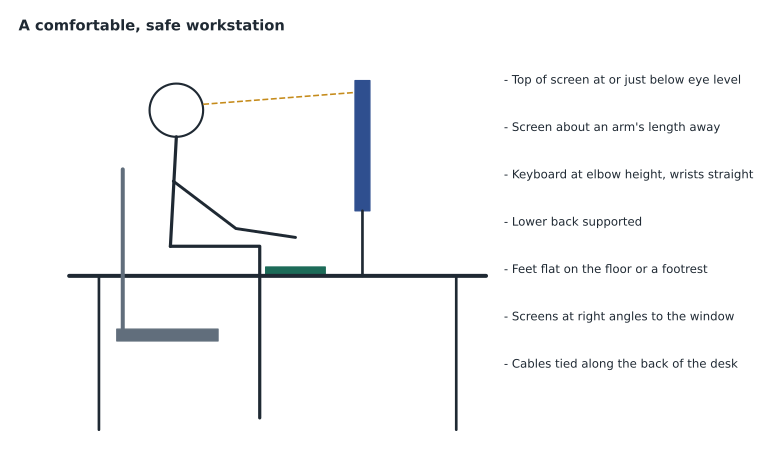
Placement matters for heat and health. Leave space around the desktop's vents, and keep it off thick carpet, which blocks air intakes. For the person using it, arrange the desk so the top of each monitor is at or slightly below eye level, about an arm's length away, with the main monitor straight ahead; the keyboard and mouse at elbow height so the wrists stay straight; feet flat on the floor or a footrest; and the screens at right angles to the window to avoid glare. These small adjustments reduce the neck, back and wrist strain that comes from sitting at a desk all day.
Connect and check the hardware
Connect the monitors first, using the best connection both ends support, usually DisplayPort or HDMI, and make sure the main monitor is on the output the computer will use at start-up. Connect the keyboard, mouse, webcam and headset by USB, using rear ports for devices that stay connected and keeping a front port free for occasional use. Connect the network cable. Power on the monitors, then the computer, and watch the firmware's start-up screen for errors. Once the operating system is running, check that every device is recognized: both monitors are detected and arranged in the right order in the display settings, the webcam shows a picture, the headset plays sound and records the microphone, and the network shows a connection with an address that is not a 169.254 self-assigned one.
Set up the operating system and accounts
Fairhaven's computers arrive enrolled in the library's management system, so much of the operating system setup happens automatically, but a technician must still understand each step. The computer is given a name that follows the library's naming pattern, such as NG-OFFICE-01, so it can be found in the inventory. It joins the library's directory so that staff sign in with their own accounts. The settlement worker gets a standard user account, not an administrator account. This principle, called least privilege, means a mistake or a malicious program running under her account cannot change system settings or install software, and it is one of the most effective security measures there is. Technicians use a separate administrator account only when they need it.
Then the computer is brought up to date: operating system updates, firmware updates for the computer and the monitors if available, and driver updates for the printer and webcam from trusted sources. Security settings are checked: the built-in antivirus is running, the firewall is on, the drive is encrypted with BitLocker, and the screen locks automatically after a few minutes of inactivity. The power settings are adjusted so the screens sleep after ten minutes but the computer stays awake during video calls. Accessibility settings, such as text size, contrast and dictation, are shown to the user so she knows they are there.
| Step | What to do | Why |
|---|---|---|
| Name and enrol | Apply the naming pattern; join the directory and management system | Find, manage and update it centrally |
| Accounts | Standard account for the user; separate admin account for IT | Least privilege limits damage from mistakes and malware |
| Updates | OS, firmware and drivers from trusted sources | Fix security weaknesses and bugs |
| Security | Antivirus on, firewall on, drive encrypted, screen lock set | Protect clients' personal information |
| Applications | Install approved apps through the management system | Licensed, supported and updated |
| Data | Point scans and documents to the secure shared folder | Backed up and access-controlled |
Applications, printers and data
Applications come from the library's management system and company portal, as lesson 9 described: the office suite, the browser with its approved extensions, the video-calling app and the scanning software that comes with the multifunction printer. The printer is a network printer with a reserved address, so it joins the staff network and is added to the computer by its name. Scanning is configured to send files straight to the settlement office's secure shared folder on the file server, where only the settlement worker and her supervisor have access, rather than to an email address or the desktop. The printer's secure-release feature is turned on, so that letters print only when the worker enters a PIN at the printer, which stops clients' documents from sitting in the tray where the next visitor might see them.
Data protection completes the setup. Because her documents live on the file server, which is backed up every night, a failed desktop would cost nothing but time. Her desktop and documents folders are redirected to the server or synced to the library's approved cloud storage, so nothing important lives only on the local SSD. Noor writes this down in the handover note: "Save everything in the Settlement folder or your Documents folder; do not save files on the desktop."
The troubleshooting method
No setup goes perfectly, and Tech+ expects candidates to know a structured troubleshooting method, the same one taught in A+. The method is a sequence of steps that stops technicians from guessing, changing several things at once, or fixing the symptom instead of the cause.
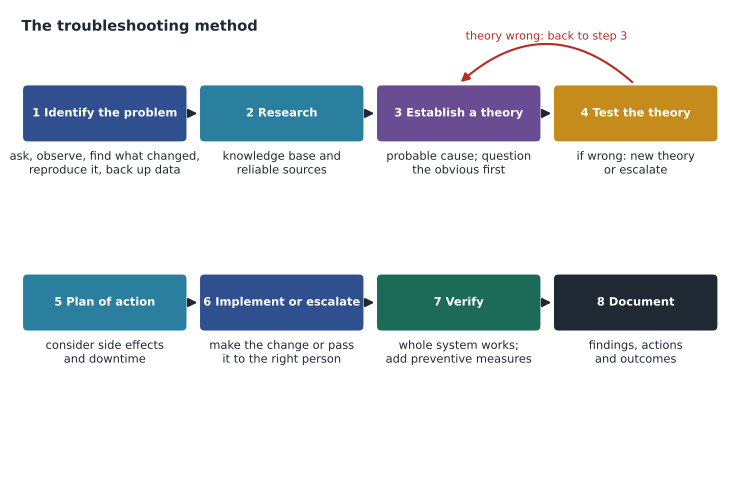
First, identify the problem: gather information from the user and the system, ask what has changed recently, find out whether it affects one person or many, try to reproduce it, and back up any data at risk before changing anything. Second, research the knowledge base and reliable sources for the exact symptoms or error message. Third, establish a theory of the most likely cause, starting with the simple and obvious, such as a loose cable or a switched-off device, before the complicated. Fourth, test the theory without making lasting changes; if it is wrong, form a new theory, and if you run out of ideas or permission, escalate. Fifth, make a plan of action that considers side effects, such as downtime or lost settings. Sixth, carry out the plan or escalate it to someone with the right access. Seventh, verify that the whole system works, not just the part you fixed, and add preventive measures so it does not happen again. Finally, document what you found, what you did and the outcome, so the next person can benefit.
Lorna asks Noor to say the steps aloud each time she uses them during the setup, until they become a habit.
Worked problem
The headset microphone does not work
During the test call, the settlement worker can hear the interpreter, but the interpreter cannot hear her. Apply the troubleshooting method.
Show solution
- Identify: sound out works, sound in does not; it is the new headset, on the new computer, in the calling app; nothing else has changed because everything is new. Try a quick sound recording outside the app: it records nothing either, so the problem is not only the calling app.
- Research: the knowledge base has an article on microphone privacy settings and default devices.
- Theory 1: the system is using the webcam's microphone, not the headset's. Test: the sound settings show the webcam microphone as the default input. Theory confirmed.
- Plan and implement: set the headset as the default input and output device, and select it in the calling app's audio settings too.
- Verify: a test call works in both directions, and the webcam microphone stays off so it does not pick up the room. Prevent: add the audio device check to the setup checklist.
- Document: record the cause, the fix and the checklist change in the ticket.
Answer: The computer was using the webcam's microphone. Setting the headset as the default input, in Windows and in the calling app, fixed it, and the check now appears on the setup checklist.
Hand over and close out
A workstation is not finished until the person who will use it has been shown how. Noor spends fifteen minutes with the settlement worker: signing in, where to save files, how to scan to the secure folder, how secure print release works, how to switch the camera and microphone in the calling app, how to lock the screen when stepping away, and how to contact the help desk. She leaves a one-page guide on the desk. Then she closes the ticket with a full note: what was installed and where, the computer's name and asset tag, the printer's address, the accounts and permissions set, the problems found and fixed, and the checklist used. The old equipment that the new workstation replaced is wiped securely and sent for recycling through the library's certified electronics recycler, because drives can hold personal data long after they have been retired.
Lorna reads the ticket that afternoon and makes one change to the library's standard setup checklist, adding Noor's audio device check. Then she tells Noor that the Tech+ objectives on infrastructure and applications are now covered, and that COMP-111 will pick up the second half of the exam: software development concepts, data and databases, and security. Noor's plan to sit the exam in March 2027 is still on track.
Common mistakes
MistakeGiving the user an administrator account.
InsteadUse a standard account; keep admin rights for IT tasks only.
MistakePlugging a laser printer into a UPS.
InsteadLaser printers can overload a UPS; use the wall or a surge protector.
MistakeSaving work on the local desktop.
InsteadSave to backed-up shared or synced folders.
MistakeChanging several things at once while troubleshooting.
InsteadTest one theory at a time so you know what fixed it.
MistakeClosing a ticket without documentation.
InsteadRecord what was found, done and verified for the next technician.
Summary and key terms
- Plan a workstation from the work it must support, including privacy and the room itself.
- Use surge protection, a UPS for critical systems, sensible placement and tidy cables.
- Set monitors at eye level, keyboards at elbow height and screens away from window glare.
- Connect and check every device, then name, enrol, update and secure the computer.
- Give users standard accounts under the principle of least privilege.
- Store data where it is backed up and access-controlled.
- Follow the troubleshooting method: identify, research, theorize, test, plan, implement, verify and document.
- Surge protector
- A device that guards equipment against brief voltage spikes.
- UPS
- An uninterruptible power supply that keeps equipment running briefly in a power cut.
- Least privilege
- Giving each account only the access it needs.
- Ergonomics
- Arranging work equipment to fit the human body and reduce strain.
- Asset tag
- A label identifying a device in an organization's inventory.
- Secure print release
- Holding print jobs until the user authenticates at the printer.
- Escalate
- Pass a problem to someone with more skill, access or authority.
Practice problems
Work each problem on paper first, then reveal the answer to check.
Why should a laser printer not be plugged into a UPS?
Show answer
Its warm-up power surge can overload the UPS.
Where should the top of a monitor sit?
Show answer
At or slightly below eye level, about an arm's length away.
What account type should a new staff member get, and why?
Show answer
A standard account, so mistakes and malware cannot change system settings.
Name four security checks for a new workstation.
Show answer
Antivirus running, firewall on, drive encrypted, screen lock set; also updates applied.
What is the first step of the troubleshooting method?
Show answer
Identify the problem.
What should you do if a tested theory is wrong?
Show answer
Form a new theory or escalate.
Why wipe drives before recycling old computers?
Show answer
They can still hold personal data.
Lesson quiz · 5 questions
Score 60% or more to complete this lesson.
Create a free account to save your progress, take quizzes and earn a certificate.