
COMP-110 · Lesson 5 of 12 · 24 min
Storage and file systems
▶ Video coming soon A video version of this lesson is on the way.
The local history room at the central library is digitizing its collection of photographs, and the archivist, a careful man who has spent thirty years keeping paper safe, brings Lorna a list of questions. Should the scans go on the staff computer, an external drive, the library's file server or the cloud? Why does the USB stick he bought refuse to take a file larger than 4 GB? Why does a drive formatted on a Mac show up as unreadable on his Windows laptop? And how can he be sure the files will still open in twenty years? Lorna asks Noor to answer the first three and to sit in on the fourth. The answers depend on two ideas that Tech+ tests: the types of storage and how they compare, and the file systems that organize data on them.
Volatile and non-volatile storage
Lesson 3 described RAM as volatile memory: fast, but emptied when the power goes off. Storage devices are non-volatile: they keep data without power, for years if they are cared for. Every computer needs both. Programs and files live on storage, are copied into RAM when they are used, and are written back to storage when they are saved. This is why saving matters: until a document is saved, the latest version exists only in RAM. Storage is slower than RAM but far larger and much cheaper per gigabyte.
Hard disk drives
A hard disk drive, or HDD, stores data magnetically on spinning metal platters. A read and write head on an arm moves across the platters, a little like the needle on a record player but without touching the surface. Desktop hard disks typically spin at 5400 or 7200 revolutions per minute. Because the head must physically move to the right place and wait for the right part of the platter to spin underneath, hard disks are slow to find data, especially when many small files are scattered across the platters. Their advantages are capacity and price: hard disks offer many terabytes for a modest cost, so they are still used for backups, archives and network storage. Their moving parts make them sensitive to being dropped while running, and they eventually wear out; a clicking or grinding noise is a warning to back up immediately.
Solid-state drives
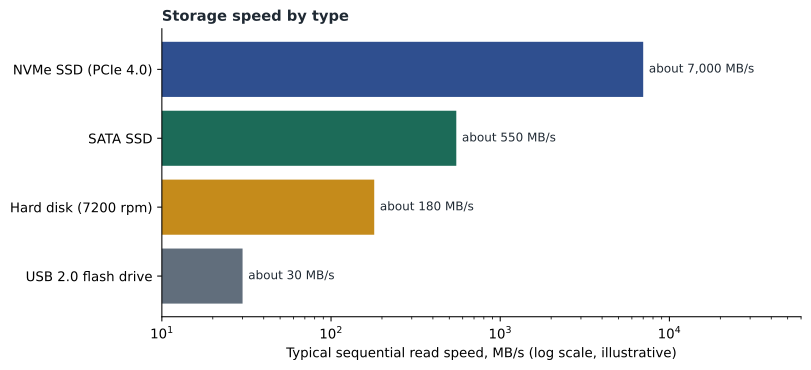
A solid-state drive, or SSD, stores data in flash memory chips with no moving parts. It can find any piece of data almost instantly, so computers with SSDs start, open programs and search files far faster than those with hard disks. SSDs are also silent, use less power, and survive bumps better, which is why nearly every laptop now uses one. SSDs come in two main connection types. SATA SSDs use the same cable and interface as hard disks and are limited to about 550 megabytes per second. NVMe SSDs plug into an M.2 slot or a PCIe slot and use the PCI Express bus directly, reaching several thousand megabytes per second. Flash memory cells can be written only a limited number of times, but modern SSDs spread writes across their cells and last for many years of normal use.
Removable and external storage
Flash drives, also called USB sticks or thumb drives, are small removable flash memory devices; they are convenient for moving files but easy to lose, and a lost flash drive with patron data on it is a privacy incident. Memory cards, such as SD and microSD cards, store photos and video in cameras, phones, drones and 3D printers. External drives are hard disks or SSDs in a case with a USB or Thunderbolt connection, used for backups and large file transfers. Optical discs, such as CDs, DVDs and Blu-ray discs, are read with a laser; they are now rare in offices but survive in library collections, and the local history room still has a drive to read donated discs.
Network and cloud storage
Storage does not have to be inside the computer you are using. Network-attached storage, or NAS, is a dedicated device with one or more drives that shares files over the local network; small offices use NAS boxes for shared folders and backups. A file server is a computer that does the same job with more management features, and Fairhaven's central library has one in its server room for staff shared drives. Cloud storage keeps files on a provider's servers on the internet, such as OneDrive, Google Drive, Dropbox or iCloud, and syncs them to each device. Cloud storage makes files available from anywhere and protects them from a local disaster such as a fire, but it depends on an internet connection and on the provider's security and policies, and organizations must check where the data is stored and who can see it. Lesson 10 covers cloud services in more depth.
| Storage type | Strengths | Weaknesses | Typical use |
|---|---|---|---|
| Hard disk (HDD) | Large capacity, low cost per TB | Slow to find data, moving parts | Backups, archives, NAS |
| SATA SSD | Much faster than HDD, no moving parts | Limited by the SATA interface | Upgrading older computers |
| NVMe SSD | Fastest common storage | Costs more per TB | Main drive in new computers |
| Flash drive or memory card | Small, portable | Easy to lose; often slow | Moving files, cameras, 3D printers |
| NAS or file server | Shared, central, can be backed up together | Needs the local network | Shared office folders |
| Cloud storage | Available anywhere; off site | Needs internet; provider policies | Syncing and sharing files |
Measuring and choosing storage
When choosing storage, ask four questions. How much capacity is needed now and in three to five years? How fast must it be, and for what kind of access: many small files or a few large ones? Where must it be accessible from: one computer, the local network or anywhere? How must it be protected: against loss, theft, failure or disaster? The archivist's scans are large image files, perhaps 100 megabytes each in an archival format, and there will be about 40,000 of them. That is about 4 terabytes, growing every year. They must be shared with two other staff, protected against failure and kept for decades. A single external drive fails most of those tests.
scans = 40_000
mb_each = 100
total_tb = scans * mb_each / 1_000_000
print('Total size:', total_tb, 'TB')
for name, speed_mb_s in [('USB 2.0 flash drive', 30), ('Hard disk', 180), ('SATA SSD', 550)]:
    hours = scans * mb_each / speed_mb_s / 3600
print(f'{name}: about {hours:.1f} hours to copy everything')Total size: 4.0 TB USB 2.0 flash drive: about 37.0 hours to copy everything Hard disk: about 6.2 hours to copy everything SATA SSD: about 2.0 hours to copy everything
What this code does
It multiplies 40,000 scans by 100 MB each to get the total size of the collection, 4 TB. It then divides that size by the typical speed of three storage devices to estimate copying time. The output shows about 37 hours on a USB 2.0 flash drive but only about 2 hours on a SATA SSD.
File systems
A drive on its own is just a very large set of numbered blocks. A file system is the structure that organizes those blocks into files and folders, records each file's name, size, dates and permissions, and keeps track of which blocks are free. Before a drive can be used, it is partitioned, divided into one or more sections, and each partition is formatted with a file system. Formatting erases the existing structure, so formatting the wrong drive is one of the fastest ways to lose data.
Different operating systems use different file systems. NTFS is the standard file system for Windows; it supports very large files, permissions on each file and folder, encryption and journaling, which helps it recover from crashes. APFS is the standard file system for macOS and iOS, designed for SSDs, with built-in encryption and snapshots. ext4 is the common file system for Linux. FAT32 is an old, simple file system that nearly every device can read, but it cannot store a single file larger than 4 GB. exFAT is a newer version designed for flash drives and memory cards; it removes the 4 GB file limit and is readable by Windows, macOS and many cameras and televisions.
This explains two of the archivist's questions. His new USB stick came formatted as FAT32, so it refuses any file over 4 GB; reformatting it as exFAT fixes that, after copying anything already on it somewhere safe. The drive that will not open on his Windows laptop was formatted on a Mac as APFS, which Windows cannot read without extra software; for a drive that must move between Windows and macOS, exFAT is the usual choice. For drives that stay inside one computer, the operating system's own file system, NTFS, APFS or ext4, is best because it supports permissions and recovers better from crashes.
Try it yourself
Choosing a file system
Write choose_fs(largest_file_gb, used_on) that returns the best file system name for a removable drive. used_on is a set of operating systems such as {'windows'}, {'mac'} or {'windows', 'mac'}. Rules: if only Windows, return NTFS; if only Mac, return APFS; if both, return exFAT. (In real life FAT32 is chosen only for very old devices, and it cannot hold files over 4 GB.)
def choose_fs(largest_file_gb, used_on):
    return ''
Files, folders and paths
Inside a file system, files are organized into folders, also called directories, which can contain other folders. The full location of a file is its path. On Windows, paths start with a drive letter and use backslashes, such as C:\Users\nabbasi\Documents\budget.xlsx. On macOS and Linux, paths start from a single root, shown as a forward slash, and use forward slashes, such as /Users/nabbasi/Documents/budget.xlsx. Network locations on Windows can be written as a UNC path with two backslashes and the server name, such as \\central-fs\history\scans. Knowing how to read and type a path saves a great deal of time when walking a user through finding a file.
Most files have an extension, the letters after the last dot in the name, that tells the operating system which kind of file it is and which application should open it: .docx for a Word document, .xlsx for a spreadsheet, .pdf for a portable document, .jpg and .png for images, .tif for archival images, .mp4 for video, .zip for a compressed archive and .exe for a Windows program. Windows hides known extensions by default, which lets malicious files disguise themselves, so many technicians turn extensions on. A file named invoice.pdf.exe is a program pretending to be a document.
Permissions and attributes
File systems such as NTFS, APFS and ext4 record who may do what with each file and folder. Typical permissions include read, write, modify and execute, granted to users and groups. Permissions are what keep the local history room's master scans safe from accidental changes by staff who only need to view them: the archivist has modify permission, and everyone else has read only. Files also have attributes, such as hidden, read-only and system on Windows. A user who "cannot save" a file is often working on a read-only file or in a folder where they lack write permission, rather than facing a broken program.
Keeping files usable for decades
The archivist's fourth question, about files opening in twenty years, is about preservation rather than storage hardware. Drives fail, file systems change and software disappears. Archives protect against this by keeping several copies in different places, checking the copies regularly against a fingerprint called a checksum to detect silent damage, moving data to new media every few years, and choosing open, well-documented file formats such as TIFF for images and PDF/A for documents. Lorna and the archivist agree on the plan: master scans on the central file server, which is backed up nightly, a second copy on the library's cloud storage in a Canadian region, and a yearly check of every file's checksum. Noor writes it up as a one-page procedure.
Worked problem
Answering the archivist
Summarize the recommendation for the 40,000 scans and explain why each part is there.
Show solution
- Store the master scans on the central file server: about 4 TB is well within its capacity, the two other staff can reach it, and NTFS permissions can make the masters read-only for everyone but the archivist.
- Back up the file server nightly, as it already is, so a failed drive or accidental deletion can be recovered.
- Keep a second copy in the library's cloud storage so a fire or flood at the central library cannot destroy every copy.
- Use exFAT only on removable drives that must move between Windows and Mac; keep archival formats such as TIFF; check checksums once a year.
Answer: File server for the masters with permissions and nightly backups, a cloud copy off site, exFAT for any shared removable drive, and yearly checksum checks.
Common mistakes
MistakeTreating a single external drive as a safe archive.
InsteadKeep several copies in different places and check them regularly.
MistakeAssuming a USB stick is faulty when it rejects a large file.
InsteadFAT32 cannot store files over 4 GB; use exFAT.
MistakeFormatting a drive to fix it without checking its contents.
InsteadFormatting erases the file system; copy data off first.
MistakeHiding file extensions.
InsteadShow them so disguised programs such as .pdf.exe stand out.
MistakeIgnoring a clicking hard disk.
InsteadBack up immediately; clicking often means the drive is failing.
Summary and key terms
- Storage is non-volatile; RAM is volatile; work must be saved to storage to survive a power cut.
- Hard disks are large and cheap but slow; SSDs are much faster; NVMe SSDs are the fastest common type.
- Removable, network and cloud storage each trade convenience against risk.
- A file system organizes a partition into files and folders; formatting erases it.
- NTFS, APFS and ext4 are the main Windows, macOS and Linux file systems; exFAT suits shared removable drives; FAT32 has a 4 GB file limit.
- Paths, extensions and permissions decide where files are, what opens them and who can change them.
- HDD
- A hard disk drive that stores data on spinning magnetic platters.
- SSD
- A solid-state drive that stores data in flash memory with no moving parts.
- NVMe
- A fast protocol for SSDs that uses the PCI Express bus.
- NAS
- Network-attached storage that shares files over the local network.
- File system
- The structure that organizes data on a partition into files and folders.
- Partition
- A section of a drive formatted with its own file system.
- Path
- The full location of a file, such as C:\Users\name\file.txt.
- Checksum
- A short fingerprint computed from a file, used to detect changes.
Practice problems
Work each problem on paper first, then reveal the answer to check.
Why does unsaved work disappear in a power cut?
Show answer
It exists only in volatile RAM until it is saved to storage.
Which file system cannot store a single file over 4 GB?
Show answer
FAT32.
Which file system would you choose for a flash drive shared between Windows and macOS?
Show answer
exFAT.
Name two advantages of an SSD over a hard disk.
Show answer
Much faster access and no moving parts; also quieter and lower power.
What does the path \\central-fs\history point to?
Show answer
A shared folder named history on a server called central-fs.
A file is called report.pdf.exe. What is it really?
Show answer
A Windows program pretending to be a PDF.
Why keep a copy of important files in the cloud as well as on a local server?
Show answer
So a local disaster such as a fire cannot destroy every copy.
Lesson quiz · 5 questions
Score 60% or more to complete this lesson.
Create a free account to save your progress, take quizzes and earn a certificate.