
COMP-110 · Lesson 3 of 12 · 23 min
Computer components
▶ Video coming soon A video version of this lesson is on the way.
Every spring the library replaces a batch of public-access computers, and this year Lorna asks Noor to help write the specification. The branches have strong opinions. Northgate's teen program wants machines that can run video editing software. The genealogy group at the central library wants large screens and fast searches through scanned records. The finance office wants the cheapest machines that will still last five years. Writing a sensible specification means knowing what each part inside a computer does, how parts limit one another, and which numbers on a product sheet actually matter. Tech+ calls this explaining the purpose of common internal computing components, and it is one of the areas that a help desk technician uses every week, because nearly every performance complaint ends with the question "which part is holding it back?"
The motherboard
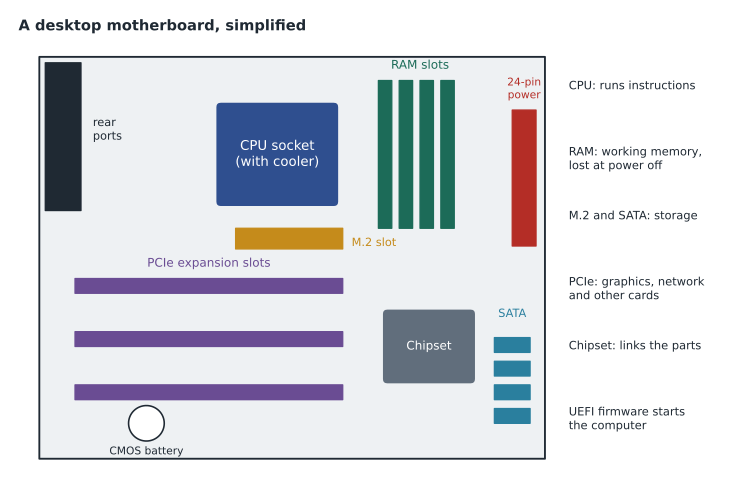
The motherboard, also called the system board or mainboard, is the large circuit board that every other part connects to. It holds the socket for the processor, the slots for memory, the connectors for storage drives, the expansion slots for add-in cards, the rear ports for keyboards, displays and networks, and the chip that stores the firmware. Printed copper traces carry power and data between the parts. A chipset on the board manages communication between the processor and the slower parts of the system, such as USB ports and storage connectors. On laptops, tablets and phones the motherboard is much smaller and many parts are soldered directly to it, which is why they are harder to upgrade.
Motherboards come in standard sizes called form factors. ATX is the common full-size desktop board, microATX is a smaller version with fewer slots, and Mini-ITX is smaller still, used in compact computers. The form factor decides which case and power supply fit. Tech+ does not expect you to memorize board dimensions, but it does expect you to know that the motherboard determines what can be installed: which processors fit the socket, how much and what type of memory the slots accept, and how many drives and cards can be added.
The processor
The central processing unit, or CPU, is the part that runs instructions. It fetches an instruction from memory, decodes what it means, executes it and stores the result, billions of times per second. Three numbers describe a processor's performance. Clock speed, measured in gigahertz, is how many cycles it completes each second. Cores are independent processing units inside one chip; a processor with eight cores can work on eight streams of instructions at once, which helps when several programs run together or when software is written to split work. Cache is a small amount of very fast memory built into the processor that holds the data it is using right now, so it does not have to wait for the slower main memory. More cores and more cache usually matter more for everyday performance than a slightly higher clock speed.
Processors are designed around an architecture, the set of instructions they understand. Most desktop and laptop computers running Windows use the x86-64 architecture from Intel and AMD. Phones, tablets, Apple computers since 2020 and a growing number of Windows laptops use ARM-based processors, which are designed to use very little power and produce little heat. Software must be built for the architecture it runs on, although translation layers let some programs written for one architecture run on another, usually more slowly. When a patron asks why an app is available on one device and not another, architecture is sometimes the reason.
Processors produce heat, and a processor that gets too hot slows itself down to avoid damage, which is called thermal throttling. That is why a desktop processor sits under a heat sink and fan, with thermal paste between them to carry heat away, and why a laptop that is used on a soft bed or has a fan clogged with dust becomes slow. A desktop that suddenly runs slowly after years of good service may need cleaning rather than replacing.
Memory
Random access memory, or RAM, is the computer's working memory. When you open a program, the operating system copies it from storage into RAM, along with the files you are working on, because RAM is many times faster than any drive. RAM is volatile: its contents disappear when the power goes off, which is why unsaved work is lost in a power cut. The amount of RAM decides how many programs and browser tabs can be open at once before the computer slows down. When RAM fills up, the operating system moves some of its contents to a reserved area of the drive, called virtual memory or a page file, and because the drive is much slower, everything stalls.
Desktop memory comes on modules that clip into slots on the motherboard, and laptop memory uses smaller modules or is soldered on. Each generation of memory, such as DDR4 and DDR5, has a different shape and electrical design, so modules of one generation will not fit a board made for another. For everyday office and public-access use, 8 GB is the practical minimum in 2026 and 16 GB is comfortable; video editing and other demanding work benefit from 32 GB or more. Read-only memory, or ROM, is different: it holds data that is not meant to change in normal use, such as the firmware chip on the motherboard.
| Component | What it does | Numbers on a product sheet |
|---|---|---|
| Processor (CPU) | Runs instructions | Cores, clock speed in GHz, cache in MB |
| Memory (RAM) | Holds programs and data in use | Capacity in GB, generation such as DDR5 |
| Storage drive | Keeps data when the power is off | Capacity in GB or TB, type such as NVMe SSD |
| Graphics (GPU) | Draws images and video | Integrated or dedicated, video memory in GB |
| Power supply | Converts mains power for the parts | Wattage, efficiency rating |
| Network adapter | Connects to wired or wireless networks | Speed such as 1 Gbps, Wi-Fi generation |
Graphics
The graphics processing unit, or GPU, turns data into the images you see on screen. Most office computers and laptops use integrated graphics, built into the processor and sharing the main RAM; integrated graphics are fine for documents, web browsing and video playback. A dedicated graphics card is a separate expansion card with its own processor and video memory, and it is needed for 3D games, video editing, computer-aided design and many artificial intelligence workloads. Dedicated cards use a lot of power and produce a lot of heat, so they often need extra power connectors from the power supply.
Storage drives
Storage drives keep programs and files when the power is off. Lesson 5 covers them in detail, but for a specification the key fact is simple: a solid-state drive, or SSD, is dramatically faster than a traditional hard disk drive, or HDD, because it has no moving parts. Replacing a hard disk with an SSD is often the single most noticeable upgrade for an older computer. Drives connect through SATA cables or plug directly into an M.2 slot on the motherboard, and the fastest SSDs use the NVMe protocol over the PCI Express bus.
Expansion cards and slots
Expansion slots let you add capabilities to a desktop. The current standard is PCI Express, or PCIe, which comes in different lengths, written as x1, x4, x8 and x16, according to how many data lanes the slot has. Graphics cards use the long x16 slot. Other cards include network interface cards for faster or additional network connections, sound cards for studio-quality audio, capture cards for recording video, and cards that add more USB or storage ports. Most of these functions are already built into modern motherboards, so expansion cards are less common than they once were, but they remain the way to add a capability a board lacks.
Power and cooling
The power supply unit, or PSU, converts alternating current from the wall into the low-voltage direct current the parts need. It is rated in watts, and it must provide enough power for every part with some headroom; a high-end graphics card can draw more power than the rest of the computer combined. Efficiency ratings indicate how much power is wasted as heat. Power supplies contain capacitors that can hold a dangerous charge even when unplugged, so technicians replace them as a whole unit and never open them. Laptops use an external power adapter and an internal battery instead, and the battery wears out over a few years of charging, which is why an older laptop may last only an hour away from the wall.
Cooling keeps parts within safe temperatures. Desktops use fans in the case and on the processor cooler, sometimes with liquid cooling for powerful processors. Fans pull in dust, so vents and heat sinks need occasional cleaning with compressed air. Overheating shows up as fans running loudly, sudden slowdowns, or the computer shutting itself off without warning.
Firmware, settings and the CMOS battery
The firmware on the motherboard, UEFI on modern computers and BIOS on older ones, starts the computer. When you press the power button, the firmware runs a power-on self-test to check the main hardware, then looks for a drive to start from in the order set in its boot settings, then hands control to the operating system. UEFI also supports Secure Boot, a feature that checks the operating system loader is signed by a trusted publisher, which helps block some kinds of malware. Firmware settings, such as the boot order and the date and time, are stored on the board; on many computers a small coin-shaped battery, traditionally called the CMOS battery, keeps the clock running when the computer is unplugged. A desktop that shows the wrong date every time it is unplugged probably has a flat CMOS battery.
Worked problem
Specifying three kinds of public computer
Lorna asks Noor to suggest a minimum specification for three uses: (a) the general public lab, used for browsing, email, job applications and printing; (b) the teen media lab, used for video editing; (c) the genealogy room, used to search large scanned archives and view high-resolution images on two screens.
Show solution
- (a) General lab: a current mid-range processor with at least four cores, 16 GB of RAM to handle many browser tabs, a 256 GB or larger SSD, integrated graphics and a wired network adapter.
- (b) Media lab: a processor with more cores, 32 GB of RAM, a 1 TB NVMe SSD for video files, and a dedicated graphics card with its own video memory; check the power supply is rated for the card.
- (c) Genealogy room: 16 to 32 GB of RAM for large images, a fast NVMe SSD for searching, and graphics with two display outputs; integrated graphics can often drive two screens.
- For all three, choose models with good warranty support and easy access for cleaning, because public computers run all day.
Answer: Scale the processor, memory, storage and graphics to the work: 16 GB and an SSD for the general lab, 32 GB and a dedicated GPU for video, and plenty of RAM with dual display outputs for the genealogy room.
Finding the bottleneck
A bottleneck is the part that limits overall performance. Upgrading anything else will not help until the bottleneck is removed. On a slow computer, open Task Manager on Windows or Activity Monitor on macOS and watch what is busy. If the processor is near full use while you work, the processor is the bottleneck. If memory is nearly full and the drive is busy, the computer is short of RAM and is using virtual memory. If the drive is constantly at full activity while the processor is idle, an old hard disk is probably the bottleneck. This simple check, which takes two minutes, prevents the common mistake of buying a faster processor for a computer that really needed more memory or an SSD.
Noor tries it on an old staff computer at Northgate that Ruth Ingram calls "unbearable." The processor sits at about a quarter of its capacity, memory is fine, but the disk shows full activity for minutes at a time. The computer still has a hard disk from 2019. Lorna approves an SSD swap instead of a replacement, and the machine starts in under twenty seconds afterwards. Noor adds the before-and-after numbers to the specification document as an example for the finance office.
Common mistakes
MistakeJudging a processor by clock speed alone.
InsteadCores and cache often matter more than a small difference in GHz.
MistakeThinking RAM keeps data when the power is off.
InsteadRAM is volatile; storage drives keep data.
MistakeBuying a faster processor for a slow computer without checking.
InsteadFind the bottleneck first: CPU, memory or drive.
MistakeAssuming any memory module fits any computer.
InsteadMemory generations such as DDR4 and DDR5 are not interchangeable.
MistakeOpening a power supply to repair it.
InsteadReplace the whole unit; its capacitors can hold a dangerous charge.
Summary and key terms
- The motherboard connects every component and decides what can be installed.
- The CPU runs instructions; cores, cache and clock speed describe its performance.
- RAM is fast, volatile working memory; too little causes slowdowns as the system uses virtual memory.
- Integrated graphics suit everyday work; dedicated graphics cards are needed for 3D, video and AI workloads.
- SSDs are much faster than hard disks and are often the best upgrade for an older computer.
- UEFI firmware tests the hardware, finds a boot drive and starts the operating system.
- Find the bottleneck before recommending an upgrade.
- CPU
- The central processing unit, which runs instructions.
- Core
- An independent processing unit inside a CPU.
- Cache
- Small, very fast memory inside or beside the processor.
- RAM
- Random access memory: fast, volatile working memory.
- GPU
- The graphics processing unit, which draws images and video.
- PCIe
- PCI Express, the standard expansion slot and bus.
- UEFI
- Modern motherboard firmware that starts the computer.
- Bottleneck
- The component that limits overall performance.
Practice problems
Work each problem on paper first, then reveal the answer to check.
What does the chipset do?
Show answer
Manages communication between the processor and slower parts such as USB and storage.
Why does a computer with too little RAM slow down?
Show answer
It moves data to virtual memory on the much slower drive.
Name two architectures used by processors today.
Show answer
x86-64 and ARM.
Which slot does a graphics card use?
Show answer
A PCIe x16 slot.
A desktop always shows the wrong date after being unplugged. What is the likely cause?
Show answer
A flat CMOS battery.
What is thermal throttling?
Show answer
A processor slowing itself down to avoid overheating.
Task Manager shows the disk at full activity and the CPU nearly idle. What upgrade helps most?
Show answer
Replacing the hard disk with an SSD.
Lesson quiz · 5 questions
Score 60% or more to complete this lesson.
Create a free account to save your progress, take quizzes and earn a certificate.