
VIS-120 · Lesson 4 of 12 · 24 min
Video files: containers, codecs and data rates
Video multiplies every still-image consideration by thousands of frames. A camera's menu might offer a bewildering list: MP4 or MOV, H.264 or H.265, Long GOP or All-Intra, 4:2:0 or 4:2:2, 8-bit or 10-bit, 100 or 600 Mbps, 23.98 or 25 frames per second. Each choice affects image quality, how much latitude remains for color grading, how smoothly the footage edits, and how much storage the project consumes. This lesson explains the difference between containers and codecs, how video compression works, the main codec families for acquisition, editing and delivery, chroma subsampling and bit depth, frame rates, and how to calculate storage requirements.
Containers and codecs
A video file has two layers. The container, or wrapper, is the file format that holds the streams and metadata: MP4, MOV (QuickTime), MXF (used in broadcast and professional cameras), MKV and others. The codec (coder–decoder) is the method used to compress each stream: H.264, H.265, ProRes, DNxHR and so on for video, and AAC, PCM (uncompressed) or others for audio. The same codec can live in different containers, and one container can hold several streams, such as video, multiple audio tracks, timecode and subtitles. When software reports that it "cannot play an MOV", the real problem is usually that it does not support the codec inside. Checking files with a tool such as MediaInfo shows exactly what a file contains.
How video compression works
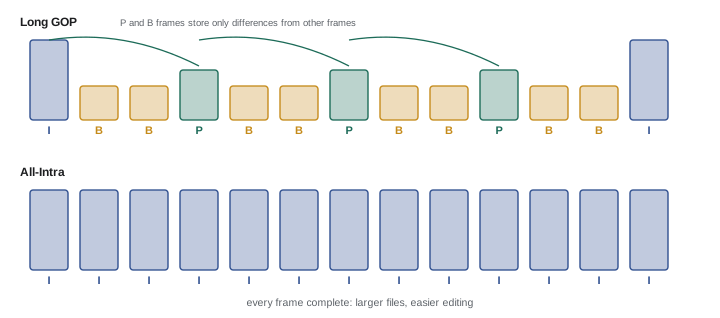
Video codecs use two kinds of compression. Intra-frame (spatial) compression compresses each frame independently, much as JPEG compresses a still image. Inter-frame (temporal) compression exploits the fact that consecutive frames are usually very similar: instead of storing every frame completely, the codec stores occasional complete frames and, for the frames in between, only the differences, using motion vectors that describe how blocks of the image moved.
Inter-frame codecs organize frames into a group of pictures (GOP). I-frames (intra frames) are complete images; P-frames (predicted) store changes from earlier frames; B-frames (bidirectional) store changes relative to both earlier and later frames. A Long GOP structure, with an I-frame every dozen or more frames, achieves very high compression and is used in H.264 and H.265 cameras and in all streaming delivery. All-Intra (All-I) codecs compress every frame independently, producing larger files but footage that is easier for editing software to decode, more robust to fast motion and less prone to artifacts in complex scenes.
Acquisition, editing and delivery codecs
Codecs are often grouped by purpose:
- Acquisition codecs record in camera. Consumer and many professional cameras use H.264 (AVC) or H.265 (HEVC) in Long GOP or All-Intra forms; higher-end cameras record Apple ProRes, Avid DNxHR, XAVC, or raw formats such as Blackmagic RAW, REDCODE, ARRIRAW and ProRes RAW.
- Editing (intermediate or mezzanine) codecs are designed for smooth playback and repeated rendering with minimal quality loss: ProRes 422, ProRes 422 HQ and ProRes 4444, and DNxHR HQ, HQX and 444. Long GOP camera footage is often transcoded to these, or to lightweight proxies, for editing (Lesson 9).
- Delivery codecs are chosen for the final destination: H.264 or H.265 for web and streaming platforms, AV1 increasingly for streaming services, ProRes or DNxHR masters for broadcasters and post-production houses, and JPEG 2000 in a Digital Cinema Package (DCP) for theatrical projection.
| Codec | Compression type | Typical bit depth / sampling | Main use |
|---|---|---|---|
| H.264 (AVC) | Long GOP or All-I | 8-bit 4:2:0 (some 10-bit 4:2:2) | Consumer capture, web delivery |
| H.265 (HEVC) | Long GOP or All-I | 8–10-bit 4:2:0 or 4:2:2 | Efficient capture, HDR delivery |
| ProRes 422 HQ | Intra-frame | 10-bit 4:2:2 | Editing, mastering, capture |
| ProRes 4444 | Intra-frame | 12-bit 4:4:4 with alpha | VFX, graphics, high-end masters |
| DNxHR HQX | Intra-frame | 10-bit 4:2:2 | Editing on Avid and others |
| Raw (BRAW, R3D, ProRes RAW) | Raw, often compressed | 12-bit or more | High-end capture, grading latitude |
| AV1 | Long GOP | 8–10-bit | Streaming delivery |
Chroma subsampling
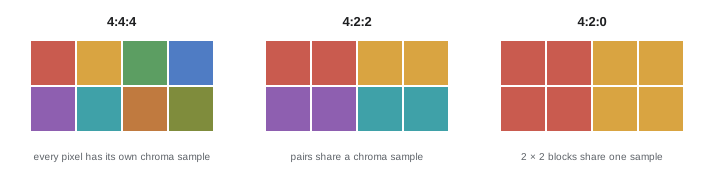
Like JPEG, video codecs usually store color at lower resolution than brightness. Chroma subsampling is written as a three-number ratio describing a block of pixels four wide and two high: the first number is the luminance samples per row (4), the second is the chroma samples in the first row, and the third is the chroma samples in the second row.
- 4:4:4: full color resolution, used for high-end mastering, graphics and visual effects.
- 4:2:2: half horizontal color resolution, standard for broadcast and professional production; it holds up well for green screen keying and grading.
- 4:2:0: half horizontal and half vertical color resolution, used in most consumer cameras and all streaming delivery; adequate for viewing but limiting for keying and heavy grading.
Combined with bit depth, these settings determine grading latitude: 10-bit 4:2:2 footage tolerates much more manipulation than 8-bit 4:2:0, which can show banding in skies and blocky edges in keys. When a camera offers 10-bit 4:2:2, it is usually worth choosing for footage that will be graded, especially in log profiles.
Frame rates, scan and timecode
Common frame rates are 24 (and 23.976) fps for cinema and drama, 25 and 50 fps in regions with 50 Hz television standards, and 30 (29.97) and 60 (59.94) fps in regions with 60 Hz standards. The fractional rates, such as 23.976 and 29.97, are legacies of color television that persist in North American broadcast and many camera settings. Shooting at higher frame rates, such as 120 fps, and playing back at 24 fps produces slow motion. Footage shot at different frame rates must be planned carefully: mixing 25 fps and 29.97 fps clips in one timeline causes stutter or requires conversion. Shutter speed is traditionally set to about twice the frame rate (the 180° shutter rule), such as 1/50 s at 24 or 25 fps, for natural motion blur.
Timecode labels every frame with hours, minutes, seconds and frames, allowing cameras and audio recorders to be synchronized and edits to be tracked precisely. Drop-frame timecode, used with 29.97 fps, periodically skips frame numbers (not frames) so that timecode stays aligned with clock time. Production workflows that use multiple cameras and separate audio recorders often jam-sync timecode at the start of the day.
In the United States, broadcast follows 60 Hz standards, so 29.97 and 59.94 fps are standard for television, with 23.976 fps common for drama and film-style productions; commercials and programs must meet loudness limits under the CALM Act, based on ATSC A/85.
Bitrates and storage
Bitrate is the amount of data per second, usually stated in megabits per second (Mbps). Note the difference between bits and bytes: 8 bits make one byte, so 100 Mbps is 12.5 megabytes per second. Storage per hour follows directly:
Worked problem
Planning storage for a shoot
A documentary shoot will record 6 hours of footage per day for 5 days. Option A records 4K H.265 10-bit 4:2:2 Long GOP at 200 Mbps. Option B records ProRes 422 HQ at UHD 23.976 fps, about 707 Mbps. Calculate total storage for each, and for three copies (primary plus two backups).
Show solution
- Option A: 200 × 3600 / 8000 = 90 GB per hour.
- Option A total: 90 × 6 × 5 = 2,700 GB = 2.7 TB; three copies = 8.1 TB.
- Option B: 707 × 3600 / 8000 ≈ 318 GB per hour.
- Option B total: 318 × 30 h ≈ 9.5 TB; three copies ≈ 28.6 TB.
- Option B is easier to edit and grade but needs about 3.5 times the storage; proxies or transcoding Option A are alternatives.
Answer: About 8.1 TB for three copies of H.265, against about 28.6 TB for ProRes 422 HQ.
Higher bitrates generally mean better quality within the same codec, but bitrates are not comparable across codecs: H.265 achieves similar quality to H.264 at roughly half the bitrate, and an intra-frame codec needs a much higher bitrate than a Long GOP codec for similar visual quality. Variable bitrate (VBR) encoding allocates more data to complex scenes and less to simple ones, while constant bitrate (CBR) holds a steady rate, which some broadcast systems require.
Audio in video files
Audio is often overlooked in imaging workflows but matters as much as picture. Production audio is usually recorded as uncompressed PCM (WAV or BWF files) at 48 kHz and 24 bits, either in camera or on a separate recorder. Compressed formats such as AAC are used for delivery. Separate audio recordings must be synchronized with video using timecode or by matching waveforms, and naming and metadata conventions must keep sound files linked to the right clips. Loudness standards for broadcast and streaming, measured in LUFS, are part of delivery specifications.
Variable frame rate and phone video
Smartphones and screen recordings often produce variable frame rate (VFR) video, where the interval between frames changes to save processing power or to cope with low light. Editing software expects constant frame rates, and VFR footage can drift out of sync with audio or stutter in edits. Many editors convert VFR footage to a constant frame rate (CFR) intermediate before editing, and professional phone camera apps can lock the frame rate during capture. Checking a file's frame rate mode with a tool such as MediaInfo before starting a project avoids hours of troubleshooting later.
Resolution, scaling and reframing
Video resolution choices interact with delivery and post-production. Shooting at a higher resolution than the delivery format, such as 6K or 4K for HD delivery, allows reframing, stabilization and punch-in close-ups without losing quality, and supersampling down to the delivery size produces sharper, cleaner images. Vertical versions for social platforms can be cut from horizontal 4K footage if subjects are framed with this in mind. These benefits come at the cost of larger files and heavier editing loads, so resolution, codec and storage should be chosen together during pre-production.
A pre-production technical checklist
Before a shoot, agree on and document the technical settings: resolution and aspect ratio, project frame rate and shutter angle, codec, bit depth and chroma subsampling, color profile (log or Rec. 709) and LUTs for monitoring, audio format and timecode method, card and storage requirements, and the deliverables expected. On multi-camera shoots, matching settings across cameras saves considerable time in post-production; mismatched frame rates, color profiles or white balance settings are among the most common and expensive errors. A one-page technical sheet shared with every camera operator and the editor is a simple safeguard.
Delivery codecs and quality
When exporting for delivery, the encoder settings matter as much as the codec. Two-pass encoding analyses the whole video first and then distributes bits where they are most needed, producing better quality at a given file size than single-pass encoding. Hardware encoders in graphics processors are much faster than software encoders but can produce slightly lower quality at the same bitrate, which matters most at low bitrates. Encoding at too low a bitrate shows artifacts such as blocking in dark scenes, banding in gradients and smearing in fast motion. Noise and film grain are especially hard to compress, which is why platforms often reduce grain and some delivery workflows add synthetic grain after decoding instead. Previewing exports on the intended platform and device, rather than only in the editing application, reveals how the final audience will see the work.
Audio sample rate and video frame rate should also be agreed between camera and sound teams. Recording audio at 48 kHz with matching timecode settings avoids drift and conversion problems in post-production, and reviewing a short test recording from each camera and recorder at the start of the shoot day catches mismatched settings before hours of material are recorded.
Common mistakes
MistakeBlaming the container when a file will not play.
InsteadCheck the codec inside with a tool such as MediaInfo.
MistakeRecording 8-bit 4:2:0 for footage that needs heavy grading or keying.
InsteadChoose 10-bit 4:2:2 or raw when available.
MistakeConfusing megabits and megabytes.
InsteadDivide Mbps by 8 to get MB per second.
MistakeMixing 25 and 29.97 fps footage without a plan.
InsteadAgree a project frame rate before the shoot.
MistakeComparing bitrates across different codecs.
InsteadCompare quality within a codec; efficiency differs.
Summary and key terms
- Containers hold streams; codecs compress them.
- Long GOP codecs store differences between frames; All-Intra stores each frame.
- Acquisition, editing and delivery codecs serve different purposes.
- 4:4:4, 4:2:2 and 4:2:0 describe color resolution.
- 10-bit 4:2:2 or raw gives more grading latitude than 8-bit 4:2:0.
- Frame rates and timecode must be planned for each project and region.
- Storage per hour = Mbps × 3600 ÷ 8000 GB.
- Container
- File format holding video, audio and metadata streams.
- Codec
- Method of compressing and decompressing a stream.
- GOP
- Group of pictures in inter-frame compression.
- I-frame
- A complete, independently compressed frame.
- All-Intra
- Codec compressing every frame independently.
- Intermediate codec
- Codec designed for editing, such as ProRes.
- Chroma subsampling
- Reduced color resolution, such as 4:2:0.
- Bitrate
- Data per second, usually in Mbps.
- Timecode
- Frame-accurate time label for synchronization.
- Drop-frame timecode
- Timecode skipping numbers to match clock time at 29.97 fps.
Practice problems
Work each problem on paper first, then reveal the answer to check.
Name three video containers.
Show answer
MP4, MOV, MXF, MKV.
What is the difference between an I-frame and a P-frame?
Show answer
I is complete; P stores changes from earlier frames.
Why are All-Intra codecs easier to edit?
Show answer
Each frame decodes independently.
Name two intermediate codecs.
Show answer
ProRes 422 HQ, DNxHR HQX.
What does 4:2:0 mean?
Show answer
Half horizontal and half vertical color resolution.
Convert 400 Mbps to MB per second.
Show answer
50 MB/s.
Storage per hour at 150 Mbps?
Show answer
67.5 GB.
Shutter speed for 24 fps under the 180° rule?
Show answer
About 1/48 or 1/50 s.
Why use drop-frame timecode?
Show answer
To keep 29.97 fps timecode aligned with clock time.
Standard production audio format?
Show answer
48 kHz, 24-bit PCM WAV.
Lesson quiz · 5 questions
Score 60% or more to complete this lesson.
Create a free account to save your progress, take quizzes and earn a certificate.