
VIS-120 · Lesson 10 of 12 · 27 min
Storage: drives, RAID, network storage and the cloud
Image makers accumulate data relentlessly. A busy photographer may add several terabytes a year; a small video production company may add tens or hundreds. Storage choices affect how fast you can work, how safe your files are, and how much you spend. This lesson explains the main storage technologies (hard drives, solid-state drives and memory cards), interfaces and real-world speeds, RAID arrays and what they do and do not protect against, network-attached storage and shared storage for teams, cloud storage, and how to plan capacity and tiers for working, near-line and archive data. Lesson 11 builds on this to design backup and archiving systems.
Hard disk drives
Hard disk drives (HDDs) store data magnetically on spinning platters read by heads on moving arms. They offer the lowest cost per terabyte for large capacities, with desktop and enterprise drives now exceeding 20 TB each. Sustained transfer rates are typically 150 to 280 MB/s, adequate for still photography and many video codecs, but random access is slow because the heads must move, so HDDs feel sluggish for catalogs and for editing many small files or multiple streams. Drives are designed for different duties: desktop drives for personal use, NAS drives for continuous operation in multi-drive enclosures, and enterprise drives for heavy workloads with higher workload ratings and longer warranties. Mechanical parts make HDDs vulnerable to drops, especially while running; portable HDDs carried to shoots are among the most common sources of data loss.
Solid-state drives
Solid-state drives (SSDs) store data in flash memory with no moving parts. They are much faster, especially for random access, quieter, lighter and far more resistant to shock. SATA SSDs reach about 550 MB/s, limited by the SATA interface; NVMe SSDs, connected directly to PCI Express, reach 3,000 to over 10,000 MB/s depending on the generation. SSDs are ideal for operating systems, applications, catalogs, active projects, cache files and fast video editing. Their cost per terabyte is higher than HDDs, although falling. Flash cells wear out after a finite number of writes, specified as terabytes written (TBW) in the drive's warranty; for typical imaging use this is rarely a limitation, but heavy cache use can consume it faster. SSDs left unpowered for long periods can gradually lose data, so they are not ideal for long-term cold archives.
| Storage | Typical sustained speed | Strengths | Weaknesses |
|---|---|---|---|
| HDD (7,200 rpm) | 150–280 MB/s | Lowest cost per TB, high capacity | Slow random access, fragile when moving |
| SATA SSD | About 550 MB/s | Fast, shock resistant | Higher cost per TB |
| NVMe SSD | 3,000–10,000+ MB/s | Fastest for editing and caches | Cost, heat in small enclosures |
| SD card (UHS-II) | Up to about 300 MB/s | Small, universal in cameras | Easily lost; not for storage |
| CFexpress Type B | Up to about 1,700 MB/s write | High-bitrate video, long bursts | Cost |
| LTO-9 tape | About 400 MB/s | Low cost long-term archive | Sequential access, needs drive |
Interfaces and real-world speed
A fast drive is only as fast as its connection. USB 3.2 Gen 1 (5 Gbps) limits transfers to about 400 MB/s in practice, USB 3.2 Gen 2 (10 Gbps) to about 1,000 MB/s, and USB4 and Thunderbolt 3, 4 and 5 (40 to 80 Gbps or more) to several thousand MB/s. A fast NVMe SSD in a USB enclosure on an older port is therefore limited by the port. Network storage depends on network speed: gigabit Ethernet delivers about 110 MB/s, enough for still photography and some video, while 10 Gb Ethernet delivers about 1,100 MB/s, suitable for shared video editing. When calculating transfer times, use the slowest link in the chain: card reader, cable, port, drive or network.
Worked problem
Finding the bottleneck
An editor copies 1.2 TB of footage from an NVMe SSD rated at 2,800 MB/s in a USB 3.2 Gen 2 enclosure to a NAS connected by gigabit Ethernet. Estimate the transfer time, and the time if the NAS had 10 Gb Ethernet.
Show solution
- USB 3.2 Gen 2 limits the source to about 1,000 MB/s.
- Gigabit Ethernet limits the network to about 110 MB/s, the slowest link.
- Time: 1,200,000 MB / 110 MB/s ≈ 10,900 s ≈ 3 hours.
- With 10 Gb Ethernet (about 1,100 MB/s), the USB enclosure (1,000 MB/s) or the NAS drives become the limit.
- If the NAS sustains 800 MB/s: 1,200,000 / 800 = 1,500 s = 25 minutes.
Answer: About 3 hours over gigabit Ethernet; about 25 minutes over 10 GbE if the NAS sustains 800 MB/s.
RAID
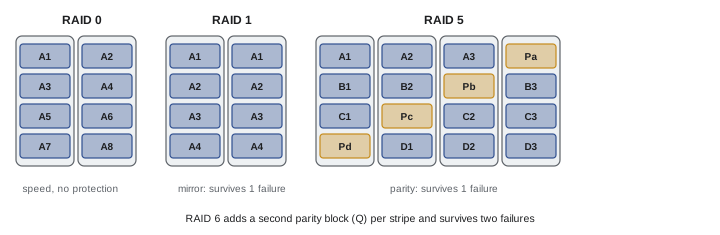
RAID (redundant array of independent disks) combines several drives into one volume for more speed, more capacity, protection against drive failure, or a combination:
- RAID 0 (striping) splits data across drives for speed and full capacity, but if any drive fails, all data is lost. Useful only for scratch or cache volumes with data stored elsewhere.
- RAID 1 (mirroring) writes identical copies to two drives; either can fail without data loss, at the cost of half the raw capacity.
- RAID 5 stripes data with distributed parity across three or more drives; one drive can fail without data loss, with the capacity of one drive used for parity.
- RAID 6 uses double parity across four or more drives, surviving two drive failures, which matters with large drives because rebuilding after a failure takes many hours, during which another failure would be fatal in RAID 5.
- RAID 10 combines mirroring and striping for speed and redundancy, using half the raw capacity.
Usable capacity with \(n\) drives of capacity \(C\):
RAID is not a backup. It protects against one kind of failure, a drive breaking, so that work can continue. It does not protect against accidental deletion, file corruption, ransomware, software bugs, controller failure, theft, fire or flood, because all of these affect every drive in the array at once. A RAID array must still be backed up.
Network-attached and shared storage
Network-attached storage (NAS) devices are small computers with multiple drive bays, usually running RAID, that connect to the network and share storage with several computers. Popular NAS systems offer snapshots (read-only point-in-time copies of folders that protect against accidental deletion and ransomware, discussed in Lesson 11), automated backups to other NAS units or the cloud, remote access, media servers and user permissions. For video teams, shared storage systems with 10 Gb or faster networking, or specialized SAN (storage area network) systems, let several editors work on the same media simultaneously, with project sharing features in editing software. A NAS should have an uninterruptible power supply so it can shut down cleanly during an outage, and drive health monitoring with alerts so failing drives are replaced promptly.
Cloud storage
Cloud storage services keep data in remote data centers operated by providers such as Backblaze, Amazon, Google, Microsoft, Dropbox and Wasabi, or specialist photography and video services. The cloud offers off-site protection, access from anywhere, sharing with clients and collaborators, and no hardware to maintain. Limitations include upload and download speed (uploading 5 TB at an upload speed of 50 Mbps takes about nine days of continuous transfer), ongoing subscription costs that grow with the archive, fees for downloading large amounts of data from some services, dependence on the provider's continued operation and terms, and privacy and data residency considerations for client material. Many workflows use the cloud for off-site backup and delivery, while keeping working data on local drives.
In the United States, there is no general federal data residency requirement, but contracts with clients, sector rules and state privacy laws can impose obligations on how personal information, including identifiable images, is stored and secured in the cloud, and some government and enterprise clients require data to stay within the country or within approved services.
Planning capacity and tiers
A practical storage plan separates data into tiers by how often it is used:
- Working (online) storage: fast SSDs or a fast RAID or NAS volume holding current projects and catalogs.
- Near-line storage: larger, slower HDD arrays holding recent and frequently referenced projects.
- Archive: completed projects on HDDs, tape or cloud archive tiers, kept for the long term with several copies.
Estimating growth is straightforward: multiply expected shoots per year by data per shoot, add derivatives and project files, and multiply by the number of copies kept. Plan for growth over the life of the hardware, typically three to five years for drives, and leave headroom, because full drives slow down and RAID rebuilds need space.
Worked problem
Annual storage plan
A wedding photographer shoots 30 weddings a year, each producing about 120 GB of raw files, plus 15 GB of edited exports and catalog previews. The plan is one working copy, one local backup and one off-site copy. How much new storage is needed each year?
Show solution
- Data per wedding: 120 + 15 = 135 GB.
- Per year: 30 × 135 = 4,050 GB ≈ 4 TB.
- Three copies: about 12 TB of new capacity per year.
- If rejected frames (say 40 %) are deleted after delivery, raw data falls to 72 GB per wedding, and the yearly total for three copies to about 7.8 TB.
- A NAS with 4 × 12 TB drives in RAID 5 (36 TB usable) holds working data for several years, with separate backup and off-site copies.
Answer: About 12 TB of new storage per year for three copies, or about 8 TB if rejects are culled.
Drive health and lifespan
Drives give warning signs before many failures, and monitoring them prevents surprises. SMART (Self-Monitoring, Analysis and Reporting Technology) data reported by HDDs and SSDs includes reallocated sectors, pending sectors, error counts and, for SSDs, wear indicators; NAS systems and utilities display these values and send alerts when they change. Drives that start reallocating sectors, making unusual noises or slowing down should be replaced promptly, after their data has been copied to healthy storage. Failure rates follow a bathtub curve: elevated in the first weeks (infant mortality), low for several years, then rising with age. Many professionals retire working drives after three to five years, moving them to secondary duties or recycling them securely.
Drives that are retired or sent for repair can still contain client data. Secure disposal means wiping drives with tools that overwrite data or use the drive's secure erase function, using full-disk encryption from the start so that discarded drives reveal nothing, or physically destroying drives that held sensitive material.
Choosing storage for a new studio
For a small studio starting out, a common and cost-effective set-up is a fast internal or external NVMe SSD for current projects and catalogs, a four-bay or larger NAS with large HDDs in RAID 5 or 6 for working and near-line storage, a second backup target, and a cloud backup service. As the business grows, faster networking, more NAS capacity and an archive tier are added. Whatever the scale, the principles are the same: fast storage where you work, large affordable storage for everything else, and independent backups of all of it.
Removable media for transport
Data still travels physically. Shuttle drives carry footage from sets to post-production, and couriers deliver drives to clients and archives. Rugged portable SSDs survive drops that would destroy HDDs, and hardware-encrypted drives protect sensitive material if lost. Each shuttle drive should carry a verified copy, never the only copy, and be labeled with project, contents, date and contact information, with checksum reports included so the recipient can verify the transfer.
Whatever storage is chosen, label every drive clearly, keep an inventory listing drives, contents, purchase dates and locations, and review it regularly. An unlabeled drawer of old drives is a common sight in creative studios and a common source of lost work.
Common mistakes
MistakeTreating RAID as a backup.
InsteadBack up RAID arrays separately; RAID only survives drive failures.
MistakeUsing RAID 0 for irreplaceable data.
InsteadUse RAID 0 only for scratch data stored elsewhere.
MistakeIgnoring the slowest link in a transfer.
InsteadCheck ports, cables, networks and drives.
MistakeCarrying a single portable HDD as the only copy.
InsteadKeep at least two copies, preferably on SSDs for travel.
MistakeFilling drives to capacity.
InsteadPlan capacity growth and keep headroom.
Summary and key terms
- HDDs are cheapest per terabyte; SSDs are faster and tougher.
- Interfaces and networks often limit real-world speed.
- RAID 0 adds speed, RAID 1, 5, 6 and 10 add redundancy.
- RAID protects against drive failure only, not deletion or disaster.
- NAS systems provide shared storage, snapshots and backup features.
- Cloud storage offers off-site protection but has speed and cost limits.
- Plan working, near-line and archive tiers with growth and copies in mind.
- HDD
- Hard disk drive with spinning platters.
- SSD
- Solid-state drive using flash memory.
- NVMe
- Fast SSD interface over PCI Express.
- TBW
- Terabytes written, an SSD endurance rating.
- RAID
- Combining drives for speed, capacity or redundancy.
- Parity
- Calculated data allowing reconstruction after a failure.
- NAS
- Network-attached storage device.
- SAN
- Storage area network for high-performance shared storage.
- Snapshot
- Read-only point-in-time copy of data.
- Storage tier
- Level of storage by speed and access frequency.
Practice problems
Work each problem on paper first, then reveal the answer to check.
Why do HDDs feel slow for catalogs?
Show answer
Random access requires moving heads.
What limits a SATA SSD to about 550 MB/s?
Show answer
The SATA interface.
Practical speed of gigabit Ethernet?
Show answer
About 110 MB/s.
500 GB over a 400 MB/s link: time?
Show answer
About 21 minutes.
Usable capacity of 5 × 10 TB in RAID 5?
Show answer
40 TB.
Usable capacity of 6 × 16 TB in RAID 6?
Show answer
64 TB.
What happens to RAID 0 if one drive fails?
Show answer
All data is lost.
Name three threats RAID does not protect against.
Show answer
Deletion, ransomware, theft, fire, corruption.
Time to upload 2 TB at 100 Mbps?
Show answer
About 44 hours.
Name the three storage tiers.
Show answer
Working, near-line, archive.
Lesson quiz · 5 questions
Score 60% or more to complete this lesson.
Create a free account to save your progress, take quizzes and earn a certificate.