
VIS-120 · Lesson 1 of 12 · 24 min
How digital images work: pixels, resolution and bit depth
Every photograph, video frame and graphic you work with as an image maker is, underneath, a grid of numbers. Understanding what those numbers are, how many of them there are and how precisely each one is recorded explains almost every practical decision in a digital workflow: which file format to shoot, how large a card or drive you need, why an image falls apart when pushed in editing, whether a file is big enough to print, and why a video project can fill a hard drive in an afternoon. This course follows images from capture to delivery. This first lesson builds the foundation: pixels and resolution, channels and bit depth, and the arithmetic of file sizes.
Raster images and pixels
Photographs and video frames are raster images: rectangular grids of picture elements, or pixels, each holding a color value. A camera with a 6,000 × 4,000 pixel sensor output produces an image with 24 million pixels, or 24 megapixels (MP). The ratio of width to height is the aspect ratio: 6,000 × 4,000 is 3:2, the traditional 35 mm still format; 4:3 is common in smartphones and Micro Four Thirds cameras; and 16:9 is the standard for HD and 4K video. Vector graphics, used for logos, type and illustrations, work differently: they store shapes as mathematical descriptions of lines and curves, so they can be scaled to any size without losing sharpness. Photographs cannot be converted to true vectors without losing their photographic character, which is why image makers must think about pixel dimensions from the moment of capture.
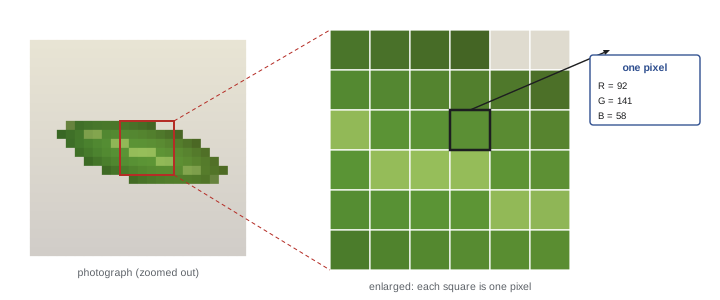
Zooming far into a raster image reveals its pixels as small squares of flat color. At normal viewing sizes, the eye blends them into continuous tones. How many pixels are needed depends on how large the image will be displayed and how closely it will be viewed, a question we return to when discussing print and screen output in Lesson 12.
Channels and color
Most color images store three numbers for each pixel, one each for red, green and blue (RGB), the additive primaries introduced in VIS-110. Each set of values across the image is called a channel; viewing a single channel shows it as a grayscale image in which bright areas contain more of that primary. Some files add a fourth channel, the alpha channel, which stores transparency, so that a logo can be placed over a background without a box around it. Print workflows sometimes use CMYK files with four channels for cyan, magenta, yellow and black inks. Grayscale images need only one channel.
Bit depth
Bit depth describes how many distinct values each channel can store. A bit is a binary digit, 0 or 1; \(n\) bits can represent \(2^n\) values.
- 8 bits per channel gives 256 levels (0 to 255). Three channels give 256³ ≈ 16.7 million possible colors, often called 24-bit color. JPEG files and most web images are 8-bit.
- 10 bits per channel gives 1,024 levels, used in professional video, HDR and some HEIF photos.
- 12 and 14 bits per channel give 4,096 and 16,384 levels, typical of camera raw files.
- 16 bits per channel gives 65,536 levels, used for editing in software such as Photoshop to preserve precision.
- 32-bit floating point is used for high dynamic range (HDR) merges and visual effects compositing, where values can exceed the normal white point.
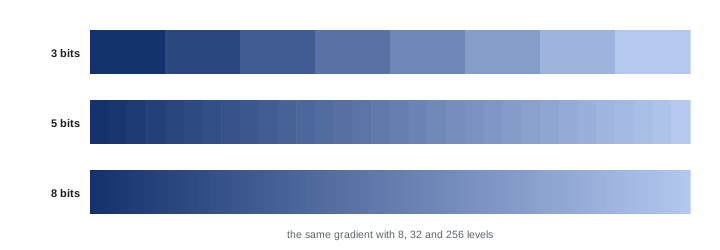
More levels mean finer steps between tones. With only 256 levels, a smooth gradient like a clear blue sky has visible steps if it is stretched in editing; the result is called banding or posterization. A 14-bit raw file has 64 times as many levels per channel as an 8-bit JPEG, which is why raw files withstand large exposure and color adjustments without breaking down. The final delivered image is usually 8-bit, but doing the heavy editing at higher bit depth keeps the steps too small to see.
| Bit depth (per channel) | Levels per channel | Typical use |
|---|---|---|
| 8-bit | 256 | JPEG, web, most displays |
| 10-bit | 1,024 | HDR video, professional codecs, HEIF |
| 12-bit | 4,096 | Raw stills and cinema raw |
| 14-bit | 16,384 | High-end camera raw |
| 16-bit | 65,536 | Editing and archival TIFF |
| 32-bit float | Effectively continuous | HDR merges, compositing |
Dynamic range and tonal values
Bit depth is not the same as dynamic range. Dynamic range is the ratio between the brightest and darkest tones a sensor or display can record or show, measured in stops (each stop a doubling of light), as discussed in VIS-110. A sensor with 13 stops of dynamic range records detail from deep shadow to bright highlight; bit depth determines how finely that range is divided. A high dynamic range scene recorded with too few bits produces coarse steps, while many bits in a low dynamic range file merely subdivide a small range very finely. Camera raw files record the sensor's linear response, which allocates half of all values to the brightest stop and progressively fewer to each darker stop. This is why shadows recorded with few levels become noisy and banded when brightened, and why photographers often expose as brightly as possible without clipping highlights, a practice known as exposing to the right.
File size arithmetic
The uncompressed size of an image is simply the number of pixels times the number of channels times the bits per channel, divided by 8 to convert to bytes:
Storage units can be confusing. Strictly, a kilobyte (kB) is 1,000 bytes, a megabyte (MB) 1,000,000 bytes and a gigabyte (GB) 10⁹ bytes, while the binary units kibibyte (KiB), mebibyte (MiB) and gibibyte (GiB) are 1,024, 1,024² and 1,024³ bytes. Drive manufacturers use decimal units, while some operating systems display binary values with decimal labels, which is why a "1 TB" drive appears as about 931 GB on some computers. For planning, the difference is about 7 % at the gigabyte scale and can usually be ignored, but it explains apparent discrepancies.
Worked problem
Uncompressed file sizes
A camera produces 6,000 × 4,000 pixel images. Calculate the uncompressed size as an 8-bit RGB image and as a 16-bit RGB TIFF.
Show solution
- Pixels: 6,000 × 4,000 = 24,000,000.
- 8-bit RGB: 24,000,000 × 3 × 8 / 8 = 72,000,000 bytes = 72 MB.
- 16-bit RGB: 24,000,000 × 3 × 16 / 8 = 144,000,000 bytes = 144 MB.
- A 14-bit raw file stores one value per pixel (before demosaicing): 24,000,000 × 14 / 8 = 42 MB uncompressed, often reduced to about 25 to 30 MB with lossless compression.
- A typical high-quality JPEG of the same image might be 8 to 15 MB, because JPEG uses lossy compression (Lesson 3).
Answer: 72 MB as 8-bit RGB and 144 MB as 16-bit RGB, before compression.
Resolution, pixel density and print size
The word resolution is used in several ways. Pixel dimensions (6,000 × 4,000) or total pixel count (24 MP) describe how much information an image contains. Pixel density, measured in pixels per inch (ppi), describes how closely pixels are packed when the image is printed or displayed. The ppi value stored in a file's metadata has no effect on the image until it is printed or placed in a layout: a 6,000 × 4,000 pixel image tagged at 72 ppi and the same image tagged at 300 ppi contain exactly the same pixels. Print size follows from pixel dimensions and the chosen density:
At 300 ppi, the traditional standard for high-quality prints viewed closely, a 6,000-pixel-wide image prints 20 inches (about 51 cm) wide. At 150 ppi, adequate for large prints viewed from a distance, it prints 40 inches wide. Dots per inch (dpi) properly describes printer ink droplets, which are much finer than image pixels, but the terms are often used interchangeably. Displays have their own pixel densities: a typical desktop monitor has around 100 ppi, while high-density smartphone screens exceed 400 ppi.
In the United States, print sizes are quoted in inches, with common photographic sizes of 4 × 6, 5 × 7, 8 × 10, 11 × 14, 16 × 20 and 20 × 30 inches, and paper sizes based on letter (8.5 × 11 inches) and tabloid (11 × 17 inches).
Video frames as images
A video is a sequence of raster frames displayed rapidly, commonly at 24, 25, 30, 50 or 60 frames per second. Standard frame sizes include HD (1,920 × 1,080), UHD 4K (3,840 × 2,160) and DCI 4K (4,096 × 2,160) for cinema. Uncompressed video data rates are enormous: a single UHD frame at 10 bits per channel in RGB is about 31 MB, and at 24 frames per second that is roughly 750 MB every second, or about 2.7 TB per hour. This is why nearly all video is compressed, why video codecs reduce color resolution (chroma subsampling) and why video storage planning is a central part of any production workflow (Lessons 4 and 10).
Why the workflow matters
A digital imaging workflow is the sequence of steps and decisions that takes images from capture to delivery and archive: choosing capture settings and formats, transferring and verifying files, organizing and adding metadata, editing, managing color, storing and backing up, and exporting for each destination. A good workflow protects image quality, prevents loss, saves time and makes images findable years later. A poor one leads to lost shoots, inconsistent color, missed deadlines and archives nobody can search. The rest of this course works through each step.
Pixels on screens
Displays also have pixel grids, and the relationship between an image's pixels and the screen's pixels affects what viewers see. When an image is shown at 100 % (one image pixel per screen pixel), you see its true detail; at other zoom levels the software resamples it for display, which can hide sharpness problems or exaggerate noise. High-density screens, marketed as Retina or similar, pack two or three device pixels into each logical pixel of the interface, so a website image displayed 1,000 logical pixels wide needs 2,000 or 3,000 actual pixels to look crisp. This is why images for modern websites and apps are often exported larger than their apparent display size, a point that returns in Lesson 12.
Thinking in data
Professional image makers learn to estimate data quickly. A useful habit is to note, for each camera and setting you use, the typical file size per image or per minute of video, and the number of images or minutes per card. With those figures, you can plan cards, drives and backup capacity for any job in minutes, avoid running out of space on location, and quote clients realistic delivery times. Many experienced photographers keep a small reference card or note on their phone listing these numbers for their main cameras, updated whenever they change formats or equipment.
Finally, remember that more pixels are not always better. Higher resolution increases file sizes, storage costs, backup times and editing load, and many uses, from social media to news websites, need only a fraction of a modern camera's output. Choosing resolution and bit depth deliberately for each job, rather than always using the maximum, is part of an efficient workflow.
Common mistakes
MistakeAssuming a file tagged 300 ppi has more detail than one tagged 72 ppi.
InsteadDetail depends on pixel dimensions; ppi only sets print size.
MistakeDoing heavy edits on 8-bit files.
InsteadEdit raw or 16-bit files and export to 8-bit at the end.
MistakeConfusing bit depth with dynamic range.
InsteadDynamic range is the span of tones; bit depth is how finely it is divided.
MistakeUnderexposing to protect highlights and brightening later.
InsteadExpose as brightly as possible without clipping to record more shadow levels.
MistakePlanning video storage from still photo habits.
InsteadCalculate data rates; video fills drives far faster.
Summary and key terms
- Raster images are grids of pixels; vector graphics store shapes.
- Color images usually have red, green and blue channels, sometimes alpha.
- Bit depth sets levels per channel: 2 to the power of the bits.
- Too few levels cause banding when tones are stretched.
- Uncompressed size equals pixels × channels × bits ÷ 8.
- Print size equals pixels divided by ppi.
- Video multiplies frame sizes by frame rates, so compression is essential.
- Pixel
- The smallest element of a raster image.
- Raster image
- An image made of a grid of pixels.
- Vector graphic
- An image defined by mathematical shapes.
- Aspect ratio
- The ratio of image width to height.
- Channel
- The set of values for one color component.
- Alpha channel
- A channel storing transparency.
- Bit depth
- Number of bits per channel.
- Banding
- Visible steps in a smooth gradient.
- Pixels per inch
- Pixel density in print or display.
- Exposing to the right
- Exposing brightly without clipping to maximize data.
Practice problems
Work each problem on paper first, then reveal the answer to check.
How many megapixels is 8,256 × 5,504?
Show answer
About 45.4 MP.
What aspect ratio is 3,840 × 2,160?
Show answer
16:9.
How many levels does a 12-bit channel have?
Show answer
4,096.
How many colors can 8-bit RGB represent?
Show answer
About 16.7 million.
Uncompressed size of a 4,000 × 3,000 8-bit RGB image?
Show answer
36 MB.
Print width of 4,500 pixels at 300 ppi?
Show answer
15 inches.
Does changing the ppi tag add detail?
Show answer
No; pixel dimensions are unchanged.
Why do raw files withstand heavy editing?
Show answer
More bits per channel give finer tonal steps.
Why does a 1 TB drive show about 931 GB?
Show answer
Binary units are displayed with decimal labels.
Frame size of UHD 4K?
Show answer
3,840 × 2,160.
Lesson quiz · 5 questions
Score 60% or more to complete this lesson.
Create a free account to save your progress, take quizzes and earn a certificate.