
MSBA-221 · Lesson 9 of 12 · 18 min
Archiving and restoring teams
▶ Video coming soon A video version of this lesson is on the way.
Among the 214 teams in Corvallin's old environment was one called "2021 Vaccine Clinics". It had been busy for eight months during the pandemic vaccination campaign and silent ever since. Nobody needed to post in it again, but the records manager, Ansel Marrowby, wanted its content kept: the schedules, the consent workflow discussions and the incident notes might matter if questions were ever asked about the campaign. Deleting it was wrong; leaving it active, where people kept stumbling into it, was untidy. Archiving was the answer, and 71 of Corvallin's teams ended up archived during the clean-up.
This lesson explains what archiving does and does not do, how it differs from deletion, how to restore a deleted team, and how retention policies interact with both. The MS-700 outline asks administrators to archive, delete or unarchive one or more teams and to restore or troubleshoot the deletion of a Microsoft 365 group, so you need to know the steps and the consequences.
What archiving does
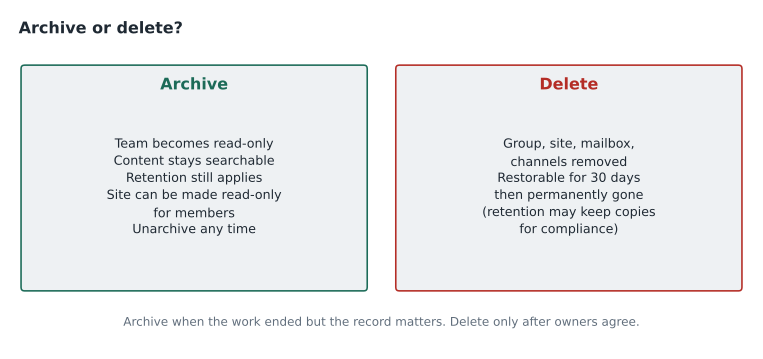
Archiving a team freezes it. The team becomes read-only: members can still open it, read conversations and see files, but they cannot post, reply, react or add channels. The team moves to an archived section of the Teams list, out of people's way, and can still be found through search. Owners can still add and remove members and update roles, so access can be kept accurate over time.
When archiving, an owner or administrator can also choose to make the team's SharePoint site read-only for team members. Without that option, members could still edit files in the site even though the team itself is read-only. Corvallin always chose it for archived teams, so that records stayed as they were on the day the work ended.
Archiving does not delete anything and does not stop compliance features. Retention policies still apply, eDiscovery can still search the content, and holds still work. Archiving is also fully reversible: an owner or administrator can unarchive the team, and it returns to normal with its channels, conversations and files intact.
Archiving in practice
Team owners can archive their own teams from the Teams client, through Manage teams in the client. Administrators archive teams from the Manage teams page in the Teams admin center, where several teams can be selected and archived together, or with PowerShell for larger batches. Archiving requires the team's owners to agree in Corvallin's process, even though administrators are technically able to archive any team.
# Archive a team and make its SharePoint site read-only for members
Set-TeamArchivedState -GroupId $gid -Archived:$true -SetSpoReadOnlyForMembers:$true
# Unarchive it later
Set-TeamArchivedState -GroupId $gid -Archived:$false
# List archived teams
Get-Team -Archived $true | Select-Object DisplayName, GroupId
Corvallin used a CSV file listing the 71 teams agreed for archiving, each with its owner's approval date, and ran the archive script in batches of ten so that any problem would be caught early. The CSV and the script went into the decision log as the record of what had been done and why.
| Question about an archived team | Answer |
|---|---|
| Can members read conversations? | Yes |
| Can members post or reply? | No |
| Can owners change membership? | Yes |
| Can members edit files in the site? | Only if the site was not made read-only |
| Do retention policies and holds still apply? | Yes |
| Does it count toward the 1,000 teams a user can belong to? | Yes |
| Can it be unarchived? | Yes, by an owner or administrator |
Deleting a team
Deleting a team deletes its Microsoft 365 group and the resources connected to it: the group mailbox and calendar, the SharePoint site and its files, the channels and their conversations, and the private and shared channel sites. Owners can delete their own teams from the client; administrators can delete teams from the Teams admin center, with PowerShell or by deleting the group in the Microsoft 365 or Entra admin centers.
A deleted Microsoft 365 group goes into a soft-deleted state and can be restored for 30 days. Restoring the group restores the team, its channels, conversations and files, the mailbox and the site. After 30 days the group and its resources are permanently deleted and cannot be restored through normal tools.
Retention policies can change that picture for compliance purposes. If a Purview retention policy covers the team's content, copies of messages and files are kept in hidden locations for the retention period even after the team is permanently deleted. Those copies are for eDiscovery and compliance, not for users: they will not bring the team back. Ansel Marrowby explained this to managers who assumed retention meant they could undo a deletion a year later.
Restoring a deleted team
An administrator restores a deleted team by restoring its Microsoft 365 group. This can be done in the Microsoft 365 admin center under Teams and groups and then Deleted groups, in the Microsoft Entra admin center under Groups and then Deleted groups, or with PowerShell. Team owners can sometimes restore their own groups from Outlook, depending on settings, but at Corvallin restores go through the help desk.
# Find soft-deleted Microsoft 365 groups with Microsoft Graph PowerShell
Connect-MgGraph -Scopes 'Group.ReadWrite.All'
Get-MgDirectoryDeletedItemAsGroup | Select-Object DisplayName, Id, DeletedDateTime
# Restore one by ID
Restore-MgDirectoryDeletedItem -DirectoryObjectId $deletedGroupId
After a restore, the team can take a few hours to reappear fully in Teams, and some users may need to restart their client. Channel conversations, files and the site return. If the team was deleted because its group expired under an expiration policy, the restored group gets a fresh expiration date.
Troubleshooting deletion
The MS-700 outline mentions troubleshooting the deletion of Microsoft 365 groups. The most common questions are why a team disappeared and why it cannot be restored.
| Situation | Likely cause | What to do |
|---|---|---|
| A team vanished and nobody deleted it | The group expired under a Microsoft 365 group expiration policy because nobody renewed it and it was inactive | Restore within 30 days; review whether the team should be renewed or archived |
| A team vanished after a SharePoint clean-up | Someone deleted the group-connected site, which deleted the group | Restore the group; train site administrators to check for connected groups |
| Restore option is missing | More than 30 days have passed, or the group was permanently deleted by an administrator | Content may exist only as retention copies for eDiscovery |
| Restored team is missing in Teams | Synchronization delay | Wait a few hours and restart the client |
| A private channel is missing after a restore | The channel was deleted separately before the team | A team owner can restore the channel within its own 30-day window |
Audit logs help with the first question. Group deletions and team deletions are recorded in the Microsoft Purview audit log, which shows who deleted what and when. Teodor showed Ama how to search the audit log for team deletion events, which turned a vague "Teams deleted our team" ticket into a precise answer within minutes.
Worked problem
Archive, delete or keep?
During the clean-up, three teams come up for decision: "2021 Vaccine Clinics" (no activity for four years, records value), "Test team Ama" (created for training in 2023, no business content), and "Wellness Committee" (posts monthly, still active). What should happen to each?
Show solution
- Vaccine Clinics: work finished, records matter. Archive it and make its site read-only for members.
- Test team Ama: no business content, no records value. Confirm with Ama, then delete it; it can still be restored for 30 days if a mistake is found.
- Wellness Committee: active and useful. Keep it, confirm it has two owners, and leave it under the normal lifecycle rules.
- Record each decision and the owner's agreement in the clean-up tracker.
Answer: Archive the finished team with records value, delete the empty test team after confirmation, and keep the active team with two owners.
Deciding what to archive
Corvallin's clean-up needed a consistent way to decide between archiving, deleting and keeping. Ansel Marrowby, the records manager, and Teodor agreed four questions. Is the work finished? Does the content have records value, such as clinical, financial, legal or regulatory information, or decisions someone might need to explain later? Is anyone still using it? Would deleting it break anything, such as links from other sites or a connected app?
If the work was finished and the content had records value, the team was archived. If the work was finished and the content had no value, the team was deleted after the owner agreed. If people were still using it, the team was kept, with two owners and a label. If deleting might break something, the team was archived first and reviewed again after six months. These rules turned 214 decisions into a routine, and the records manager signed off the archive list before anything was frozen.
| Work finished? | Records value? | Still used? | Decision |
|---|---|---|---|
| Yes | Yes | No | Archive with read-only site |
| Yes | No | No | Delete after owner agrees |
| No | Any | Yes | Keep, with two owners and a label |
| Yes | Unsure | No | Archive and review in six months |
Archived teams and retention
Archiving and retention solve different problems. Archiving controls what users can do: read but not change. Retention controls how long content is kept and when it is deleted for compliance. An archived team with no retention policy can still be deleted by an owner later. A retention policy keeps content even if someone deletes the team. Corvallin used both: archived clinical teams are covered by the clinical retention policy, so their content is kept for the required period whatever happens to the team itself.
Eventually, archived teams reach the end of their retention period. Corvallin's records manager reviews archived teams once a year. When a team's content has passed its retention period and has no ongoing value, the records manager approves deletion, and IT deletes the team. The 30-day restore window still applies, as a last check.
Communicating archive decisions
Archiving can feel like losing something, even when nothing is lost. Corvallin's message to owners explained it in plain terms: your team will become read-only, you can still read everything and find it in search, nobody can add new posts, and IT can bring it back if you need it. The message also told owners how to ask for a team to be unarchived. Over the following months, three teams were unarchived, all for good reasons, such as a project restarting.
Users sometimes post in an archived team's chat-like experience out of habit and are confused when they cannot. Corvallin's champions told their branches about the archived teams in their area and where the replacement teams were, which avoided most confusion.
Bulk archiving with care
Archiving dozens of teams at once is easy to do and easy to get wrong. Teodor's batch script read the agreed CSV, checked that each team still existed and was not already archived, archived it with the read-only site option, and wrote a line to a log file with the team name, the time and the result. If any team failed, the script stopped, so a problem in one team could not quietly repeat across fifty.
He ran each batch in the early morning, before branch staff started visits, and checked the results against the CSV before starting the next batch. The first batch revealed one problem: a team whose SharePoint site had a retention hold could not be made read-only through the archive option, so the site setting was handled separately with the records manager. Finding that in a batch of ten, not seventy-one, made it a small fix.
After the last batch, Teodor compared the list of archived teams in the Teams admin center with the agreed CSV, line by line. The two lists matched, and the comparison went into the decision log with the scripts. When an auditor later asked how Corvallin knew which teams had been frozen and when, the answer took two minutes.
One more habit helped: every archived team's description was updated with the date it was archived and where the work continued, if anywhere, such as "Archived November 2026. Current vaccine clinic work is in CHC-Community Health." People who found an archived team in search could see at once why it was frozen and where to go instead.
Common mistakes
MistakeDeleting old teams to tidy up.
InsteadArchive teams whose work ended but whose records may matter; delete only content with no value, after owners agree.
MistakeArchiving without making the site read-only.
InsteadChoose the read-only site option so files stay as they were.
MistakeExpecting retention policies to let users undo a deletion after 30 days.
InsteadRetention copies serve compliance and eDiscovery; they do not restore the team.
MistakeDeleting a group-connected SharePoint site without checking.
InsteadDeleting the site deletes the group and the team.
Summary and key terms
- Archiving makes a team read-only, keeps it searchable and keeps compliance features working; it can be reversed.
- Administrators can also make the archived team's SharePoint site read-only for members.
- Deleting a team deletes its group, mailbox, site, channels and conversations.
- Deleted Microsoft 365 groups can be restored for 30 days, which restores the team.
- Retention policies may keep copies of content after permanent deletion for eDiscovery, but they do not restore the team.
- Audit logs show who deleted a team; expiration policies and site deletions are common hidden causes.
- Archived team
- A read-only team that remains searchable and can be unarchived.
- Soft-deleted group
- A deleted Microsoft 365 group that can still be restored within 30 days.
- Unarchive
- Returning an archived team to normal, editable use.
- Read-only site option
- The choice when archiving to stop team members editing files in the team's site.
- Audit log
- The Microsoft Purview record of user and admin activities, including team deletions.
Practice problems
Work each problem on paper first, then reveal the answer to check.
An owner archived a team, but members can still edit its files. Why?
Show answer
The site was not made read-only for members when the team was archived.
A team deleted 40 days ago is needed again. Can it be restored?
Show answer
Not through normal restore; after 30 days it is permanently deleted, though retention copies may be available for eDiscovery.
Where can an administrator restore a deleted team?
Show answer
By restoring its Microsoft 365 group in the Microsoft 365 admin center, the Entra admin center or with PowerShell.
Lesson quiz · 5 questions
Score 60% or more to complete this lesson.
Create a free account to save your progress, take quizzes and earn a certificate.