
MSBA-221 · Lesson 6 of 12 · 18 min
App permission and setup policies
▶ Video coming soon A video version of this lesson is on the way.
During the inventory of Corvallin's old Teams environment, Teodor ran an app usage report and found 63 apps in use. Some were expected: Planner, Approvals, Shifts, Forms. Others were not: three different polling apps, a free mind-mapping app from a vendor nobody had heard of, a scheduling bot that wanted read access to every user's calendar, and an app that connected to a consumer file-sharing service. Nobody had approved any of them. The old settings simply let anyone install almost anything.
Apps are what make Teams more than chat and meetings, and they are also a route for data to leave the organization. The MS-700 outline asks administrators to manage org-wide app settings, create and manage app assignments and app setup policies, and manage permissions and consent, including blocking apps. This lesson covers who can use which apps, how Microsoft changed that model with app-centric management, and how setup policies decide which apps appear in front of people.
The old model: app permission policies
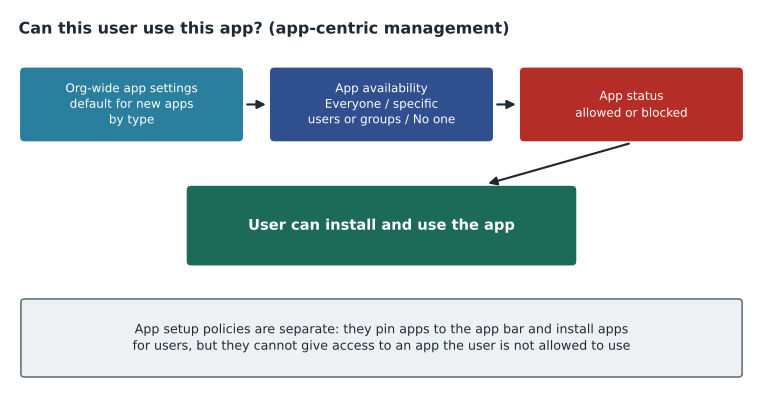
For several years Teams controlled app access with three layers: an org-wide setting for each kind of app (Microsoft, third-party and custom), an allowed or blocked status for each app, and app permission policies assigned to users. A permission policy listed which apps a group of users could use, and the effective policy followed the same precedence rules as other Teams policies.
The model worked, but it was hard to reason about. To answer "who can use this app?" an administrator had to check the org-wide setting, the app's status and every permission policy that mentioned it. The MS-700 skills list now refers to app assignments instead, and the lesson title reflects the older name because many organizations, documents and practice questions still use it.
App-centric management
Microsoft replaced app permission policies with app-centric management. Instead of policies listing apps, each app has its own availability setting that lists who can use it: Everyone in the organization (including new users and guests), specific users or groups, or No one, which is the same as blocking it. App-centric management also applies to Copilot agents distributed as apps.
Microsoft began migrating tenants automatically in April 2025. Tenants that used only the default global permission policy were migrated without any admin action. Tenants with custom permission policies went through an assisted migration with a wizard, which Microsoft has been moving to automatic migration too. Once a tenant is migrated it cannot go back, and permission policies can no longer be viewed or edited. Microsoft documents that changes to app availability can take up to 24 hours to apply, and occasionally longer to reach every client.
Corvallin's tenant had custom permission policies, so it went through the assisted migration in 2025, before the relaunch. The wizard converted each policy into availability settings on the apps it mentioned. When Teodor reviewed the result in autumn 2026, he found that the conversion had preserved some old mistakes, such as the calendar-reading bot being available to everyone, so the review of all 63 apps went ahead anyway.
Org-wide app settings
In the Teams admin center, under Teams apps and then Manage apps, the Org-wide app settings control defaults. The key setting, "Let users install and use available apps by default", is set separately for each type of app: Microsoft apps, third-party apps and custom apps. It decides the availability of new apps that arrive in the Teams app store and of existing apps that administrators have not explicitly managed. Apps that an administrator has assigned to Everyone, to specific users or groups, or to No one keep their assignment regardless of the org-wide setting.
Other org-wide settings control whether users can upload custom apps (covered in lesson 7) and whether users can request apps that are not available to them. Corvallin turned the third-party default off, so new third-party apps start unavailable until reviewed, and turned on user requests so that staff could ask for an app instead of looking for a workaround.
| App type | Corvallin's default for new apps | Reason |
|---|---|---|
| Microsoft apps | Available | Covered by Microsoft's data protection commitments; reviewed in bulk |
| Third-party apps | Not available until reviewed | Each vendor needs a privacy and security review |
| Custom apps | Not available until reviewed | Built by staff or vendors; must go through the custom app process |
Managing an individual app
Each app has its own page under Manage apps. It shows the publisher, a description, the permissions the app requests, whether it supports single sign-on, its certification status and its availability and status. From here an administrator can change availability, allow or block the app, review and grant admin consent for permissions that need it, and see which policies refer to it.
Certification is worth noticing. Microsoft runs a publisher attestation and certification program for apps, and apps that have completed Microsoft 365 Certification have had their security and compliance practices reviewed. Certification does not mean an app is right for an organization, but it gives a starting point. Corvallin's review checklist asked for certification or a completed vendor security questionnaire, a clear data processing location, and a business owner inside Corvallin who would answer for the app.
Some apps ask for Microsoft Graph permissions, such as reading users' calendars or files. Permissions that need admin consent must be granted by an administrator, which is a strong control: the calendar bot found in the inventory had been granted consent years earlier by an administrator who no longer worked at Corvallin. Teodor revoked that consent in the Microsoft Entra admin center, under Enterprise applications, and set the app to No one.
# Requires a recent MicrosoftTeams module
# Check an app's current availability and state
Get-M365TeamsApp -Id $pollingAppId
# Make the approved polling app available only to the Champions group
Update-M365TeamsApp -Id $pollingAppId -IsBlocked $false -AppAssignmentType UsersAndGroups `
    -OperationType Add -Groups $championsGroupId
# List every app in the catalog with its availability, for the review spreadsheet
Get-AllM365TeamsApps | Select-Object Id, AvailableTo, IsBlocked | Export-Csv .\apps.csv
App setup policies
App setup policies are a separate tool with a different job. They do not decide whether a user may use an app. They decide which apps are pinned to the app bar on the side of Teams, in what order, which apps are installed for users automatically, and whether users can pin their own apps. A setup policy cannot give a user an app they are not allowed to use; if an app is pinned but unavailable, the user simply does not see it.
Setup policies follow the usual assignment rules: direct, group with rank, policy package, or Global. Corvallin uses three. Frontline-Setup pins Activity, Chat, Teams, Shifts, Approvals and the visit checklist app, and installs them, so a nurse's phone shows exactly the tools she needs. IT-Setup adds the admin-related apps. The Global policy keeps Microsoft's standard pins plus Planner.
| Policy | Pinned apps (in order) | User pinning |
|---|---|---|
| Frontline-Setup | Activity, Chat, Teams, Shifts, Approvals, Visit Checklist, Calendar | Off, so the layout stays the same on every phone |
| IT-Setup | Activity, Chat, Teams, Calendar, Calls, Planner, Approvals, Workflows | On |
| Global (Org-wide default) | Activity, Chat, Teams, Calendar, Calls, OneDrive, Planner | On |
The difference between availability and setup trips up both administrators and exam candidates. If the question is "can this person use this app at all?", the answer lies in availability, status and the org-wide defaults. If the question is "why is this app on the side of their screen?" or "why did this app appear without them installing it?", the answer lies in their app setup policy.
Worked problem
Why a nurse cannot see the visit checklist app
A new nurse at the West Branch says the visit checklist app is missing from her Teams, although her colleagues have it pinned. She is in the Branch-Care-Staff group, which has Frontline-Setup at rank 1. What should Ama check?
Show solution
- Check the app's availability under Manage apps: it is assigned to the Branch-Care-Staff group, so she should have access.
- Check her effective app setup policy on her user page: it shows Global, not Frontline-Setup.
- Check her group membership: HR set her office location the day before, and the dynamic group had not yet added her.
- Wait for the group to update, or add her manually; the policy and the app follow once she is a member.
Answer: Access and pinning both depend on Branch-Care-Staff membership, which had not updated yet. Neither the app nor the policy was wrong.
Reviewing apps over time
An app review is not a one-time event. Vendors change ownership, add permissions and stop supporting apps. Corvallin added a quarterly app review to the IT calendar: run the app usage report from the Teams admin center analytics, list apps with availability set to Everyone, check for apps whose permissions changed, and confirm each third-party app still has a business owner. The first full review cut the 63 apps in use to 27, and the three polling apps to one.
Running an app review
Corvallin's app review used a simple spreadsheet built from the app usage report and the catalog export. Each row listed the app, its publisher, its permissions, whether it was certified, how many people used it in the past 90 days, and who in Corvallin would own it. Teodor then sorted apps into four groups. Keep and allow for everyone: widely used Microsoft apps. Keep for specific groups: useful apps with a clear owner and audience, such as the translation app for the interpreting team. Replace: apps that duplicated a Microsoft feature, such as the three polling apps, where Microsoft Forms polls did the same job. Remove: apps with no owner, unclear data use or risky permissions.
The replace group took the most care. Staff liked their polling app, and simply blocking it would have caused complaints. Teodor gave two weeks' notice through the champions, showed owners how Forms polls worked in channels and meetings, and only then set the old apps to No one. Nobody raised a ticket about it afterwards.
| Group | Number of apps | Action |
|---|---|---|
| Keep for everyone | 14 | Availability Everyone; status allowed |
| Keep for specific groups | 13 | Availability limited to named groups |
| Replace with a Microsoft feature | 9 | Notice, training, then No one |
| Remove | 27 | No one; consents revoked where granted |
Setup policies on phones
App setup policies matter most on phones, where the app bar has little room. On a phone, Teams shows the first few pinned apps along the bottom and puts the rest behind a More button. Corvallin ordered Frontline-Setup so that Activity, Chat, Teams and Shifts appear first, because those are what nurses use between visits, and put Approvals and the visit checklist app next. Turning off user pinning keeps every phone the same, which makes help desk calls easier: when Ama says "tap Shifts", it is in the same place for everyone.
Setup policies can also install apps that users have not chosen, which is useful for an app everyone must have, such as the visit checklist app. Installing it through policy saves each nurse from searching the store. It does not bypass access control: the app is installed only because it is available to the Branch-Care-Staff group.
Explaining the controls to others
Team owners often ask why they cannot add an app. Teodor's answer for owners fits in three sentences: IT decides which apps are available to which groups; your team settings decide whether members can add available apps to your team; and if you need an app you cannot find, request it from the store so IT can review it. Putting that explanation in the owners' guide cut app-related tickets noticeably.
Common mistakes
MistakeUsing an app setup policy to give users access to an app.
InsteadSetup policies pin and install; availability and status decide access.
MistakeAssuming certification means an app is approved for your organization.
InsteadTreat certification as one input to your own review of data use and business need.
MistakeLeaving old admin consents in place.
InsteadReview and revoke consents for apps that are no longer approved.
MistakeExpecting availability changes to apply instantly.
InsteadAllow up to 24 hours, occasionally longer, for app availability changes to reach clients.
Summary and key terms
- App-centric management replaced app permission policies: each app has availability set to Everyone, specific users or groups, or No one.
- Microsoft began migrating tenants automatically in April 2025; migration cannot be reversed.
- Org-wide app settings set the default availability for new and unmanaged apps by type: Microsoft, third-party and custom.
- Each app page shows publisher, permissions, certification, availability and status; admin consent controls Graph permissions.
- App setup policies pin and install apps and control user pinning; they never grant access on their own.
- Regular app reviews keep the catalog small and accountable.
- App-centric management
- The model in which each Teams app has its own availability list instead of being controlled by permission policies.
- App availability
- Who can use an app: Everyone, specific users or groups, or No one.
- App setup policy
- A Teams policy that pins and installs apps for users and controls whether they can pin apps.
- Admin consent
- An administrator's approval for an app to use permissions that affect the whole organization.
- App permission policy
- The older Teams policy type that listed which apps users could use, replaced by app-centric management.
- Microsoft 365 Certification
- A Microsoft program that reviews an app publisher's security and compliance practices.
Practice problems
Work each problem on paper first, then reveal the answer to check.
An app is pinned in a user's setup policy but availability is set to No one. What does the user see?
Show answer
Nothing; the app does not appear because the user is not allowed to use it.
Where do you set whether new third-party apps are available by default?
Show answer
In the org-wide app settings under Teams apps, Manage apps.
An unknown app has calendar read permission for every user. How do you stop it?
Show answer
Set its availability to No one or block it, and revoke the admin consent in Microsoft Entra ID.
Lesson quiz · 5 questions
Score 60% or more to complete this lesson.
Create a free account to save your progress, take quizzes and earn a certificate.