
MSBA-221 · Lesson 5 of 12 · 18 min
Files in Teams: SharePoint and OneDrive
▶ Video coming soon A video version of this lesson is on the way.
"Teams lost my file." Ama's help desk heard that sentence at least twice a week. Usually Teams had not lost anything. The file was in a SharePoint site or a OneDrive the user did not know about, or it had been renamed by someone else, or it lived in a private channel the user had left. Teodor decided that the clean-up project would include a short lesson for team owners about where files actually go, and a longer one for the help desk about how file sharing in Teams is controlled.
Teams does not store files itself. Every file shared in Teams lives in SharePoint or OneDrive, and SharePoint and OneDrive settings decide who can open, share and keep it. This lesson explains where files go, how permissions follow team and channel membership, which sharing settings affect Teams, and how to handle common file problems.
Where files go
The rule depends on where the file is shared. A file posted in a standard channel is stored in the team's SharePoint site, in the Documents library, in a folder named after the channel. A file posted in a private or shared channel is stored in that channel's own SharePoint site. A file shared in a one-to-one or group chat is uploaded to the sender's OneDrive, in a folder called Microsoft Teams Chat Files, and the people in the chat are given access to it. Meeting recordings and transcripts for meetings outside channels go to the organizer's OneDrive, or to the OneDrive of the person who started the recording, while recordings of channel meetings go to the channel's SharePoint folder.
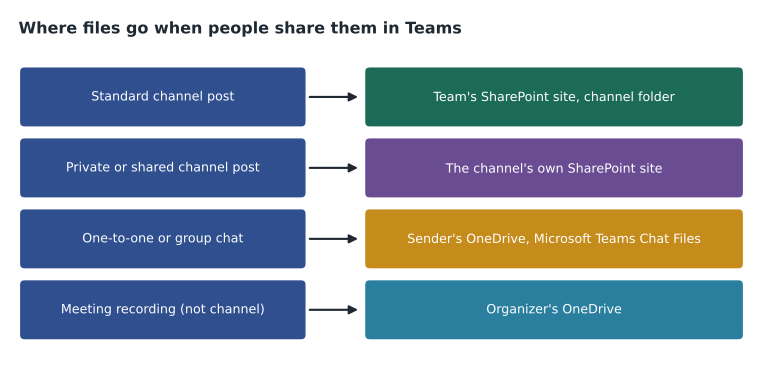
The Files tab in each channel is simply a view of that channel's folder in SharePoint. The Files app in Teams brings together recent files from OneDrive and the sites a user can reach. Users can open the folder in SharePoint from any channel, which is useful when they need features Teams does not show, such as version history details, metadata columns or library-level settings.
The chat rule causes the most surprises. When a nurse shares a care plan in a group chat, the file is in her OneDrive, not in any team. If she leaves Corvallin and her account is deleted, the file goes with her OneDrive unless someone acts. Corvallin's offboarding process therefore gives the departing person's manager access to their OneDrive for the retention period Microsoft 365 allows, set in the SharePoint admin center, so that important files can be moved to a team site.
Permissions follow membership
Team members get access to the team's SharePoint site through the Microsoft 365 group. Owners of the team are owners of the site, and members of the team are members of the site. When someone joins the team they gain access to standard channel files; when they leave they lose it. Private and shared channels work the same way with their own sites: channel owners and members are given access to the channel site.
That automatic link works as long as people share through Teams. Problems start when people share files directly from SharePoint or OneDrive with sharing links, or change permissions on the site itself. A sharing link can give someone access who is not in the team at all, and the team's membership list will not show it. Corvallin's data protection project, described in another course, found sites where links shared with everyone in the organization had exposed sensitive files. Teodor's guidance for owners was to share through Teams, to use links for specific people when they had to, and never to change site permissions by hand without telling IT.
| Location | Who has access by default | Common way access spreads unexpectedly |
|---|---|---|
| Team's SharePoint site | Team owners (site owners) and members (site members) | Sharing links to people outside the team; manual site permission changes |
| Private or shared channel site | Channel owners and members | Sharing links; channel members added who should not be |
| Sender's OneDrive (chat files) | The owner plus the people in the chat at the time of sharing | Links reshared outside the chat; people added to the chat later do not automatically get access |
| Organizer's OneDrive (recordings) | Meeting invitees, depending on settings | Recordings shared with wider audiences |
Sharing settings that affect Teams
Several SharePoint and OneDrive settings shape what users can do with files in Teams. They are set at organization level in the SharePoint admin center, and some can be tightened for individual sites. The most important are the external sharing levels, the default sharing link type and guest access expiration.
External sharing for SharePoint and OneDrive can be set to anyone (including links that need no sign-in), new and existing guests, existing guests only, or only people in the organization. OneDrive's level cannot be more permissive than SharePoint's. A site's level can be stricter than the organization's but not looser. For guests to work with files in a team, guest access must be allowed in Microsoft Entra ID, in Teams and in SharePoint; if any of the three blocks it, guests can join the team but cannot open files, which is one of the most common guest complaints.
The default link type decides what kind of link appears when a user clicks Share: links for specific people, links for people in the organization or anyone links. Corvallin changed its default from people in the organization to specific people, which made users stop and choose recipients. Container sensitivity labels can also set a site's sharing level; Corvallin's Clinical Confidential label limits clinical team sites to people in the organization.
# Requires the SharePoint Online Management Shell
Connect-SPOService -Url https://corvallincare-admin.sharepoint.com
# Default links to specific people, and existing guests only across the tenant
Set-SPOTenant -DefaultSharingLinkType Direct -SharingCapability ExistingExternalUserSharingOnly
# Make one branch team site stricter than the tenant
Set-SPOSite -Identity https://corvallincare.sharepoint.com/sites/CHC-NorthBranch -SharingCapability Disabled
Org-wide file settings in Teams
Teams has a few file-related settings of its own. In the org-wide Teams settings, administrators choose which third-party cloud storage providers, such as Dropbox, Box or Google Drive, users can add to Teams. Corvallin turned them all off: files had to live in Microsoft 365 so that retention and data loss prevention could see them.
Teams policies and meeting policies also influence files indirectly. Meeting policies decide whether meetings can be recorded and transcribed, and a setting controls how long recordings are kept before they expire automatically. Those settings belong to the meetings course, but the help desk needs to know that an expired recording has been moved to the recycle bin of the OneDrive or SharePoint site where it lived, where it can be recovered for a limited period.
Common file problems and fixes
Ama's team built a short list of the problems they saw most, with the usual cause and fix. Most of them come back to the storage rules above.
| Symptom | Usual cause | Fix |
|---|---|---|
| A guest is in the team but cannot open files | SharePoint external sharing is stricter than Teams guest access | Align the site and tenant sharing level with the guest access plan |
| A file shared in a chat vanished | The sender's account was deleted, taking their OneDrive | Restore from the deleted user's OneDrive within the retention window; move key files to team sites |
| A new chat member cannot open an old file | Chat files are shared only with people in the chat when they were posted | Reshare the file, or move it to a channel |
| Files tab shows an error | The channel folder was renamed or moved in SharePoint | Restore the folder name, or re-add the files tab to the correct folder |
| A user left a private channel and lost access to files they wrote | Private channel files live in the channel site, not the user's OneDrive | A channel owner shares the files or re-adds the user if appropriate |
Version history and the recycle bin rescue most "Teams lost my file" cases. SharePoint and OneDrive keep versions of files, and deleted files go to a recycle bin for 93 days in total across the first-stage and second-stage bins. Owners can restore files themselves; administrators can help from the SharePoint admin center. Ama trained branch champions to check version history before raising a ticket, which cut file tickets by about a third.
Worked problem
A guest who cannot open files
Corvallin added an outside wound-care consultant as a guest to the North Branch team. She can read channel messages but gets an access error when she opens any file. Guest access is on in Teams. What should Teodor check, in which order?
Show solution
- Confirm that Microsoft Entra external collaboration settings allow the guest invitation (they do, since she joined).
- Check the SharePoint organization-level external sharing setting: it allows existing guests.
- Check the North Branch site's own sharing setting: it was set to only people in the organization after the label change, so guests are blocked.
- Decide with the owners whether this guest should have file access. If yes, change the team's label or the site's sharing level; if not, share specific files a different way.
Answer: The site's sharing level is stricter than the guest plan. All three layers, Entra, Teams and SharePoint, must allow guests before files open.
Teaching owners where files live
Teodor's short lesson for team owners took fifteen minutes and covered three points. First, post files in channels when the team needs them, because channel files belong to the team and stay when people leave. Second, share in chats only for quick, personal exchanges, because chat files belong to the sender. Third, use the Open in SharePoint option when you need version history, metadata or to restore something, because the Files tab shows only part of what SharePoint can do.
The owners' most common question was why the same file seemed to exist twice. Usually one copy had been uploaded to a channel and another shared in a chat from someone's OneDrive. Teodor's advice was to share a link to the channel copy instead of attaching a new copy to a chat, so there is one file and one version history. The help desk saw fewer duplicate-file questions within a month.
Storage and limits
Files in Teams use SharePoint and OneDrive storage. A tenant's SharePoint storage is pooled, based on a base amount plus an allowance per license, and each user's OneDrive has its own quota, which depends on their license. Corvallin's frontline staff on Microsoft 365 F3 have small OneDrive quotas, which is another reason to keep work files in channels rather than chats. Administrators can see storage use per site in the SharePoint admin center and in Teams reports.
Very large files and large numbers of files can also affect sync and performance. Microsoft publishes limits for file size, path length and items per library, and they change from time to time. For most teams the limits never matter, but teams that store video, scanned records or large exports should be checked. Corvallin moved its training videos out of a branch team into a dedicated video site in SharePoint, which also made them easier to find.
| Need | Better place than a chat |
|---|---|
| A care procedure everyone in the branch uses | A channel's Files tab or a OneNote tab |
| A file you are drafting alone | Your OneDrive, shared later through a channel |
| A large training video | A dedicated SharePoint site or video library |
| A document with legal or records value | A team or records site covered by retention labels |
Sync and offline access
Users can sync a channel's folder to their computer with the OneDrive sync app, or add a shortcut to it in their OneDrive. That is convenient for people who work with many files, but it also means copies live on laptops. Corvallin's devices are encrypted and managed, and sync is limited to managed devices through a SharePoint setting, so files cannot be synced to personal computers. Mobile staff mostly open files in the Teams app or the browser, which avoids local copies on phones.
Common mistakes
MistakeTelling users Teams stores their files.
InsteadExplain that channel files live in SharePoint and chat files in the sender's OneDrive.
MistakeChanging site permissions by hand to fix one person's access.
InsteadAdd the person to the team or channel so permissions follow membership.
MistakeTurning on guest access in Teams and assuming guests can open files.
InsteadCheck Entra, Teams and SharePoint sharing settings together.
MistakeDeleting departing users' accounts without checking their OneDrive.
InsteadGive a manager access and move important chat files before the OneDrive is removed.
Summary and key terms
- Standard channel files live in the team's SharePoint site; private and shared channel files live in their own sites; chat files live in the sender's OneDrive.
- Meeting recordings outside channels go to OneDrive; channel meeting recordings go to SharePoint.
- Permissions follow team and channel membership, but sharing links can spread access beyond it.
- SharePoint and OneDrive sharing settings, default link types and labels all affect files in Teams.
- Guests need Entra, Teams and SharePoint settings to allow them before they can open files.
- Version history and the recycle bin solve most missing-file problems.
- Microsoft Teams Chat Files
- The OneDrive folder where files shared in chats are stored.
- Default sharing link type
- The kind of link SharePoint and OneDrive create when a user clicks Share.
- External sharing level
- The SharePoint or OneDrive setting that decides how far files can be shared outside the organization.
- Recycle bin
- Where deleted SharePoint and OneDrive files go before permanent deletion.
- Files tab
- The view in each channel of that channel's folder in SharePoint.
Practice problems
Work each problem on paper first, then reveal the answer to check.
A file was shared in a group chat. Who owns the storage it lives in?
Show answer
The person who shared it; it is in their OneDrive.
Why might someone outside a team be able to open a team file?
Show answer
Someone shared it with a sharing link directly from SharePoint or OneDrive.
Which three places must all allow guests before a guest can open files in a team?
Show answer
Microsoft Entra external collaboration settings, Teams guest access and SharePoint sharing.
Lesson quiz · 5 questions
Score 60% or more to complete this lesson.
Create a free account to save your progress, take quizzes and earn a certificate.