
MSBA-221 · Lesson 1 of 12 · 19 min
Creating and managing teams
▶ Video coming soon A video version of this lesson is on the way.
When Corvallin Home Care relaunched Microsoft Teams in the autumn of 2026, the planning work was only half the job. Teodor Klimaszewski, the agency's Microsoft 365 administrator, had a pilot plan, a set of policies and a network report. What he did not yet have was a tidy collection of teams. The old, ungoverned Teams environment held 214 teams, many with names like "Test", "New Team (2)" and "Kathy's stuff". Ines Duvernay-Sato, the IT manager, gave him a simple brief for the next phase: every team that survives should have a clear purpose, at least two owners and a name that tells people what it is for.
This course follows that phase. It covers the day-to-day administration of teams, channels, chats and apps, which the MS-700 exam groups into a domain worth 20 to 25 percent of the score, plus the lifecycle tasks that the exam places in its first domain. This first lesson starts with the object at the center of it all: the team itself. You will see what a team is made of, the different ways to create one, how owners and members differ, and how an administrator manages teams from the Teams admin center and from PowerShell.
What a team is made of
A team looks like a single thing to the people who use it: a name in the left rail, a set of channels, some files and a few apps. Behind that simple view sit several Microsoft 365 objects that are created and linked together when the team is born. Understanding them is the key to almost every administrative task in this course, because each one is managed in a slightly different place.
Every team is backed by a Microsoft 365 group. The group holds the membership list, split into owners and members. When someone is added to the team, they are added to the group, and when a group expires or is deleted, the team goes with it. The group also gives the team a group mailbox in Exchange Online, which holds the team calendar and the compliance copies of channel messages that retention and eDiscovery rely on.
Every team also has a SharePoint site. Files posted in standard channels are stored in a folder for each channel inside the site's document library. Private and shared channels are different: each of them gets its own separate SharePoint site so that its files can have their own membership. Finally, the team has its channels, starting with the General channel that every team receives and cannot delete, and its apps and tabs, such as Planner, OneNote and any agents the owners have added.
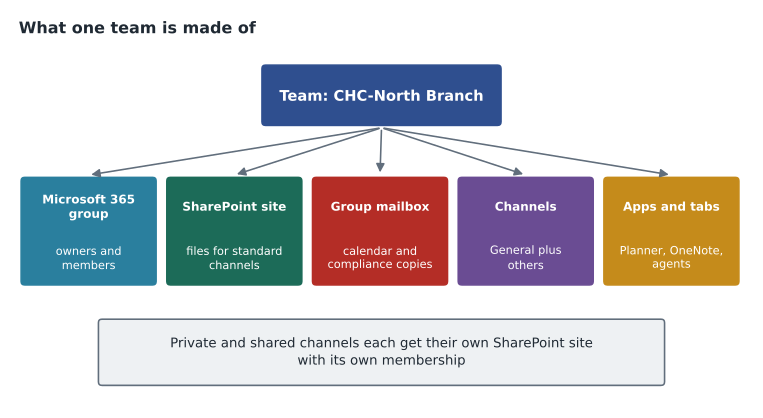
Teodor drew this diagram on the whiteboard at the first session of the clean-up project, because it answered questions people kept asking. Why did deleting a team in Teams also remove a SharePoint site the finance office used? Because the site belonged to the team's group. Why could a former member still open an old file? Because someone had shared that file directly from SharePoint with a link, outside the team's membership. Once the parts were visible, the problems made sense.
Owners, members and guests
Teams has three membership roles. Owners manage the team: they add and remove members, create channels, change team settings, add apps when settings allow and can archive or delete the team. Members take part: they post, share files and, depending on settings, create channels and add apps. Guests are people from outside the organization who have been given a guest account in Microsoft Entra ID and added to the team. Guests have fewer permissions by default; for example, they cannot create standard channels unless owners allow it.
A team can have up to 100 owners and 25,000 members, and a person can belong to up to 1,000 teams, including archived ones. Org-wide teams, which automatically include everyone in the organization, are limited to organizations of 10,000 users or fewer, and a tenant can have only five of them. These are Microsoft's published limits as of late 2026; they change from time to time, so check the current limits page before designing around them.
Corvallin adopted a rule that every team must have at least two owners, ideally from different roles. A branch team, for instance, has the branch manager and a senior coordinator as owners. The reason is practical. Owners leave, go on parental leave or change jobs, and a team without an owner becomes an orphan that nobody can manage except an administrator. Lesson 10 covers how to find and fix orphaned teams; the cheapest fix is never to create one.
| Task | Owner | Member (default) | Guest (default) |
|---|---|---|---|
| Post and reply in channels | Yes | Yes | Yes |
| Add or remove members | Yes | No (can request) | No |
| Create standard channels | Yes | Yes, if allowed | No, unless allowed |
| Create private or shared channels | Yes | Yes, if policy and team settings allow | No |
| Add apps, tabs and connectors | Yes | Yes, if allowed | No |
| Change team settings | Yes | No | No |
| Archive or delete the team | Yes | No | No |
Ways to create a team
The MS-700 skills list names several ways to create a team, and an administrator should know when each makes sense. A team can be created from scratch, which creates a new Microsoft 365 group, mailbox and SharePoint site. It can be created from a template, which adds a predefined set of channels, apps and settings (lesson 3). It can be created from an existing Microsoft 365 group, which keeps the group's members, mailbox and site and simply adds Teams on top. It can be created from a SharePoint site, which connects the site to a new group and team. And it can be created by copying an existing team, choosing which parts to copy: channels, tabs, settings, apps and, optionally, members.
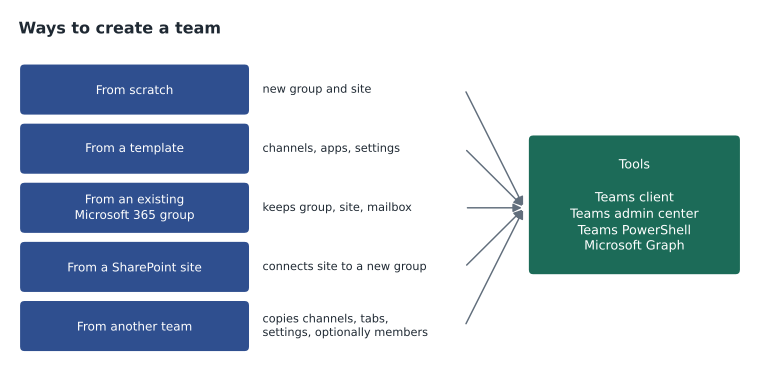
The tools vary too. Users usually create teams in the Teams client, if they are allowed to create Microsoft 365 groups. Administrators can create teams in the Teams admin center, under Teams and then Manage teams. Scripts use the MicrosoftTeams PowerShell module or Microsoft Graph, which is the right choice for repeatable work such as creating a team for every new branch with the same structure.
Who may create teams is controlled by who may create Microsoft 365 groups, not by a Teams setting. Corvallin restricted group creation to a security group called Team Creators during the relaunch, so ordinary staff now request a team through a short form and a member of Team Creators builds it from the right template. That control is configured in Microsoft Entra ID and covered in more depth in the planning course; here it matters because it decides whether the New team button works for a given user.
Connect-MicrosoftTeams
# Create a private team for the East Branch from scratch
$team = New-Team -DisplayName 'CHC-East Branch' `
    -Description 'Scheduling, visits and news for the East Branch' `
    -Visibility Private -Owner 'teodor@corvallincare.example'
# Add a second owner and a member
Add-TeamUser -GroupId $team.GroupId -User 'branchmgr.east@corvallincare.example' -Role Owner
Add-TeamUser -GroupId $team.GroupId -User 'coordinator.east@corvallincare.example'
Get-TeamUser -GroupId $team.GroupId
Since version 7.9.0 of the MicrosoftTeams module, released in July 2026, Connect-MicrosoftTeams signs in through Web Account Manager on Windows by default, and version 8.0.0 became generally available in September 2026. Older scripts that relied on legacy sign-in prompts may need adjusting. Teodor kept a short note in the decision log so that whoever ran the branch scripts next year would know why the sign-in window looked different.
Public, private and org-wide teams
Every team has a privacy setting. A private team can be joined only when an owner adds someone or approves a request. A public team can be found and joined by anyone in the organization. An org-wide team automatically includes every user in the organization and keeps membership in sync as people join and leave.
Public teams are convenient but can cause surprises. Anyone in the organization can join and read everything, including files. Corvallin made all clinical and branch teams private and used public teams only for open interest groups, such as the wellness committee. Sensitivity labels, covered in the planning course, can enforce this choice: Corvallin's Clinical Confidential label sets a team to private and blocks guests, so an owner cannot accidentally flip a clinical team to public.
Org-wide teams look attractive for announcements, but with about 450 staff Corvallin decided against one. Every user would receive every post, the General channel would become noisy, and announcements were better handled through a news site in SharePoint and a single announcement channel with moderation, which lesson 2 describes.
Managing teams in the Teams admin center
Administrators see every team in the tenant on the Manage teams page of the Teams admin center. From there they can open a team and view or change its name, description, privacy, classification and sensitivity label; see and change members and owners; see and manage its channels, including private and shared ones; and change team settings such as whether members can create channels or add apps. The same page shows activity information that helps identify unused teams.
The admin center also lets administrators act on teams in bulk where it makes sense, for example archiving several teams at once, and it shows teams that have no owner. For large changes, though, Teodor preferred PowerShell. It is repeatable, it leaves a script in the decision log as a record of exactly what was done, and it can be tested on one team before running on fifty.
Worked problem
Adding a missing owner to a team
The South Branch team has 38 members and one owner, a coordinator who starts maternity leave next week. The branch manager, Gloria, is a member. What is the quickest correct fix, and what should Teodor check afterwards?
Show solution
- Open the team on the Manage teams page in the Teams admin center, or connect with the MicrosoftTeams module.
- Change Gloria's role from member to owner (in PowerShell: Add-TeamUser with -Role Owner for her account).
- Confirm the team now lists two owners.
- Check the team's private channels: channel ownership is separate, so Gloria may need to be added as an owner of each private channel she should manage.
Answer: Promote Gloria to team owner, then review private and shared channel owners separately, because team ownership does not carry into those channels automatically.
Team settings and environment settings
Each team has its own settings, which owners can change and administrators can override. They control member permissions (creating and deleting channels, adding apps, editing and deleting messages), guest permissions, @mentions for the team and channels, and fun features such as GIFs, stickers and memes. Lesson 3 looks at these settings in detail alongside templates.
The MS-700 outline also refers to Teams environment settings, the tenant-wide choices that apply to all teams. They include org-wide Teams settings such as email integration for channels and which third-party file storage providers can appear in Teams, the guest access and external access settings, and the Microsoft 365 group settings in Entra ID that govern creation, naming and expiration. These settings live in several portals, which is why Corvallin's decision log listed each one with its location, its current value and the reason for it.
Frontline teams
The MS-700 outline asks administrators to create and manage frontline teams and experiences. Most of Corvallin's 340 home-care staff are frontline workers: they visit clients' homes, work from phones and rarely sit at a desk. Microsoft offers tools to set up teams for this kind of workforce at scale, including a frontline team deployment experience in the Teams admin center that creates a team for each location from a template, with membership driven by dynamic groups based on attributes such as department or office location.
Corvallin used dynamic groups based on the office location attribute, so a new coordinator hired at the West Branch lands in the West Branch team automatically and moves teams if she transfers. Frontline staff also received the Frontline-Setup app setup policy, which pins the apps they use most, such as Shifts, Approvals and the visit checklist app, and hides those they do not need. Lesson 6 covers setup policies.
Teams Advisor and planning a rollout
The MS-700 outline lists planning a rollout with Teams Advisor, a tool in the Teams admin center (previously called Advisor for Teams) that builds a deployment plan as a team in Teams, with channels and Planner tasks for each workstream. Teodor used it during the relaunch to give branch champions a shared checklist: each task, such as confirming owners or testing the branch template, had an owner and a due date, and progress was visible to Ines without a separate status report. Advisor does not make decisions for you; it organizes the work so that nothing is forgotten.
Common mistakes
MistakeCreating teams with a single owner.
InsteadGive every team at least two owners from different roles so it never becomes ownerless.
MistakeAssuming a Teams setting decides who can create teams.
InsteadTeam creation follows Microsoft 365 group creation settings in Microsoft Entra ID.
MistakeMaking a clinical team public for convenience.
InsteadKeep sensitive teams private and enforce it with a sensitivity label that controls privacy and guest access.
MistakeAssuming a new team owner automatically owns every private channel.
InsteadPrivate and shared channels have their own owners and members; review them separately.
Summary and key terms
- A team is a bundle of linked objects: a Microsoft 365 group, a group mailbox, a SharePoint site, channels and apps.
- Owners manage the team, members take part and guests have limited permissions by default.
- Teams can be created from scratch, from a template, from an existing group, from a SharePoint site or by copying a team.
- The Teams client, the Teams admin center, the MicrosoftTeams PowerShell module and Microsoft Graph can all create teams; group creation settings decide who may.
- Private, public and org-wide teams differ in who can join; labels can enforce privacy.
- Frontline team tools create location-based teams at scale with dynamic membership.
- Team owner
- A person who manages a team: members, channels, settings and its lifecycle.
- Guest
- A person outside the organization with a guest account in Microsoft Entra ID who has been added to a team.
- Org-wide team
- A team that automatically includes every user in an organization of up to 10,000 users.
- Manage teams page
- The Teams admin center page that lists every team and lets administrators change them.
- Teams environment settings
- Tenant-wide settings that affect all teams, spread across the Teams, Microsoft 365 and Entra admin centers.
- Frontline team
- A location-based team, often created at scale, for staff who work away from a desk.
Practice problems
Work each problem on paper first, then reveal the answer to check.
Deleting a team removed a SharePoint site the finance office used. Why?
Show answer
The site belonged to the team's Microsoft 365 group, and deleting the team deletes the group and its connected resources.
A user cannot see the option to create a team. What should you check first?
Show answer
Whether Microsoft 365 group creation is restricted to a security group the user is not in.
When would you create a team from an existing Microsoft 365 group?
Show answer
When a group already has the right members, mailbox and site, and you want to add Teams without starting over.
Lesson quiz · 5 questions
Score 60% or more to complete this lesson.
Create a free account to save your progress, take quizzes and earn a certificate.