
MSBA-221 · Lesson 8 of 12 · 18 min
Agents and Copilot in Teams
▶ Video coming soon A video version of this lesson is on the way.
In September 2026 Corvallin's leadership approved a Microsoft 365 Copilot pilot for spring 2027, starting with about 40 office staff, on condition that the agency's data governance was ready first. That decision put Teams in the middle of the planning. Copilot would summarize meetings, catch people up on long chats and answer questions in channels, and agents, from Microsoft, from vendors and built by staff, would appear as apps and participants in Teams. Ines asked Teodor to make sure that, on the day licenses arrived, nothing in Teams would surprise the privacy officer.
This lesson covers how AI features and agents show up in Teams, which settings control them, and how an administrator troubleshoots them. The MS-700 outline asks candidates to configure meeting settings including those for Microsoft 365 Copilot and to troubleshoot Copilot and AI experiences in Teams. Agents are not named in the outline, but they are managed through the same app controls covered in lessons 6 and 7, and Microsoft has added specific controls for its own built-in Teams agents.
Copilot in Teams
Microsoft 365 Copilot in Teams works in chats, channels and meetings for users with a Copilot license. In chats and channels it can summarize conversations, highlight decisions and action items and help draft replies. In meetings it can answer questions about what has been said, summarize discussion and list follow-ups, and after the meeting it can work from the transcript. Copilot respects the user's permissions: it can draw only on content the user could already open.
Users without a Copilot license still have Copilot Chat, a web-grounded chat experience with enterprise data protection, which can appear in Teams. Microsoft's naming of these experiences has changed several times, and in late 2026 Microsoft's own pages use more than one name for the free chat experience. The lasting distinctions are what matter for administration: whether the user has a Copilot license, which work data Copilot can reach, and which settings and policies apply.
Licensing is the first control. A user without a Microsoft 365 Copilot license does not get Copilot in meetings, chats and channels, whatever the policy says. Corvallin's pilot licenses will be assigned through a group, Copilot-Pilot, so that adding and removing pilot users is a group membership change rather than a license task.
Meeting settings for Copilot
Meeting policies include a Copilot setting that decides whether Copilot can be used in meetings and whether it needs a transcript. Microsoft's options let Copilot be used only when the meeting is transcribed, so the transcript is kept, or let it run during the meeting without keeping a transcript afterwards, or turn it off. Meeting organizers can then choose within what the policy allows, for example using Copilot only during the meeting.
Corvallin's Clinical-Meetings policy, created in autumn 2026 at Dr. Marguerite Ostrander-Bey's request, sets the organizer default so that Copilot can be used only during the meeting, with no retained transcript, for case discussions that include client details. Other meetings use the Standard-Meetings policy, which allows Copilot with transcription. Meeting policies are covered fully in the meetings course; for this lesson, the point is that Copilot behavior in meetings is a meeting policy decision.
| Where Copilot appears | Main control | Corvallin decision |
|---|---|---|
| Meetings | Copilot license plus the meeting policy Copilot setting and organizer options | Clinical-Meetings: during the meeting only; Standard-Meetings: with transcription |
| Chats and channels | Copilot license; retention and data protection in Purview | Pilot users only, after the oversharing clean-up |
| Copilot Chat | Availability of the Copilot app and Microsoft 365 settings | Available to all staff with enterprise data protection |
| Agents in Teams | App availability, built-in agent controls, agent inventory | Reviewed individually; built-in agents limited to pilot users at first |
Agents in Teams
An agent is an AI assistant designed for a specific job, such as answering policy questions, taking notes or managing a project channel. In Teams, agents appear in several ways. Some are built-in Teams agents from Microsoft, such as Facilitator, which helps run meetings and keep notes, and the Channel Agent, which works inside a channel and draws on its conversations, files and meetings. Others are delivered as apps from Microsoft, partners or the organization's own makers, often built in Copilot Studio, and appear in the store like any other app.
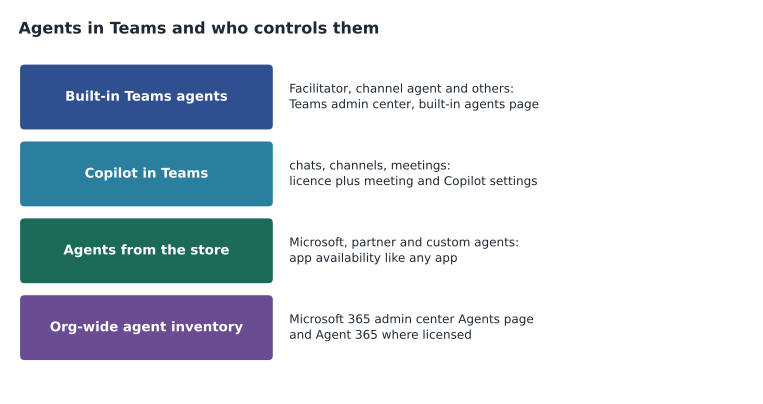
In mid-2026 Microsoft added a built-in Teams agents page to the Teams admin center, under Teams apps. It lets administrators allow or block each built-in agent individually, assign access to specific users or groups and configure agent-specific settings. Microsoft's Message center post on the change said these agents would no longer follow the org-wide Microsoft apps setting and warned that, in tenants where that setting was off and no agent-level configuration existed, the agents would become allowed after the rollout. Administrators were told to review their settings, which Teodor did the week the post appeared.
Some built-in agents have extra settings. The Channel Agent, for example, has an auto-creation setting that adds an agent to new channels created by eligible users, on by default except in education tenants. Microsoft's documentation also lists limits, such as one Channel Agent per channel and no support in private channels, and licensing requirements that include a Copilot license. Teodor turned auto-creation off until the pilot began, so that agents would appear only where a team owner chose to add one.
Agents as apps
Agents from the store, including custom agents built in Copilot Studio and published to Teams, are controlled by app-centric management. Each has availability set to Everyone, specific users or groups, or No one, and the org-wide default for new apps applies to new agents of each type. Corvallin's third-party default is not available until reviewed, so a partner's agent cannot appear in front of staff without Teodor's review.
Agents built by Corvallin's own staff follow the custom app process from lesson 7. The scheduling team's intake agent, built in Copilot Studio, went through the same form, data review and limited availability as the visit checklist app. Microsoft also provides an organization-wide inventory of agents in the Microsoft 365 admin center, and Agent 365, generally available from May 2026, adds management features for organizations that license it. Those tools belong to the Microsoft 365 and Copilot administration courses; a Teams administrator should know they exist and coordinate with whoever owns them.
# Copilot in meetings is a meeting policy setting.
# Check what the clinical policy currently allows
Get-CsTeamsMeetingPolicy -Identity 'Clinical-Meetings' | Select-Object Identity, Copilot, AllowTranscription
# List built-in or store agents is done in the admin center or with the app cmdlets from lesson 6
Get-AllM365TeamsApps | Where-Object { $_.Id -eq $facilitatorId }
Data protection comes first
Copilot and agents in Teams use the permissions people already have. If a team site is overshared, Copilot can surface its content to people who technically had access but never knew it existed. That is why Corvallin's board made an oversharing clean-up a condition of the pilot. Teams administrators contribute by keeping team membership accurate, using private channels correctly, removing stale guests and archiving dead teams, all covered elsewhere in this course.
Retention and compliance also apply. Copilot interactions in Teams can be covered by Purview retention policies for Copilot experiences, and data loss prevention can apply to prompts and responses in some scenarios. Teodor worked with the privacy officer so that, before the pilot, Corvallin had a retention decision for Copilot interactions and a clear rule about using Copilot in clinical meetings.
Troubleshooting Copilot and AI in Teams
Most Copilot problems in Teams have ordinary causes. The MS-700 outline expects administrators to troubleshoot them, so Ama's help desk added a short checklist.
| Symptom | Check |
|---|---|
| No Copilot button in meetings | Does the user have a Copilot license? Does the meeting policy allow Copilot? Is transcription required by the policy and turned off? |
| Copilot available during the meeting but not afterwards | The organizer or policy chose "only during the meeting", so no transcript was kept |
| Copilot cannot find a file the user expects | The user lacks permission to the file, or it is in a location Copilot does not reach |
| A built-in agent is missing | Is it allowed on the built-in agents page and assigned to this user? Has the change had time to apply? |
| A store agent is missing | Its app availability and status, and the org-wide default for its type |
| Copilot is slow or failing for everyone | Service health and Message center for a known incident |
Worked problem
Copilot missing in one meeting
A pilot user, a head office manager with a Copilot license, says Copilot worked in her team meeting on Tuesday but is unavailable in a case conference on Thursday. The case conference is organized by a clinical lead. What is the likely reason?
Show solution
- Check her license: assigned through the Copilot-Pilot group, so it is not the cause.
- Check the organizer's meeting policy: the clinical lead has Clinical-Meetings.
- Clinical-Meetings sets Copilot to be available only during the meeting without transcription, and organizers can turn it off for a meeting.
- The organizer turned Copilot off for this case conference, which the policy allows.
Answer: The organizer's meeting options, within the Clinical-Meetings policy, turned Copilot off for that meeting. Nothing is broken; the setting is working as designed.
Preparing Teams for the Copilot pilot
Teodor's preparation for the spring 2027 pilot had five parts. First, licenses: a Copilot-Pilot group that assigns licenses, so joining and leaving the pilot is a membership change. Second, meeting policies: Clinical-Meetings and Standard-Meetings reviewed so that Copilot behaves as the clinical director expects in each kind of meeting. Third, agents: built-in agents allowed only for the pilot group, Channel Agent auto-creation off, and no third-party agents until reviewed. Fourth, data: team clean-up, guest reviews and private channel checks finished, so Copilot would not surface forgotten content. Fifth, support: help desk checklist and champion training ready before the first license is assigned.
| Readiness item | Owner | Status in November 2026 |
|---|---|---|
| Copilot-Pilot group and license assignment | Teodor | Group created; licenses not yet bought |
| Meeting policy Copilot settings | Felix with the clinical director | Clinical-Meetings and Standard-Meetings set |
| Built-in agents limited to pilot group | Teodor | Done; auto-creation off |
| Team and guest clean-up | Teodor and team owners | Done |
| Help desk checklist and champion training | Ama | Drafted |
Explaining AI in Teams to staff
Staff questions about Copilot were less about settings and more about trust. Would Copilot record everything? Could managers read summaries of private chats? Would clients' details leave Corvallin? Teodor and the privacy officer wrote a one-page explainer with plain answers. Copilot works with what you can already see. It does not give managers access to your chats. Meeting summaries depend on the meeting's settings, and clinical meetings keep no transcript. Data stays within Microsoft 365 under Corvallin's agreements with Microsoft.
The explainer also set expectations about accuracy. Copilot summaries can miss things or get them wrong, so staff must check anything important, especially anything about a client's care, against the source. Dr. Marguerite Ostrander-Bey added a sentence of her own: a summary is a starting point, never the clinical record.
Keeping up with change
AI features in Teams change faster than almost anything else in Microsoft 365. New agents arrive, settings move, names change and defaults shift, as the built-in agents change in 2026 showed. Teodor's defense is routine: weekly review of Message center posts tagged for Teams and Copilot, a check of the built-in agents page after any related post, and a short note in the decision log for every decision. It is not glamorous, but it means Corvallin finds out about changes from Microsoft's notices rather than from confused staff.
Common mistakes
MistakeAssuming a meeting policy can give Copilot to an unlicensed user.
InsteadCopilot in meetings, chats and channels needs a Microsoft 365 Copilot license first.
MistakeIgnoring Message center posts about built-in agents.
InsteadReview the built-in agents page when Microsoft changes how agents are governed; defaults can change.
MistakeTreating agents as different from apps for access control.
InsteadStore and custom agents follow app availability like any other app.
MistakeStarting a Copilot pilot before cleaning up oversharing.
InsteadFix membership, guests and sharing first, because Copilot works with existing permissions.
Summary and key terms
- Copilot in Teams works in chats, channels and meetings for licensed users and respects their existing permissions.
- Meeting policies control whether Copilot can be used in meetings and whether it needs a retained transcript; organizers choose within the policy.
- Built-in Teams agents such as Facilitator and the Channel Agent are managed on the built-in agents page of the Teams admin center.
- Store and custom agents follow app-centric management like other apps.
- Organization-wide agent inventory and Agent 365 sit in the Microsoft 365 admin center and are coordinated with Copilot administrators.
- Troubleshooting starts with license, policy, permissions and service health.
- Microsoft 365 Copilot
- The licensed AI assistant that works with an organization's data in Teams and other apps.
- Copilot Chat
- A chat experience available without a Copilot license, with enterprise data protection.
- Agent
- An AI assistant built for a specific task, delivered in Teams as a built-in agent or an app.
- Facilitator
- A built-in Teams agent that helps run meetings and keep notes.
- Channel Agent
- A built-in Teams agent attached to one channel that draws on its conversations, files and meetings.
- Built-in Teams agents page
- The Teams admin center page where administrators allow, block and assign Microsoft's built-in agents.
Practice problems
Work each problem on paper first, then reveal the answer to check.
A licensed user has no Copilot in meetings. Name two settings to check.
Show answer
The meeting policy Copilot setting and whether the policy requires transcription that is turned off.
How is a partner's agent kept out of Teams until reviewed?
Show answer
Set the org-wide default for new third-party apps to not available, so its availability starts as No one.
Why does oversharing matter for Copilot?
Show answer
Copilot can surface any content a user has permission to, including overshared files they never knew about.
Lesson quiz · 5 questions
Score 60% or more to complete this lesson.
Create a free account to save your progress, take quizzes and earn a certificate.