
MSBA-213 · Lesson 9 of 12 · 18 min
Updating and retiring apps
▶ Video coming soon A video version of this lesson is on the way.
An app deployment is never finished. The visit verification vendor ships about six releases a year, the VPN client four, the PDF editor more than ten. Each release has to reach the laptops, and old versions have to leave. And some apps have to go entirely: by the end of October Ama had a retirement list with PrintAssist on 61 laptops, two remote-control tools on 14 and an old version of a Java runtime that nothing used any more. This lesson covers both halves of the lifecycle: moving devices to a new version, and removing what should no longer be there.
Four ways an app gets updated
How an app updates depends on its type, which is one more reason the type decision in lesson 1 matters.
| App type | How updates arrive | Administrator's job |
|---|---|---|
| Store-packaged app | The Microsoft Store updates it automatically | Keep Store auto-update on; nothing else |
| Mobile store app | The App Store or Google Play updates it, influenced by Intune settings such as update priority | Set update options per assignment |
| Enterprise App Catalog app | Auto-update for Required assignments, or a guided update | Choose per app (lesson 8) |
| Win32 app you packaged | Nothing happens until you add the new version | Package it and use supersedence, or replace the content |
For apps you package yourself, there are two choices. You can upload the new version's content into the existing app and update the detection rule, which is quick but gives no control over who gets it first: every targeted device moves on its next check. Or you can create a new Win32 app for the new version and link it to the old one with supersedence, which lets you assign the new version to a test group first and then to everyone, while Intune handles the transition on each device. Ama used supersedence for every app that mattered.
How supersedence works
A supersedence relationship says that one Win32 app replaces another. It is set on the new app, which lists the app or apps it supersedes. For each superseded app, one choice decides what happens to the old version: Uninstall previous version set to Yes makes Intune run the old app's uninstall command before installing the new one, which suits replacing one product with a different one; set to No, Intune leaves removal to the new installer, which suits ordinary version upgrades where the vendor's installer upgrades in place.
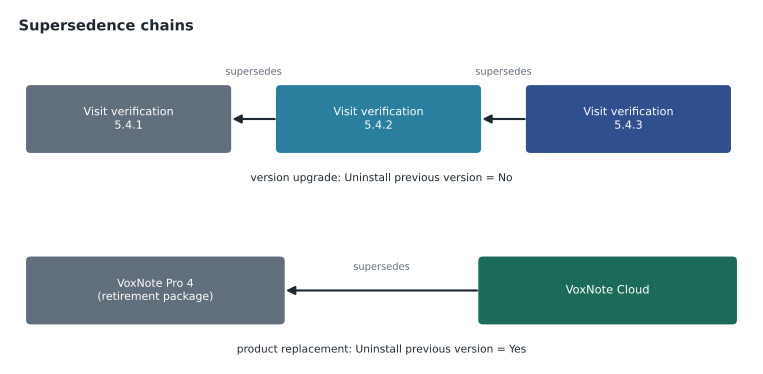
Microsoft documents several rules that catch people out. The superseding app must itself be assigned; superseding apps are not targeted automatically, and if the new app reaches a device that has the old app, supersedence happens even if the old app is not targeted there. Supersedence and dependency relationships can live in the same group of related apps, and if they conflict, supersedence takes precedence and Intune reports a conflict. Relationship graphs have a size limit: Microsoft's page gives 10 nodes in one place and 11 in another, so treat 10 as the safe maximum. In practice, that means retiring old versions from the chain rather than letting it grow for years.
| Assignment of the new app | What happens on devices with the old app |
|---|---|
| Required | The new app installs; with Uninstall previous version set to Yes, the old one is removed even if it was not targeted |
| Available, with auto-update off | Only the new app is offered in Company Portal; existing installs stay until the user installs the new one |
| Available, with auto-update on | Devices that installed the old version as Available get the new one automatically, usually within 8 to 16 hours |
Auto-update for supersedence applies only to apps assigned as Available for enrolled devices with the auto-update option turned on. Users who received the old version as Required do not get the new one through auto-update; they get it because the new app is itself assigned as Required. Microsoft says to expect auto-update within roughly two check-ins and that failed installs are retried until the user installs from Company Portal. Ama used Available with auto-update for the PDF editor, which only 20 staff had, and Required for everything Corvallin depended on.
A release routine
Ama wrote a routine for every new version of a packaged app, and the help desk followed it each time.
| Step | Action |
|---|---|
| 1 | Package the new version into a new source folder and .intunewin file |
| 2 | Create a new Win32 app named with the version, copy the commands and update the detection rule to the new version |
| 3 | Add supersedence of the previous version, Uninstall previous version set as the vendor's upgrade path requires |
| 4 | Assign Required to the IT ring (6 devices), check results the next day |
| 5 | Add the pilot ring (20 devices) for three working days |
| 6 | Assign to all corporate laptops with an installation deadline after the morning visit runs |
| 7 | When reports show every device on the new version, remove assignments from the old app and later delete it to keep the chain short |
Step 7 is the one people skip. An old app with no assignments does no harm on its own, but it stays in supersedence chains, confuses reports and eventually hits the graph limit. Ama kept at most two older versions in any chain.
Line-of-business apps and the move to Win32
Supersedence works only between Win32 apps. The old visit verification app had been a line-of-business MSI, so the new Win32 version could not supersede it. Ama handled the transition in three steps. She assigned the new Win32 app as Required; its installer upgraded the old MSI where it could. She removed the Required assignment from the old line-of-business app, which on Windows does not uninstall it; removing an assignment simply stops Intune managing the app. Then, after reports showed the Win32 version everywhere, she deleted the old app from Intune. The same pattern works for moving any line-of-business MSI to Win32.
Retiring apps Intune did not install
The hardest apps to retire were the ones Intune had never deployed. PrintAssist and the remote-control tools had arrived with a reseller's images and a former vendor's visits. An Uninstall assignment needs an app in Intune, so Ama created a small Win32 app for each unwanted program: the uninstall command from the vendor's documentation, a detection rule that finds the program, and an Uninstall assignment to the corporate laptop group with the three label-printer laptops excluded for PrintAssist. Where the program was present, Intune ran its uninstall command; where it was absent, detection said not installed and nothing happened. The install command was a harmless placeholder that would never run, since nothing assigned the app as Required.
"%ProgramFiles(x86)%\PrintAssist\uninst.exe" /STwo weeks later the discovered apps report showed PrintAssist only on the three label-printer laptops and the remote-control tools nowhere. Teodor also looked at App Control for Business, the Windows application control feature that Intune can configure, which could block the tools from coming back. Corvallin used App Control only in audit mode on a few kiosk-type devices, so for laptops he relied instead on a weekly discovered-apps check for the two tools, added to the Monday report. MD-102 lists configuring App Control policies under protecting devices, and the security course covers it in depth.
Retiring apps on phones
Mobile apps retire differently. On iPhones, an Uninstall assignment removes a managed app, and the option to uninstall on device removal means retiring a phone from Intune also removes its work apps. On Android Enterprise fully managed devices, an Uninstall assignment removes the app through Google Play. On personal phones with app protection only, Intune cannot uninstall anything; app selective wipe removes the work data, and the user removes the app if they wish. When the communications team stopped using a social media scheduling app, Ama assigned Uninstall to the iPhone group, and the app was gone from the five phones within a day.
Worked problem
Retiring the old Java runtime
An old Java runtime is on 47 laptops. The discovered apps report shows two versions. Nothing at Corvallin should need it, but Ama is not certain. How should she retire it safely?
Show solution
- Ask the app owners: no Corvallin app lists Java as a requirement, but one laptop at the West Branch runs an old equipment maintenance tool.
- Create a Win32 retirement package with the runtime's uninstall command and a detection rule that finds either version.
- Assign Uninstall to the IT ring, then to a pilot branch, then to everyone, excluding the West Branch maintenance laptop.
- Watch help desk calls for a week after each stage.
Answer: The runtime left 46 laptops with no calls. The maintenance tool's vendor confirmed a newer version without Java, which was packaged in November so the last copy could go too.
Updates for Microsoft 365 Apps and Edge
Office and Edge follow their own update processes rather than supersedence. Microsoft 365 Apps updates through its channel, managed at Corvallin by cloud update in the Apps admin center, as lesson 2 described. Microsoft Edge updates itself through its own updater on a channel set by policy, normally Stable, and the settings catalog has Edge update settings for organizations that need to delay or pin a version. Ama left Edge on automatic updates, because a browser is the most exposed app on any laptop.
Version drift and reporting
Even with a release routine, some devices fall behind: a laptop that was in a drawer for a month, a coordinator on leave, a device that kept failing an install. Ama's Monday report, from the device course, gained an apps section listing each Required app with the count of devices on the current version, the previous version and anything older. Anything older than the previous version was investigated. The report also showed devices that had not checked in for more than 14 days, because no app process can update a device that never connects.
| Required app | Current version | Previous | Older | Not checked in 14 days |
|---|---|---|---|---|
| Visit verification | 498 | 17 | 0 | 5 |
| VPN client | 508 | 6 | 1 | 5 |
| Company Portal | 515 | 0 | 0 | 5 |
Retirement checklist
Ama's retirement checklist for any app, managed or not, had six steps, and the remote-control tools went through all of them.
| Step | For the remote-control tools |
|---|---|
| Confirm no one needs it | No current support contract used them; Ines approved removal |
| Find every copy | Discovered apps: 14 laptops, two products |
| Build a retirement package | One Win32 app per product with detection and uninstall |
| Remove in stages | IT ring, then one branch, then everyone |
| Prevent return | Weekly discovered-apps check in the Monday report |
| Confirm with inventory | Discovered apps showed zero copies after two weeks |
The prevention step mattered most for the remote-control tools, because they were the kind of software an attacker might try to reinstall; blocking them with App Control was noted for when Corvallin extended it beyond audit mode. For ordinary apps, such as the old Java runtime, Ama skipped it.
Mixed estates during a transition
For a week or two during any update, devices run different versions. That is normal, but it affects support. The help desk needed to know which version a caller had before troubleshooting, so Ama added the app's installed version to the information technicians checked first, taken from the device's app list in Intune. She also asked vendors whether the old and new versions could coexist with the same back end; for the visit verification app they could, so there was no need to rush the last stragglers. For the VPN client, a change in its server configuration meant the old version stopped connecting after a cut-over date, so the rollout for that release had a firm deadline and a daily report of stragglers until it reached zero.
Common mistakes
MistakeExpecting removing a Required assignment to uninstall a Windows app.
InsteadRemoving an assignment stops management. Use an Uninstall assignment to remove the app.
MistakeForgetting to assign the superseding app.
InsteadSuperseding apps are not targeted automatically; assign them.
MistakeLetting supersedence chains grow with every release.
InsteadKeep chains short; graphs have a limit of about 10 related apps.
MistakeTrying to supersede a line-of-business MSI with a Win32 app.
InsteadSupersedence works only between Win32 apps; move LOB apps by assigning the Win32 version and removing the old assignment.
Summary and key terms
- Store apps update themselves; packaged Win32 apps need a new version and usually supersedence.
- Uninstall previous version decides whether Intune removes the old app or leaves it to the new installer.
- Superseding apps must be assigned; auto-update applies to Available assignments with the option turned on.
- Retire unmanaged programs with a Win32 package that detects them and an Uninstall assignment.
- On phones, Uninstall assignments remove managed apps; on unenrolled phones, selective wipe removes work data.
- Supersedence
- A relationship in which one Win32 app replaces another.
- Uninstall previous version
- A supersedence option that makes Intune remove the superseded app first.
- Auto-update (supersedence)
- Automatic replacement of an Available app with its superseding version.
- Uninstall assignment
- An assignment that tells Intune to remove an app from targeted devices or users.
- App Control for Business
- The Windows application control feature that blocks or allows software by policy.
Practice problems
Work each problem on paper first, then reveal the answer to check.
What happens to a Windows app when you remove its Required assignment?
Show answer
It stays installed; Intune stops managing it.
When should Uninstall previous version be Yes?
Show answer
When replacing a product with a different one, so the old app is removed first.
How did Ama remove PrintAssist, which Intune never installed?
Show answer
With a Win32 app that detects it and an Uninstall assignment.
Lesson quiz · 5 questions
Score 60% or more to complete this lesson.
Create a free account to save your progress, take quizzes and earn a certificate.