
MSBA-213 · Lesson 10 of 12 · 18 min
Remote Help and Windows 365 basics
▶ Video coming soon A video version of this lesson is on the way.
Most of Corvallin's help desk calls came from people who were not in the building. A scheduler at the Truro branch could not get the PDF editor to print. A care coordinator working from home saw an error when the visit verification app opened. For years the help desk had talked them through fixes on the phone or used one of the remote-control tools a former vendor had installed, the same tools lesson 9 removed. The replacement Ines wanted was Remote Help, Intune's own remote assistance service, which the July 2026 licensing change had brought into Microsoft 365 E3. This lesson covers Remote Help and the basics of Windows 365, the Cloud PCs that Corvallin's contract therapists already used, because both change how apps are supported and delivered.
What Remote Help is
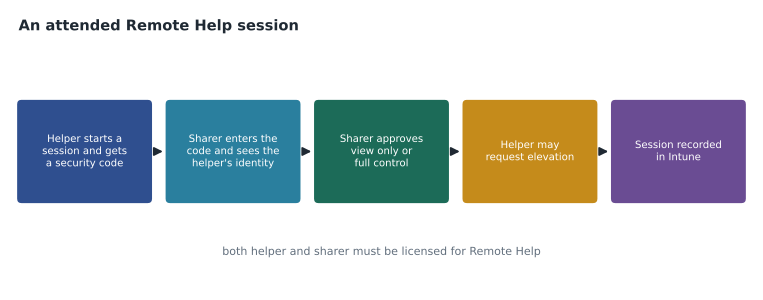
Remote Help is a cloud-based remote assistance tool built on Intune and Microsoft Entra ID. A helper, usually a help desk technician, starts a session with a user, the sharer, who sees who the helper is and approves the session. Because both sign in with Entra ID, the sharer can see the helper's verified name and organization, and the helper can see whether the sharer's device is enrolled and compliant. Sessions are logged in Intune, so there is a record of who helped whom and when. That combination of identity, consent and audit is what the old remote-control tools lacked.
| Sharer platform | Session types documented in 2026 |
|---|---|
| Windows (native app) | View only, full control, elevation for administrator prompts; unattended on corporate devices that meet extra requirements |
| macOS (native app) | View only and full control, with the helper on the web app |
| Android (native app) | View only and full control; unattended on Android Enterprise dedicated devices |
| Windows or macOS (web app) | View only |
Attended sessions need the user present to accept. The helper can ask for view only, which Microsoft recommends unless more is needed, or full control. Elevation lets the helper enter administrator credentials at a Windows User Account Control prompt on the user's device, which is how a technician installs a driver or changes a protected setting for a user who is not an administrator, and at Corvallin no one was. Unattended sessions let the helper connect when no user is present, which Microsoft supports only on Windows corporate devices meeting extra requirements and on Android dedicated devices, such as Corvallin's reception tablets.
Prerequisites and permissions
Microsoft's planning page lists what Remote Help needs, and Ama worked through it as a checklist.
| Requirement | Detail | Corvallin's status |
|---|---|---|
| License | A Remote Help license for every helper and every sharer, on top of Intune Plan 1 or Plan 2 | Included for E3 users from July 2026; F3 users not covered |
| Identity | Helpers and sharers sign in with Microsoft Entra ID | Already in place |
| Enrollment | If Remote Help is limited to enrolled devices, the sharer's device must be enrolled in the same tenant | All corporate laptops enrolled |
| Helper permissions | Intune permissions to offer remote assistance and read the connector, plus at least one of view screen, take full control or elevation | Help Desk Operator includes them; assigned to Ama and two technicians |
| Scope | The sharer or the device must be in the helper's role scope | All corporate devices in scope |
| Network | Both sides reach Remote Help's service endpoints over port 443 | Felix confirmed at all branches |
The license line was the surprise. Remote Help needs a license for the sharer as well as the helper, and the July 2026 change added it to E3, not F3. The help desk could therefore help office staff with E3 but not the 340 home-care staff, who held F3 and made most of the calls about laptops at the branches. Ama could not change the licensing herself. She enabled Remote Help for E3 users, documented the gap and asked Ines for a quote for Remote Help licenses for the home-care staff. In the meantime, the help desk used phone guidance and, for laptops, a visit at the branch. The device course had warned that features in the 2026 packaging change applied only to the right licenses; this was the clearest example.
Setting it up
Setup has three parts. Remote Help is turned on in the tenant's Intune settings, where the administrator chooses whether sessions are allowed only with enrolled devices or also with unenrolled ones; Ama chose enrolled only. The Remote Help app is deployed to helpers' and sharers' Windows devices, which at Corvallin meant one more Required Win32 app for E3 laptops, packaged with its silent switch and a file detection rule. And the helpers are given the right Intune role, scoped to the devices they support. Microsoft recommends a Conditional Access policy for the Remote Help service requiring multifactor authentication or a compliant device for helpers; Corvallin's existing policies already required both for administrators.
Remote Help and apps
Remote Help changed how app problems were solved. When the scheduler at Truro could not print from the PDF editor, the technician joined with view only, saw that the editor was set to a printer queue from another branch, and walked her through changing it; no full control needed. When a care coordinator's visit verification app showed an error, the technician asked for full control, opened the Intune Management Extension log folder and found the app had failed its last update because the disk was nearly full, the problem the disk-space Remediation from the device course was designed to catch. Elevation was needed twice in November, both times for a driver the user could not install.
Windows 365 basics
Windows 365 provides Cloud PCs: Windows computers that run in Microsoft's cloud and are reached over the network from any device. About 20 contract therapists at Corvallin used Cloud PCs because they worked for several agencies and did not want another laptop. Each therapist connected from their own computer through Windows App, Microsoft's client for Cloud PCs and Azure Virtual Desktop, and saw a full Corvallin Windows desktop with Corvallin's apps.
For Intune administrators, a Cloud PC is simply another Windows device. It is enrolled in Intune automatically when it is provisioned, it appears in device lists alongside physical laptops, and it receives configuration profiles, compliance policies and app assignments the same way. MD-102 includes provisioning and configuring Cloud PCs through Intune: provisioning policies, which decide the image, the network connection, the region and who gets a Cloud PC; network connections, which choose between a Microsoft-hosted network and a connection to the organization's own Azure virtual network; and image management, which chooses between Microsoft's gallery images and custom images.
| Windows 365 element | What it decides | Corvallin's setup |
|---|---|---|
| Provisioning policy | Image, network, region, naming and which group gets Cloud PCs | One policy for the Contract-Therapists group |
| Network connection | Microsoft-hosted network or an Azure network connection | Microsoft-hosted, since there are no on-premises resources |
| Image | A gallery image with Microsoft 365 Apps, or a custom image | Gallery image with Microsoft 365 Apps |
| License | A Windows 365 license per user, sized by processor, memory and storage | One per therapist |
| Management | Intune, as for any Windows device | Same profiles as office laptops, minus hardware settings |
Apps reach Cloud PCs through the same assignments as physical devices, with two practical differences. A gallery image already contains Microsoft 365 Apps, so assigning the full Office installation again is unnecessary; Ama excluded the Cloud PC group from the Office assignment and kept the image as the source. And because Cloud PCs share a data center network rather than a branch link, Delivery Optimization matters less and install times are short. Remote Help works on Cloud PCs for attended sessions, which made supporting the therapists easier than supporting the branch laptops.
Worked problem
A therapist cannot open VisitWise on her Cloud PC
A contract therapist reports that the VisitWise web app opens on her Cloud PC but the visit verification app does not appear in the Start menu. Her Cloud PC was provisioned in October. What should the help desk check?
Show solution
- Is the Cloud PC in the device group that receives the visit verification app? Cloud PCs are devices, so device-targeted apps need the Cloud PC in the group.
- The app's requirement rules require Windows 11 24H2 or later; check the Cloud PC's image version.
- Check the device's app install status in Intune for the visit verification app.
Answer: The Cloud PC was not in the corporate Windows device group, because the group's dynamic rule matched only devices with an Autopilot group tag. Ama added a rule for Cloud PCs by model, the app installed within an hour, and the fix went into the decision log.
Remote Help or Quick Assist?
Windows includes Quick Assist, a free remote assistance tool, and some staff had used it with family members. It works, but it does not check that the helper belongs to the organization, it is not tied to Intune roles or device scope, and it does not record sessions in Intune. Microsoft positions Remote Help for organizational support for exactly these reasons. Ama's policy for the help desk was Remote Help for anyone licensed, and phone guidance or a branch visit for everyone else until the licensing question was settled; Quick Assist was not to be used with Corvallin devices, and the guide for staff said that a genuine Corvallin technician would never ask them to open it.
Session reports and privacy
Remote Help records each session in Intune: who helped, who was helped, the device, the start and end times and the type of session. Dr. Ostrander-Bey asked whether a technician could watch a nurse's screen without her knowing. The answer, which went into the staff guide, was no for attended sessions: the user must enter the code and approve, can see the helper's verified name, and can end the session at any time. Unattended sessions were limited to the reception tablets, which have no personal user at all.
| Help desk situation | Tool |
|---|---|
| E3 user, laptop, needs a setting changed | Remote Help, view only, then full control if needed |
| E3 user, needs a driver installed | Remote Help with elevation |
| F3 user, branch laptop | Phone guidance or branch visit until licensing is decided |
| Reception tablet with no one present | Remote Help unattended on the dedicated device |
| Contract therapist on a Cloud PC | Remote Help, attended |
Windows 365 Frontline and shared Cloud PCs
Windows 365 has more than one licensing model. Windows 365 Enterprise gives each licensed user a dedicated Cloud PC. Windows 365 Frontline is designed for shift workers and lets several licensed users share a pool of Cloud PCs, either dedicated to each user but powered only during a shift, or shared so that the next user starts with a clean session. Corvallin's therapists each had a dedicated Enterprise Cloud PC, because they worked long sessions and kept files between them. Ama noted Frontline as a possible option for the home-care staff without work laptops, if a desktop ever became necessary for them, and as a reason the shared computer activation setting from lesson 2 might matter later.
For app management, the models differ mainly in context. A shared Cloud PC behaves like the training tablets: apps should be installed in system context and Office should use shared computer activation. A dedicated Cloud PC behaves like a personal laptop. Intune treats both as Windows devices, so the same assignments, filters and reports apply.
Ines approved the quote request for F3 Remote Help licenses in the week of November 16, and the decision went to the 2027 budget review with the help desk's call figures attached.
Common mistakes
MistakeLicensing only helpers for Remote Help.
InsteadEvery helper and every sharer needs a Remote Help license.
MistakeGiving helpers full control by default.
InsteadStart with view only, ask for full control when needed, and use elevation only for administrator prompts.
MistakeAssigning full Microsoft 365 Apps to Cloud PCs built from a gallery image that already includes them.
InsteadUse the image as the source and exclude Cloud PCs from the Office assignment.
MistakeWriting dynamic device groups that match only physical devices.
InsteadInclude Cloud PCs, for example by model, when they should receive the same apps.
Summary and key terms
- Remote Help is Intune's remote assistance tool, with Entra identity, user consent and session reports.
- Attended sessions offer view only, full control and elevation; unattended sessions need corporate Windows or Android dedicated devices.
- Both helpers and sharers need Remote Help licenses; the July 2026 change covered E3 users, not F3.
- Windows 365 Cloud PCs are enrolled in Intune automatically and managed like other Windows devices.
- Provisioning policies, network connections and images are the Windows 365 settings MD-102 expects.
- Remote Help
- Intune's cloud-based remote assistance service.
- Helper
- The person giving help in a Remote Help session.
- Sharer
- The person receiving help, who shares their screen.
- Elevation
- Entering administrator credentials at a User Account Control prompt during a session.
- Cloud PC
- A Windows 365 computer running in Microsoft's cloud.
- Provisioning policy
- The Windows 365 settings that decide how Cloud PCs are built and who gets them.
- Windows App
- Microsoft's client for connecting to Cloud PCs and Azure Virtual Desktop.
Practice problems
Work each problem on paper first, then reveal the answer to check.
Why could Corvallin's help desk not use Remote Help with home-care staff in November 2026?
Show answer
Sharers need a Remote Help license too, and F3 did not include it.
Which session option should a technician choose first?
Show answer
View only.
How does a Cloud PC join Intune?
Show answer
It is enrolled automatically when Windows 365 provisions it.
Lesson quiz · 5 questions
Score 60% or more to complete this lesson.
Create a free account to save your progress, take quizzes and earn a certificate.