
MSBA-213 · Lesson 2 of 12 · 18 min
Deploying Microsoft 365 Apps
▶ Video coming soon A video version of this lesson is on the way.
Teodor started the Microsoft 365 Apps work with a spreadsheet of what the laptops reported. It was not tidy. Most laptops ran the 64-bit Microsoft 365 Apps on Monthly Enterprise Channel, installed during Autopilot. About 40 older laptops still showed Semi-Annual Enterprise Channel from a configuration written in 2022. Eleven had a 32-bit installation because a long-gone add-in had once needed it. Six had a leftover copy of an old perpetual Office version beside the subscription apps. And the home-care laptops used by staff with Microsoft 365 F3 licenses had the full desktop apps installed even though F3 does not include them, so those users saw licensing banners and read-only documents whenever they opened Word.
None of this was dangerous, but it was the opposite of the consistent, current Office estate that Copilot would need. Microsoft 365 Copilot works inside the Office apps, and its features arrive through ordinary app updates, so a laptop several versions behind would not have them. This lesson follows how Teodor and Ama rebuilt the deployment.
What the Microsoft 365 Apps app type does
Intune has a built-in app type called Microsoft 365 Apps for Windows and another for macOS. On Windows it does not upload any installer. Instead, Intune builds an Office Deployment Tool (ODT) configuration from the choices an administrator makes, and the Windows MDM client tells the device's Office Click-to-Run service to download and install the apps directly from Microsoft's content delivery network. That keeps the large Office files off Intune and lets each laptop fetch them over the internet, ideally with Delivery Optimization sharing content between laptops on the same branch network, which Felix had already configured in the device project.
| Setting | Choices | Corvallin's choice |
|---|---|---|
| Apps to include | Word, Excel, PowerPoint, Outlook, OneNote, Access, Publisher, Teams, OneDrive and others | All core apps except Access and Publisher; Teams and OneDrive included |
| Architecture | 32-bit or 64-bit | 64-bit |
| Update channel | Current Channel, Monthly Enterprise Channel, Beta and preview channels | Monthly Enterprise Channel |
| Remove other versions | Yes or no | Yes, to remove older MSI-based Office |
| Version to install | Latest, or a specific version | Latest |
| Use shared computer activation | Yes or no | No for personal laptops; a separate assignment for shared devices |
| Languages | Operating system languages or chosen ones | English and French for the two branches that asked |
| Accept license terms automatically | Yes or no | Yes |
The settings can be chosen in a designer or entered as configuration XML, the same format the ODT uses on its own. XML is useful when an organization already has a tested configuration file, when it needs an option the designer does not offer, or when it wants to keep the configuration in version control. Teodor kept Corvallin's configuration as XML in the IT team's documentation repository, so every change was reviewed and dated.
<Configuration>
  <Add OfficeClientEdition="64" Channel="MonthlyEnterprise" MigrateArch="TRUE">
    <Product ID="O365ProPlusRetail">
      <Language ID="MatchOS" />
      <ExcludeApp ID="Access" />
      <ExcludeApp ID="Publisher" />
    </Product>
  </Add>
  <RemoveMSI />
  <Updates Enabled="TRUE" />
  <Display Level="None" AcceptEULA="TRUE" />
  <Property Name="FORCEAPPSHUTDOWN" Value="FALSE" />
</Configuration>
Update channels in late 2026
An update channel decides how often a device gets new features. Current Channel receives features as soon as they are ready, usually more than once a month. Monthly Enterprise Channel receives one predictable feature update a month, on the second Tuesday, with security fixes. Preview and Beta channels exist for testing. For years there was also Semi-Annual Enterprise Channel, which received features only twice a year, and many organizations used it for stability.
That changed in 2026. Microsoft announced that Semi-Annual Enterprise Channel and Monthly Enterprise Channel would unify. Starting with Version 2606, released in July 2026, devices on Semi-Annual Enterprise Channel receive the same feature and security updates as Monthly Enterprise Channel devices and report themselves as Monthly Enterprise Channel inside the apps. Support for Semi-Annual Enterprise Channel Version 2508 ended on September 8, 2026. Microsoft's documentation says existing update policies in Intune, Group Policy and the ODT continue to be respected without migration, but reports and scripts that look for the old channel name may need updating, and the first update from 2508 to 2606 was large, about 1.6 GB.
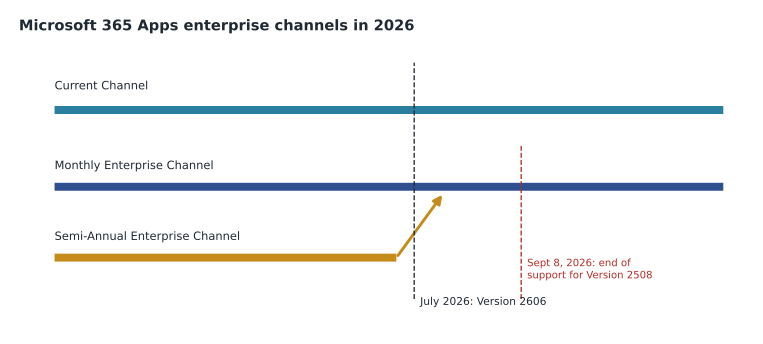
Corvallin's 40 laptops on the old channel had already crossed over by the time Teodor looked. Felix had seen the cause in his network graphs in August: a burst of 1.6 GB downloads at two branches over a few days. The lesson for the team was not to fight the change but to plan for the monthly cadence: a small group of IT laptops would test each month's update for a week before everyone else, which is exactly what the Microsoft 365 Apps admin center's cloud update feature is designed to do.
The Microsoft 365 Apps admin center
The Microsoft 365 Apps admin center, at config.office.com, is a separate portal that complements Intune. Three of its features matter for MD-102 and for Corvallin.
| Feature | What it does | Relationship to Intune |
|---|---|---|
| Inventory | Shows Office versions, channels, add-ins and devices that are behind on updates | A richer Office-specific view than Intune's app reports |
| Cloud update | Manages update rollout in waves, with exclusion windows, pause and rollback | Takes precedence over other update tools for the devices it manages |
| Cloud Policy service | Applies Office policy settings to users, wherever they sign in, including on unmanaged devices and Office on the web | An alternative to Office settings in Intune's settings catalog, which apply to managed devices |
Cloud update became generally available in 2025 and gained features through 2026, including extended rollback support for Monthly Enterprise Channel. It groups devices into rollout waves and moves each month's update through them while watching app health. Because Microsoft's documentation says cloud update takes precedence over other update tools, Teodor had a decision to make: manage update timing in Intune, through the update channel and deadlines, or in the Apps admin center. He chose cloud update for timing and kept Intune for installation and app configuration, and he wrote that division into the decision log so nobody would set conflicting update deadlines in Intune later.
Policies: Intune or Cloud Policy
The MD-102 skills include configuring policies for Microsoft 365 Apps by using Intune or the Microsoft 365 Apps admin center. Both can set the same Office settings, such as blocking macros from the internet, setting a default save location or turning off a feature, but they work differently. Intune applies them as device or user configuration through the settings catalog, which contains the Office administrative templates, and they reach only managed devices. The Cloud Policy service applies them to users at sign-in wherever they use Office, including a personal laptop or Office on the web, and does not need the device to be managed at all.
Teodor used both, with a rule to avoid conflicts: security settings that should follow the person, such as macro blocking and trust settings, went into Cloud Policy, because staff sometimes opened attachments on personal devices; device settings that only made sense on corporate laptops, such as the OneDrive Known Folder Move and Office's update behavior, stayed in Intune. Where both define the same setting, the documented precedence decides which wins, and Teodor did not want anyone to have to remember it.
Microsoft 365 Apps during Autopilot
The device course set the enrollment status page to block until three apps were installed: Microsoft 365 Apps, the visit verification app and the VPN client. Office is large, so it decides how long a new laptop takes to set up. MD-102 asks how to deploy Office during Autopilot, either with the built-in Microsoft 365 Apps type or by packaging the ODT as a Win32 app. The built-in type is simpler and fine for most organizations. Packaging the ODT as Win32 gives control over the install command, detection and retries, and it avoids a known problem when MDM-channel installs and IME-channel installs run at the same time during setup.
Corvallin had been using the built-in type. After two failed setups in the spring where Office and the VPN client collided, Ama moved Office to a Win32 package containing the ODT and Teodor's XML, with a detection rule that checks the Click-to-Run registry key for the product. The Win32 package installs through the IME, the same channel as the VPN client and visit verification app, so the IME orders them properly. Her test laptops went from an occasional failure to none in 30 builds.
setup.exe /configure office-office-laptops.xmlLicenses decide which apps should be there
The licensing banners on home-care laptops turned out to be the most important finding. Microsoft 365 F3 is designed for frontline workers and includes Office on the web and the mobile apps, but not the full desktop Office apps on Windows. Those laptops had received the same Microsoft 365 Apps assignment as office laptops, so every home-care worker who opened Word got a read-only document and a prompt to buy a license. Some had learned to ignore it; others had stopped using the laptop for documents at all.
The fix was an assignment change rather than a license purchase. Teodor created a dynamic device group for laptops whose primary user held E3, assigned the full Microsoft 365 Apps package to it, and gave home-care laptops a lighter set: Teams, OneDrive and Edge, with Office on the web pinned as the place to open documents. On laptops whose user changed from F3 to E3, the group membership changed and Office installed. An Uninstall assignment for the full Office package, scoped to home-care laptops, removed it there over two weeks, with a message from Dr. Ostrander-Bey explaining that documents now open in the browser.
Worked problem
Shared devices and Cloud PCs
The training room has twelve tablets that different new staff use each day, and about 20 contract therapists use Windows 365 Cloud PCs. Should they use the same Office configuration as personal laptops?
Show solution
- On a device used by many people, Office should not activate against one user's license.
- Shared computer activation lets Office activate per user at sign-in, using that user's license and a token.
- Cloud PCs used by one person each can use normal activation; pooled or shared Cloud PCs need shared computer activation.
Answer: Teodor created a second Office configuration with shared computer activation for the training tablets and kept normal activation for the therapists' single-user Cloud PCs, which already came with Microsoft 365 Apps in the Cloud PC image.
Checking that it worked
Each app in Intune has a device install status and a user install status, and Microsoft 365 Apps also shows in the Apps admin center inventory. Teodor watched both for two weeks. The Intune report showed whether the installation had succeeded; the Apps admin center showed which channel and version each device ended on and whether any were falling behind. By the end of October every office laptop was on 64-bit Monthly Enterprise Channel within one version of current, the six old Office installations were gone, and the home-care laptops no longer showed licensing banners.
Teams and OneDrive inside the Office package
Teams and OneDrive deserve a separate word. The current Teams client installs alongside Microsoft 365 Apps and updates itself on its own schedule, and OneDrive's sync app does the same, so both stay current even when Office is held to a monthly cadence. Teodor included both in the Office package for office laptops and deployed them on their own to home-care laptops, where the full Office package no longer went. Microsoft's licensing changes for Teams, covered in the Teams course, decide whether a tenant's suites include Teams; Corvallin's did, so no separate Teams licenses were needed for the installation.
Common mistakes
MistakeInstalling the full desktop Office apps for every user regardless of license.
InsteadTarget Microsoft 365 Apps to users whose license includes the desktop apps; F3 users work in Office on the web and the mobile apps.
MistakePlanning around Semi-Annual Enterprise Channel in 2026.
InsteadFrom Version 2606 in July 2026, Semi-Annual Enterprise Channel devices follow the Monthly Enterprise cadence. Plan monthly testing instead.
MistakeSetting update deadlines in Intune while cloud update manages the same devices.
InsteadCloud update takes precedence. Choose one tool for update timing and document it.
MistakeMixing MDM-channel Office installation with Win32 apps during Autopilot without testing.
InsteadEither keep Office as the built-in type and test, or package the ODT as Win32 so the IME orders all blocking apps.
Summary and key terms
- The Microsoft 365 Apps app type builds an Office Deployment Tool configuration and installs Office from Microsoft's content delivery network.
- Configuration can be set in a designer or as XML, which is easier to version and review.
- In 2026 Semi-Annual Enterprise Channel unified with Monthly Enterprise Channel from Version 2606.
- The Microsoft 365 Apps admin center adds inventory, cloud update and the Cloud Policy service.
- Licenses decide who should get desktop Office; shared computer activation suits shared devices.
- Office Deployment Tool (ODT)
- Microsoft's command-line tool that installs and configures Microsoft 365 Apps from an XML file.
- Update channel
- The release schedule a Microsoft 365 Apps installation follows, such as Monthly Enterprise Channel.
- Cloud update
- A Microsoft 365 Apps admin center feature that rolls out Office updates in waves.
- Cloud Policy service
- A service that applies Office policy settings to users wherever they sign in.
- Shared computer activation
- An activation mode where Office activates for each user who signs in to a shared device.
- Click-to-Run
- The installation and update technology used by Microsoft 365 Apps.
Practice problems
Work each problem on paper first, then reveal the answer to check.
Where does Office content come from when Intune deploys Microsoft 365 Apps?
Show answer
From Microsoft's content delivery network, not from Intune.
Why did home-care laptops show licensing banners?
Show answer
Their users hold F3, which does not include desktop Office apps, but the laptops had received the full Office installation.
What happened to Semi-Annual Enterprise Channel devices from Version 2606?
Show answer
They began receiving the same updates as Monthly Enterprise Channel and report as that channel.
Lesson quiz · 5 questions
Score 60% or more to complete this lesson.
Create a free account to save your progress, take quizzes and earn a certificate.